
If you are responsible for cooking at home, and one day you make a dish that could be eaten for breakfast, lunch, and dinner. Just one time cooking, and the job is done. Life feels so easy, doesn’t it? Wouldn’t you feel the same way if you could post any YouTube video on Instagram? Job done at once? But how to post a YouTube video on Instagram?
That is what we will discuss in this blog. And you will also learn the best ways to post a YouTube video on Instagram.
Let us learn How to post a YouTube video on Instagram?
Basically, there are two ways to post YouTube videos on Instagram.
- If you are the original creator or have permission to repost any YouTube video, then you can post the YouTube video in Instagram by making sure that it is in 9: 16 format (for reels) or 1:1 format (for posts).
- If you want to post any random YouTube video to Instagram, share a YouTube video link on Instagram.
How to post a YouTube video on Instagram, if you are the original creator or have permission to repost the YouTube video.
1. If you’re the original creator, you already have the video—or you can download it from YouTube Studio if it’s been uploaded.
2. If you have permission to repost a YouTube video, then you can ask the original creator to give you the video, or screen record the video, or use apps like YT1S to download the video.
3. After downloading the video, you have to see
- If you want to post the full video or want to post only some portion of it. If you want to post only a portion of it, you will have to trim it.
- After this, you have to resize the video to 9:16 or 1:1 aspect ratio.
How to trim or resize the video for free?
There are many tools available online that can be used to trim or resize the videos, but not all are free. We have listed some of the free tools here
These tools can show ads or leave a bookmark (which can be cropped later) but are free to use.
4. Once you have trimmed and resized the video, you need to make a thumbnail. Here are 3 ways to do it
- While uploading on Instagram, you can choose your thumbnail (from your gallery)
- You can take a screenshot at any part of the video, and use it as a thumbnail
- iii. Make thumbnails for free using Canva.
5. Next, you can upload the video to Instagram after writing captions and hash tags
How to post any random YouTube video to Instagram?
Before learning to post any random YouTube video on Instagram, you should remember that
1. Any video on YouTube is a creation; it needs to be treated with respect —and that’s exactly why copyright matters.
2. You can get a copyright strike if you are posting anyone else’s YouTube video on Instagram.
If Instagram issues a copyright strike, then you can be
- Flagged
- Shadow banned
- Your content reach can be affected.
3. Also, your Instagram followers can find out that you are using someone else’s video as your content, and you could lose credibility.
How to correctly post any random YouTube video on Instagram?
1. If you want to post any random YouTube video on Instagram, then you should take the creator’s permission and give credit to the creator while posting.
(If you have permission to repost a YouTube video, then you can ask the original creator to give you the video, or screen record the video, or use apps like YT1S to download the video.)
2. The safest way to post any YouTube video on Instagram is by sharing it as a link on Instagram story, post, or bio.
The correct way to post YouTube video on Instagram (posting links)
How to put a YouTube video on my Instagram story?
Putting a YouTube video on Instagram story is very easy.
Step 1: Open YouTube, go to the video which you want to share on Instagram
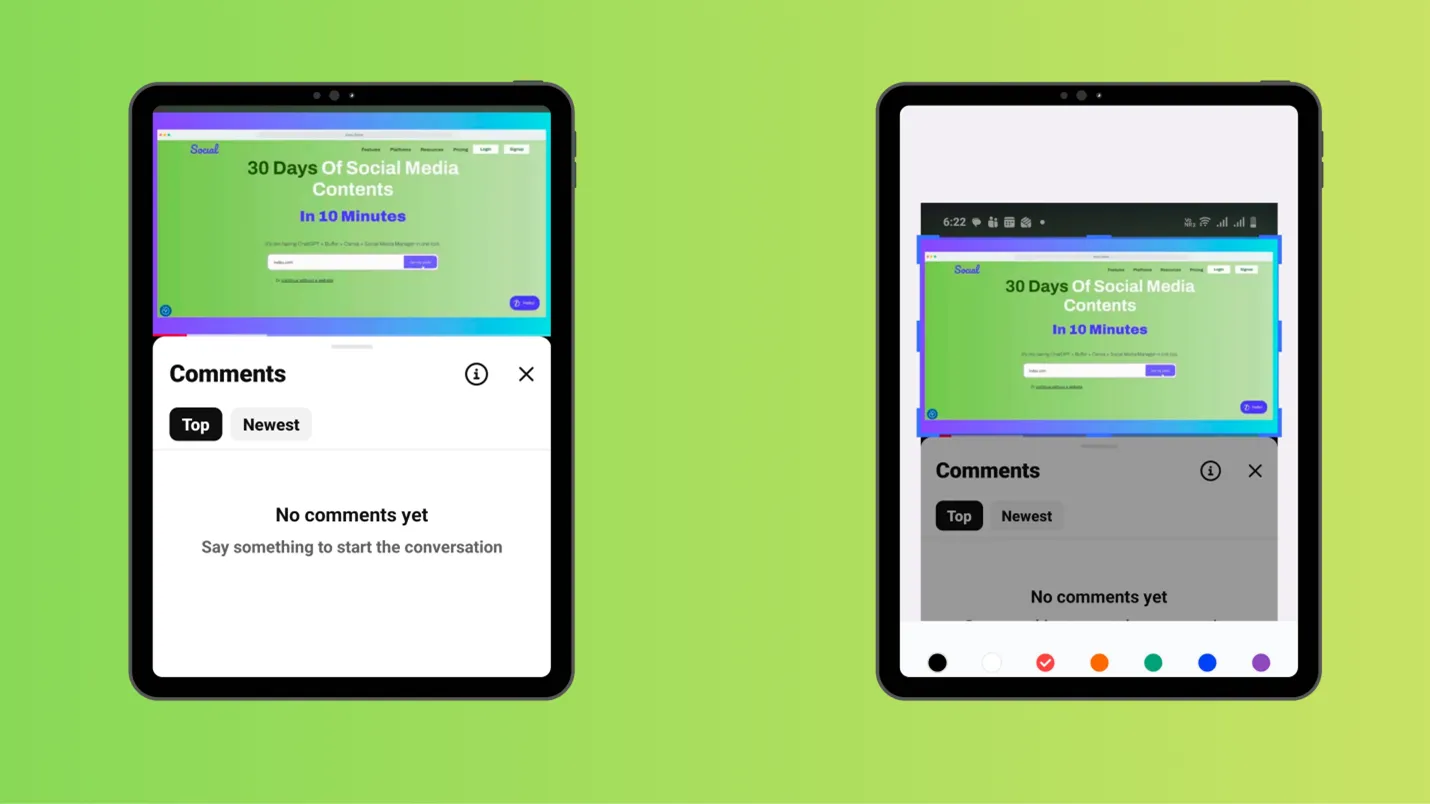
Step 2: Take screenshot of the YouTube thumbnail and crop it
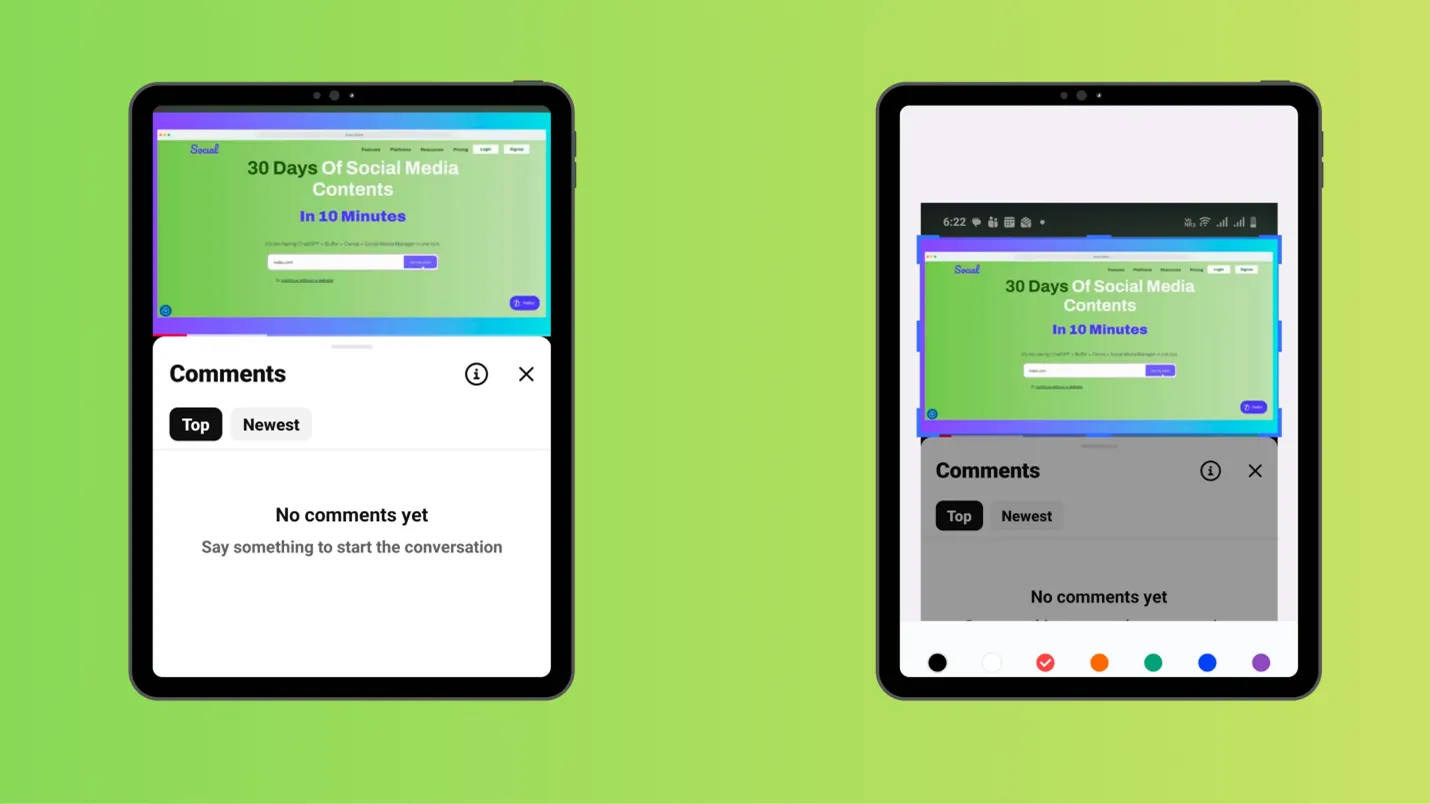
Step 3: Copy the link of the YouTube video
Step 4: Now open your Instagram and click on upper left corner, to add a story
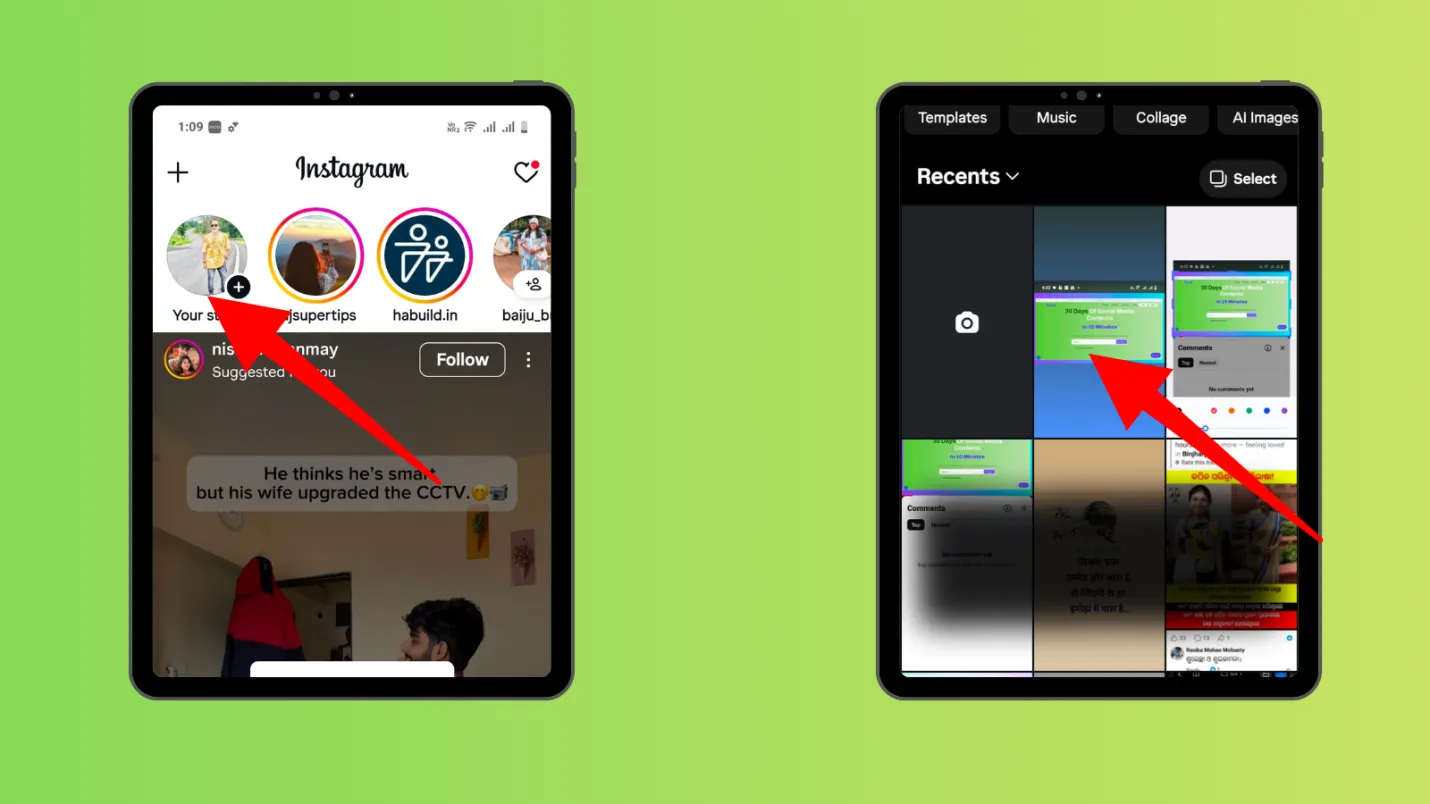
Step 5: select the same thumbnail, and click to add stickers
Step 6: select link, and paste the YouTube link there.
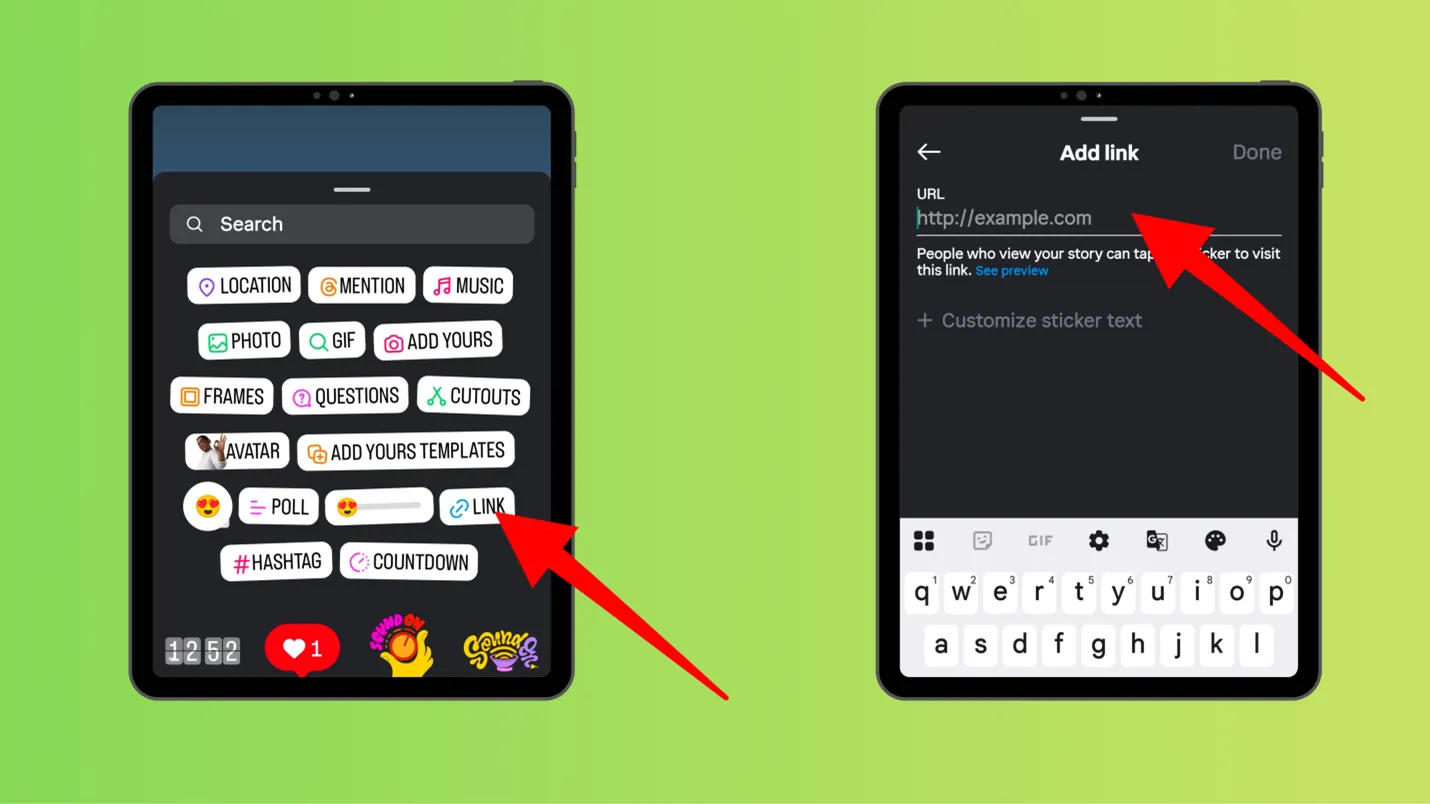
You can add more stickers to enhance the story viewing experience.
Note- You can add that story to your highlights, to make the link stay longer in your profile.
How to post a YouTube link on Instagram bio?
Apart from posting link in stories, you can also post link in bio.
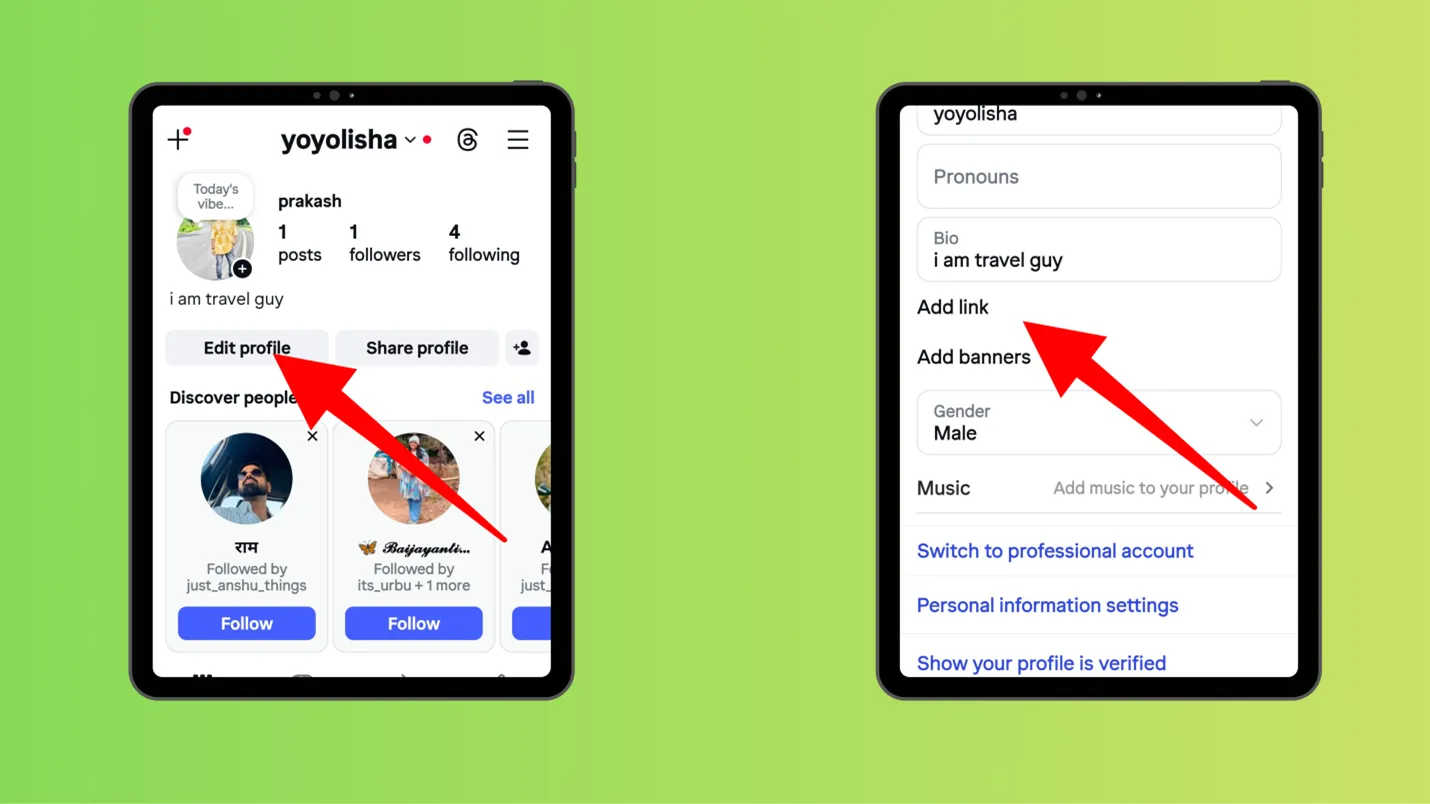
Step 1:Open Instagram, go to edit profile.
Step 2: Next, scroll down and click on add link
Step 3: In the URL section, you can paste the link and add a title accordingly.
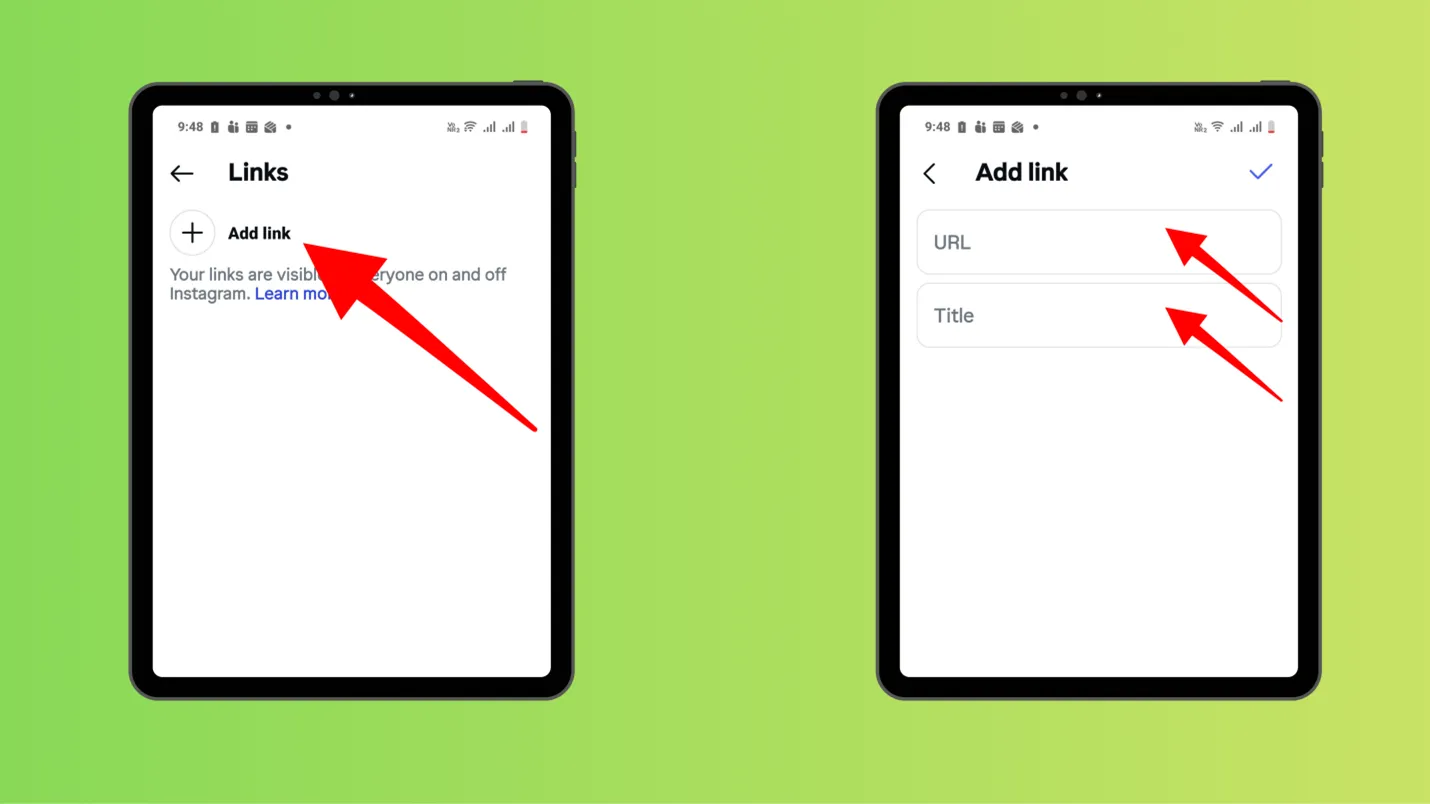
Note- This is a link in your bio, and whatever link you paste becomes a part of your Instagram identity.
How to post many YouTube links on Instagram?
In Instagram bio or stories, you can add links but they are limited to one link. If you want to create a playlist or add many YouTube links, then you can use link-in-bio tools like
Other ways to add YouTube links
The above ways we discussed were to add clickable links, let us see other ways to add links.
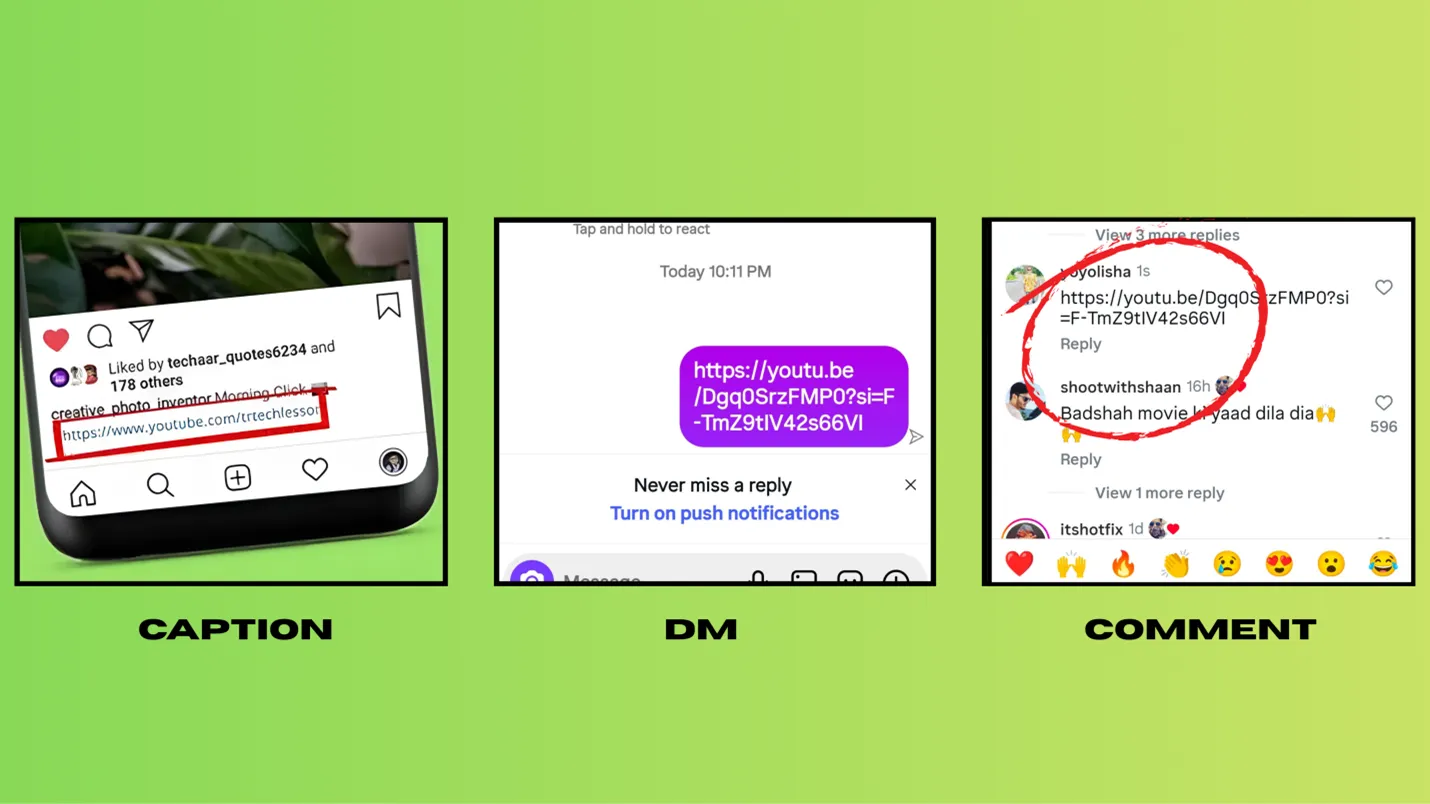
- While posting reels or posts, you can add a YouTube link in captions
- You can also add links in the 1st comment or pinned comment.
- You can also share the YouTube link in Instagram DMs
Things to keep in mind while posting YouTube video to Instagram
1. Instagram might issue a copy strike if you post a YouTube video directly. So before posting any random video, take permission of the original creator
2. If you want to go ahead and post a random video anyway, just cut a very small clip of it (like 5 sec), edit the small clip , then post it.
3. Music used in the YouTube video is also subject to copyright issues. Instagram can directly remove the video, if it detects any violation.
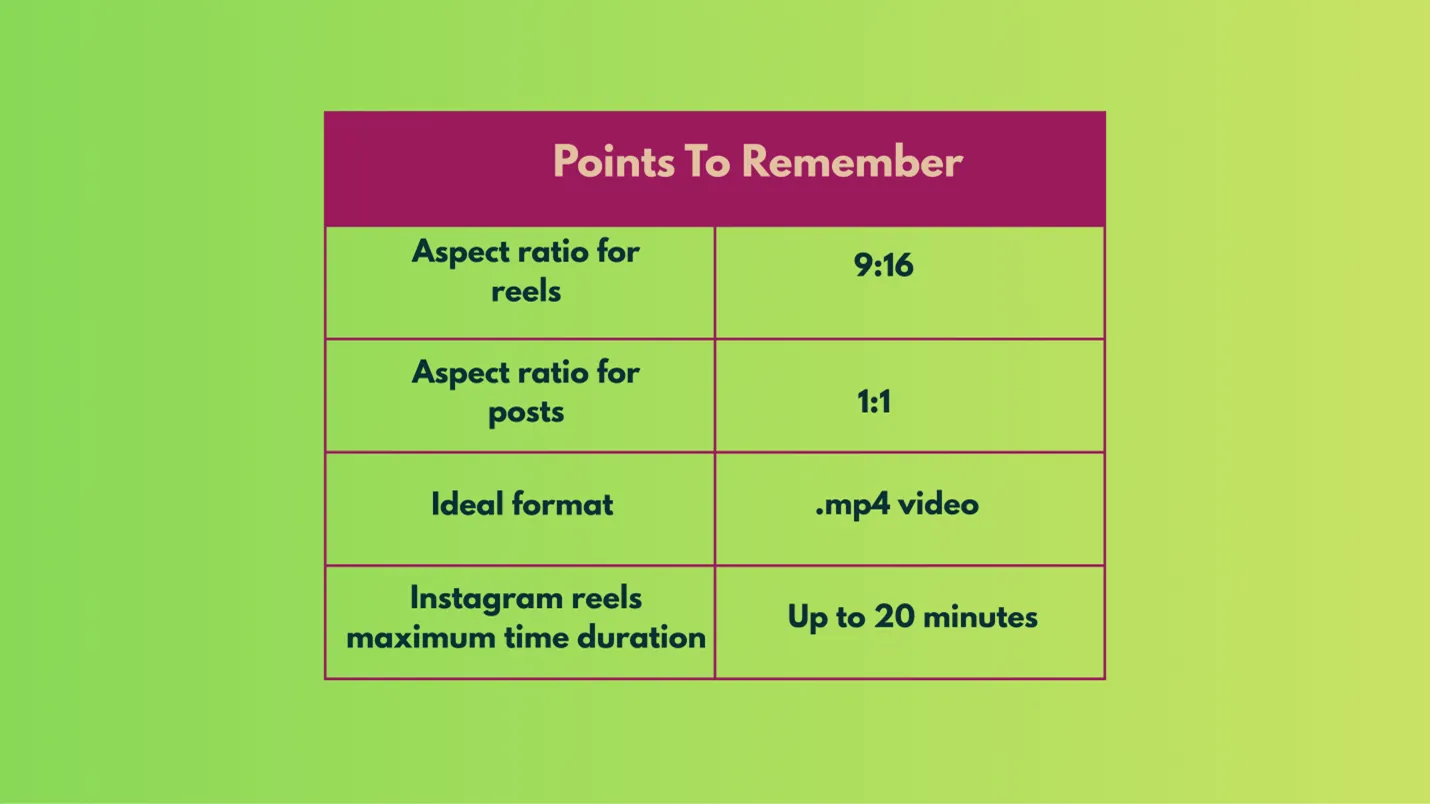
4. Remember that Instagram dimensions
|
Aspect ratio for reels |
9:16 |
|
Aspect ratio for posts |
1:1 |
|
Ideal format |
.mp4 video |
|
Instagram reels maximum time duration |
Up to 20 minutes |
5. A safe way is to post the YouTube video is by posting links on Instagram.
The smartest way to post any YouTube video to Instagram.
Repurposing content is a smart move. But what if we tell you that you do not have to make content in the first place? You can just create fresh, your toned and customized content for yourself?
With Indzu, you can select your branding, color, tone, vibe and presentation style and generate content. And post the content on YouTube and Instagram at the same time.
No copyright issues, No fuss, just fresh and hot videos and posts. Give it a try here.
Ready to post your YouTube video on Instagram?
People just do not directly go to YouTube and watch videos; YouTube gets near about 20 percent of its traffic from external links, which includes Instagram.
So, posting or referring Youtube’s content or links on Instagram is like building a bridge, so that the audience directly reaches the content easily.
After learning all the best possible ways for how to post a YouTube video on Instagram, you can choose your method. Using smart ways to be productive is a good idea. But doing it ethically is the correct approach.

FAQs
Can I put a YouTube video on Instagram?
Yes, you can put a YouTube video on Instagram.
1. if you are the original creator or if you have the permission of the original creator, you can easily put the video on Instagram. Do not forget the dimension and time limit of Instagram posts
|
Aspect ratio for reels |
9:16 |
|
Aspect ratio for posts |
1:1 |
|
Ideal format |
.mp4 video |
|
Instagram reels maximum time duration |
Up to 20 minutes |
2. In other cases, you can put the links of the YouTube video in your Instagram story.
Can I put a YouTube video on my Instagram story?
Yes, you can put the YouTube video in your Instagram story if you own the video or you have the permission of the owner.
Also, remember that an Instagram story has a time limit. You might not be able to put a long video in a story. You can trim the video and put a short clip.
Remember that an Instagram Story video can be up to 60 seconds long as a single clip.
If you want to post a YouTube video link in your story, you can easily do it.
Is it legal to repost YouTube videos on Instagram?
Yes, you can put the YouTube video in your Instagram story if you own the video, or you have permission of the owner.