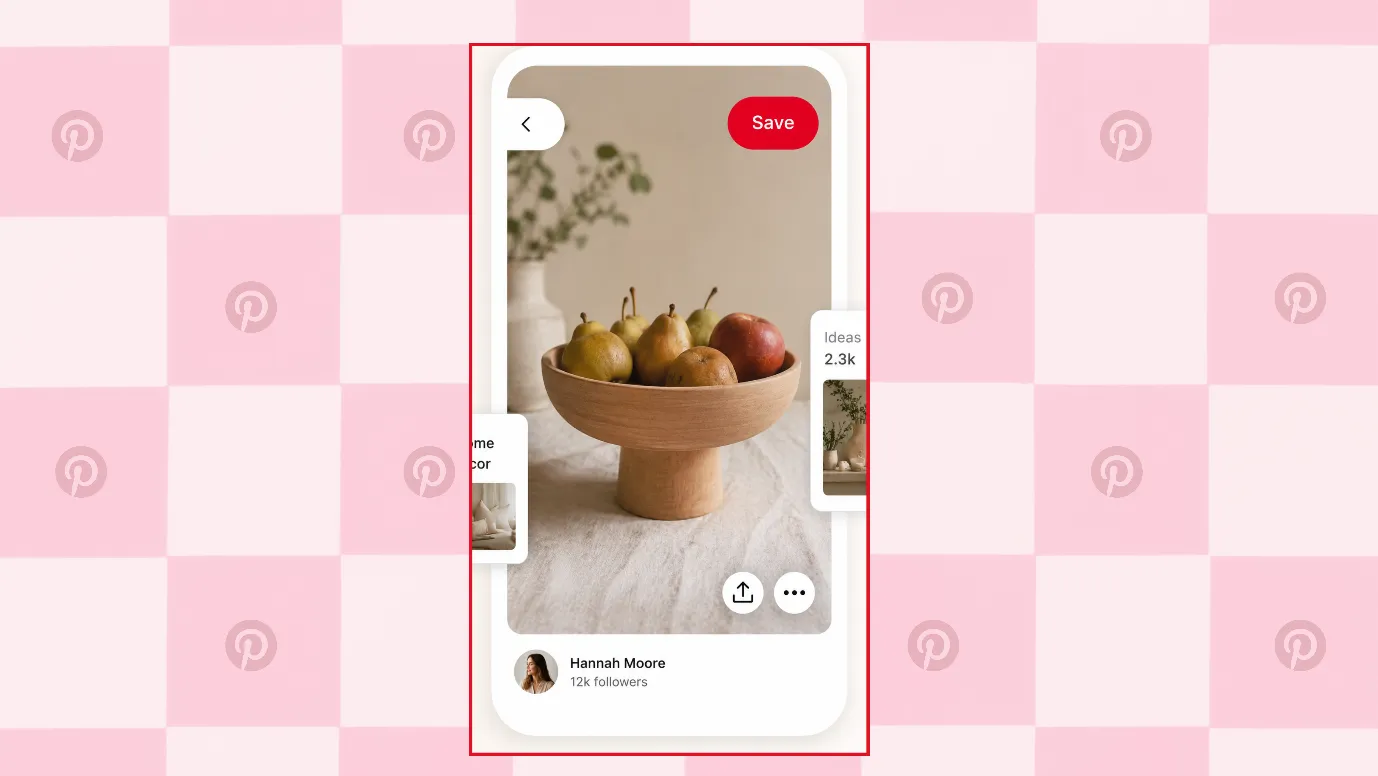
If you found a useful fact, an interesting hack, or good cafes around Tribeca, wouldn’t you pin them? On Pinterest, any content you save or share is called a Pin. You can save Pins, organize them, and delete them when they are no longer needed.
Some users get confused when it comes to deleting a Pin. That is what we will discuss today: How to delete a Pin on Pinterest.
Although deleting Pins is simple, there are many tiny details that you should know. We will discuss those details in this blog as well.
Pinterest is a great platform for finding new ideas, promoting yourself or your business, and showcasing the beautiful side of any business through Pins.
Pinterest feels different from many other social media platforms. It is less about criticism, backlash, or judgment, and more about ideas, inspiration, and discovery. That makes it easier for creators, small businesses, and brands to promote themselves in a more positive and natural way.
Even if some people do not see Pinterest as a major social media platform, its quiet power should not be ignored.
Due to its subtle powers and silent lead generation, it is slowly becoming a platform that businesses across different U.S. states will want to include in their marketing strategy.
 Time killer · Pain
Spending 6 hours writing posts that get zero traction?
Paste your URL. ZuAI turns it into 30 brand-on captions in 10 minutes — no blank-page panic, no generic AI filler.
How to delete a Pin on Pinterest on android/ iPhone?
Deleting Pins on Pinterest is quick and simple and takes only a few seconds.
Let us learn how to delete pins on Pinterest on Android.
1. Open your Pinterest and click on the profile picture in the bottom right corner.
2. You can see all the pins you have. Choose the one that you want to delete.
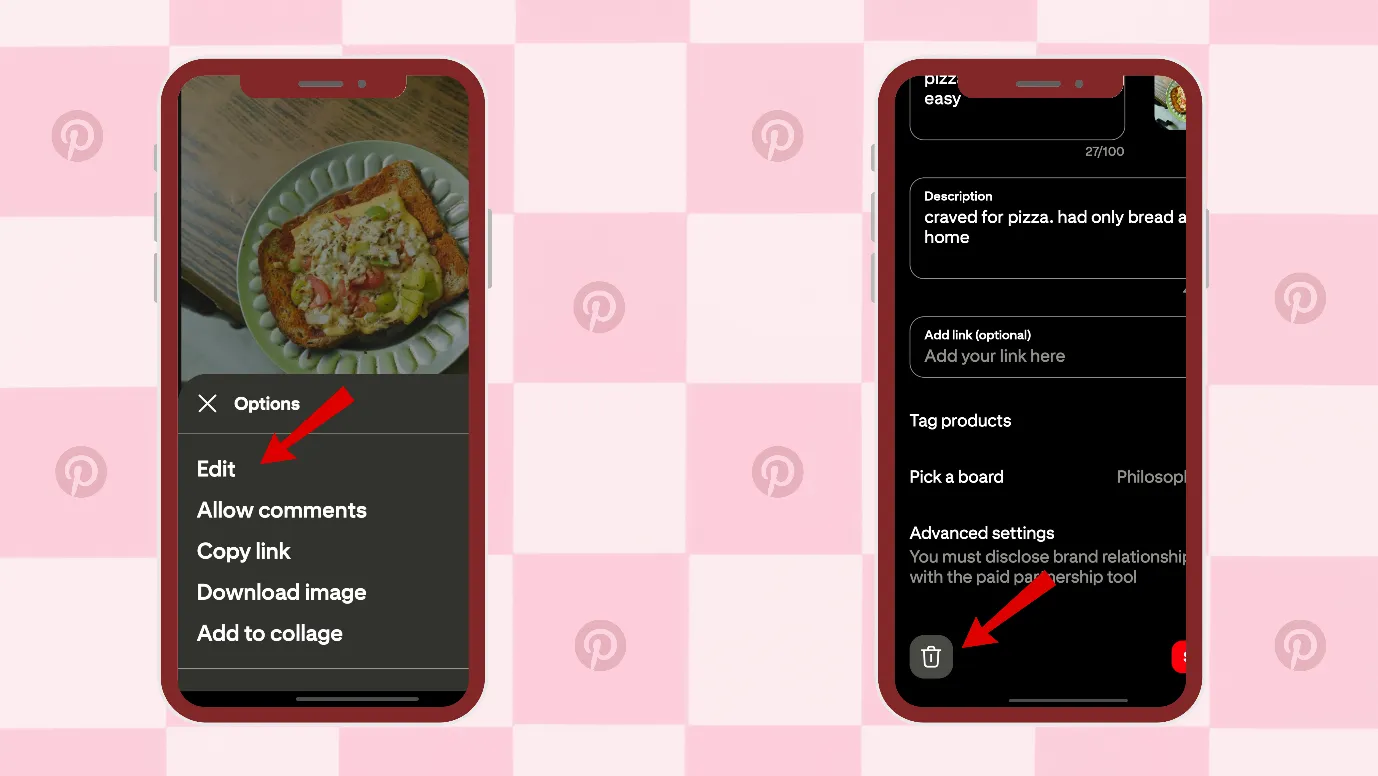
3. Open that pin, and press on 3 horizontal lines in the top-right corner of the Pin. Tap on the edit option.
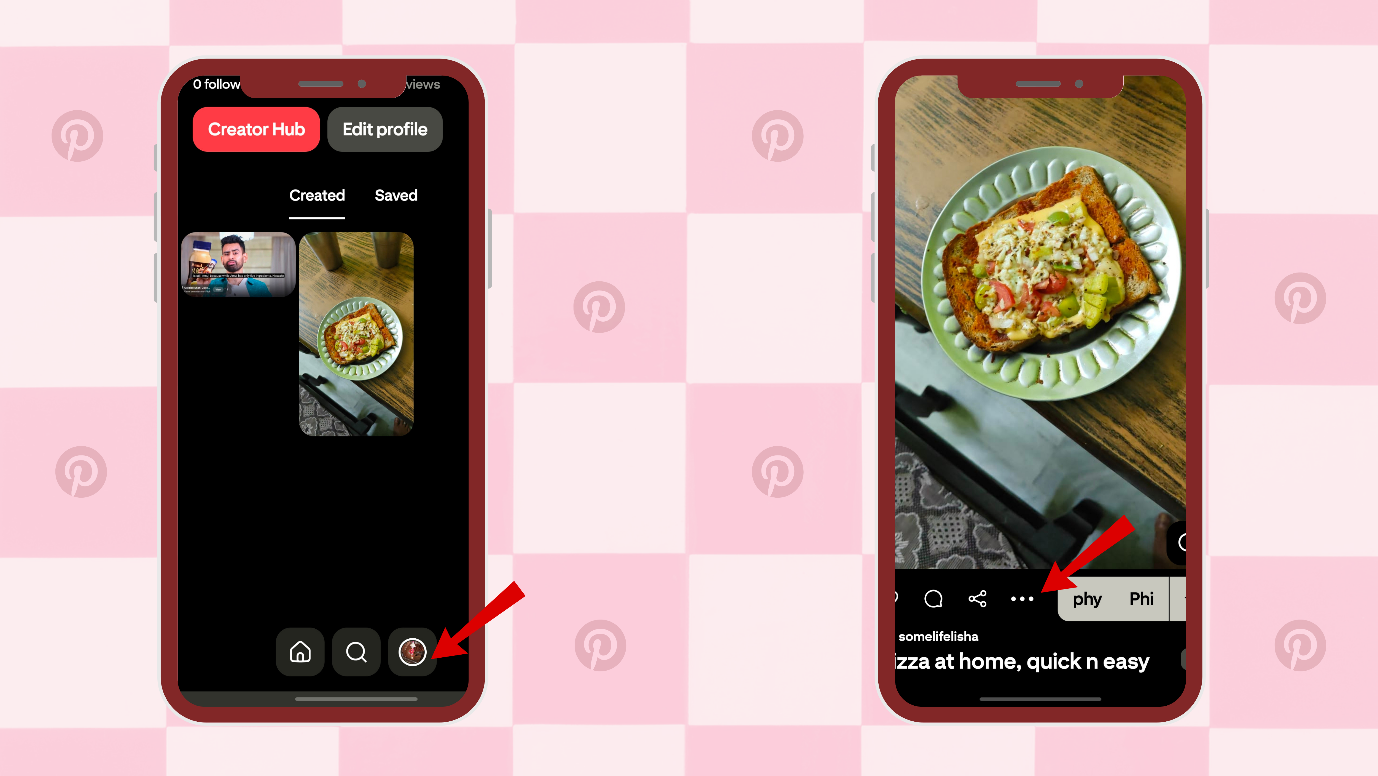
4. Next, you can click on delete ( the trashcan icon represents the delete button).
How to delete a pin on Pinterest on my iPhone?
Deleting pins on iPhone is almost similar to deleting pins on Android.
Here are the steps for deleting Pins on iPhone.
1. Open your Pinterest and click on the profile picture in the bottom right corner.
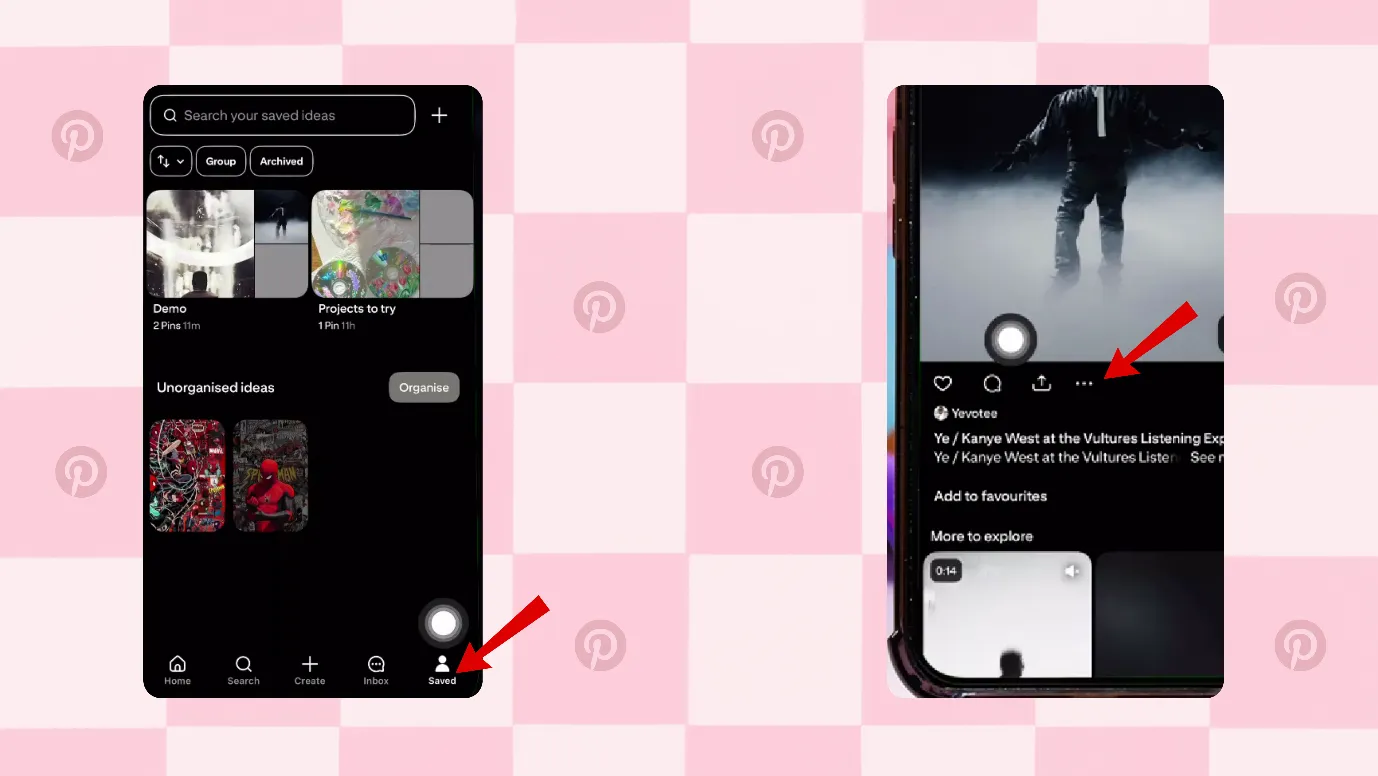
2. You can click on “saved.”, and see all your pins.
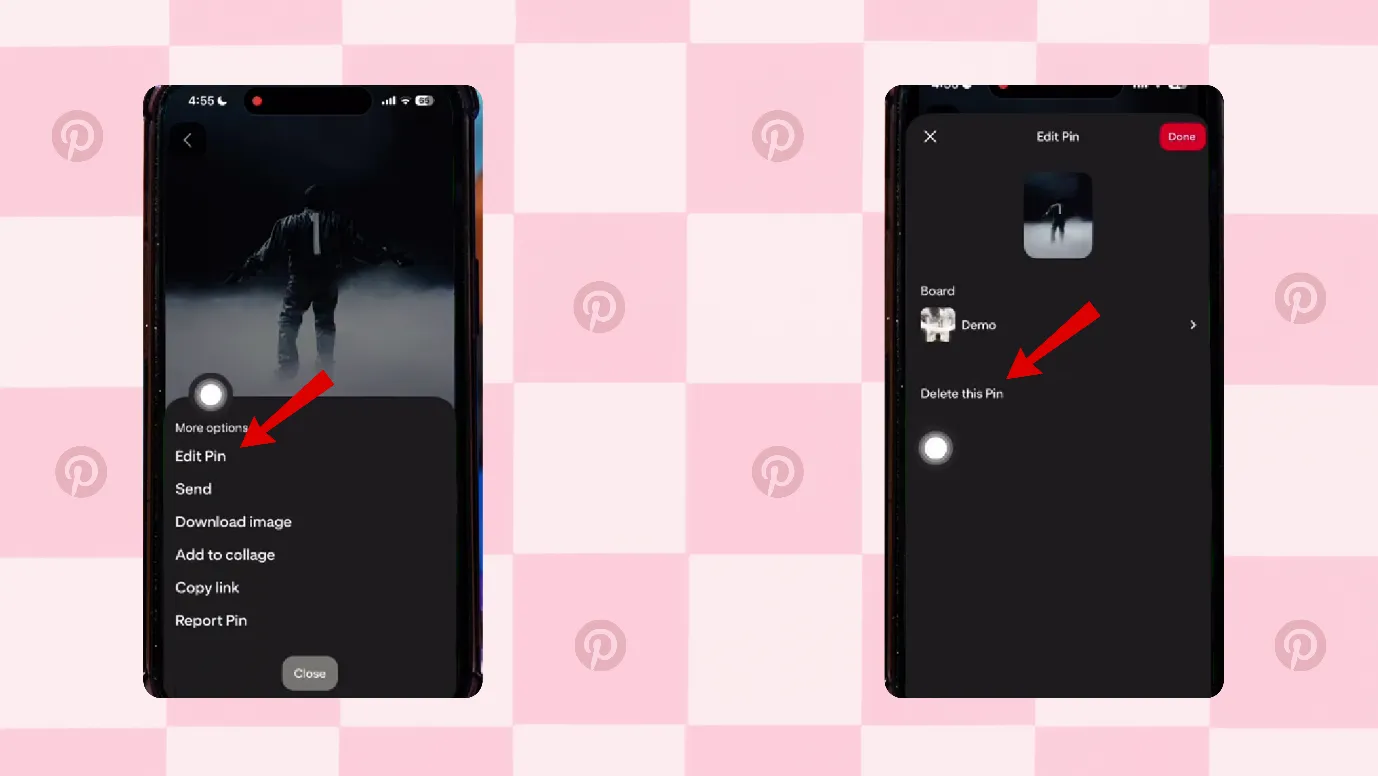
3. You can choose the pins and press on 3 horizontal lines in the top-right corner of the Pin. Tap on the edit option.
4. Next, you can click on “delete.
Things to remember while deleting a Pin
1. Remember that this action cannot be undone. Deleted pins cannot be recovered.
2. So, rather than deleting a Pin, consider editing the Pin.
Outcome · RecommendedGet 30 days of social content from your website — in 10 minutes.
How to delete all pins on Pinterest?
If you want to delete pins in bulk, then move the pins to a single board. After that, consider deleting all the pins in that board.
But if you are new to Pinterest, you should not always delete your Pinterest.
Pinterest does not like when someone deletes all pins at once. It may flag you as spammy.
So, if you want to delete multiple pins, then consider moving them to a single board.
Create a board on Pinterest.
First, create a board. Creating a board is very easy.
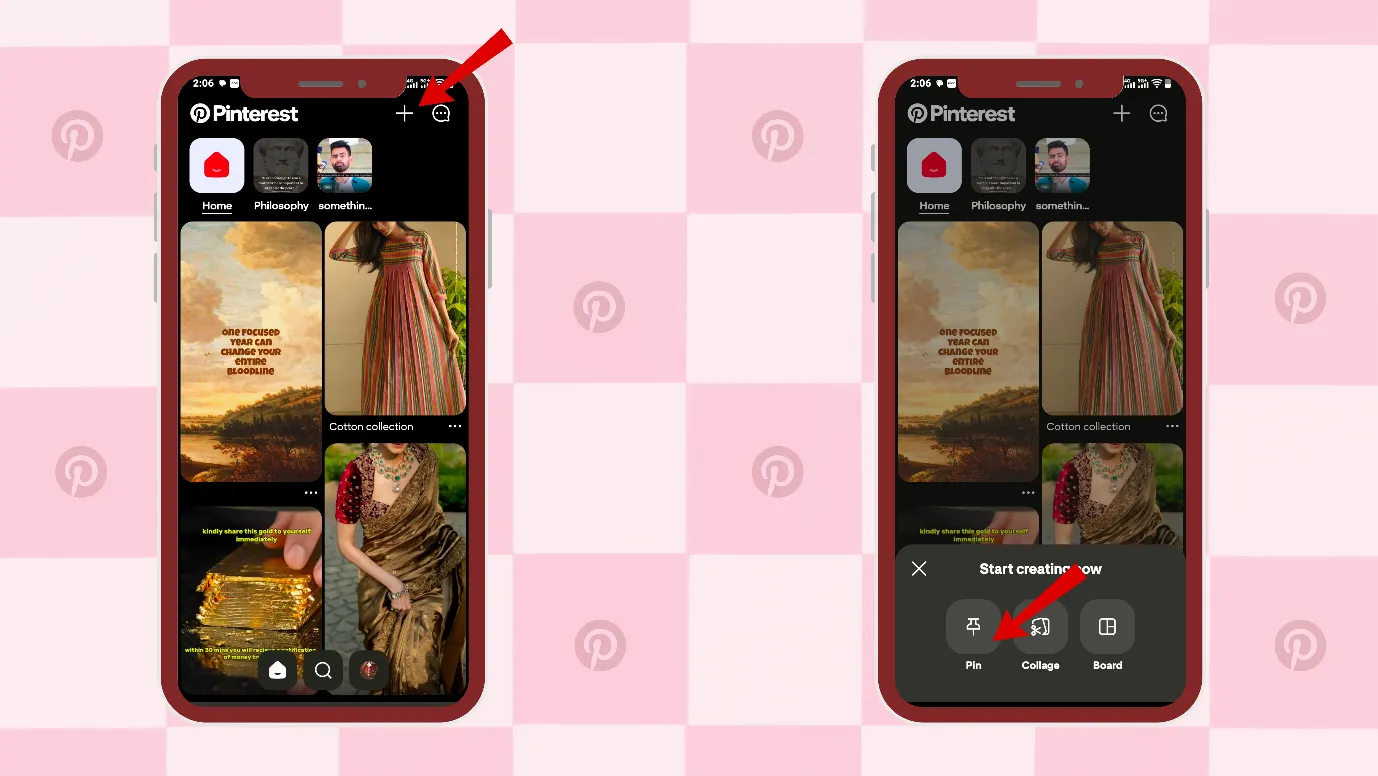
1. Just click on the plus icon on the homepage of your Pinterest.
2. Then click on “board”.
3. Next, name the board. You can name it anything, as you are just going to use it as a dustbin.
Move the pins you want to delete into that board.
You can only move your own created pins.
1. Go to the pins that you want to move.
2. Tap on the pins for some time, and the edit option will appear.
3. Select Edit and go to pick a board.
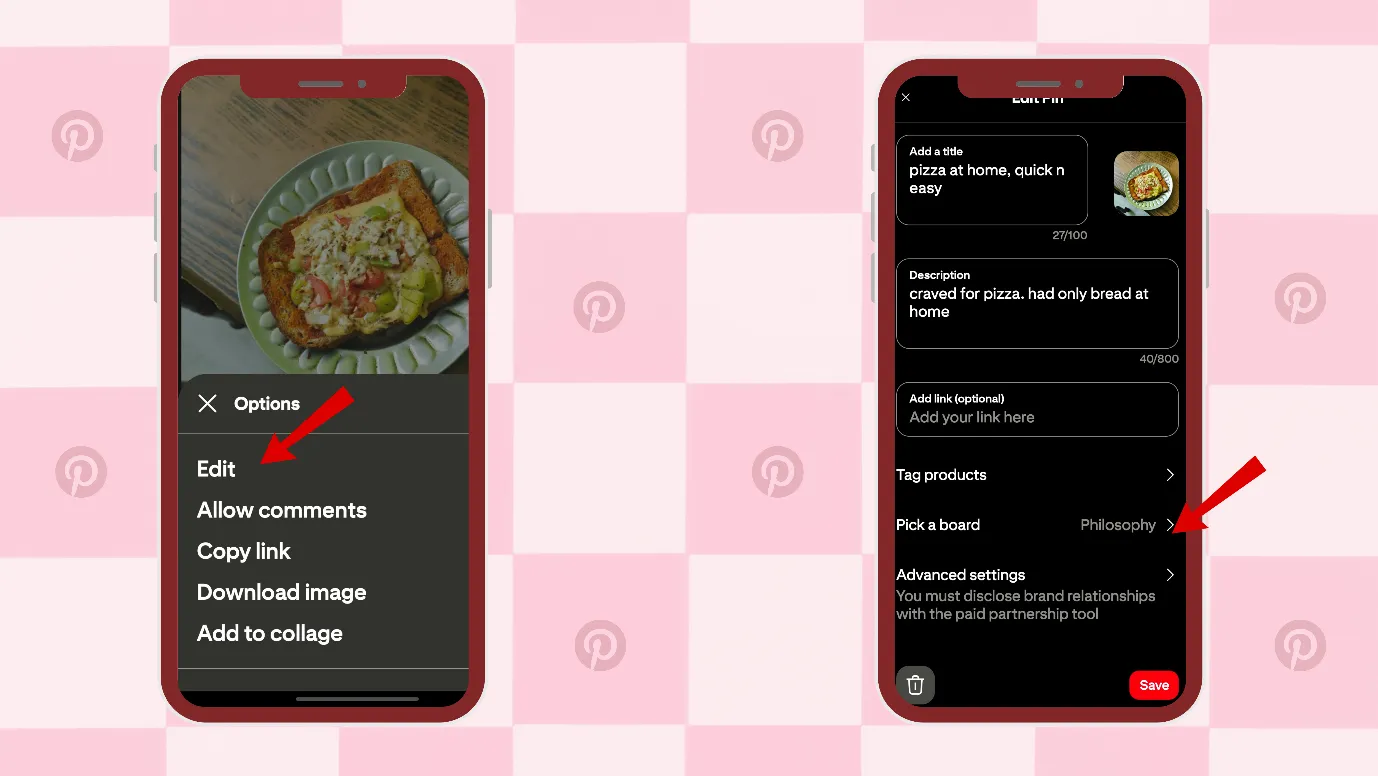
4. Move the pin to your newly created board.
Delete a board on Pinterest.
1. Open your Pinterest app.
2. Click on your profile icon in the below right hand corner.
3. Next, you can click on “saved” and see your previously saved or created boards.
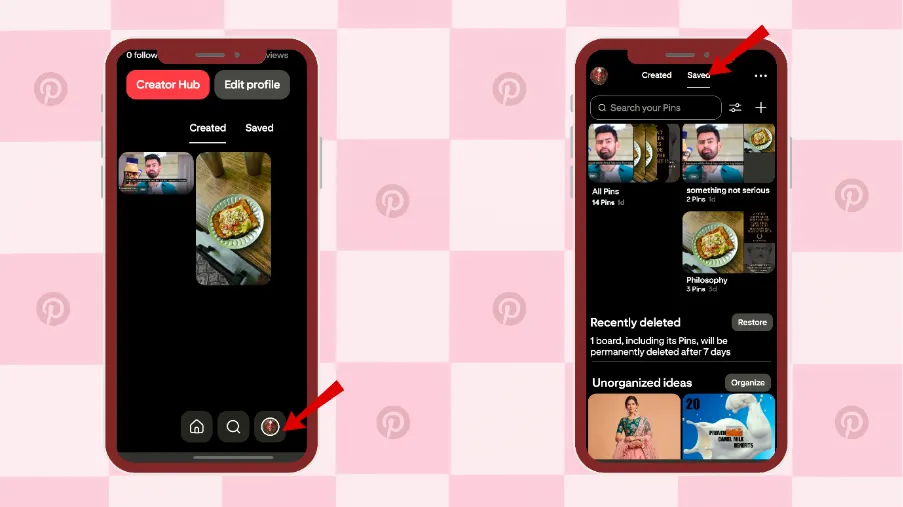
4. Press and hold the pin that you want to delete. The edit option would appear.
5. Next, tap on edit, scroll down, and click on delete. This will delete your board.
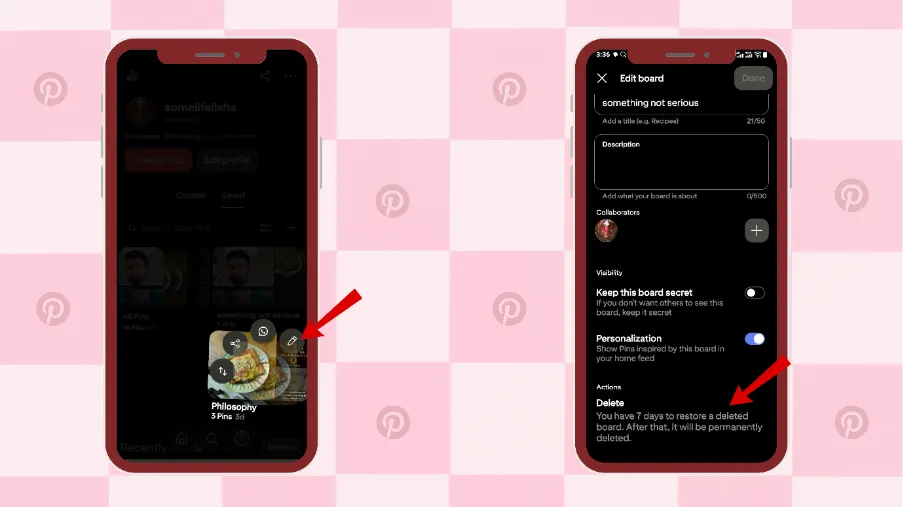
You can delete all your created pins in this way. But if you have just saved some pins from Pinterest, then you can individually select them and delete them.
Proof · Verified
2k+ grew faster with one tool.
How to delete all pins on Pinterest PC?
Pinterest does not have a bulk delete button, neither on mobile nor on PC. But you can select multiple pins and select delete.
Here is how you can delete a pin on Pinterest PC.
1. Open your Pinterest on desktop.
2. Click on your profile picture at the top-right of your screen.
Select the pin that you want to delete. Click on the edit option.
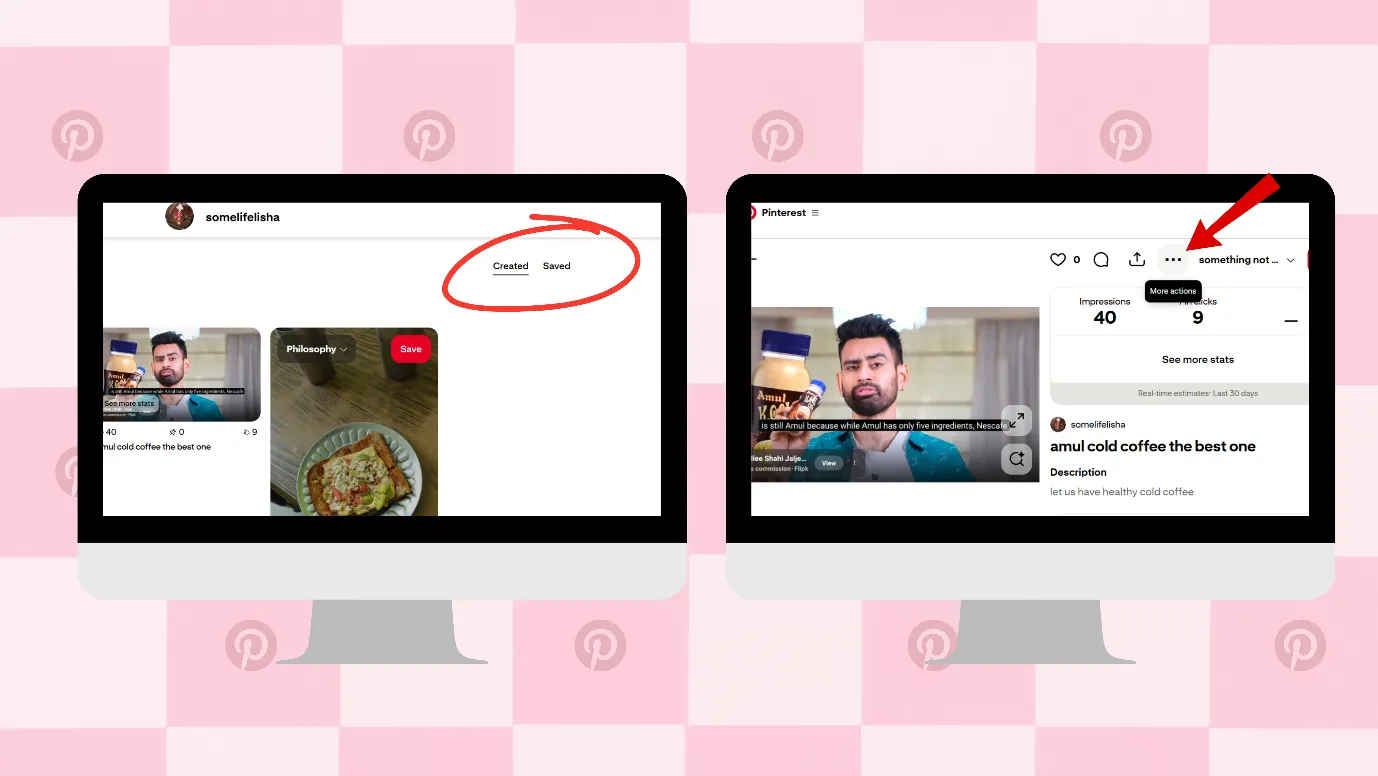
3. Next, scroll down and select “ Delete”.
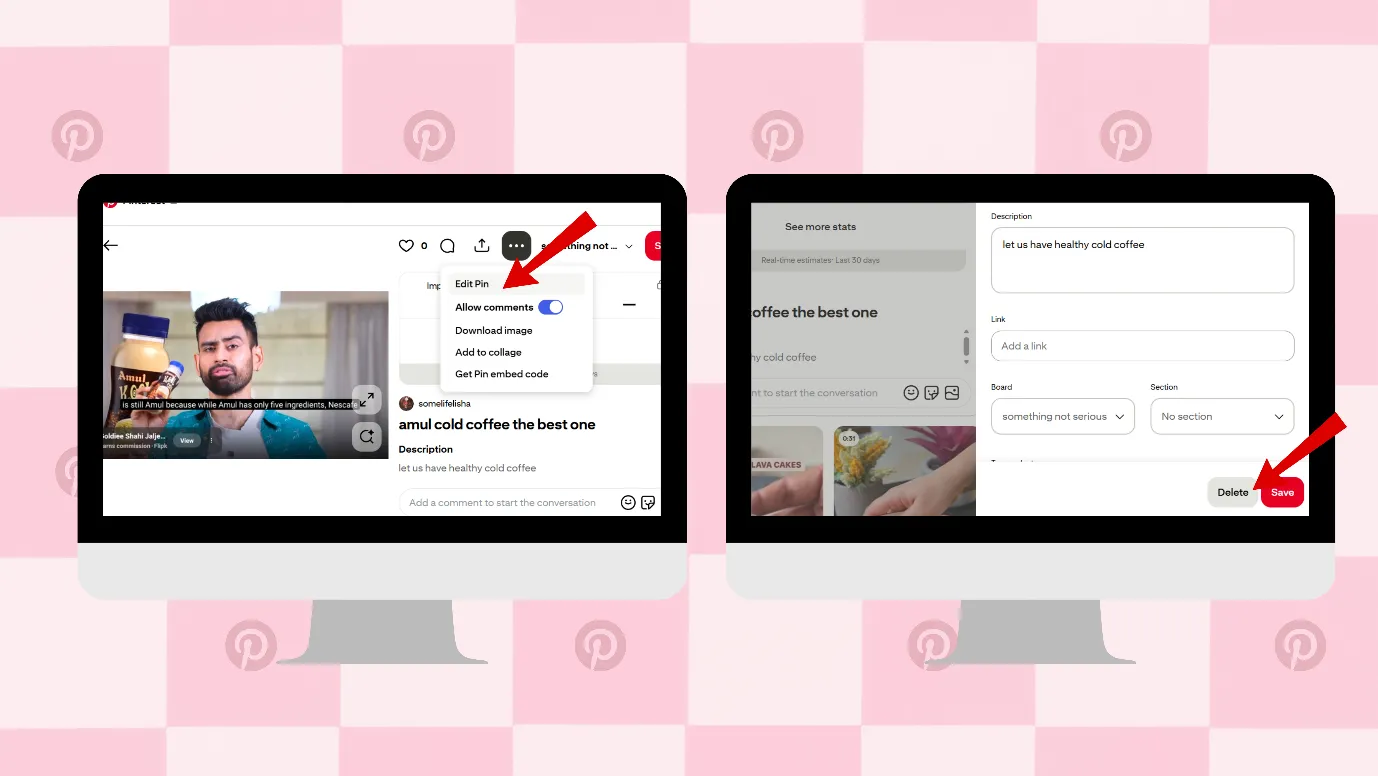
You have to select the pins individually and delete them. The bulk delete option is not available on Pinterest.
Free · Instant · No signupSee what ZuAI generates from your website — right now.
Paste your URL. Watch ZuAI write a month of brand-on captions in seconds. Preview before you create an account.
Is deleting pins necessary?
In other social media platforms, like Facebook or Instagram, etc, the old posts might not bring any attention. Your post performs the most within one to three days of posting.
The story on Pinterest is way different. You might wake up one day and see that a pin posted 2 months earlier has brought a lead to your website.
Even underperforming pins can perform one day.
Speed · 10-minute setupOne coffee from URL to a full month of scheduled posts.
Drop your URL, brew your coffee, come back to 30 brand-on captions ready to publish.
When you should not delete your pins
So, if you are a business, delete your pins carefully on Pinterest.
1. Do not delete pins because they are underperforming.
2. Do not delete pins even if they are old.
You should organize your pins from time to time. You can prefer moving pins to another board.
You can delete them.
Blank tab. Six open browsers. No clue what to post.

 After · With Indzu
Paste one URL. Get 30 scheduled posts.
When you should delete your pins.
1. If the pins are not relevant to your business anymore.
2. If the pins were created for a specific purpose, i.e like an influencer deal, promoting an offer, etc., and that offer has expired.
3. If you have made any errors on your side, like uploading copy-pasted images, duplicate images, poor quality images, typo errors, etc.
If you have a personal Pinterest account, then you need not think so much; you can delete pins easily.
Time killer · Pain
Spending 6 hours writing posts that get zero traction?
Paste your URL. ZuAI turns it into 30 brand-on captions in 10 minutes — no blank-page panic, no generic AI filler.
Unpin or delete the pins?
Unpinning means deleting pins on Pinterest. If you have learnt how to delete a pin on Pinterest, then you have also learnt how to unpin pins.
Outcome · RecommendedGet 30 days of social content from your website — in 10 minutes.
Are my pins permanently gone? How to get back deleted pins on Pinterest?
Yes, if you delete a pin, they are permanently gone. You have to search for that content and save it. If you had created that pin, then you should upload it again.
Pinterest does not give a restore option for pins.
That is why we recommend that you move the unwanted pins to a board and archive that board.
Also, remember that Pinterest allows you to restore a deleted board within seven days.
Proof · Verified
2k+ grew faster with one tool.
Why can’t I delete my pin on Pinterest?
Here are some of the reasons why you cannot delete the pins.
You have not created that pin
If you had uploaded that pin, then you can delete that pin. Otherwise, that pin just gets deleted from your account, and you cannot delete the original pin from Pinterest.
Pin Type | What happens when you delete it? |
Pin created/uploaded by you | Deleting it removes your original pin from Pinterest. |
Pin just saved by you | Deleting it removes it only from your board, not from Pinterest entirely. |
You are deleting the pins in the wrong way.
If the pins are uploaded/created by you, then the deleting method is slightly different. And if the pins are just saved by you, then the deleting method is different.
Overall, the method is the same, but they seem different.
There could be a glitch in the app.
Maybe the problem is not with you, but with Pinterest. You can restart your device, update the app, and try again.
Free · Instant · No signupSee what ZuAI generates from your website — right now.
Paste your URL. Watch ZuAI write a month of brand-on captions in seconds. Preview before you create an account.
Unpinned something?
It is easy to pin something on Pinterest, and that is one reason why many creators keep saving more and more Pins. But over time, this can create confusion and clutter.
It is a bit like searching for cafes in San Francisco or any busy U.S. city with too many options. When there are too many choices in one place, it becomes harder to find what you actually need.
That is why learning how to delete a pin on Pinterest is important. We hope you learnt everything about deleting or organizing pins.
You can also learn about deleting boards on Pinterest.
When we try to do everything at once, we might miss something. That is why strategists recommend focusing on only two or three social media platforms.
But with Indzu, you can manage all at once. Content creation and management of all platforms can be managed in one place, one window, without any confusion or clutter. Try it here.
Speed · 10-minute setupOne coffee from URL to a full month of scheduled posts.
Drop your URL, brew your coffee, come back to 30 brand-on captions ready to publish.
Faqs
Q1. How to delete multiple pinson Pinterest on Phone?
Ans. There is no such bulk delete button on the Pinterest app. You have to individually delete pins on Pinterest.
- Open your Pinterest and click on the profile picture in the bottom right corner.
- You can see all the pins you have. Choose the one that you want to delete.
- Open that pin, and press on 3 horizontal lines in the top-right corner of the Pin. Tap on the edit option.
- Next, you can click on delete ( the trashcan icon represents the delete button).
Q2. How to unsave pins?
Ans. Unsave a Pin is the same as deleting a pin. You can easily delete any pin on Pinterest.
- Open the pin that you want to unsave, and press on 3 horizontal lines in the top-right corner of the Pin. Tap on the edit option.
- Next, you can click on delete ( the trashcan icon represents the delete button).
Q3. What are profile pins? How do I delete profile pins?
Ans. Profile pins are the same as Pins on Pinterest. Any saved or created Pins on Pinterest are called profile pins.
You can delete them the same way you delete pins on Pinterest.
Q4. How to delete recently viewed on Pinterest?
Ans. You can easily clear your search history on Pinterest.
- Tap the magnifying glass icon at the bottom of your screen
- Tap the search bar
- Tap next to any recent searches you’d like to clear