Instagram messages not loading? Well, this is not an issue just with you; many Instagram users face this problem at some point. Reports also suggest that message-sending issues are among the most frequent problems affecting users’ online experience.
Instagram Direct Messages help us stay connected, whether for personal use or business inquiries.
When these messages don’t load properly, it can be frustrating or irritating. In this article, we will briefly explain why this happens and how you can fix it. Please go through the article to fix this glitch.
 Time killer · Pain
Spending 6 hours writing posts that get zero traction?
Paste your URL. ZuAI turns it into 30 brand-on captions in 10 minutes — no blank-page panic, no generic AI filler.
Frequent signs that Instagram Messages are not Loading:
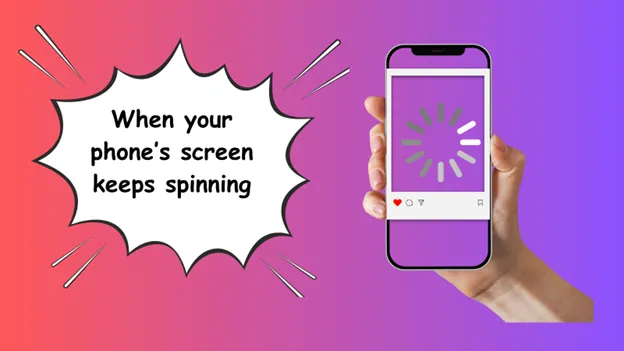
- Stopless loading circle
If your phone screen keeps spinning with a loading icon but the messages never appear.
- Blank message screen
When you open a chat, it’s empty, even though you know there were previous conversations.
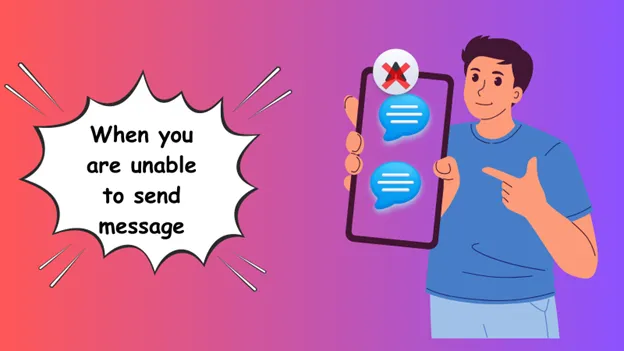
- Messages are stuck
After typing your message, when you hit the send button, it stays stuck on “Sending.” It can fail with a red exclamation mark, or, in some cases, it shows only one tick, indicating the message cannot be delivered.
- Takes time to Reload messages
It takes longer to reload previous conversations, or you scroll up and don’t see previous messages.
- Media not loading
Sometimes, Instagram is unable to download photos, videos, voice notes, or GIFs in a chat, which indicates that the app is freezing in the DM section.
- Couldn’t Refresh Feed” or Error Message
It’s a frustrating fact that, while communicating, you may see this notification: “Error messages” or “Please try again later”.
Outcome · RecommendedGet 30 days of social content from your website — in 10 minutes.
Main causes why Instagram messages are not loading:
Poor or unstable Internet connection
A poor or unstable internet connection is one of the most common reasons Instagram message loading fails. Let me break down how it interrupts Instagram message loading.
- Instagram or any app depends on your device and its server communication. If your internet connection is unstable, it may cause issues loading messages.
- Sending photos, videos, and voice notes requires a stable Internet connection.
- If you switch between Wi-Fi and mobile data repeatedly, it may cause interruptions in message downloads or cause messages to disappear temporarily.
Outdated Instagram app
An outdated Instagram app often plays a major role in interrupting the Instagram message service. It’s like using an old charger for a new phone model. An outdated Instagram app can cause compatibility issues with Instagram servers, here how
- If your app is not up to date, it may not fully comply with Instagram’s latest server protocol. As a result, it may cause issues regarding messaging.
- Outdated versions always carry bugs; these bugs can cause glitches that may result in concerning issues when communicating for your business.
- Instagram is always working to fix DM issues, so it frequently introduces optimisations to improve message quality.
Corrupted cache data
Caches are small pieces of data that an app keeps to access a file quickly. If this data gets corrupted, it can affect the main app (Instagram), especially the DM section.
The main reasons for that are:
- Instagram keeps temporary data (cache) to load files faster. If a temporary chat file gets corrupted, messages may appear blank, or loading may get stuck.
- Even if a message is successfully delivered to the recipient, a corrupted cache can prevent it from being displayed to you, so you may get confused about whether the message was delivered.
- Most importantly, corrupted cache data may slow down the app and cause “freezing while opening”, “sudden crashes”, or “try again later” errors.
Technical glitches
The Instagram message service is like a digital post office. If there are any technical glitches, the message service will be affected, as sending a message requires a compatible server and device. Any minor or major technical issue can interrupt message loading.
Instagram Server-related problem
When a server-related issue occurs, it affects how messages are loaded because all DMs are stored and processed on Instagram servers, not in your device. Let me explain this clearly.
- Instagram messages are synced in real time; if the server is down or overloaded, then the chat may take longer to open.
- Or it can keep you waiting, while the message feed keeps spinning.
- If the server is down, you can’t send or receive messages.
- Sometimes server issues affect your account authentication, and you may be logged out.
- That’s why your Instagram DMs couldn’t work properly.
Insufficient phone storage
Instagram needs free space to run smoothly, and low storage can seriously affect its functionality. In chats, the app needs free space to store cache files, photos and videos. If the required space is not available, it can cause message-loading issues.
When storage is insufficient
- Media may not get downloaded
- Images may appear blurry or blank
- And the video wouldn’t play correctly.
You may have reached your daily limit.
Yes, you may not have known it, but Instagram has daily limits on sending Direct Messages (DMs). Instagram uses these rules to prevent spam. And these rules depend on various factors.
- Instagram tracks how many DMs you send within 24 hours and flags them if they exceed the limit or if you send too many too quickly.
Let me tell you briefly
- New account holders can typically send 20-50 DMs per day.
- Older account holders can typically send 50-100 DMs per day.
These numbers are not officially announced, but they can be estimated as a projection of Instagram DMs’ daily limit.
Restriction on your Instagram account
If your account is restricted, limited, or temporarily blocked by Instagram, your Instagram message loading may be interrupted. This restriction happens due to the security controls and policy enforcement.
- If you send too many DMs in a short period, it may temporarily block messaging features. In return, you may have to deal with issues like messages not sending and your chat threads continuing to spin.
- If other users restrict you, your messages go to their “Message request” You cannot know if they are online or have already read your messages.
- If your account breaches any Instagram guidelines, your DM access can be partially or fully restricted.
How to solve issues regarding Instagram Messages not loading?
Ensure your Internet connection is stable.
It’s essential to have a stable Internet connection to avoid issues with Instagram messaging and other features. A stable internet connection enables the following to Instagram users.
- It quickly shows new messages, and updates chats instantly.
- It helps you to download media files. It can be a photo, video or voice note, it gets downloaded immediately.
- With a stable Internet connection, your Instagram app runs faster, DMs operate smoothly, and fewer technical glitches come in your way.
Restart the Instagram App
Restarting the Instagram App is a simple but effective step that may resolve temporary glitches.
It can help you prevent regular crashes, technical glitches, and messaging system issues.
- It helps you fix Instagram glitches so you can finally stop background processes and have your messages appear in front of you without any delays.
- Restarting the Instagram app may restore its connection to the server, helping you prevent further message-loading issues.
- Instagram continuously syncs DMs in real time; restarting may help you update new messages instantly.
Update your Instagram app.
App updates are often helpful for fixing bugs, boosting app performance, and improving server compatibility.
- Updating your Instagram app helps you fix bugs and resolve technical issues with DMs.
- It helps to maintain a healthy relationship with its servers. Instagram is always trying to improve its servers; an updated app is really needed to ensure better coordination.
- Instagram is always introducing new DM features; an updated app is all you need to avoid loading issues in messages.
Clear Instagram cache
Clearing Instagram’s cache may improve your Instagram experience. Instagram needs space to run smoothly. Please be sure to clear the Instagram cache; it may be useful in some cases.
- Instagram stores temporary files in the cache to speed up chat downloads, but over time, these files can become corrupted, so removing them is important to prevent message-loading issues.
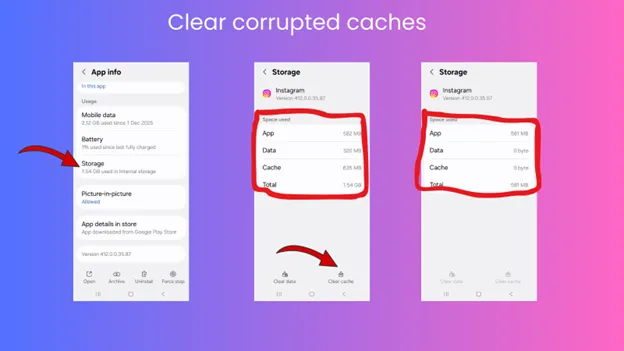
- If your conversations are not opening and a loading circle keeps appearing, it may be due to outdated cache data. So clearing the cache files can help resolve the issue.
Reinstall the app
If all the methods mentioned above fail, try this simple but effective method. We assure you that this will help. Reinstalling the Instagram app can fix system-related issues with message loading.
To reinstall Instagram, first uninstall it.
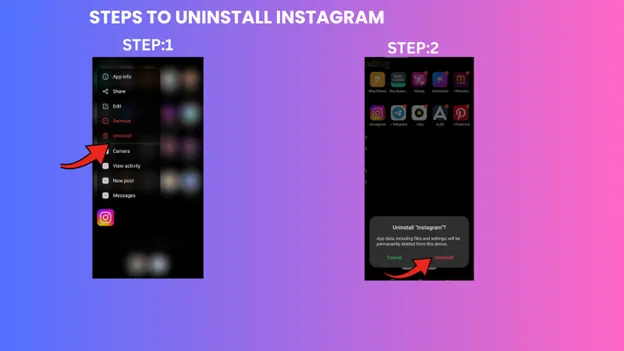
- Press and hold the Instagram icon on your home page
- You will get the Uninstall option
- Just confirm it
To reinstall Instagram,follow these simple steps
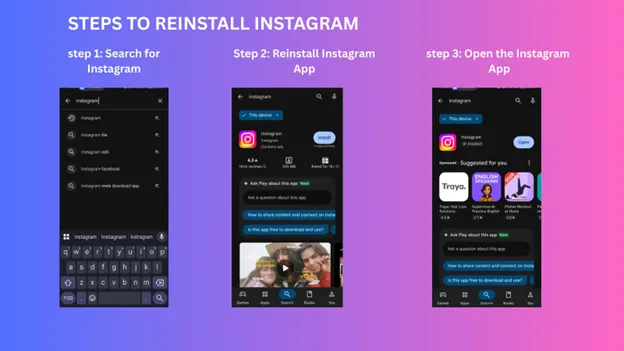
First, go to playstore > search Instagram > Install > Open
- While clearing cache removes temporary files, reinstalling removes deeper, long-term data. It is similar to removing deeply stored corrupted files that may be causing recurring issues.
- When you reinstall an app, you install its updated version. So it overall improves the app’s performance.
- It helps to rebuild the connection between the app and your device. And restores proper notification and message syncing.
Avoid unnecessary third-party apps.
Some third-party apps may be causing your DM issues, as they often violate Instagram policies. As a result, you may have difficulties loading messages or experience other DM-related issues.
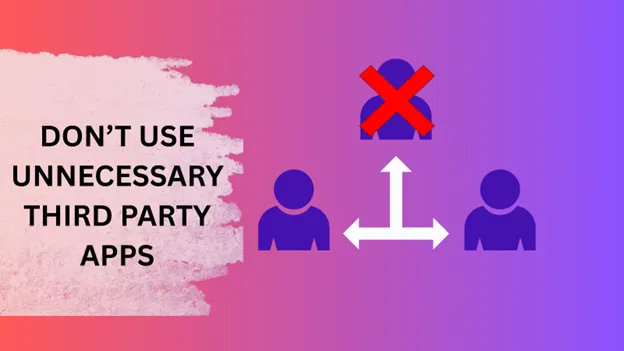
- Some third-party apps (auto-DM tools, follower boosters) violate Instagram policies, so we suggest you avoid them.
- If a third-party app asks for your login, we suggest you don’t share it, as it may interfere with your Instagram server connection or trigger suspicious login alerts.
- Extra background apps connected to Instagram can slow down data syncing or cause repeated message refreshing.
Proof · Verified
2k+ grew faster with one tool.
Conclusion
In conclusion, Instagram message loading can be frustrating, but it is not a serious issue and can be resolved with simple steps. Please follow the simple steps outlined in the blog if you are having difficulty loading Instagram messages. Looking for more Instagram blogs, check our blog section.
Free · Instant · No signupSee what ZuAI generates from your website — right now.
Paste your URL. Watch ZuAI write a month of brand-on captions in seconds. Preview before you create an account.
FAQ Section
Why are my Instagram messages not loading?
Ans: If you are unable to load Instagram messages, it may be due to common issues such as an unstable internet connection, an outdated app version, a corrupted cache, or insufficient phone storage. In most cases, these issues can be fixed by checking the internet connection, clearing the cache, updating the app, or restarting the phone.
Can being blocked be one of the reasons my Instagram messages aren’t loading?
Ans: Yes, being blocked is one of the reasons, but only in specific conditions. If someone blocked you, you may not see their posts, and your previous chats may not appear properly or may disappear. And if Instagram blocks you, the restriction might be lifted after a certain period.
How to solve the Instagram messages problem?
Ans: If your messages are not loading or sending on Instagram,
- First, check your Internet connection,
- You can restart your app to fix technical issues
- Update to the latest version from the Play Store
- Clear corrupted cache files.
First, uninstall. Then install your Instagram app.