
76% of emails are never opened by the receiver. Yes, getting your email noticed by the receiver is harder than expected. Many factors affect the opening rate of your email and “Gmail Display Name” is the most overlooked element. Is Gmail name edit possible?
When an email lands in your inbox, what do you see first? It’s not the subject line. It is the sender’s name. If that name looks unclear, unprofessional, or unfamiliar, your email will be deleted or unnoticed forever. All you need is a clean, clear, and relevant name that can significantly improve your email open rates. The next question that arises is whether we can change the Google display name using Gmail name edit?
The answer is yes; you can change the Google display name in a few easy steps using Gmail name edit options in settings, and in less than a minute. Now, set the timer and follow the simple instructions, shared along with the image and make the magic happen on both desktop and mobile.
 Time killer · Pain
Spending 6 hours writing posts that get zero traction?
Paste your URL. ZuAI turns it into 30 brand-on captions in 10 minutes — no blank-page panic, no generic AI filler.
How Can i change my Profile Name in Desktop
Follow these simple steps to perform Gmail name edit on desktop.
Step 1: Open Google and log into your account.
Step 2: On the top-right corner, click the Profile icon.
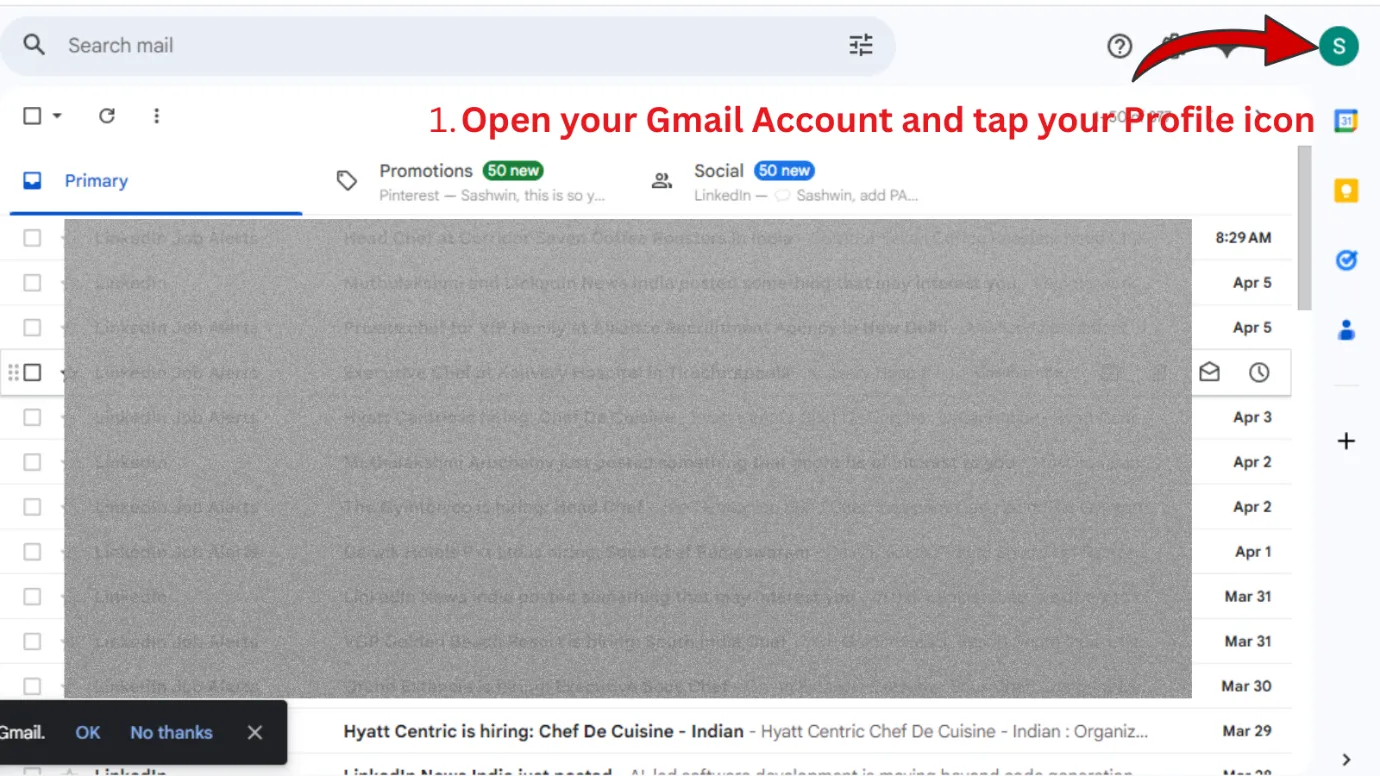
Step 3 : Select “See all settings” under the quick settings section.
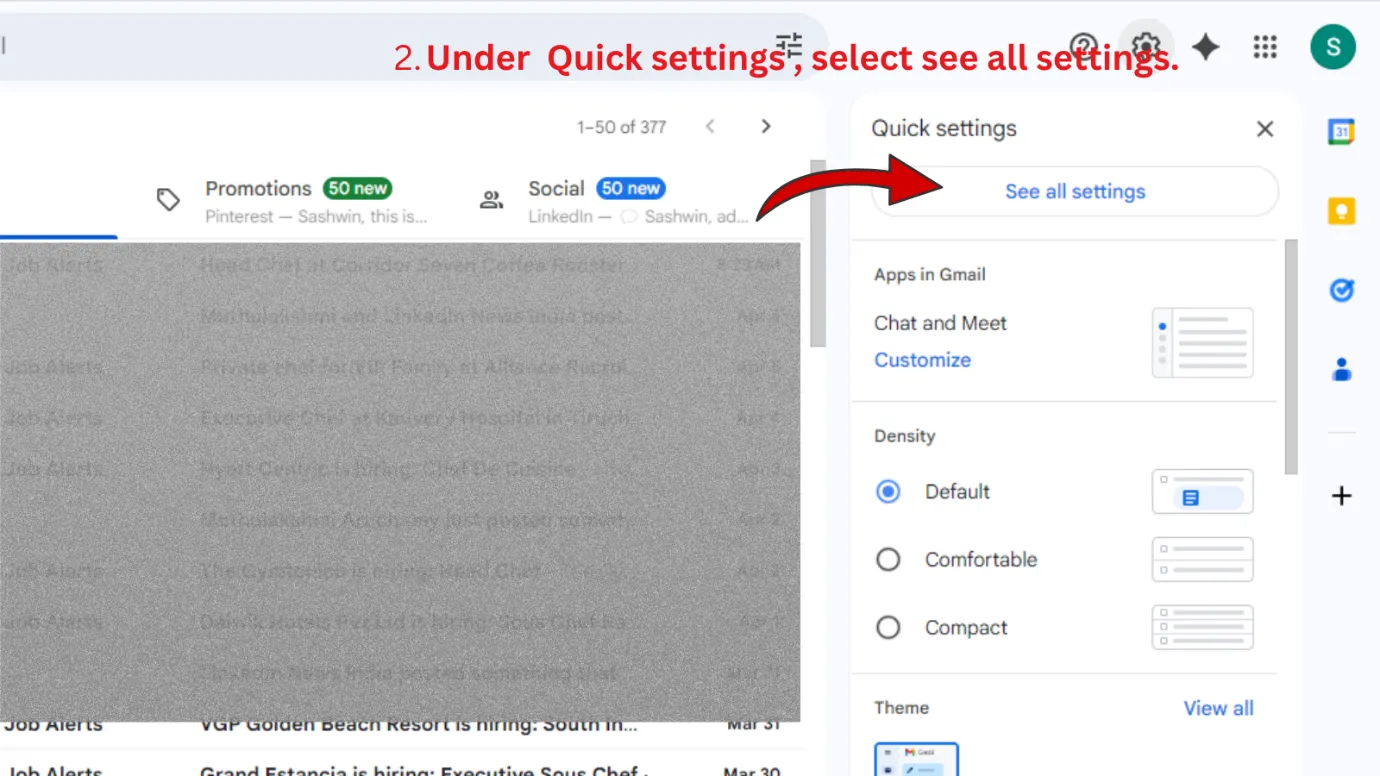
Step 4: Go to the “Accounts and Import” tab.
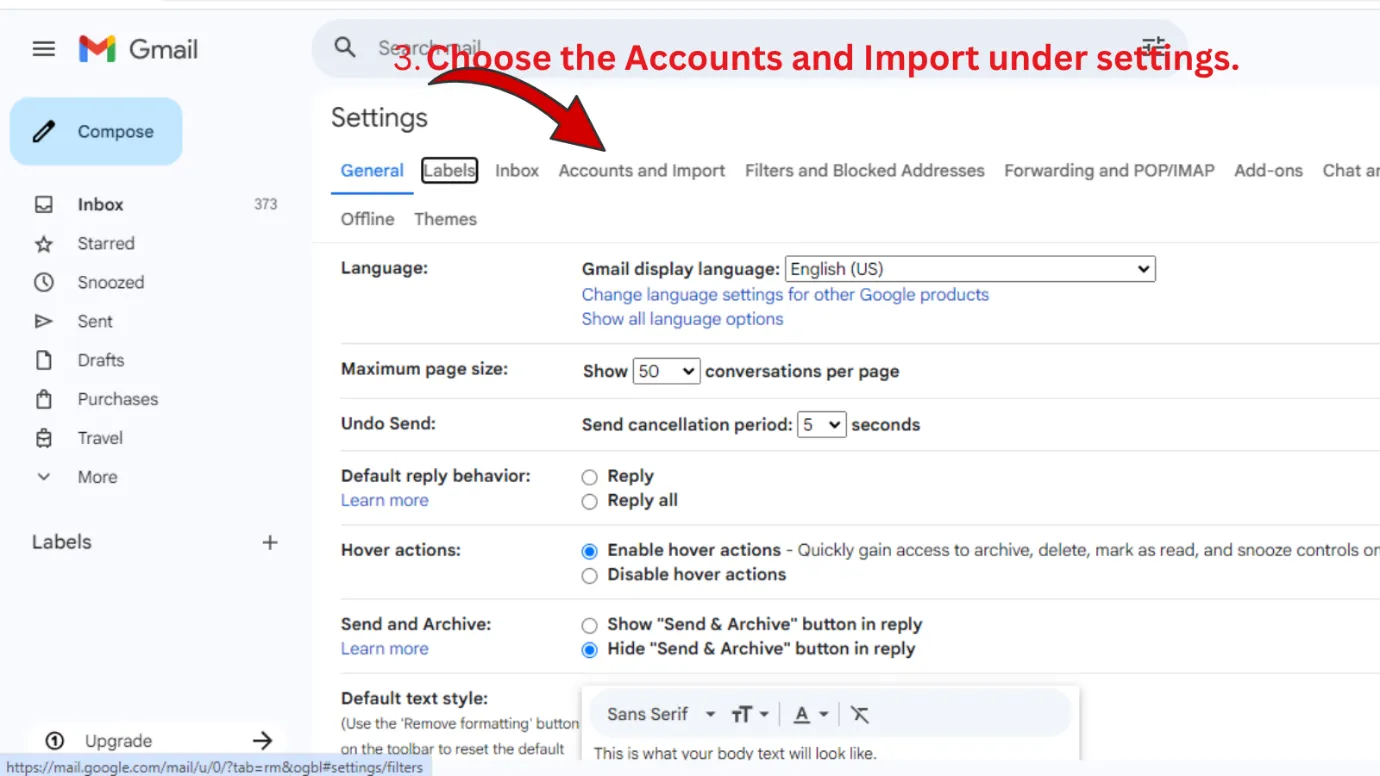
Step 5: Under the Accounts and Imports tab, find the section called “Send mail as”. In this section, you can see your name and the Gmail account name.
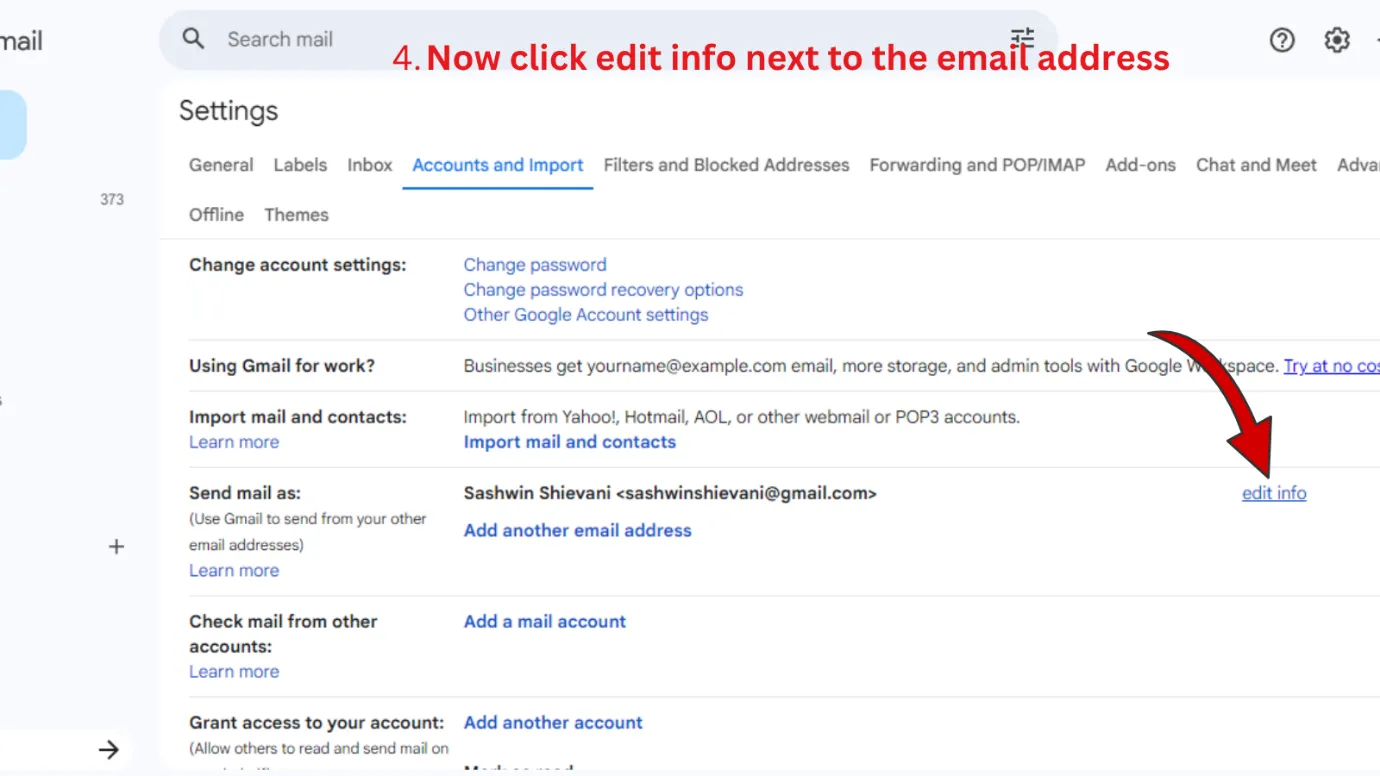
Step 6: Click on “Edit info” next to the email address. A new pop-up window appears now.
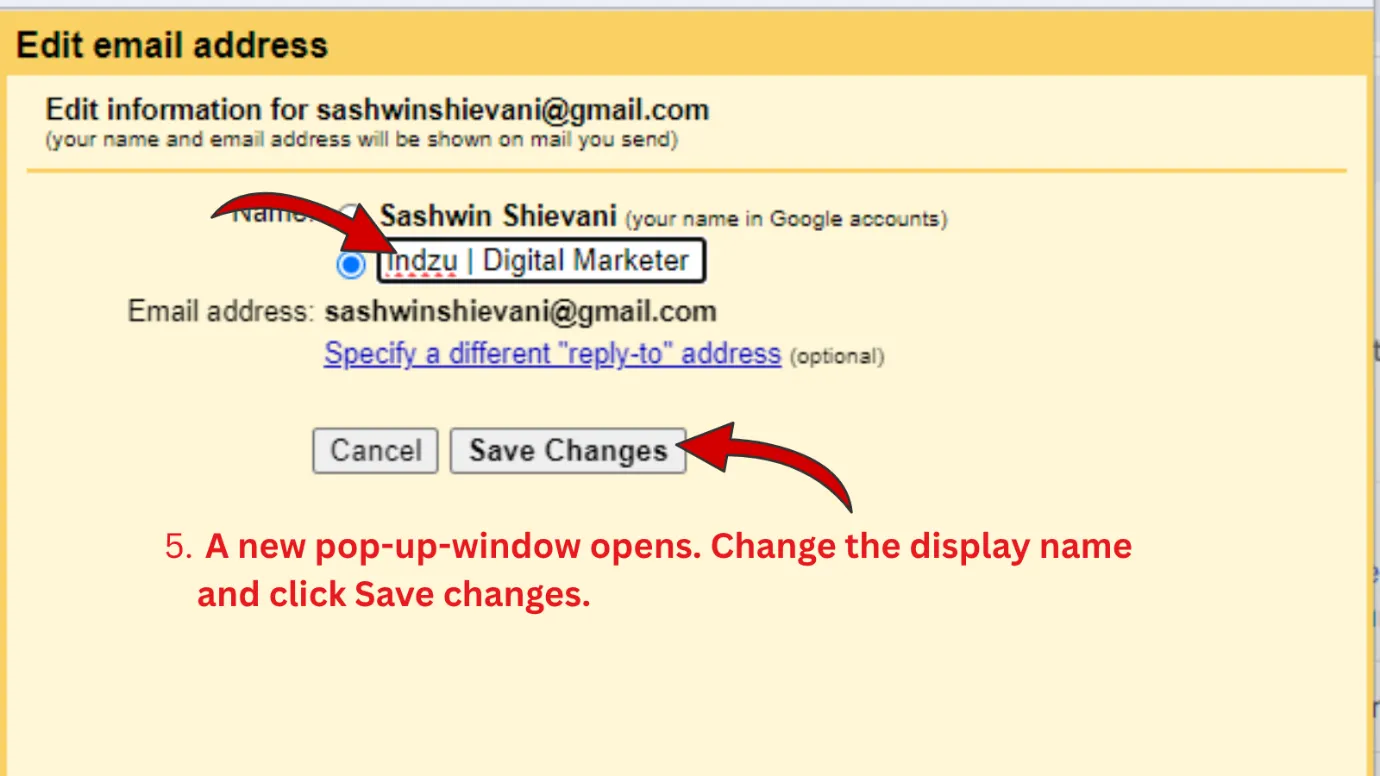
Step 7: Enter your new display name in the pop-up window.
Here are some examples:
YourName
YourName |Content Manager
Indzu Social Team
Step 8: Once the changes are made, Click “Save Changes”.
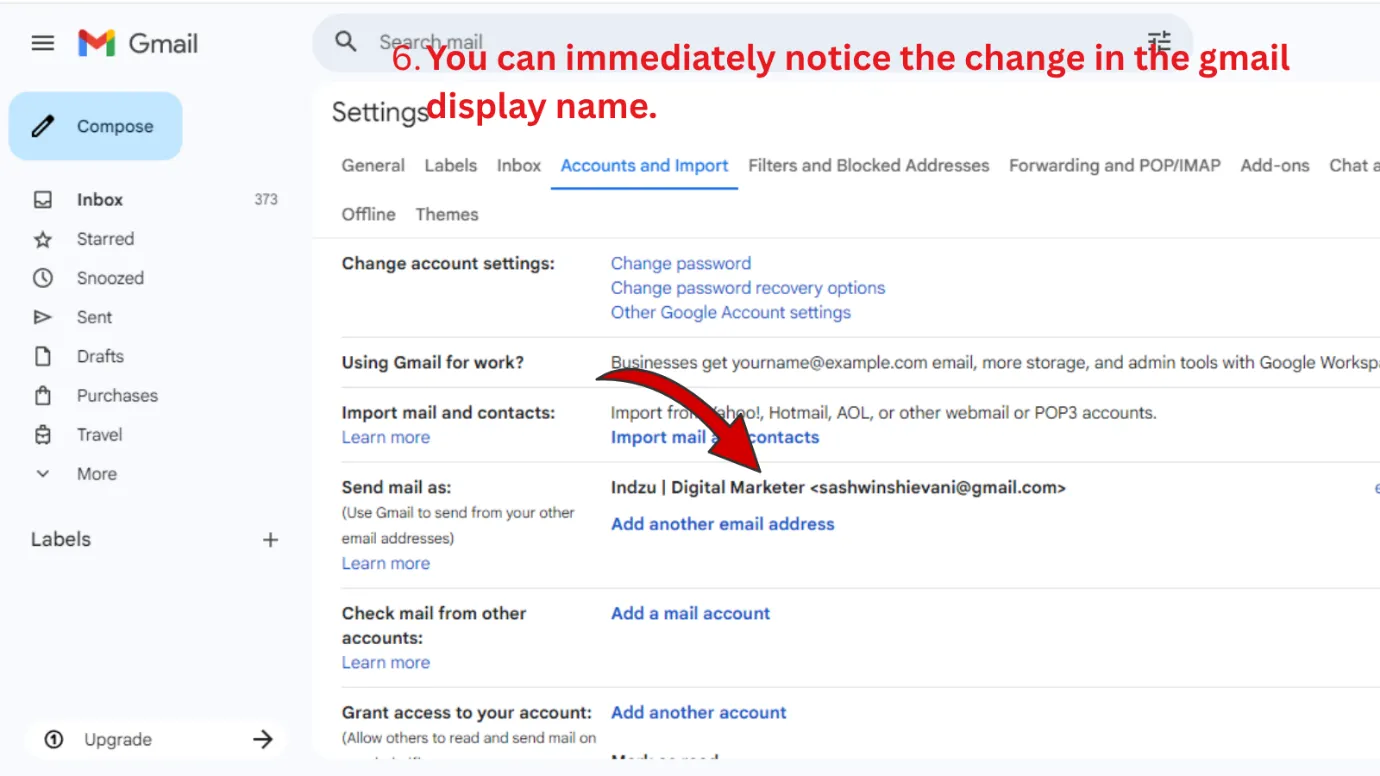
That’s it. Your Gmail name edit on desktop is completed and your display name is updated successfully.
Outcome · RecommendedGet 30 days of social content from your website — in 10 minutes.
How to Change Gmail Name on Phone
Gmail display name can be easily changed on mobile too. Here are the simple steps to perform Gmail name edit on phone and update your name.
Step-by-Step Gmail Name Edit on Mobile
Step 1: Open the “Gmail App” in your mobile.
Step 2: Tap your “profile icon” that is present at the top-right.
Step 3: Tap the “Manage your Google Account” section.
Step 4: You are taken to your Google Account with all the basic tabs.
Step 5: Go to the “Personal Info” tab.
Step 6: Tap on your “Name”.
Step 7: Edit your name
Examples:
Indzu Social Team
Sia | HR Manager
Step 8: Save Changes.
The changes made in this Google account will be reflected on other Google services also.
Proof · Verified
2k+ grew faster with one tool.
Why Gmail Name Edit is Important for Email Success
One of the crucial factors in an email is the sender name. It is more important than the subject line or email content. Your email display name significantly affects whether your email gets opened or ignored, which makes Gmail name edit an important step.
Benefits of Gmail Name Edit:
- It improves email open rates: A clean and familiar username encourages recipients to open the email. An unprofessional and confusing name can lead to your email being ignored or skipped, even if other factors are strong.
- Gmail display name builds trust and credibility. Simple and strong display name enhances credibility and trust.
- Personal brands and small businesses can use display name as a strong weapon to make people remember you and recognize your emails over time.
- A clean and recognizable Gmail display name will help you stand out from your competitors.
- A perfect Gmail display name that matches your LinkedIn, website or brand identity creates a seamless and professional experience for your audience.
Free · Instant · No signupSee what ZuAI generates from your website — right now.
Paste your URL. Watch ZuAI write a month of brand-on captions in seconds. Preview before you create an account.
Common Mistakes to Avoid When changing Your Gmail Display Name
Changing your Gmail display name is simple and takes less than a minute to update and reflect. The main drawback most people face is when they are not aware of how to do it correctly. Here are the most common mistakes made by most people and how to avoid them.
- Your email name is different from your social media username. Try to create a professional username relevant to your business setting. This will enhance trust in your brand.
For example, avoid usernames like
“lucky_star_2k” or “ queen_content”.
Instead use,
“Your real name” or “Your brand name”. Sometimes a combination of both will help.
- Don’t overload username with keywords. Some brands try to display profile names as a mini-SEO headline. Avoid this as it will look spammy and overwhelming. Long ad names will not trigger interest among receivers. Always use simple and focused words.
- Avoid using too many emojis or symbols in the Gmail profile name. Emojis are silent partners for digital marketers, and they cannot be used for all niches. Emojis may look unprofessional for most people, and they are not suitable for formal communication.
- Avoid changing your display name too often. Changing the profile name confuses your audience. People cannot recognize your email, and your brand will become inconsistent.
- Business or personal brands must use profile names reflecting their brand voice. If not, it is a missed opportunity for fame.
- If you have multiple social media names across platforms, it creates confusion. Hence, avoid choosing different names for each platform. Consistency builds trust and personal branding.
- Even after changing the Gmail profile name, some recipients may still see your old name. This is because they have saved your contact information.
Speed · 10-minute setupOne coffee from URL to a full month of scheduled posts.
Drop your URL, brew your coffee, come back to 30 brand-on captions ready to publish.
Wrapping Up
Email receivers tend to open emails which they feel clean, simple and trustable. In order to gain their attention, you need a good Google display name. We have excellent name generator tools that you can use for free to generate your display names. Try our tool today for more ideas.
Blank tab. Six open browsers. No clue what to post.


 After · With Indzu
Paste one URL. Get 30 scheduled posts.
Frequently Asked Questions
- Can I change my Gmail display name without changing my email address?
Yes, you can change your Gmail display name without changing your actual email address. Your email id ( [email protected]) remains the same. Only the name that appears to the recipients in their inbox changes. Gmail allows users to update their identity or brand name without losing access to your emails, contacts, or account history.
- How long does it take for the new Gmail display name to update in the emails?
Your Gmail profile name updates immediately after saving the changes. Sometimes, it may take a few minutes to a few hours due to the synchronization delays. Additionally, if the recipients have saved your old name in their contacts, they may still see the old name instead of your updated name.
- Can I use a business name instead of my personal name on Gmail?
Yes, it is absolutely acceptable to use a business or brand name as your Gmail display name. It is particularly useful for those people who send emails on behalf of their company. Creating a business name in your personal email address nurtures you as a professional with brand recognition.
- Is there a limit to how many times I can change the Gmail display name?
There is no restriction on the number of times you can change your display name. However, frequent changes to profile names are not recommended. Frequent name updation will confuse recipients and weaken your personal or business branding. Always prefer to choose a clear and consistent name for your account.
- Can I include my job title or role in my Gmail display name?
Yes, absolutely. Adding your job title is a smart way to provide context and improve professionalism.
Try to use “Your Name | Job Title “format for a clean, readable and not overloaded Gmail display name.
- Do changing my Gmail Display Name affect other Google services?
Yes, changing your Gmail display name will reflect on the google services that you use in that account.
But if you update specifically under Gmail’s “Send mail as” settings, it will only affect how the name appears in outgoing emails.
- What should I do if my Gmail display name is not updated properly?
If your display name was not updated properly, try to clear the cache and log out and log in back into your account, or check whether you have saved the changes properly. Send a test mail to another account and confirm the Gmail display name change. There are only two possibilities.
- There is a synchronization delay.
- Contact override on the recipient’s side