
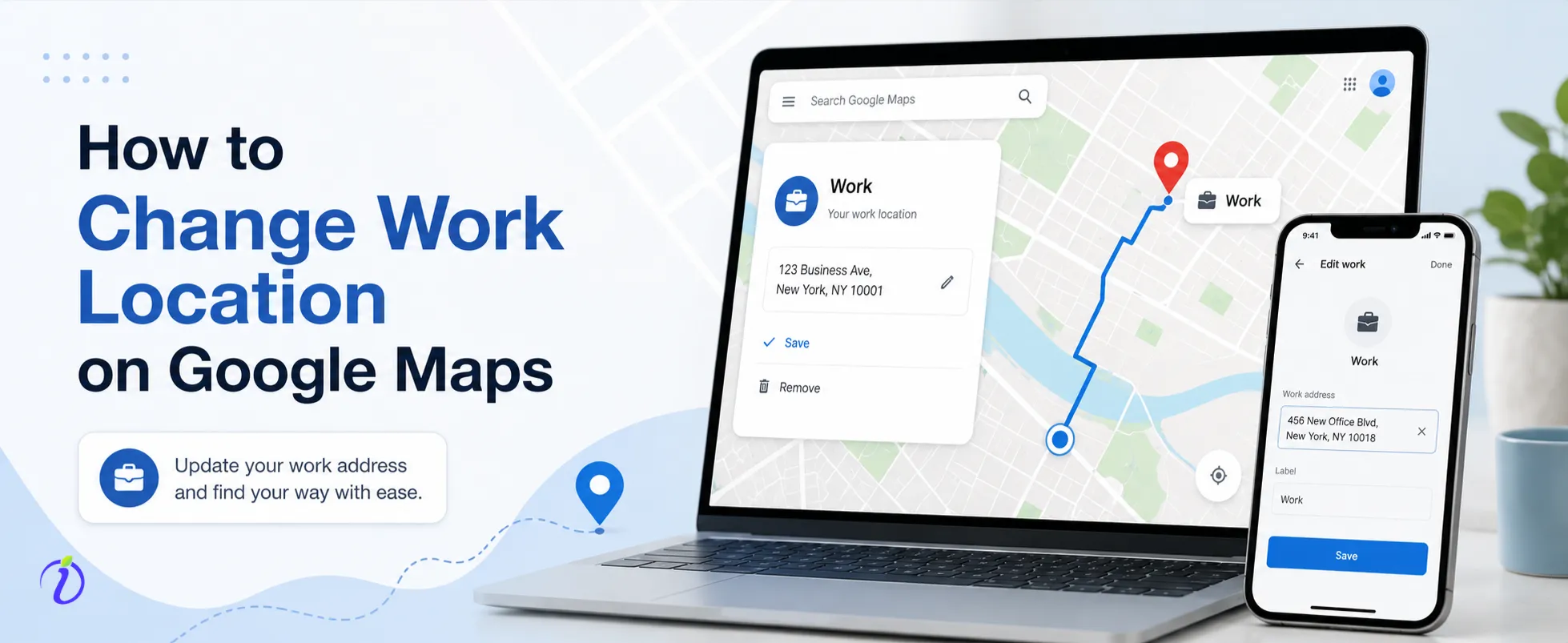
How to change work location on Google Maps? Is this question coming to mind? According to a study, 70-80% of users use Google Maps for their daily transportation and communication. If you are considering updating your location on Google Maps to get better route suggestions, faster communication, or to maintain your privacy, then doing so is a smart choice.
In this blog, we will discuss how to update your location on different devices to improve navigation and maintain privacy. With a few simple steps mentioned below, you will be able to change your location on Google Maps at any hour of the day.
 Time killer · Pain
Spending 6 hours writing posts that get zero traction?
Paste your URL. ZuAI turns it into 30 brand-on captions in 10 minutes — no blank-page panic, no generic AI filler.
Why you may need to change your work address in Google Maps
You may need to change the work location on Google Maps for several reasons-
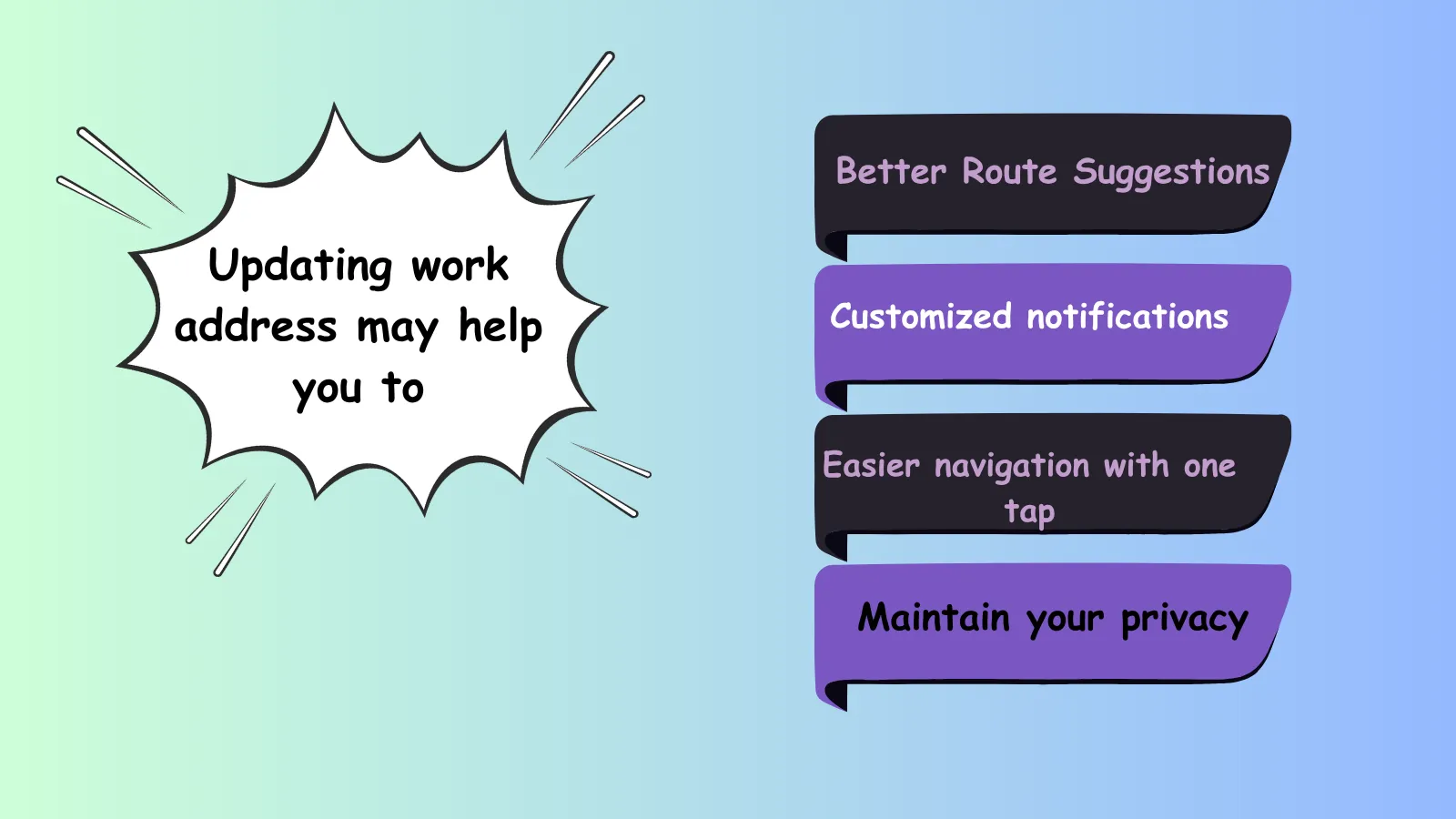
Better Route Suggestions
When you update your location, Google Maps can suggest a faster route with less traffic or an alternative path. Or even help you find road closures in your daily communication.
Customized notifications
If you put your accurate work address in Google Maps, this app will act like your own app by reminding you “time to leave for work” after analyzing traffic conditions. Please remember this alert notification only works when you use the same work address.
Easier navigation with one tap
It helps save your time: instead of typing your workplace address every time, you can tap work and start your journey immediately.
Maintain your privacy
If you are working from home or plan to keep a confidential schedule, updating your work location may help prevent unwanted traffic and route suggestions.
Improve location-oriented services
Sometimes, when you keep updating your work address on Google Maps, it may suggest better options nearby, such as restaurants, fuel stations, emergency services like hospitals, and other facilities.
Outcome · RecommendedGet 30 days of social content from your website — in 10 minutes.
How to change work location on Google Maps on Android
To change the work location on Android
- First, open Google Maps on your device
- Thenclick on the saved button at the bottom of the screen.
- Scroll down to the Labeledsection, where you will get two options: home and
- Tapon the work
- Then set the work address ( You may write down the work address or choose it on Google maps)
If a previous work address is already set, then tap on the three dots to edit it.
Proof · Verified
2k+ grew faster with one tool.
How to change work location on Google maps on iPhone
To change the work location on iPhone
- At first, open Google Mapson your device
- Then go to the Savedicon at the bottom of your screen.
- Scroll down to theLabeled
- Then click on the workoption to update your work address.
- Then you can set your new work location or update the previously saved location.
Free · Instant · No signupSee what ZuAI generates from your website — right now.
Paste your URL. Watch ZuAI write a month of brand-on captions in seconds. Preview before you create an account.
How to change work location on Google maps on the desktop
To change the work location on the desktop
- Open Google Maps or go tohttps://maps.google.com
- And ensure that you are signed into your Google account
- Then, on the left, click on Saved
- Inside, you will find the Labeled Clickon it.
- Here you will get two options: homeand work
- Click the edit option next to work.
- Then you can update your work address.
Speed · 10-minute setupOne coffee from URL to a full month of scheduled posts.
Drop your URL, brew your coffee, come back to 30 brand-on captions ready to publish.
How to edit places on Google Maps
It is essential to know how to edit multiple locations on Google Maps to fix incorrect information, improve navigation, and receive accurate route suggestions.
To change places on the phone
- Open Google Maps
- Search for your recommended place
- Tap on ” Suggest an edit”
- Make changes
- Then submit
- Then Google reviews your edit
- You will get the update in a few minutes to a few hours.
To change places on the desktop
- Open Google Maps on your desktop
- Sign in to your Google account
- Search for your recommended place
- Then click on the ” Suggest an edit
- Then you may choose which option to edit.
- At the final step, submit your edit.
Editing work locations or other locations on Google Maps may seem simple, but it’s an effective way to keep information accurate and useful for everyone. When you mark a nearby place or update your business hours, this small contribution can make a big difference to other users.
Common Issues regarding work location and how to fix them?

The work address is incorrect.
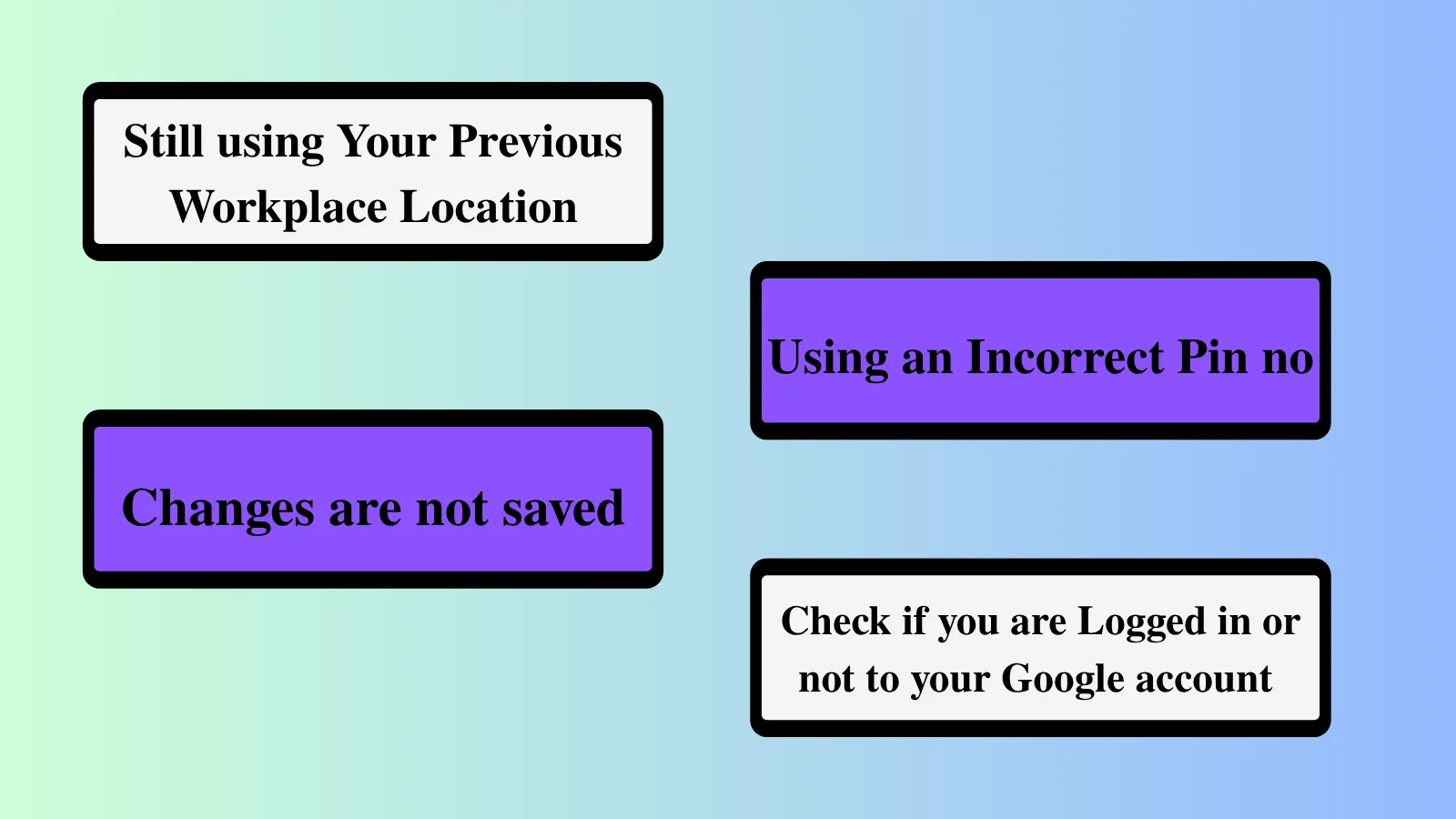
When you change workplaces, and Google Maps saves your previous address, you need to update it with your current workplace location.
To fix the issue, update your current work location in Google Maps.
The location pin is not authentic.
When the updated location shows your workplace slightly away from the actual location, the reason could be an inaccurate PIN.
To resolve the problem, you may turn on high-accuracy location in the phone settings, and instead of writing the address, you may use “set location on map”.
Changes not saving
Sometimes you may update your work location, but it doesn’t save. In this case, you will face problems with better navigation.
To fix the issue, check your internet connection and update your Google Maps app.
Unable to edit location
If you are unable to edit the work location, then make sure you are logged in to your Google account or update your Google Maps if needed.
Privacy concerns
If you are concerned about maintaining your privacy and don’t want to share your work location data, then you can turn off location history in Google Maps or set up to seek permission for Google Maps.
Can you add multiple work locations?
To state it, no, you can’t officially add multiple work locations to this app. The app suggests a single address for both work and home. However, you can label different places with different titles.
To save additional places
- Go to your other destinations
- Click on the Save
- Choose label
- Then you may name it like “workplace2”, “Part-time job”, etc.
As an alternative, you may save all your workspaces in a list, so they are easily accessible from the Saved tab.
Blank tab. Six open browsers. No clue what to post.


 After · With Indzu
Paste one URL. Get 30 scheduled posts.
FAQ Section
Q1. Can I fix the wrong work location on Google Maps?
Answer: Yes, you can fix the wrong work location on Google Maps. And it takes just a few minutes.
Q2. How do I edit places on Google Maps on my Android phone?
Answer: If you are an Android user, then you should follow these simple steps
First, open Google Maps> click on Saved > scroll down to the Labeled> select between home and work>Tap on the work >Then set the work address.
Q3. Can I save multiple work locations?
Answer: No, Google Maps only supports one location at a time. It uses one home and one work location to keep things simple.
Q4. Is my work location data private?
Answer: Yes, on Google Maps, your work location data is private. You are using your personal account, so your data is safe. But if you share your live location with someone or enable location sharing, your location data could be exposed.
Q5. Why is my work location showing incorrectly?
Answer: There could be many reasons for showing an incorrect location, but the main reason could be an incorrect pin number. If your PIN is just a digit off, Google Maps can place you in a nearby location, but with the wrong address. Sometimes, weak GPS systems can show an incorrect location.