We all know that the settings of iPhones are way different from Android. The picture and video quality are superior, with better OS support than Android. But when you are a new iPhone user or want to try something different on it, chances are you might get confused. Like downloading a video from YouTube. Do you also feel helpless and wonder how to download YouTube videos on iPhone?
Well, in this blog, we have discussed three ways in which you can download YouTube videos from an iPhone.
 Time killer · Pain
Spending 6 hours writing posts that get zero traction?
Paste your URL. ZuAI turns it into 30 brand-on captions in 10 minutes — no blank-page panic, no generic AI filler.
Screen record the videos
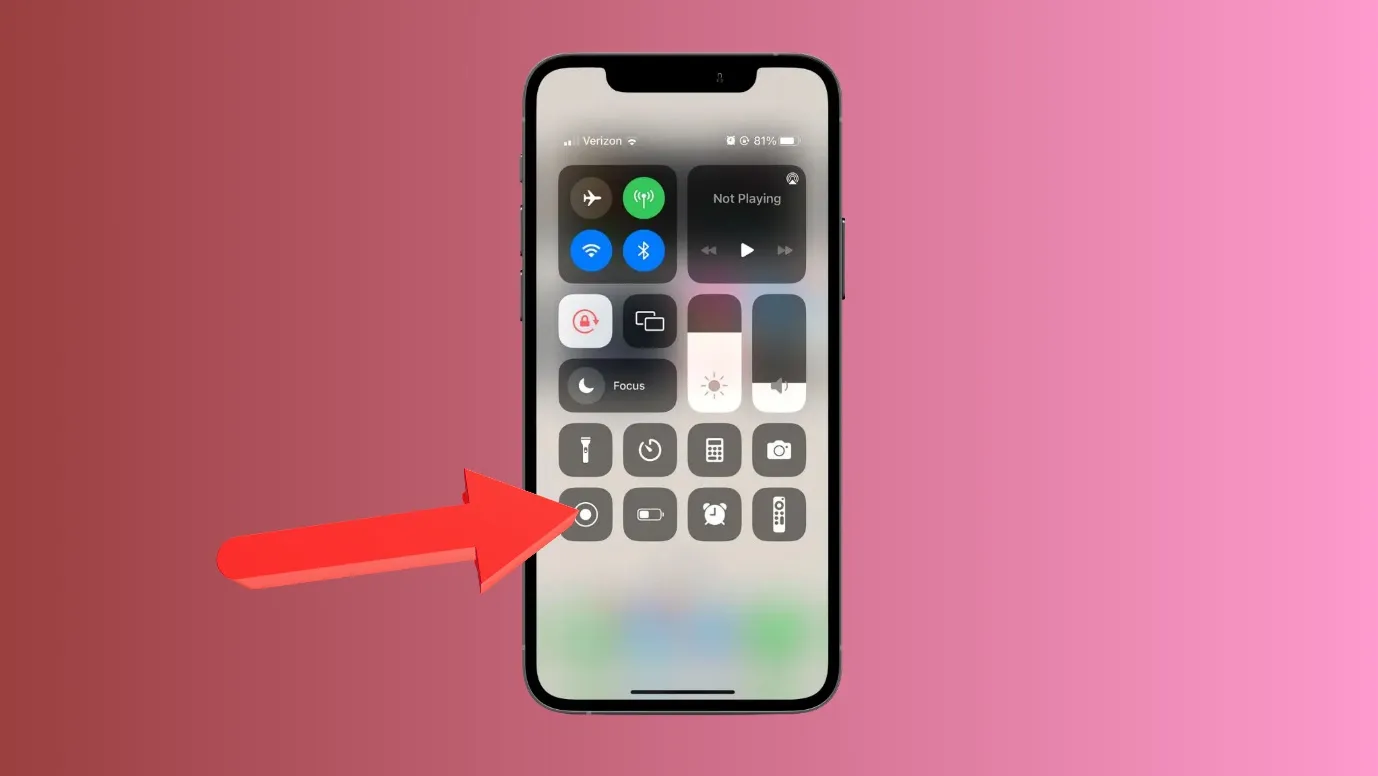
This is the easiest and safest trick if you are looking for how to download YouTube videos on iPhone. Whenever you open a video, you can screen record, and that video will be saved in your gallery.
- Open the YouTube video that you want to download
- Go to the control center of your iPhone
- Tap the Screen Recordbutton
- Wait for the 3-second countdown and then play the YouTube video.
The screen-recorded videos might not feel professional and take up a large space on your iPhone.
But, they are one of the best ways to see YouTube videos offline.
Outcome · RecommendedGet 30 days of social content from your website — in 10 minutes.
Try 3rd party apps.
We understand that most people want a free tool to download YouTube videos on iPhone. But free tools come with their own drawbacks.
Free tools can give you malware, incessant ads, or steal some data from your phone.
That is why we do not recommend using them.
But still, we are listing some tools that can be used occasionally.
Cobalt.tools
This tool is widely popular, as it is considered a bit safer and less spammy than other tools. It is free, privacy-focused, and open-source.
- Copy YouTube link
- Open Cobalt.tools in Safari
- Paste the link
- Tap download
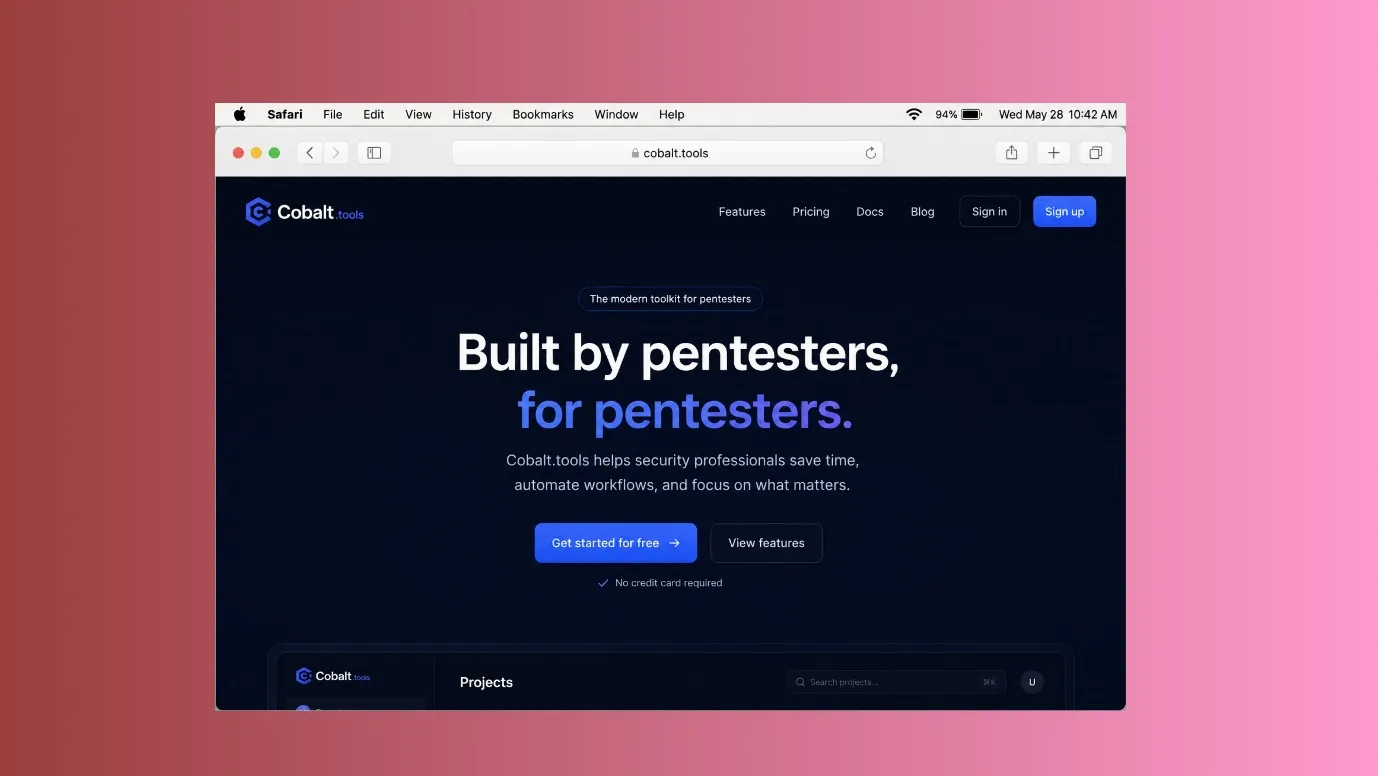
Note- YouTube knows that this tool exists, and it aggressively blocks it while you try to download something, so it may not work sometimes.
This is a paid tool, but it is an economical one. You can also use their free trial plan. It is safe and does not scam people via ads.
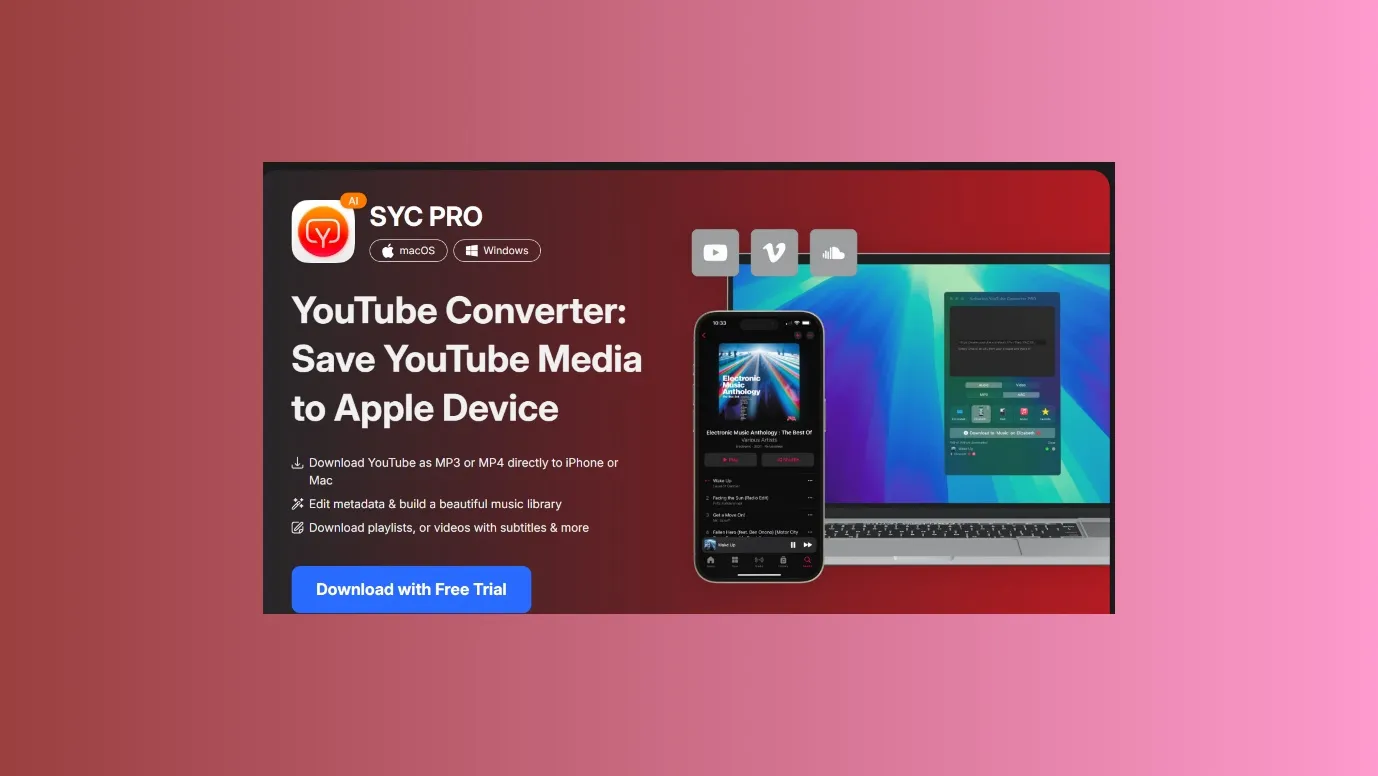
Note: This is not an app. It mainly runs on macOS or Windows.
- Open SYC PRO on Mac/Windows
- Copy YouTube URL
- Download the video and transfer it to your iPhone.
4k Video Downloader.
This is a famous tool. It has both free and paid versions.
It has an easy and clean interface and is suitable for downloading large files.
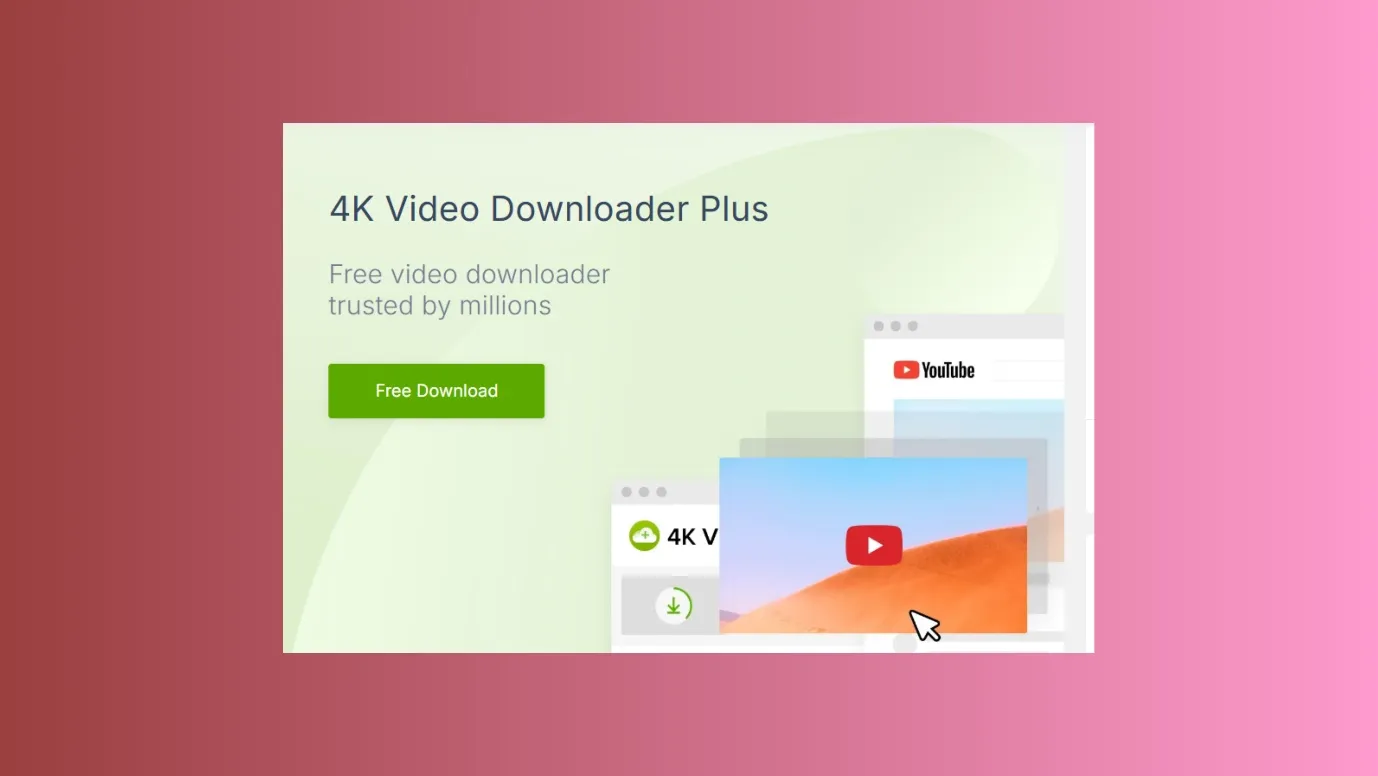
But just like SYC PRO, it can be used only on macOS and Windows.
- Install the app on:
Windows /macOS/Linux
- Copy YouTube link
- Open 4K Video Downloader
- Paste the Link
- Choose the video quality, format, and download it.
Proof · Verified
2k+ grew faster with one tool.
Use YouTube
Using YouTube itself is the easiest option if you want to watch videos offline.
The YouTube app gives the option to download videos, but you should have YouTube Premium for that.
We know that most people do not want to spend money, which is why they search for how to download YouTube videos on iPhone for free. But if you haven’t had YouTube Premium before, you can subscribe for free for the first month.
After taking YouTube Premium, you can click on the download button on the app itself.
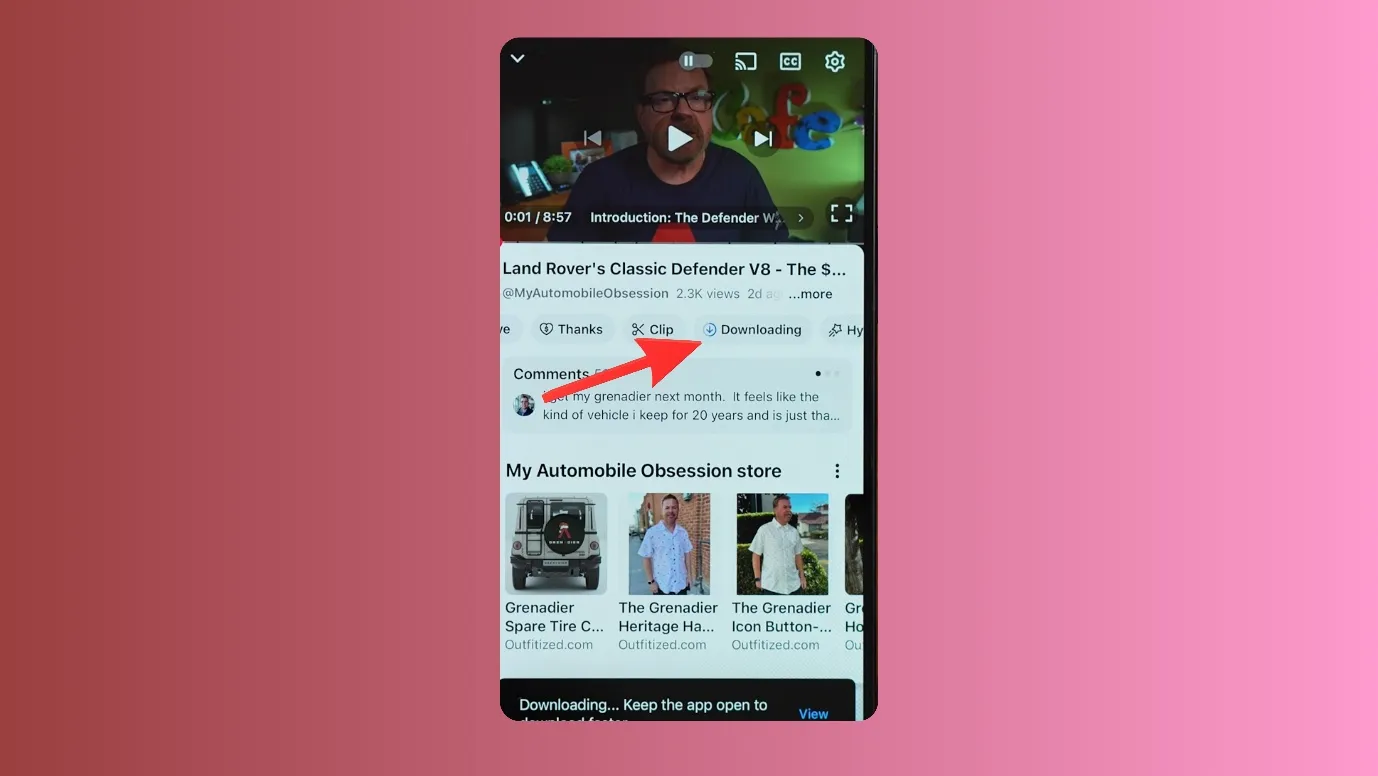
- Open YouTube, and choose the video using the search bar.
- You can see the download button below the video. (You can choose the quality before downloading)
Note- The downloaded video will be saved within the app only.
Free · Instant · No signupSee what ZuAI generates from your website — right now.
Paste your URL. Watch ZuAI write a month of brand-on captions in seconds. Preview before you create an account.
Why can’t I download YouTube videos on iPhone directly?
An iPhone has many features, which its users can boast about, but it is a fact that Apple and Google have very different philosophies for their mobile ecosystems.
Android is relatively open, and there are various apps available on the Play Store for downloading YouTube videos.
- As Apple wants to keep its users safe, it restricts many activities, such as downloading copyrighted media or bypassing restrictions.
- Apple locks down some access, so getting media saved becomes a challenge.
- Browsers like Google Chrome and Firefox use Apple’s WebKit engine on iPhone, so they do not run like normal browsers but are restricted.
Speed · 10-minute setupOne coffee from URL to a full month of scheduled posts.
Drop your URL, brew your coffee, come back to 30 brand-on captions ready to publish.
Ready to download YouTube videos on iPhone?
We hope that one of our suggested methods helped you solve your download problem.
Just like how to download YouTube videos on iPhone, do you have any other queries bothering your mind? Social media is vast, and there are tons of small, medium, and big problems with it. You can refer Indzu Blogs to get practical solutions.
Also, if you are building yourself on social media, you can check our post generator tools.
Blank tab. Six open browsers. No clue what to post.


 After · With Indzu
Paste one URL. Get 30 scheduled posts.
FAQs
Q1. How do I directly download a YouTube video?
Ans. If you want a direct download button for a YouTube video, then you can download it inside the YouTube app.
For this, you need YouTube Premium on your iPhone.
On YouTube, there is a direct download button below the video.
Q2. How do I download a YouTube video so I can watch it offline?
Ans. There are a few ways in which you can do it.
- You can screen record the video.
- You can use any 3rdparty apps (free or paid) but consider taking a paid one.
- You can open Safari browser on iPhone, go to Cobalt.tools, paste the YouTube video link, and download the video.
- You can download it on your MacBook or iPad and transfer it to your iPhone. You can use PRO software or 4K Video Downloader.
- You can also subscribe to YouTube Premium and download the video inside the YouTube app for offline viewing.
Q3. How to download a YouTube video without the download option?
Ans. If you do not want to use the YouTube download option, then consider using these alternatives.
- You can screen record the video.
- You can use any 3rdparty apps (free or paid). I suggest you choose a paid one.
- You can open Safari browser on iPhone, go to Cobalt.tools, paste the YouTube video link, and download the video.
- You can download it on your MacBook or iPad and transfer it to your iPhone. You can use PRO software or 4K Video Downloader.