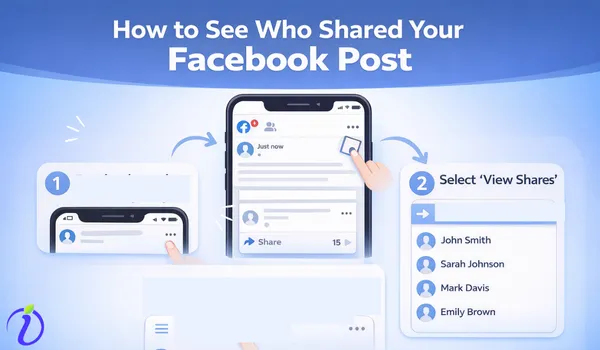

Our Recent New Year Post got a hit among viewers on Facebook. Another striking feature I found on this post was that there were more shares apart from followers. This immediately made me to search “How to see who shared your post on Facebook?”
But identifying who shares your post on Facebook is not always a piece of cake. Privacy settings and platform design policies make this a less straightforward process than expected.
In this blog we share you how we demystified the mechanics of checking “shares” and explored the limitations applied in each case and the efficiency of Facebook Shares.
The Direct Approach: How to See Who Shared your Posts ( Facebook Public Posts)
You can check who shared your posts through the platform’s built-in interface. This method works excellent for posts that are set to “Public”. When you share a post, Facebook offers a clear indication of its reach through a “shares ” count displayed directly beneath the post itself.
You can click this number and discover the audience who have amplified your content.
On Your Desktop: Step-by-Step Instructions
To track shares and an expansive view of a computer monitor, the desktop version of Facebook is the best one. Here is the step-by-step instruction for the clearest overview
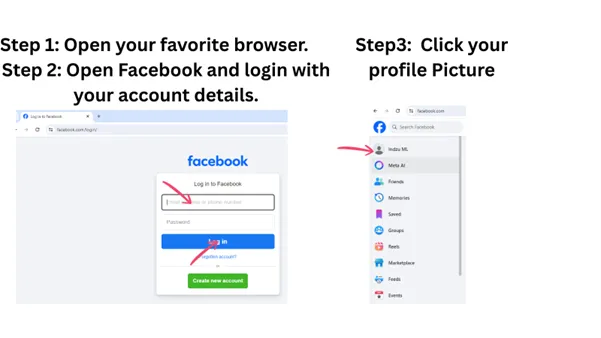
1. Log in to Facebook:
Open your preferred web browser.
Navigate to Facebook.com.
Enter your login credentials to access your account.
2. Navigate to Your Profile
Once logged in, you will land on your News Feed.
To find your own posts, click on your profile picture or your name in the left hand side bar menu.
You will be directed to your personal profile page.
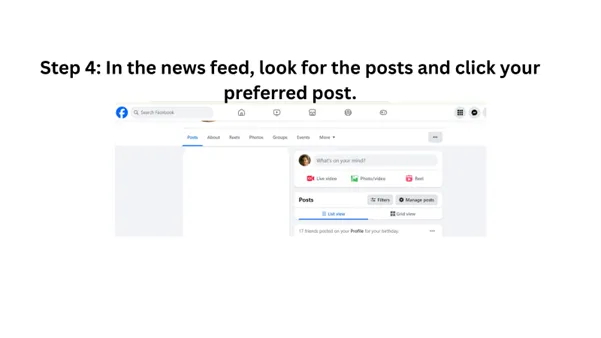
3. Locate the Post:
Scroll down your profile page and locate a specific post.
If there are many posts, use the search bar to locate the post by using the relevant keywords.
4. Identify the “Shares” Link:
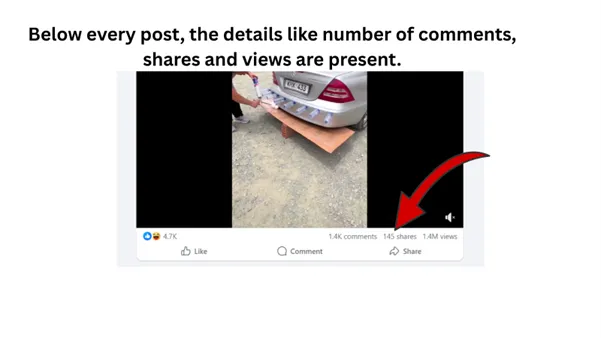
Below every post’s text or media, you will see the engagement metrics such as likes, comments and a shares.
5. Click on “Shares”
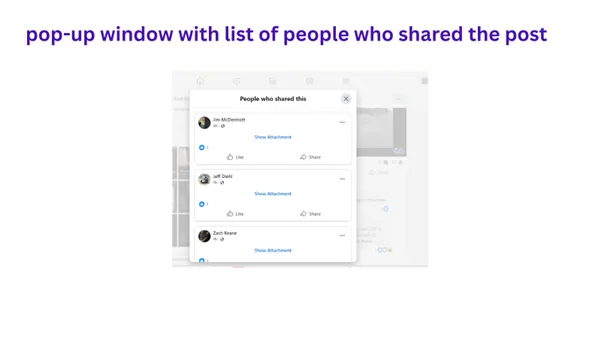
Click on the “Shares” number. A pop-up-window will appear that lists the users who have shared your post.
On Mobile Devices ( iOS & Android)
Though the native Facebook mobile app has limitations, if you need effective workarounds, use mobile browser. It is the simple way to access the desktop version of Facebook through your phone.
1. Open your mobile browser:
Launch your preferred mobile web browser.
2. Navigate to Facebook: Go to Facebook.com. Login if you are not already.
3. Request Desktop site: This is the most important step. Most mobile browsers have a request option for the desktop version.
On iOS: Tap the AA icon in the address bar. A page will pop-up with options.
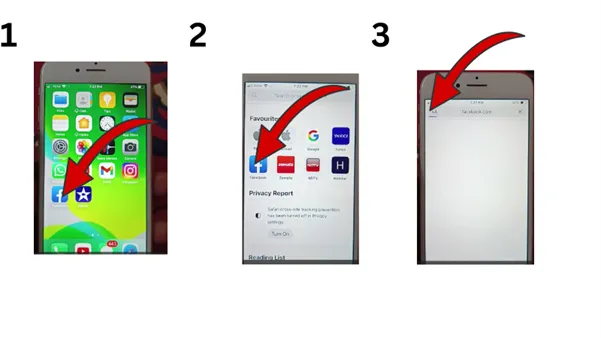
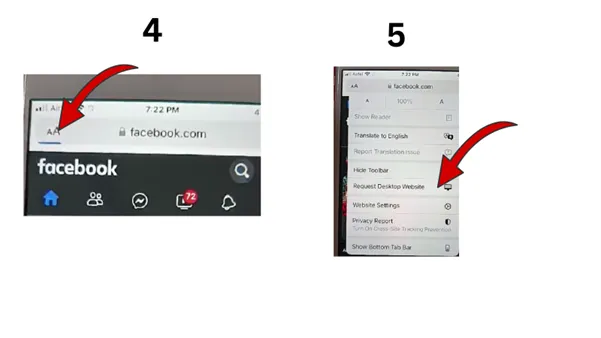
Select the “Request Desktop Website”.
Facebook will move from the app to the browser.
On Chrome (Android):
Step 1: Tap the Three-dot menu in the top right corner.
Step 2: From the drop-down list, select “Desktop site.”
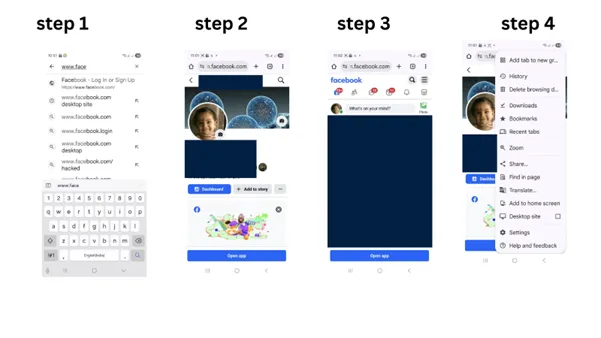
4. Follow Desktop Instructions
Once the desktop version of Facebook loads in the mobile, you can follow the same steps as outlines in the “On Your Desktop” section.
Navigate to your profile, select the post, and click on the “shares” count.
5. Using Desktop mode for Easier Navigation:
Using desktop mode in your mobile browser ensures that the layout and functionality mimic the desktop site. This option makes it much easier to find the “shares” link and view the list of users who have shared your content. It bypasses the limitations of the mobile app’s user interface.
Why I Can’t Always See Who Shared My Post?
Facebook’s core design is built around user control and privacy. As a result, you cannot see the complete list of people who shared your post. Whether you are able to see the follower name or remains invisible, the “shares” are counted.
The “shares” link is a direct path for public content, but due to some factors that obscure the identity of individuals who share you posts, you receive the notification as ” A user has shared your post” rather than a specific name.
The Impact of Facebook Privacy Settings on Share Visibility
Check your Facebook profile for privacy settings. Some factors may hide your posts from public based on your profile settings.
1.Public Posts:Any one can see and share your post, only if your post is set to “Public”. When someone shares a public post, you can see their name via the “Shares” link.
2.Friends Only:If your posts are set to “Friends”, only your friends are able to see your posts. If a friends shares it, it might appear in their friends’ News feeds, but you will see who shares the posts under your original posts.
But, if your friends shares it as a private message or to a private group, that won’t be listed.
3.Custom Settings:Posts shared with custom audiences or specific friend list have restricted visibility. As a result, your post shares will also be limited to those within that defined audience.
Privacy Settings Decide Who Can See Your Facebook Post
Ultimately, the ability to see who shared your Facebook posts hinges on the privacy settings on the privacy settings of the sharing person.
1. Visible shares: When a user shares your post, based on his privacy settings, Facebook will allow his friends to see what they share. It will also list the names under the “Shares” count in the original post.
2. A user has shared your post: When you log in to Facebook, you will receive notifications if any. One such notification that you will receive is “A user has shared your post.” It simply conveys that their privacy settings prevent you from seeing their specific name in the “shares” list. This is a common scenario when the sharer has very restrictive privacy settings on their own profile. Sometimes sharing through a private message won’t add up to the number.
Distinguishing Between “Public” And Friends of Friends” Shares.
|
Aspect |
Public Shares |
Friends of Friends Shares |
|---|---|---|
| Who can see the post shares? | Anyone on Facebook | Only your friends and friends of friends. |
| Visibility in Share Count | Visible and count adds to the original post. | Visibility is counted, and only those posts of shares privately or individually are not counted. |
| Can you see who shared it? | Yes, in most cases, you can see the profile | No, Facebook hides individual names. |
| Reach Potential of a Post | The reach potential is very high. | The reach is moderate and extended only to social circles. |
| When shares are done | Public announcements, business posts, and viral content | Personal updates and semi-private discussions |
| Privacy Level | Lowest | Medium privacy level. |
Limitations for Private Content: Groups, Events and Messenger Shares
Inherently private groups and their sharing mechanism prevents you from knowing who shared your post.
1. Groups and Events: Posts created by the private groups or events are only visible to the group members and event attendees. If someone shares this post to another private group, or to their timeline, the original post owner cannot verify the identity of the sharer.
2. Messenger Shares: Shares made through messenger are not trackable i your original post. This is a fundamental privacy feature of direct messaging.
What are the alternate methods to track Facebook engagement?
The most direct method to know who shared your Facebook post is through the “Shares” link. There are other ways to get a sense of how your content is being distributed.
1. Facebook Notifications:
Facebook notifications can sometimes alert you when someone shares your post. When a user shares your post, Facebook may send you a notification, when the sharer is someone you frequently interact with or if the share is deemed significant by the algorithm.
How does Facebook Notifications work?
Facebook notifications typically appear in the “Notifications” tab or the bell icon and will often state,” [Name of User] shared your post.”
Limitations of Facebook Notifications
- High volume: If the post is widely shared, Facebook will consolidate them and send a deluge of notifications.
- Sharer’s Privacy Settings: If the sharing person’s privacy settings are strict, you might only see a generic notification without a specific name.
- algorithm dependent limitations: It’s the Facebook algorithm that determines which notifications are shown to you. If there are any privacy restrictions, Facebook will notify you.
- Ephemeral Nature: Some notifications are easily missed or cleared.
Thus, Facebook notifications can provide only occasional insight, and it is not considered a primary tool.
Your Facebook Activity Log shares a comprehensive history of your platform actions. You can check the likes, comments, and shares in your profile.
Inside the Activity log look for options related to “Your Posts” or “Posts You’re Tagged In”. It can help you find your original posts, and they manually check their share count.
2. Manually Searching the Facebook Feed
Use the search bar to find out who has shared your Facebook post. Search manually to know whether specific individuals have shared your content. Use Search bar for manual searches.
When You See No Shares Visible
If you have checked your post and the “Shares” count is zero, or you expect shares but see none, here are a few reasons beyond simple lack of engagement.
- Post Privacy: If your post privacy settings were not “Public”, at the time of sharing, you may not receive any shares.
- Limited Visibility: A post shared into a private group or through a Messenger won’t see it listed.
- Delayed Updates: Sometimes, Facebook’s metrics can have a slight delay. All you need to do is, just wait a little longer and refresh the page.
- Technical Glitch: It is rate for Facebook to undergo glitches. Yet, if you suspect this, try checking the platform again on a different device.
- Zero Shares: It is also possible that no one has shared your post.
Proactive Privacy and Managing You Own Shares
So far, you have worked on only one part of the equation. Equally important is managing your own sharing habits and privacy of your own content. Thus, you can control your digital footprint.
How to Influence Who Sees your Shares
The most effective way to influence who sees your shares and who can share your content is by managing your own post privacy settings.
- always pay attention to the audience section while creating a new post.
- You can go back and always edit the privacy settings in your Facebook account settings.
- Use default privacy settings in your Facebook account settings to select your audience here.
- If you want your posts to be circulated within your friends or family, don’t select “Friends of Friends” settings.
Conclusion
Facebook’s sharing ecosystem is simple. There are not much gimmicks and you can easily control who shares your Facebook post and of course view them. In this blog “How to see who shared your post on Facebook?” we strongly believe you got the answers.
We have some more blogs on interesting topics like Unhide a post on Facebook and Facebook notifications for screenshots. Explore them for great ideas.