
You took too many photos of yourself with the Statue of Liberty, and now you want to post them on Pinterest to show your New York friends. But your profile already has too many boards filled with other New York photos. Is it time to delete some of those boards?
Let’s learn how to delete an entire board on Pinterest.
Pinterest is a social media + search engine. We do not connect only with businesses or people here; we connect with ideas. And Pinterest has boards, under which we organize, share, or collaborate with various ideas or pins.
For example, someone in New York may create boards for Statue of Liberty photos, NYC travel ideas, or Manhattan food spots.
Or a business owner in Texas may use Pinterest boards to organize home decor ideas, boutique products, or local event inspiration.
But sometimes these boards can become cluttered, unorganized, or redundant. In some cases, we may need to delete boards on Pinterest. Along with learning how to cancel/delete a board on Pinterest, let us also learn what happens after deleting a board. Is deleting a board necessary? And let us see other options for Pinterest boards.
 Time killer · Pain
Spending 6 hours writing posts that get zero traction?
Paste your URL. ZuAI turns it into 30 brand-on captions in 10 minutes — no blank-page panic, no generic AI filler.
How to remove a Pinterest board?
Deleting a board is very easy on Pinterest. Let us look at the steps on how to delete a board on Pinterest app Android.
1. Open your Pinterest app.
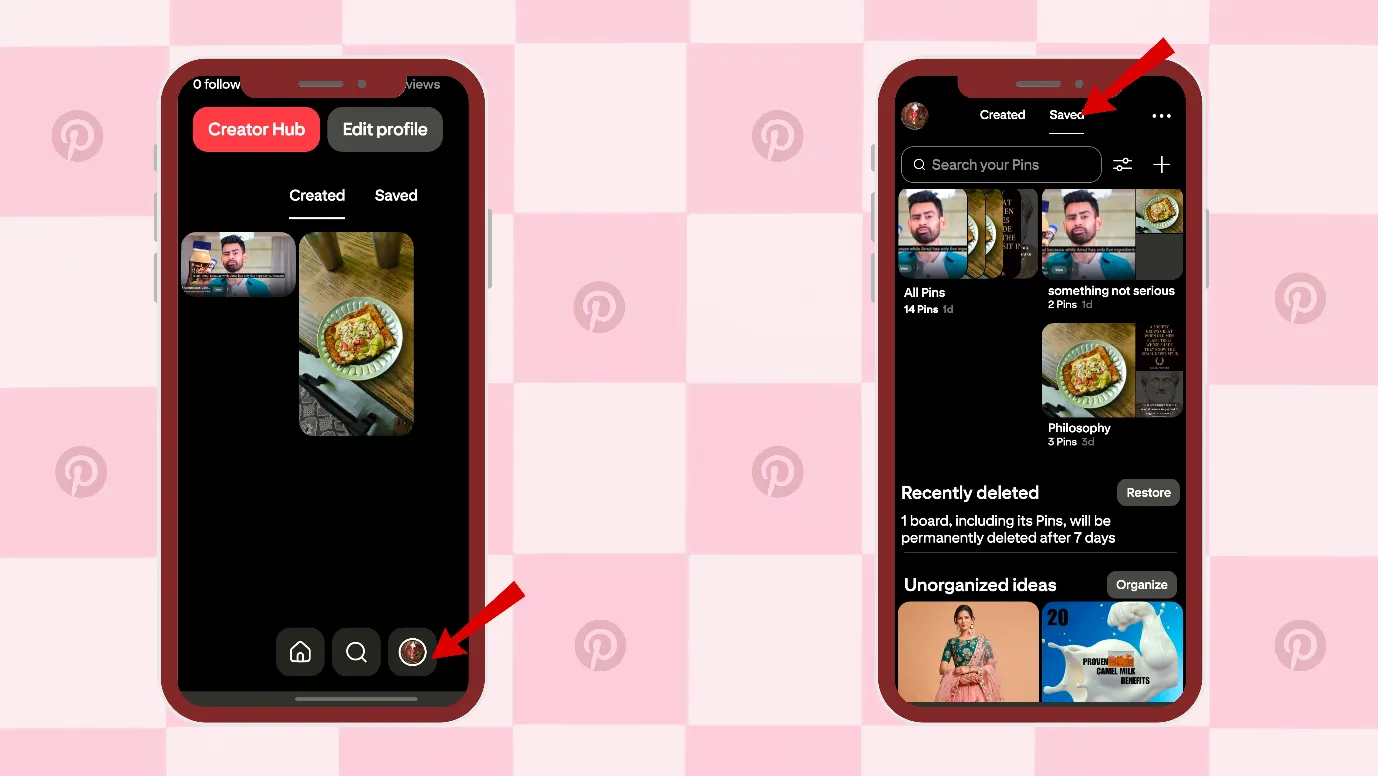
2. Click on your profile icon in the bottom right-hand corner.
3. Next, you can click on “saved” and see your previously saved or created boards.
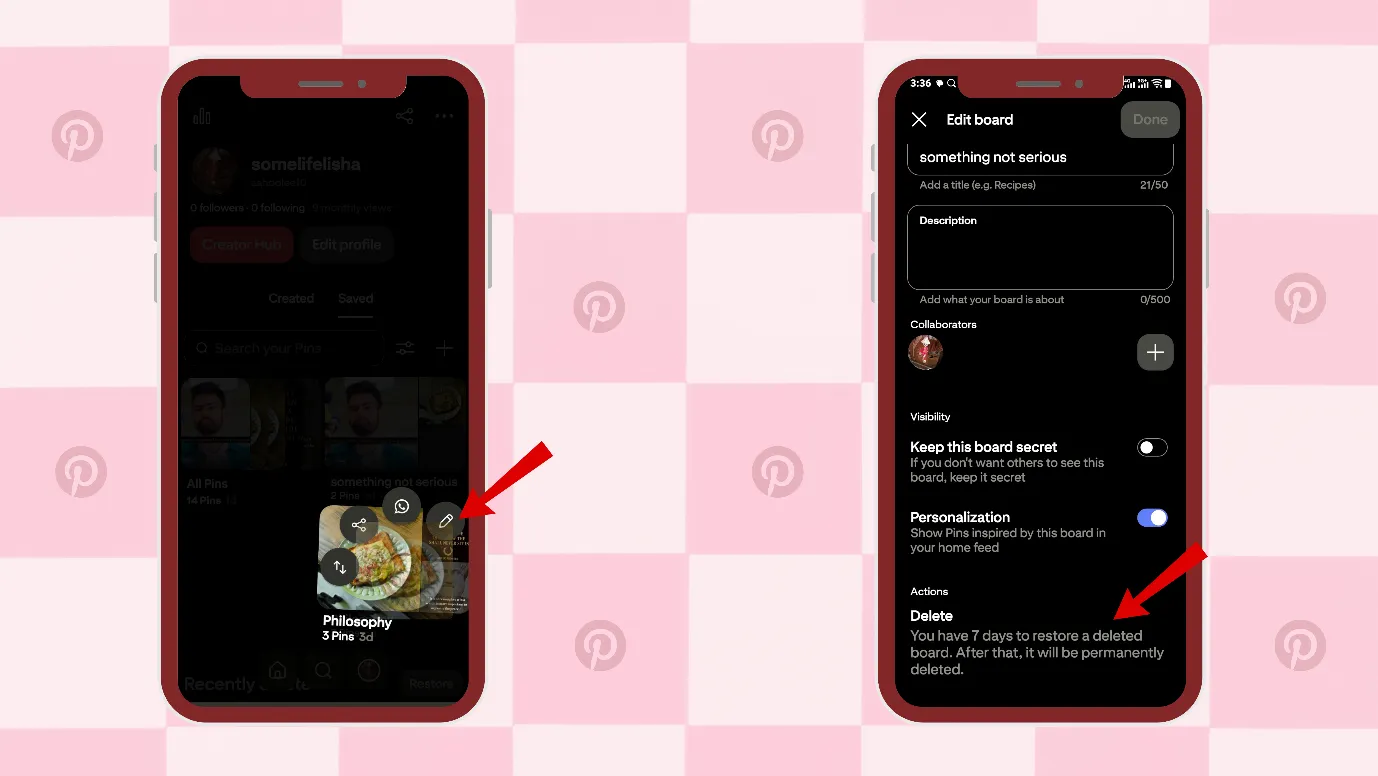
4. Press and hold the pin that you want to delete. The edit option will appear.
5. Next, tap on Edit, scroll down, and click on Delete. This will delete your board.
Remember, you can also delete all the pins inside a board.
Outcome · RecommendedGet 30 days of social content from your website — in 10 minutes.
How to delete Pinterest board on iPhone?
Deleting a board on Pinterest on iPhone is almost similar to deleting a board on Android. Here are the steps
1. Open your Pinterest on iPhone.
2. Click on your profile icon in the bottom right-hand corner.
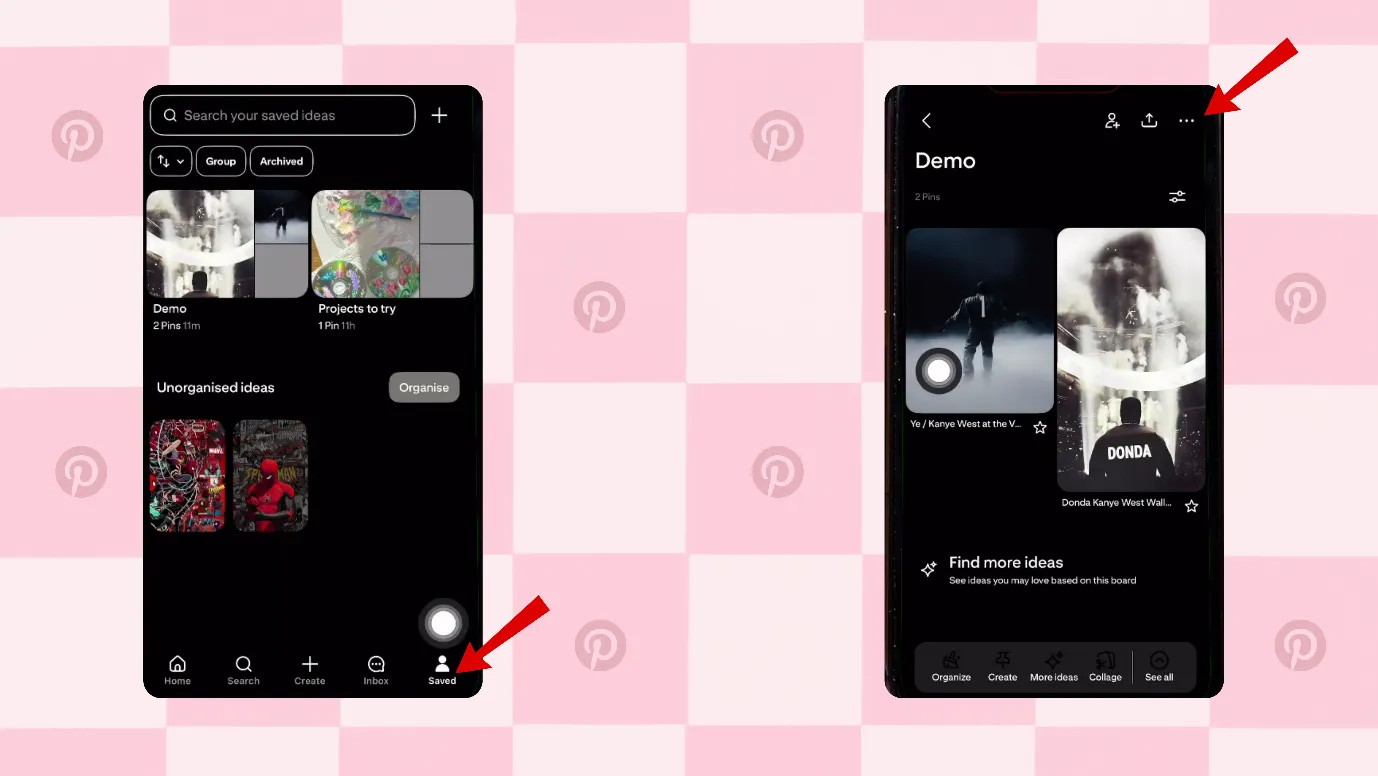
3. Next, you can click on “saved” and see your previously saved or created boards.
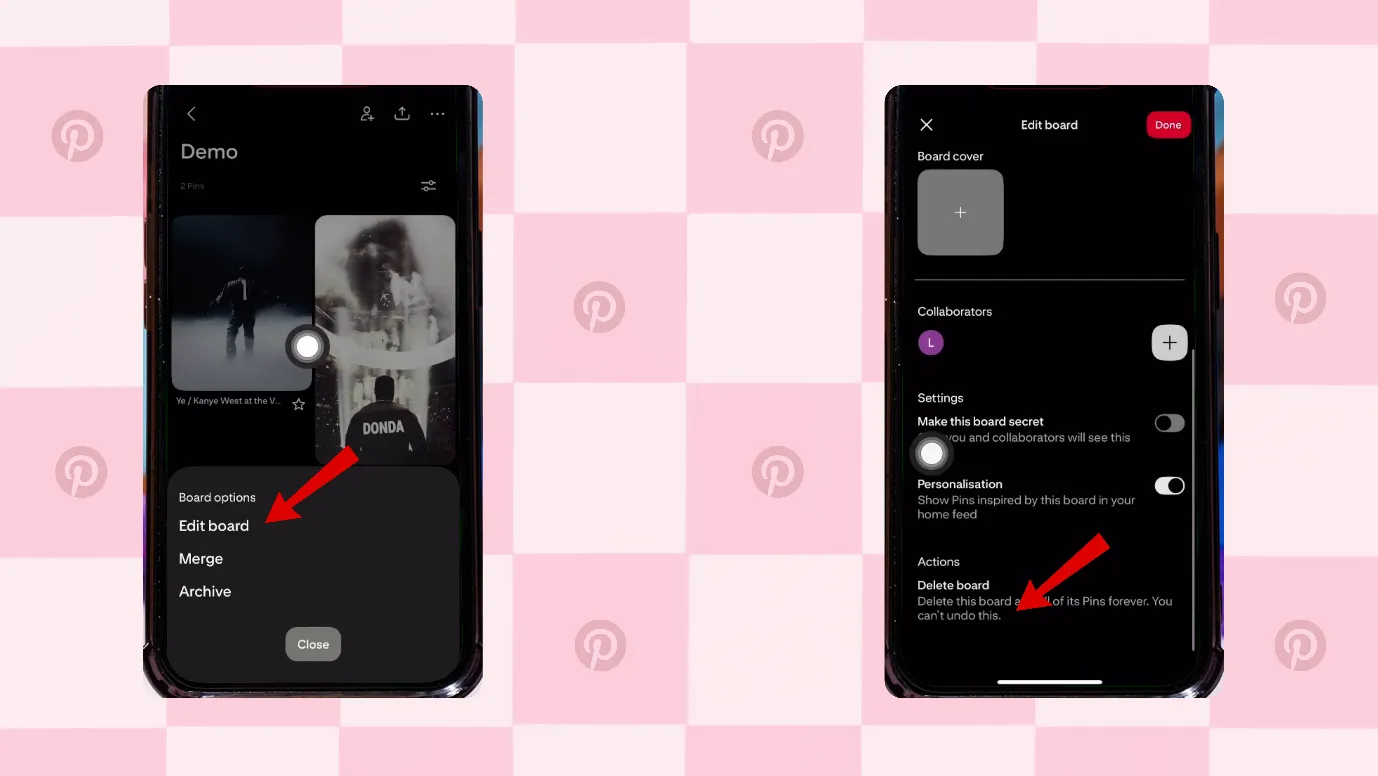
4. Choose the desired board, tap on the 3 horizontal dots, and choose “edit”.
5. Next, scroll down and click on Delete.
Proof · Verified
2k+ grew faster with one tool.
What happens when you delete a board on Pinterest?
What is a Pinterest board?
How do you organize stuff in your room? Do you use plastic storage bins, baskets, boxes, shelves, etc.?
Similar kinds of stuff go in one bin. You probably keep similar items together in one bin because it makes things easier to find.
Pinterest boards are similar. Pinterest encourages you to organize similar kinds of stuff on one single board.
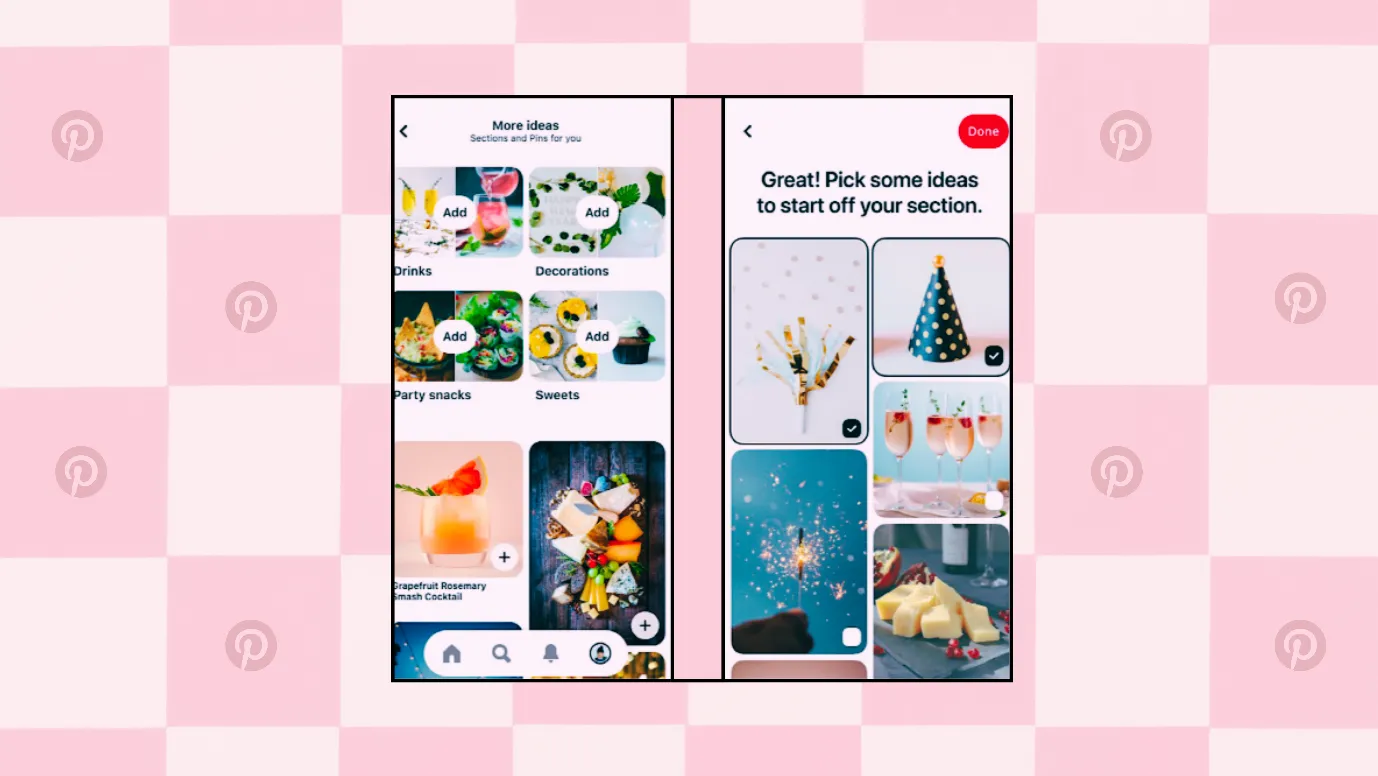
One board for New York photos, one for travel ideas across states, one for diet recipes, etc.
You can keep the board to yourself or share it with others.
You can create the board easily and delete the board easily.
When you delete a board, then
1. All the pins on the board are deleted.
2. After deleting the board, you can always restore it within 7 days.
3. The deleted board lies in the “Recently Deleted” section.
Note: You can only restore your board on desktop or Android.
Free · Instant · No signupSee what ZuAI generates from your website — right now.
Paste your URL. Watch ZuAI write a month of brand-on captions in seconds. Preview before you create an account.
Whether to delete boards or move them?
If it’s your personal Pinterest account, then deleting pins or moving them won’t cost you much. But if you are a business, then you should think twice before deleting a board.
As pins bring traffic gradually, deleting them could be a problem. You can delete them.
1. If the board has pins that are no longer relevant to your business or services.
2. If the board was created for a specific purpose, i.e like an influencer deal, promoting an offer, etc., and that offer has expired.
3. If you have made any errors on your side, like uploading copy-pasted images, duplicate images, poor quality images, typo errors, etc.
Along with these reasons, if there is any other strong reason, then you can consider deleting the board.
Otherwise, you can always move the pins to another board.
You should always organize your pins. You can also archive your boards, make your boards private, or delete a particular pin from the board.
You should always organize your pins. You can also archive your boards, make your boards private, or delete a particular pin from the board.
Speed · 10-minute setupOne coffee from URL to a full month of scheduled posts.
Drop your URL, brew your coffee, come back to 30 brand-on captions ready to publish.
How to restore a deleted board on Pinterest?
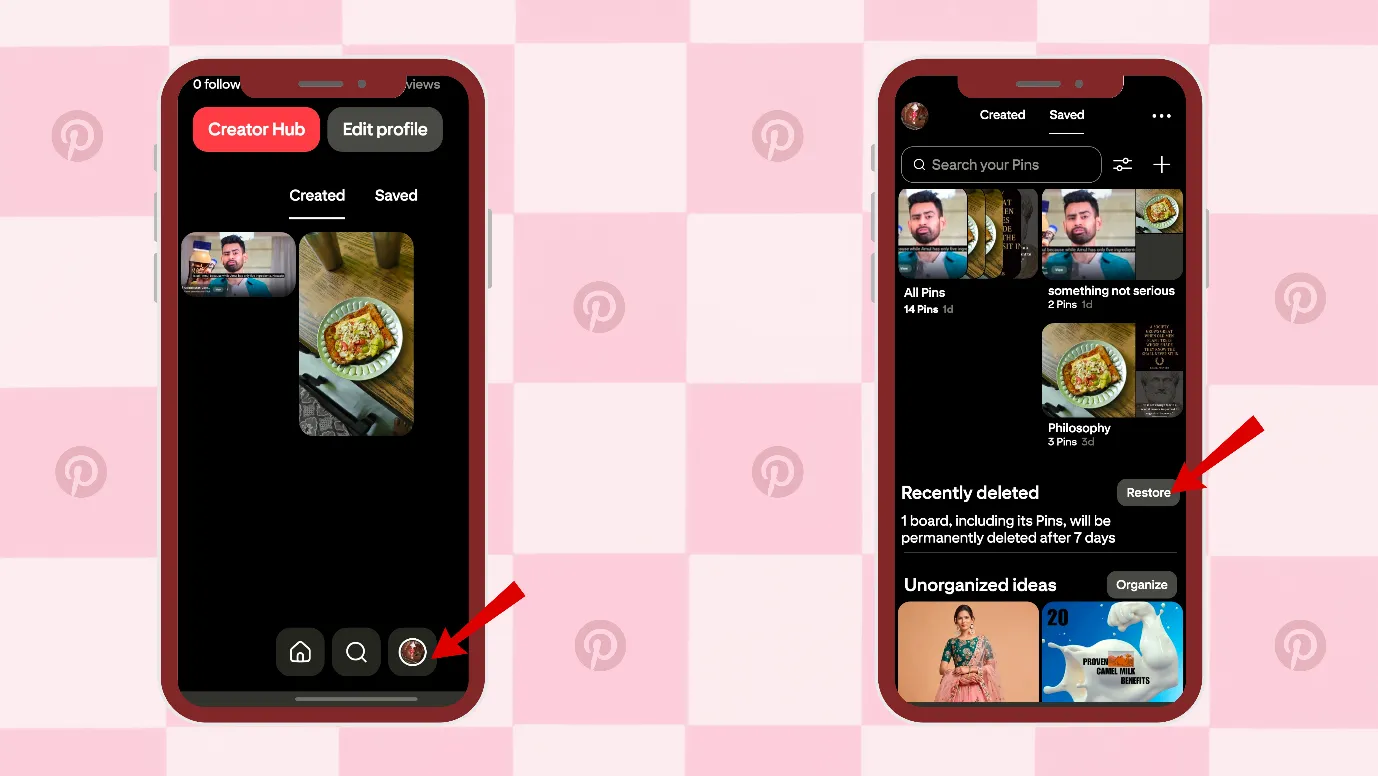
Now you have learnt how to delete a board on Pinterest. Now, let us learn how you can restore a deleted board on Pinterest.
1. Open your Pinterest account.
2. You can tap your profile picture at the bottom-right of your screen
3. Scroll down to the Recently deletedsection
4. Tap Restore on the board you want to restore.
Blank tab. Six open browsers. No clue what to post.

 After · With Indzu
Paste one URL. Get 30 scheduled posts.
Take Control of Your Pinterest Boards
By now, you must have learnt how to delete an entire board on Pinterest, but the good thing about Pinterest is that you can do a lot with boards.
You can use boards to organize your ideas, group similar content, manage your profile, collaborate with others, or remove them when they lose their effectiveness.
Do you find difficulty in managing your Pinterest account along with other social media platforms?
This is also the reason why many businesses fail to appear consistently on Pinterest and miss the Pinterest audience.
Pinterest is great for small businesses in the USA and around the world. People come to search for ideas, but end up impressed by a business and visit its website.
You can avoid the mistake of missing out on Pinterest with Indzu management.
Just 10 minutes a day: create content for all platforms and schedule it. Everything under a single window!. Try it here.
Time killer · Pain
Spending 6 hours writing posts that get zero traction?
Paste your URL. ZuAI turns it into 30 brand-on captions in 10 minutes — no blank-page panic, no generic AI filler.
FAQ
Q1. Is there a way to delete a whole board on Pinterest?
Ans. Yes, you can delete the entire board on Pinterest.
1. Open your Pinterest app.
2. Click on your profile icon in the below right hand corner.
3. Next, you can click on “saved” and see your previously saved or created boards.
4. Press and hold the pin that you want to delete. The edit option would appear.
5. Next, tap on edit, scroll down, and click on delete. This will delete your board.
Q2. How do you delete all your Pinterest posts at once?
Ans. You can delete multiple pins on Pinterest. You can also delete all the pins inside a board.
Pinterest also allows you to delete all the pins. But remember that there is no bulk delete button on Pinterest.
You have to select the pins individually.
1. Open your Pinterest app.
2. Click on your profile icon in the below right hand corner.
3. Go to “created.”
4. Choose the pin that you want to delete and long-press to get the “edit” option.
5. Next, scroll down and choose the delete option on the left-hand bottom side.
Q3. How do I delete a board in Pinterest without deleting the pins?
Ans. You can move the pins to another board or change the board of the pins. After that, you can delete the board.
Q4. How to archive a Pinterest board?
Ans. 1. Open your Pinterest app.
2. Click on your profile icon in the below right hand corner.
3. Next, you can click on “saved” and see your previously saved or created boards.
4. Choose the board that you want to archive.
5. Next, click on 3 horizontal dots in the upper right-hand corner and click on Archive Board.