Facebook is the largest social media platform with nearly 3.05 billion users, and people of every age group are on Facebook. it’s possible that many people on your friends or following list of Facebook are distant friends or relatives—some you may not even remember anymore.
And when you suddenly try to recall, you can’t find them,
Do you also face this confusion? Let us clear this confusion with this blog “How to Check Who am I Following on Facebook “
In this blog, we will see how to check Facebook following and followers, how to change various important settings in your Facebook account to keep followers intact without compromising privacy, and how to use settings effectively.
 Time killer · Pain
Spending 6 hours writing posts that get zero traction?
Paste your URL. ZuAI turns it into 30 brand-on captions in 10 minutes — no blank-page panic, no generic AI filler.
How to Check Who am I Following on Facebook mobile app?
It’s 2026, and now you want to remember whom you followed on Facebook in 2016!. That is possible. Let us find out how.
But first, let us know what following someone on Facebook means
What is following someone on Facebook?
If you want to keep a close watch on a person, brand, creator, or page, and want to see their public posts in your feed, then you can follow them on Facebook.
You will get all their updates in your feed.
Now, let us see how you can see people you followed on Facebook
Method 1
Step 1: Open your Facebook app
Step 2: Click on your profile picture on the left side
Step 3: Now, click on the horizontal 3 dots on the upper right-hand corner.
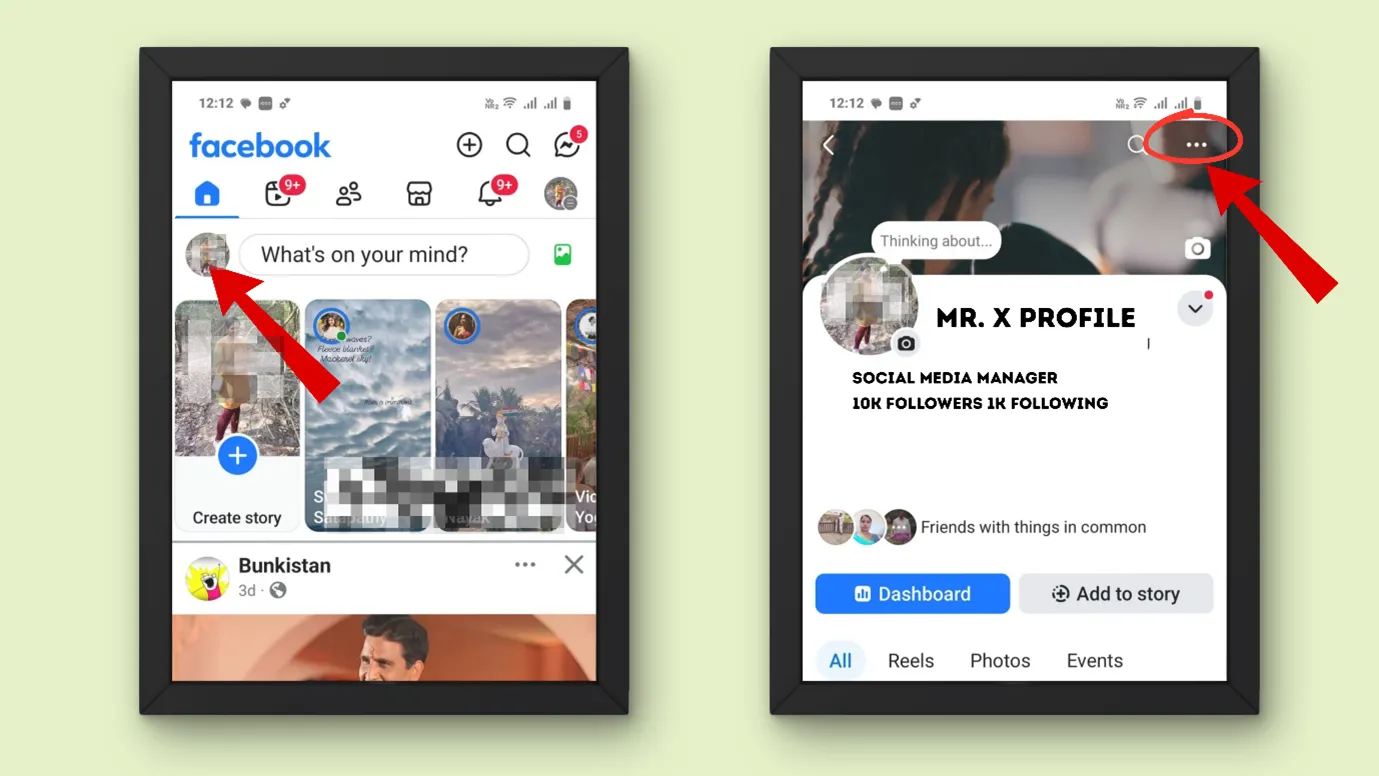
Step 4: Click “Activity Log”
Step 5: Scroll horizontally and tap on “Following”
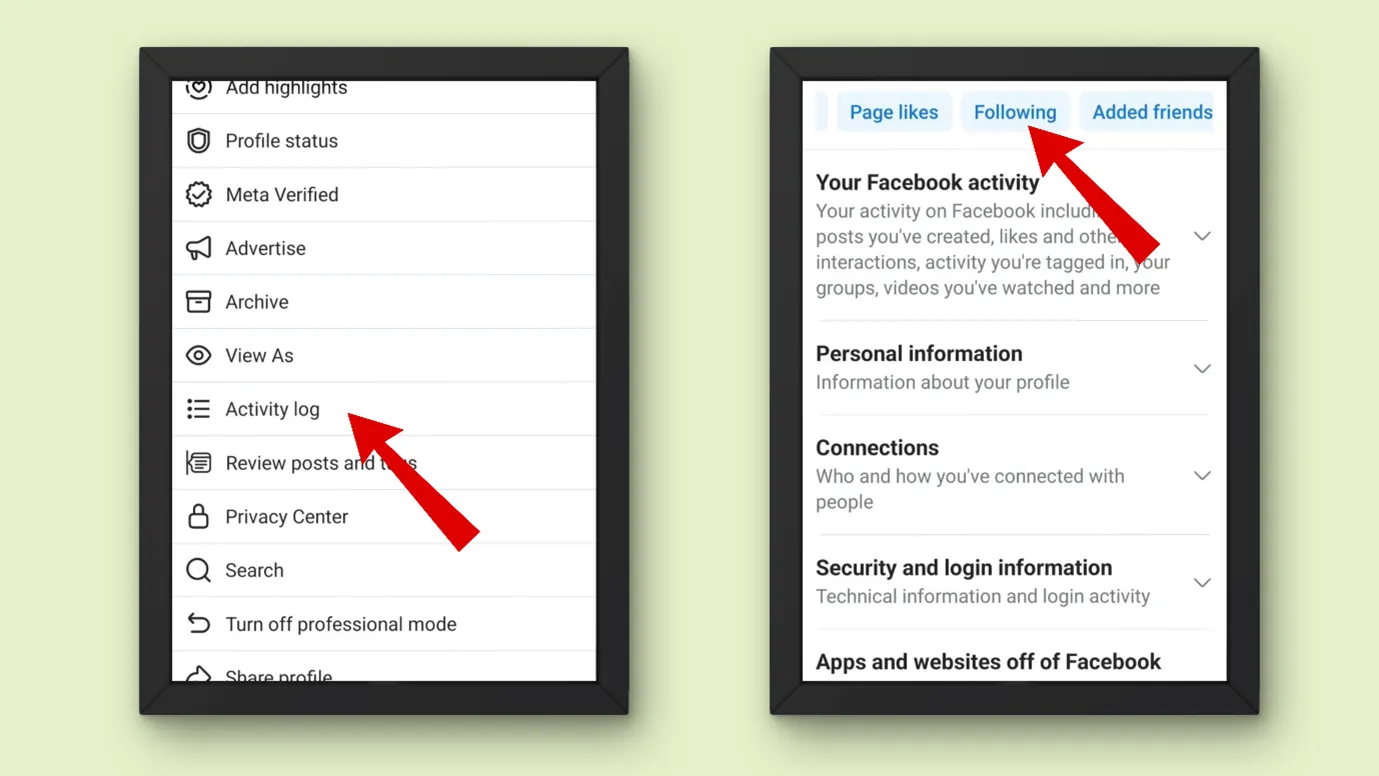
Step 6: Now you can see who you had followed along with the date and year
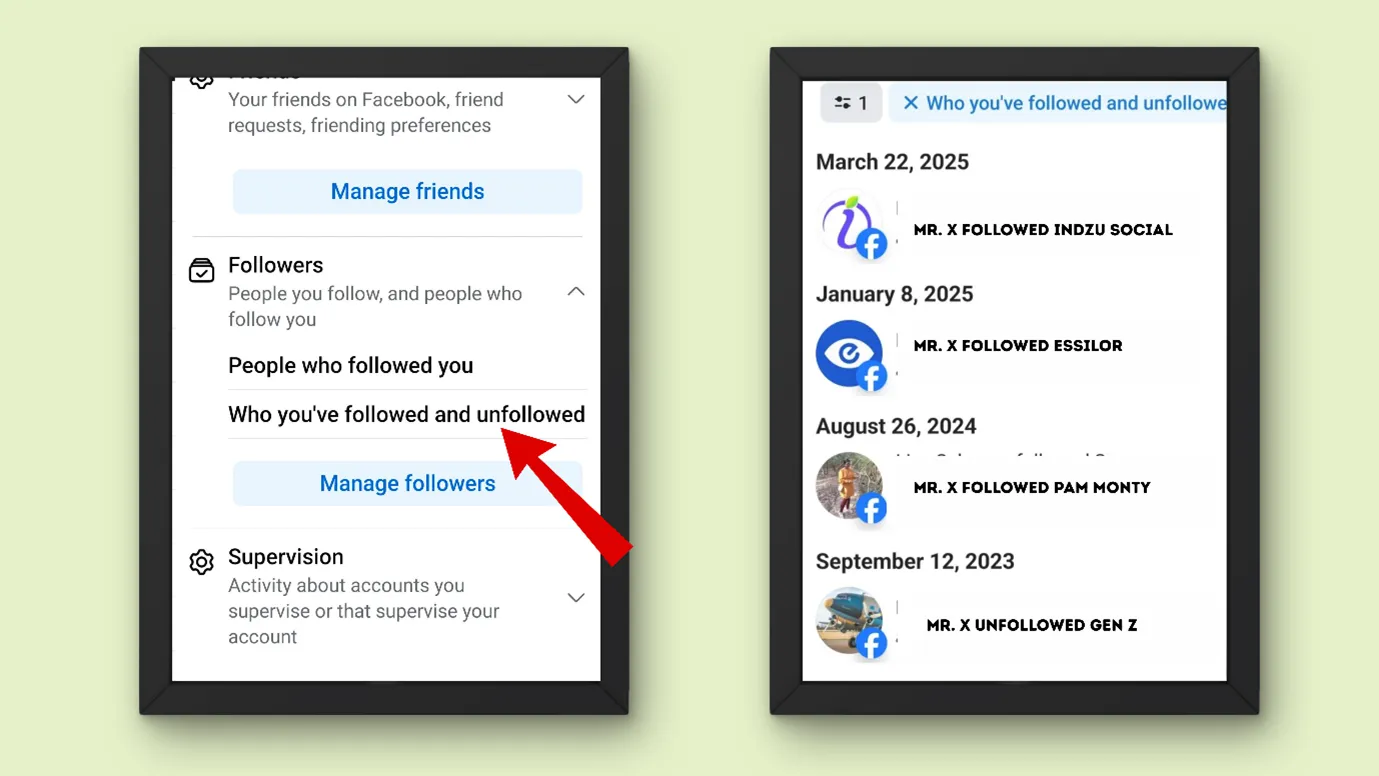
Method 2
Step 1: Open your Facebook app
Step 2: Click on your profile picture on the left side
Step 3: On this page, you can see your number of followers and followings.
Step 4: Click on the following, and you can see the people you have followed.
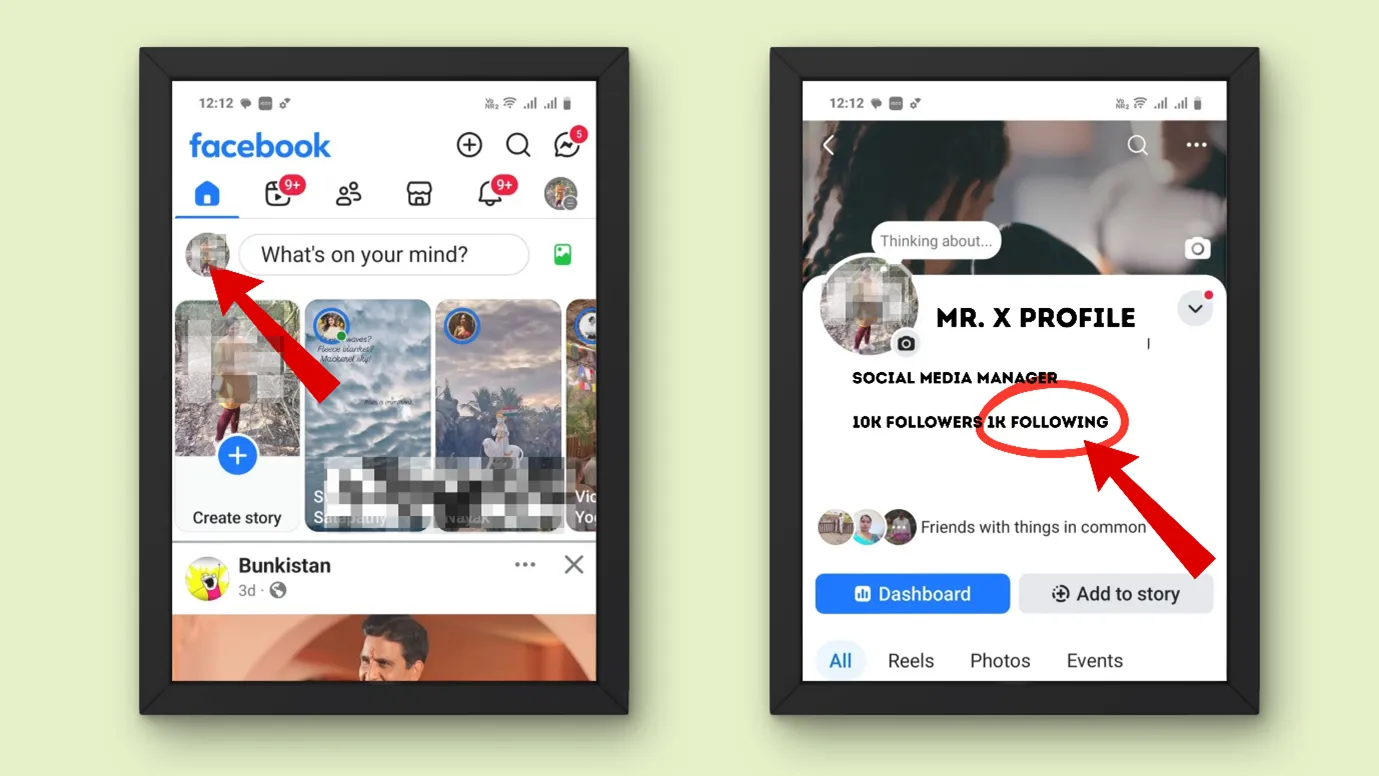
In this way, you can also click on your followers and see who is following you.
Outcome · RecommendedGet 30 days of social content from your website — in 10 minutes.
How to see who am I Following on Facebook Desktop?
On a large screen, everything appears a bit clear and accessible. That is why many people prefer to use Facebook from their desktops.
Let us see how you can access your following list on desktop.
Step 1:Log in to your Facebook via your desktop
Step 2: On your homepage, click on the profile picture on your left
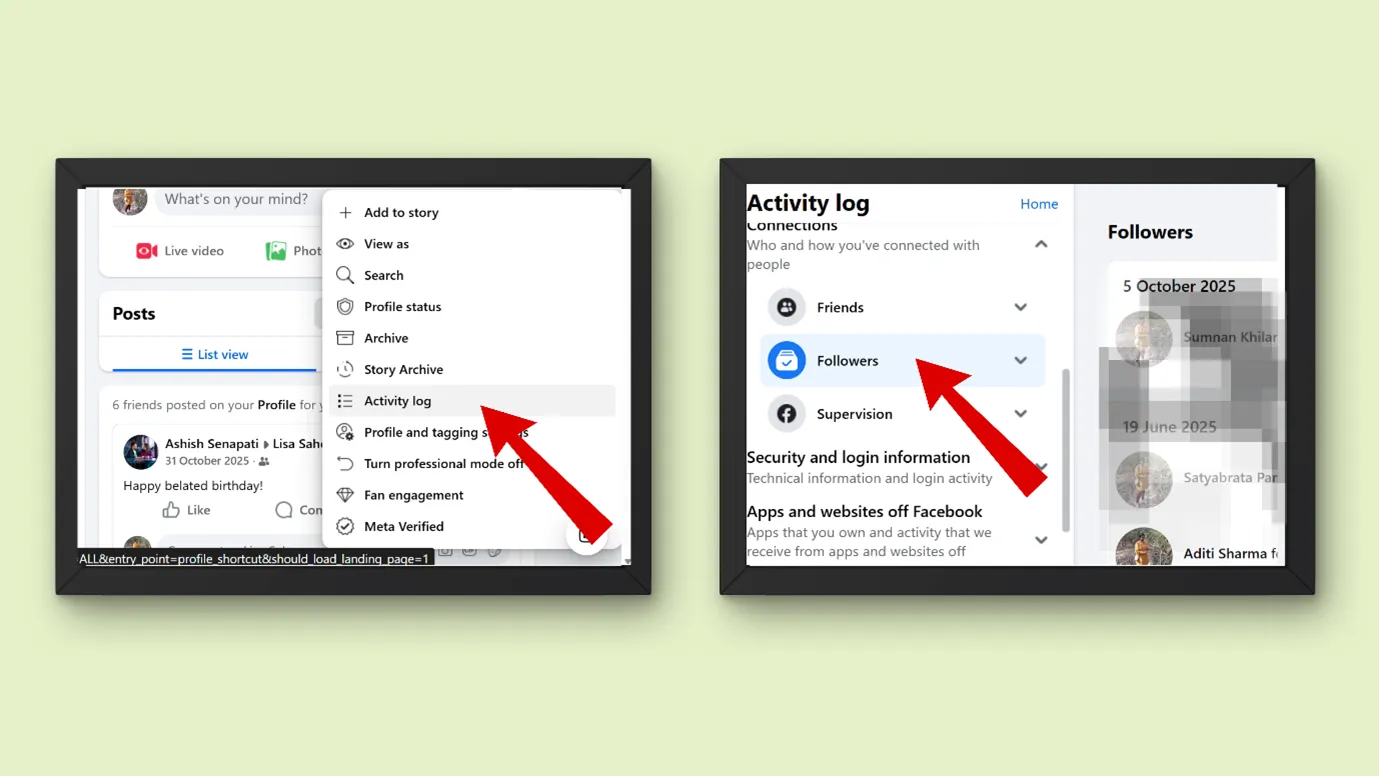
Step 3: Now you can see three horizontal dots under your Facebook cover photo, click on that
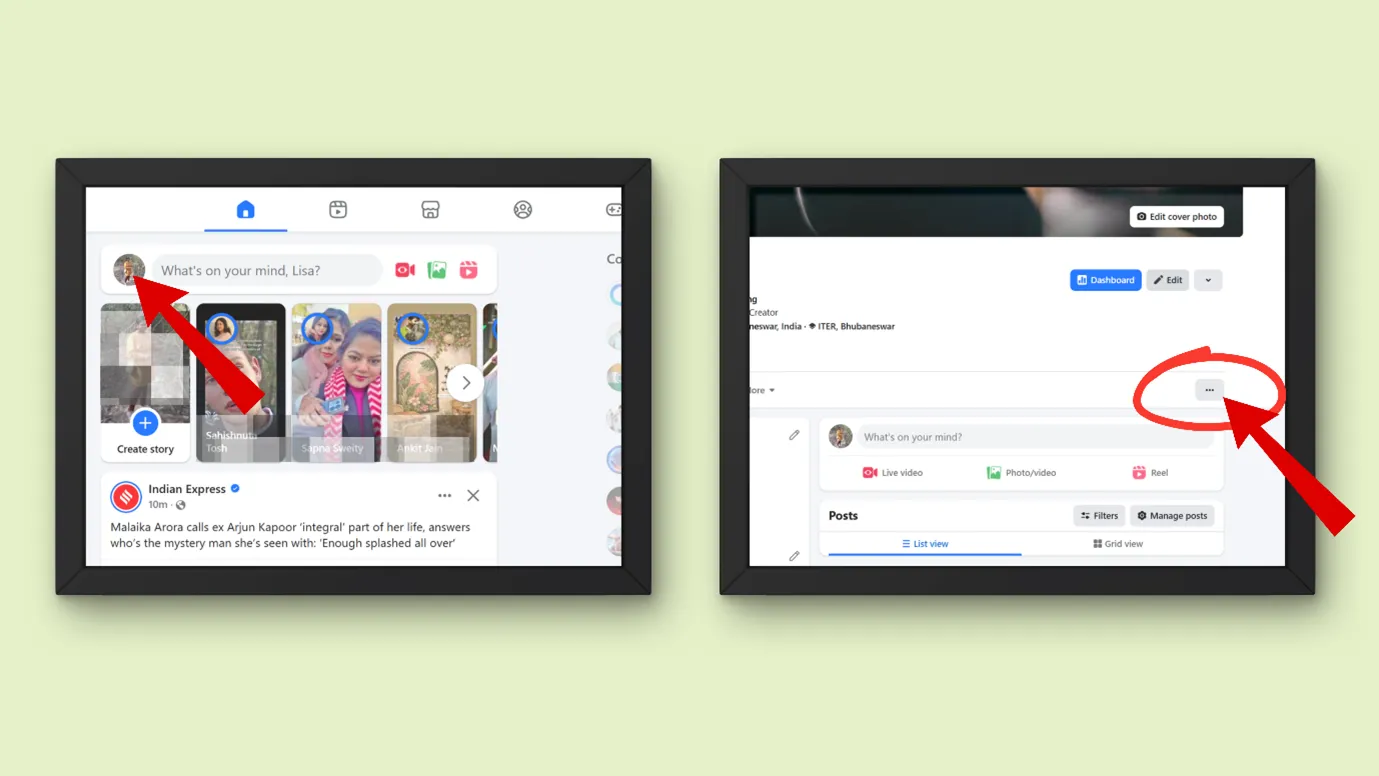
Step 4: Now go to “ Activity Log”
Step 5: In the Activity log, tap on “ Connections”
Step 6: You might see three options, “ Friends”, “Followers” and “ Supervision”. Click on “Followers”
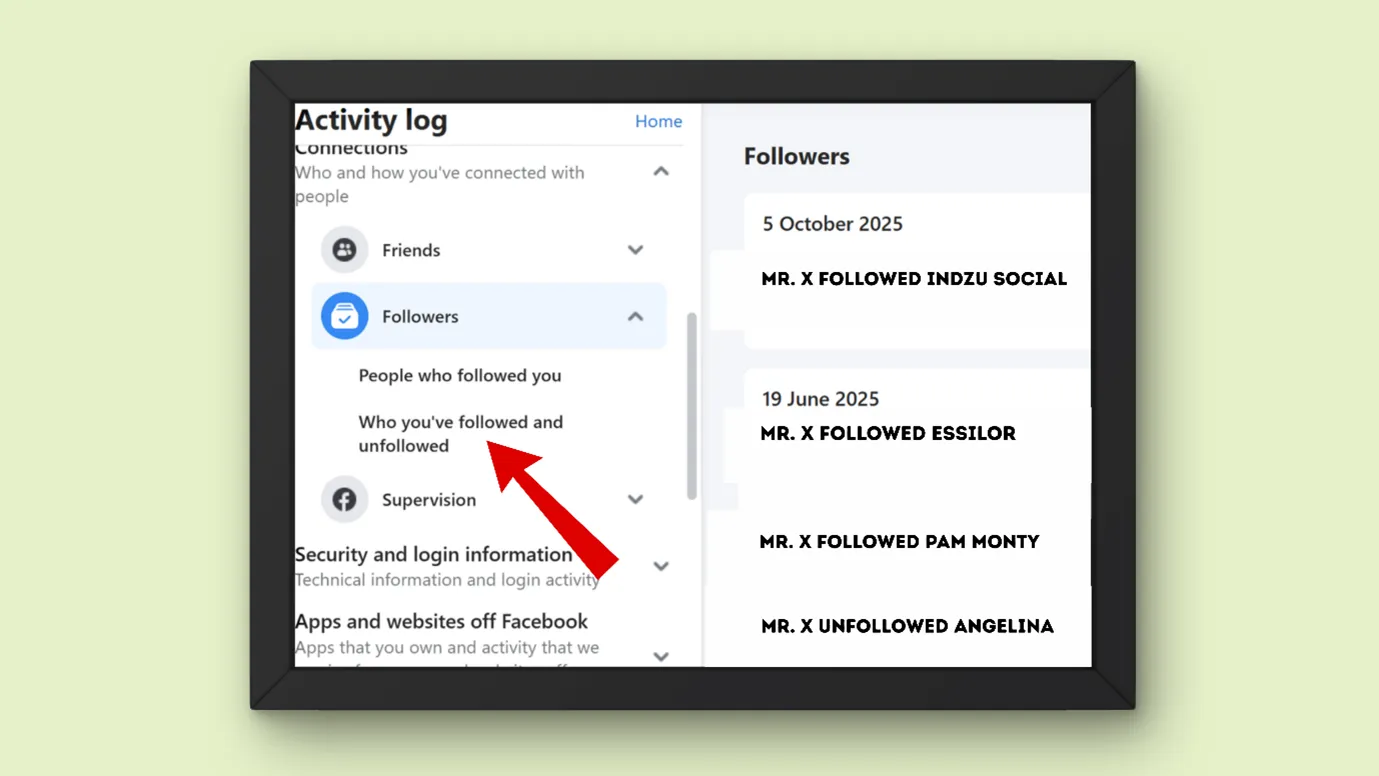
Step 7: Now choose “Who you have followed and unfollowed”
Now you can see who you had followed in the past with the respective date.
Proof · Verified
2k+ grew faster with one tool.
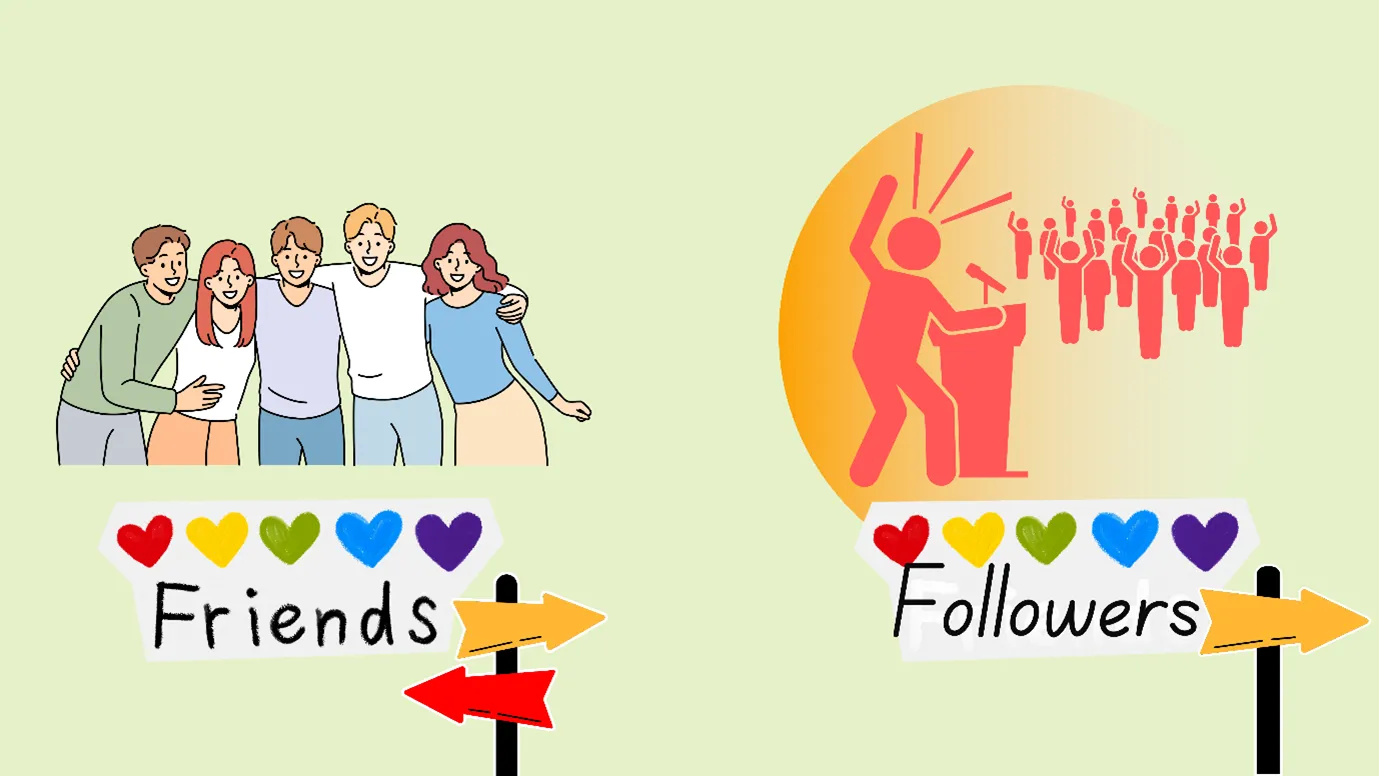
What is the difference between friends and followers on Facebook?
Facebook Friends
When you send a connection request and the other person accepts it, you are friends on Facebook. Friends can usually:
- See posts shared with “Friends.”
- Message you (depending on settings).
- View more personal info.
It is a two-way connection.
Facebook followers
When a person follows you, they might not necessarily be your friends. They can see your public posts.
For example, if you do not want to miss any updates about your favourite celebrity, then you can follow them on Facebook, and their public posts would appear in your news feed, notifications, etc.
It is a one-way connection.
After knowing How to see who am I Following on Facebook, let us see how to know who follows you on Facebook.
Free · Instant · No signupSee what ZuAI generates from your website — right now.
Paste your URL. Watch ZuAI write a month of brand-on captions in seconds. Preview before you create an account.
How do I see who is following me on Facebook?
To see who is following you on Facebook, the process is almost
same as How to Check Who am I Following on Facebook.
Step 1: Open your Facebook app
Step 2: Click on your profile picture on the left side
Step 3: Now, click on the horizontal 3 dots on the upper right-hand corner.
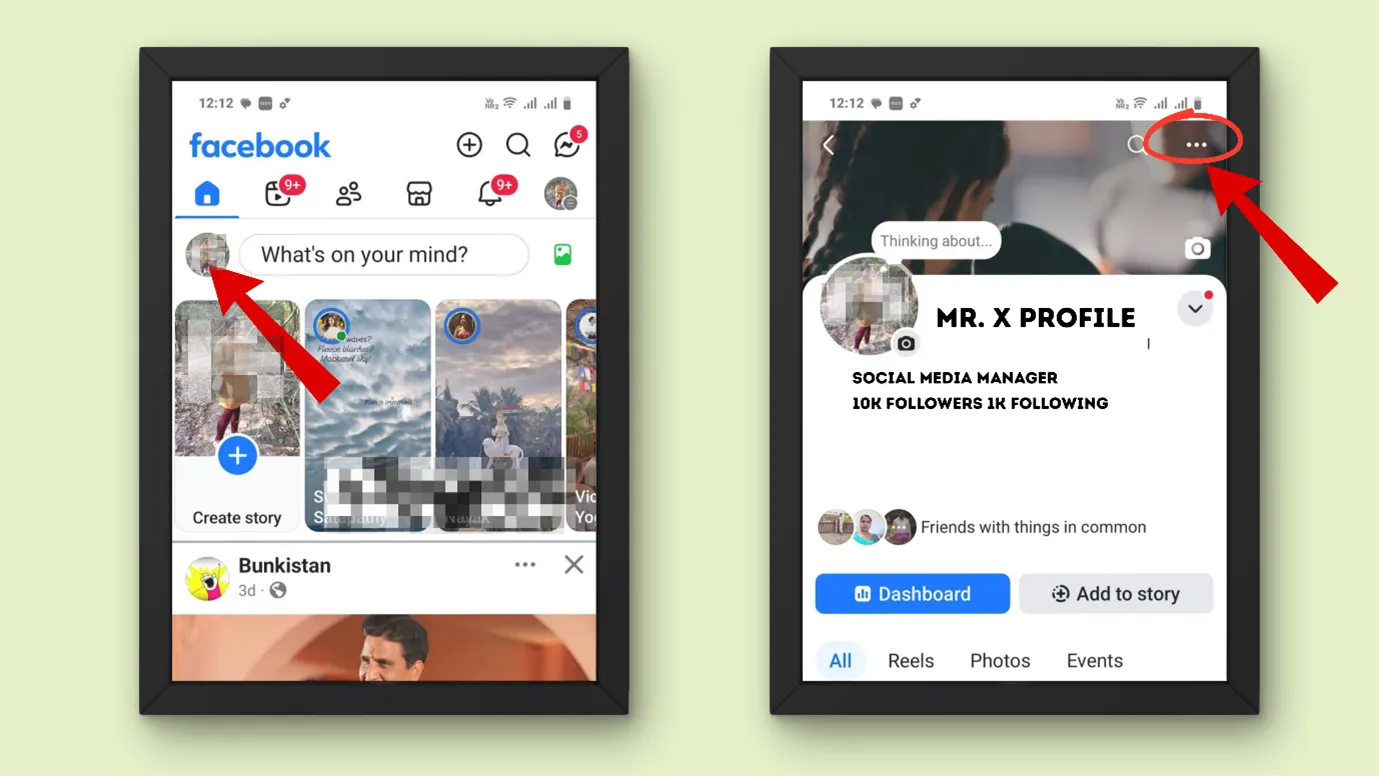
Step 4: Click “Activity Log”
Step 5: Click on “ Connections”
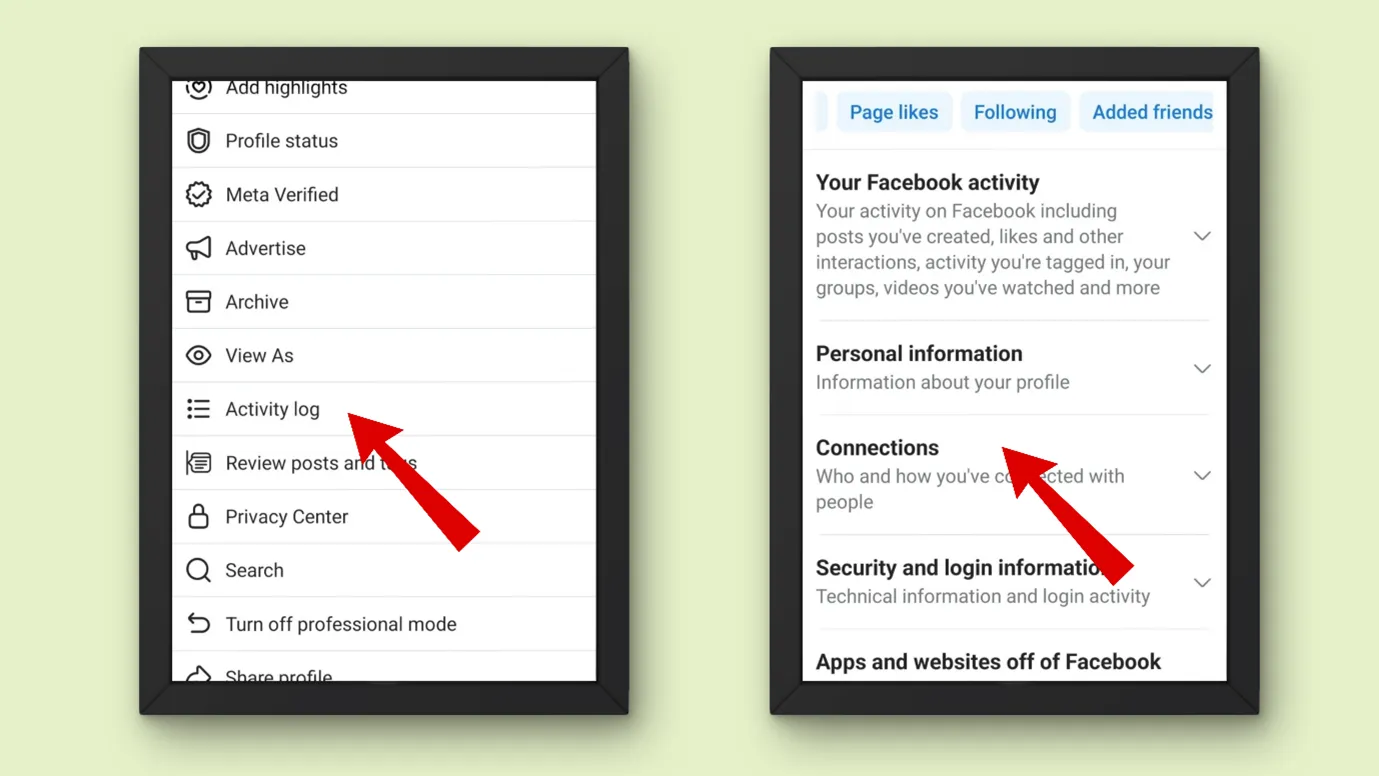
Step 6: Next, click on “Followers” and then click on “ People who followed you.”
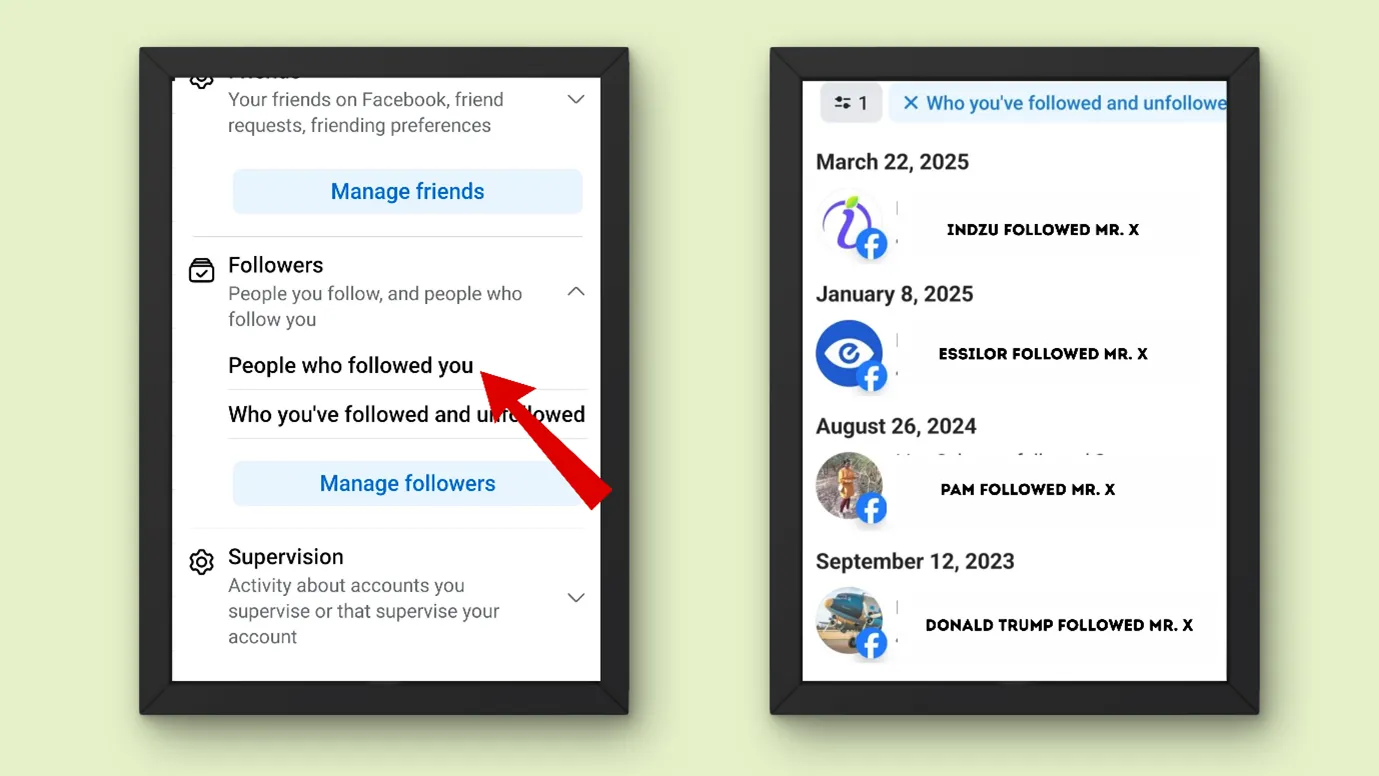
Now you can see who has followed you.
Speed · 10-minute setupOne coffee from URL to a full month of scheduled posts.
Drop your URL, brew your coffee, come back to 30 brand-on captions ready to publish.
How to see what pages you’re following on Facebook?
Step 1: Open your Facebook app
Step 2: Click on your profile picture on the upper right-hand side
Step 3: Now scroll down and click on “Pages”
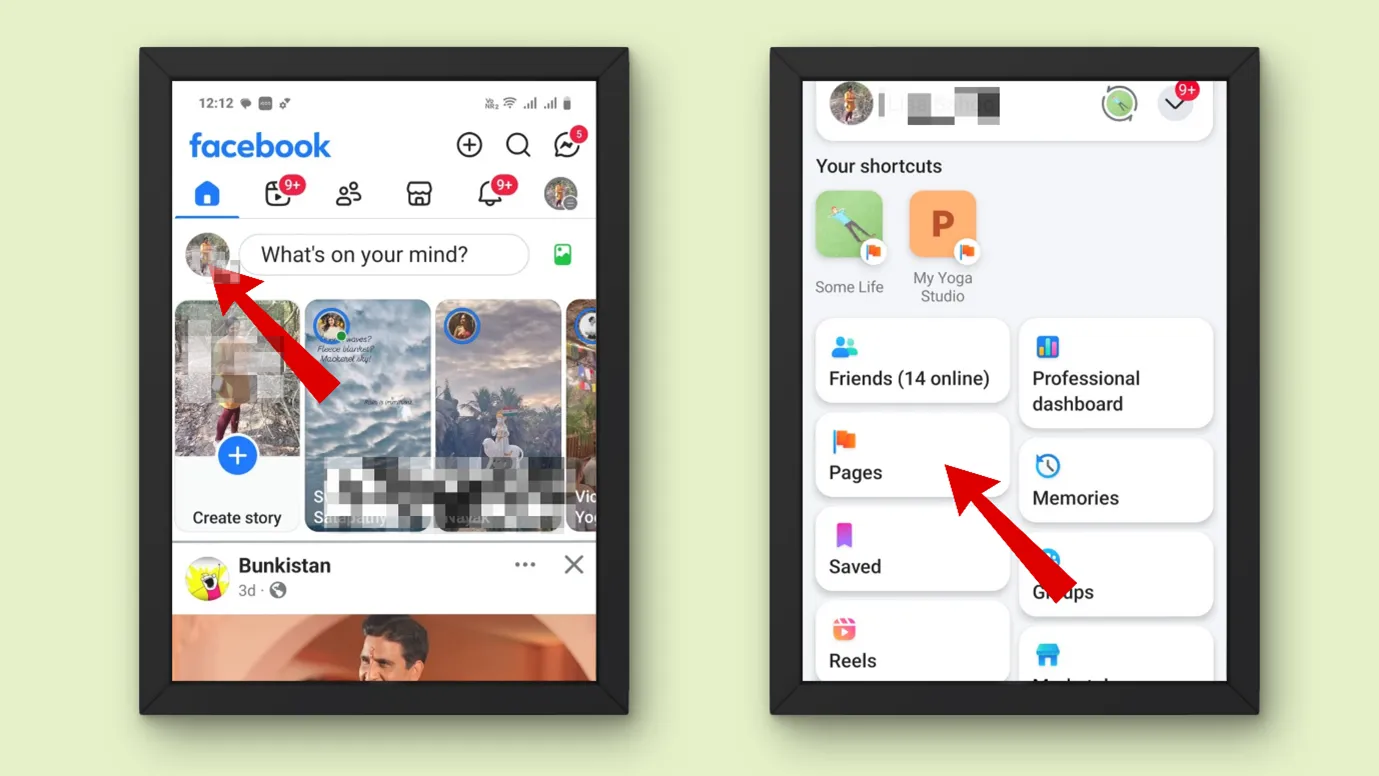
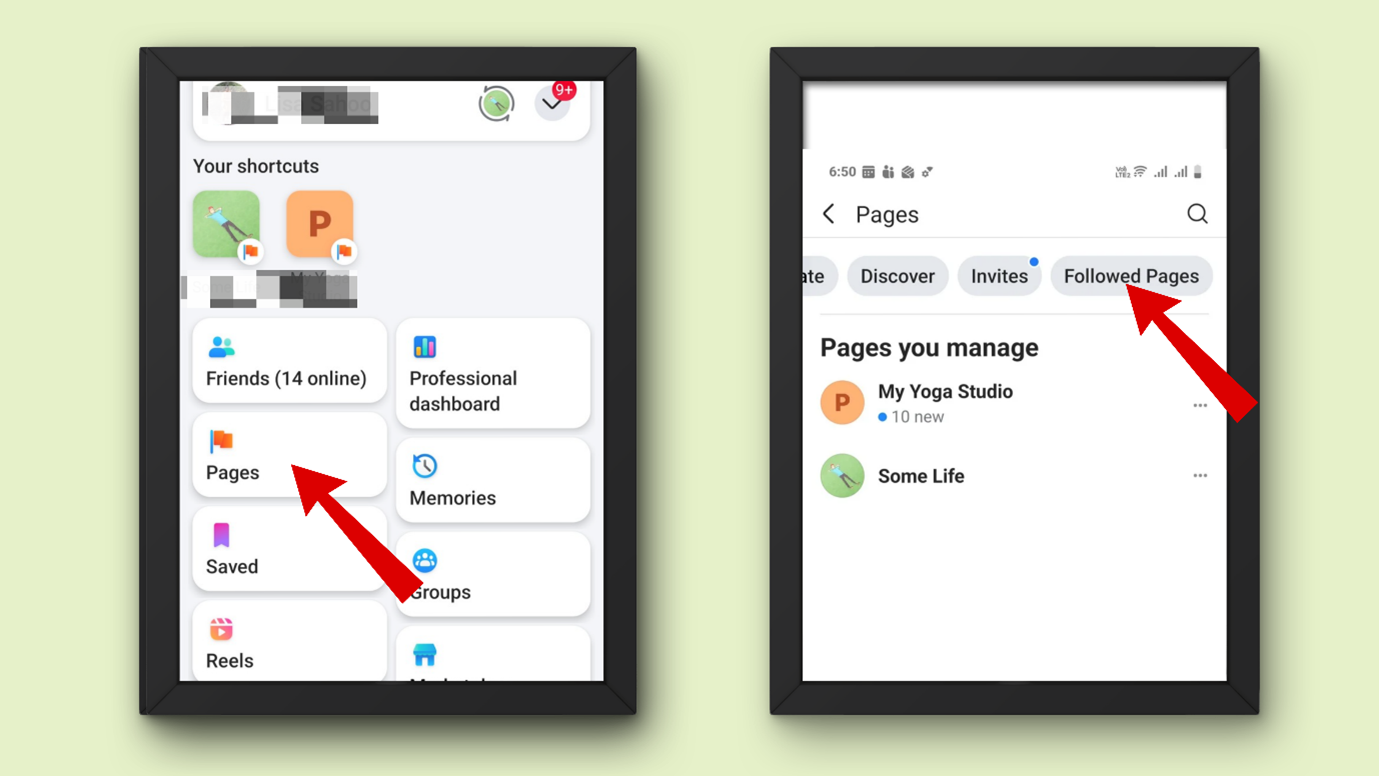
Step 4: After scrolling horizontally, go to “ Followed Pages” and click on that
Now, under the” All the pages you follow“ section, you can see the pages you follow.
Blank tab. Six open browsers. No clue what to post.


 After · With Indzu
Paste one URL. Get 30 scheduled posts.
Tips to manage your Facebook followers.
Now you must have the idea of how to check your followers and whom you follow. So, let us learn some tips on how to use these settings to increase your Facebook account credibility.
Delete what is unnecessary
Instagram or any other platform might have gained popularity later, but Facebook was popular from the early 2000s.
So, it is a possibility that you might have followed some people or pages at that time, who do not seem necessary now.
You can unfollow or unfriend them. This will clear out the unnecessary distractions, and whoever visits your account or page will find you credible.
Allow who can follow you and see your posts
Step 1: Open your Facebook
Step 2: Go to settings
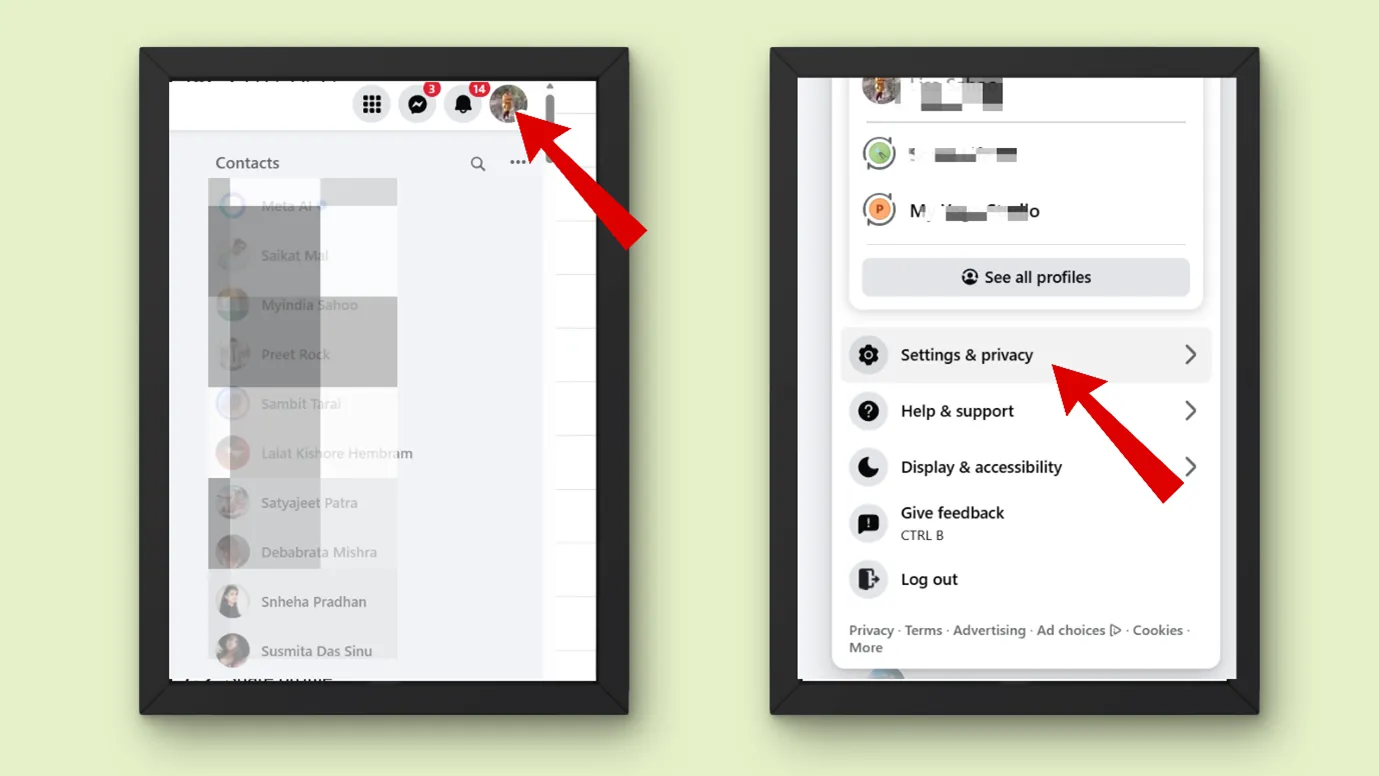
Step 3: Now, under settings, go to “Followers and Public content”
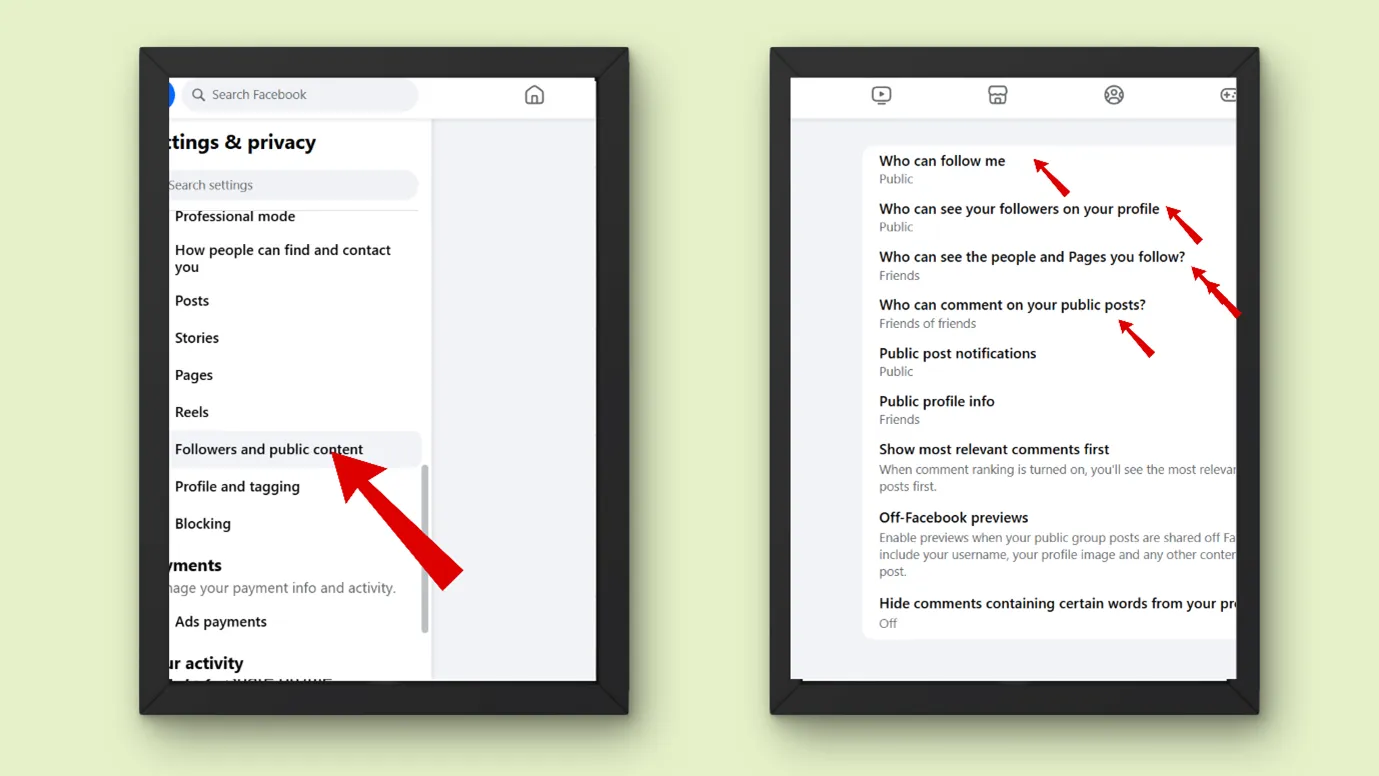
Step 4: Here, you can edit many settings,
- Who can follow you
- Who can see followers on your Profile.
- Who can comment.
- What kind of public posts notifications do you receive.
If you want privacy | You can allow only your friends to follow you |
If you want mental peace | Then allow notifications from friends of friends / Only me |
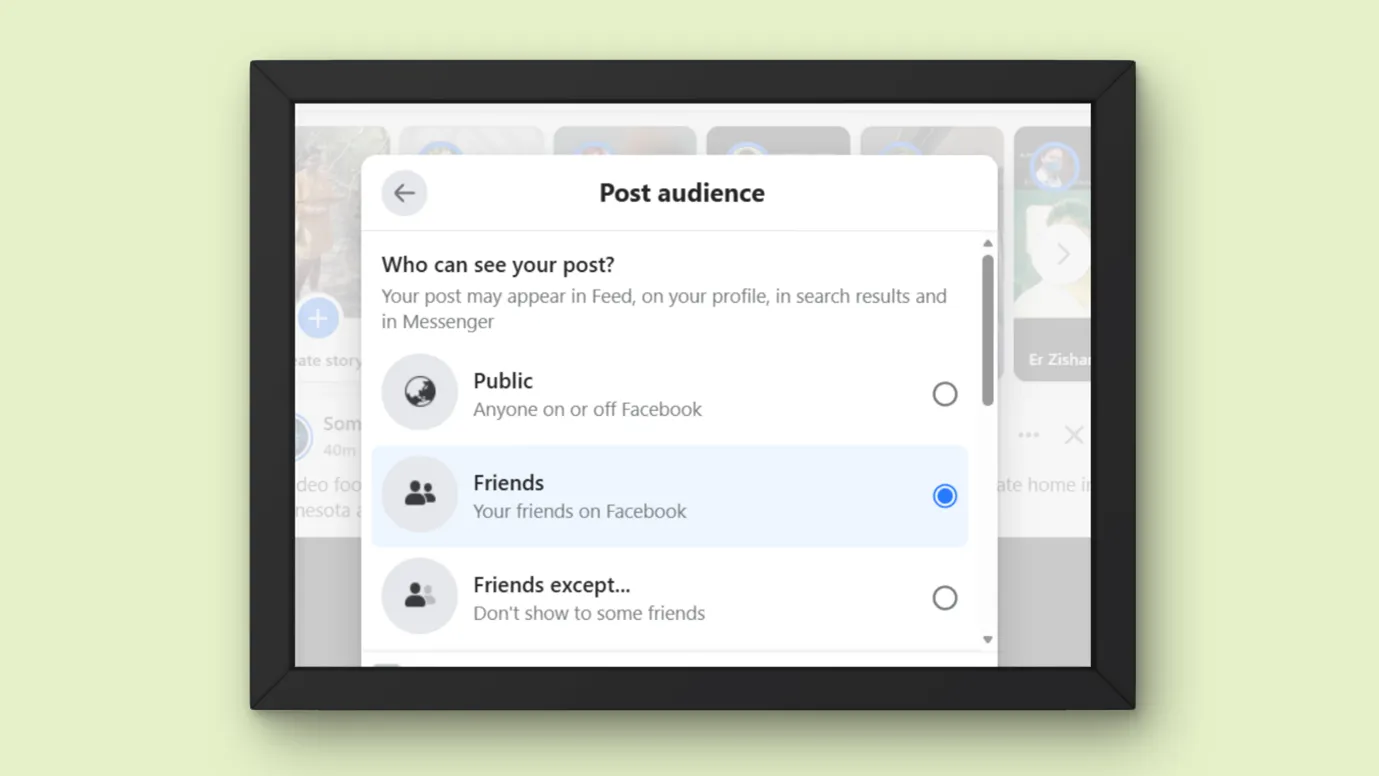
While posting, choose who your audience will be
While posting, choose who your audience will be. Facebook gives you audience options (while posting).
- Public
- Friends
- Friends expect
- Specific friends
- Any custom list/ acquaintances etc.
This will give you flexibility; you can selectively choose to be public or private.
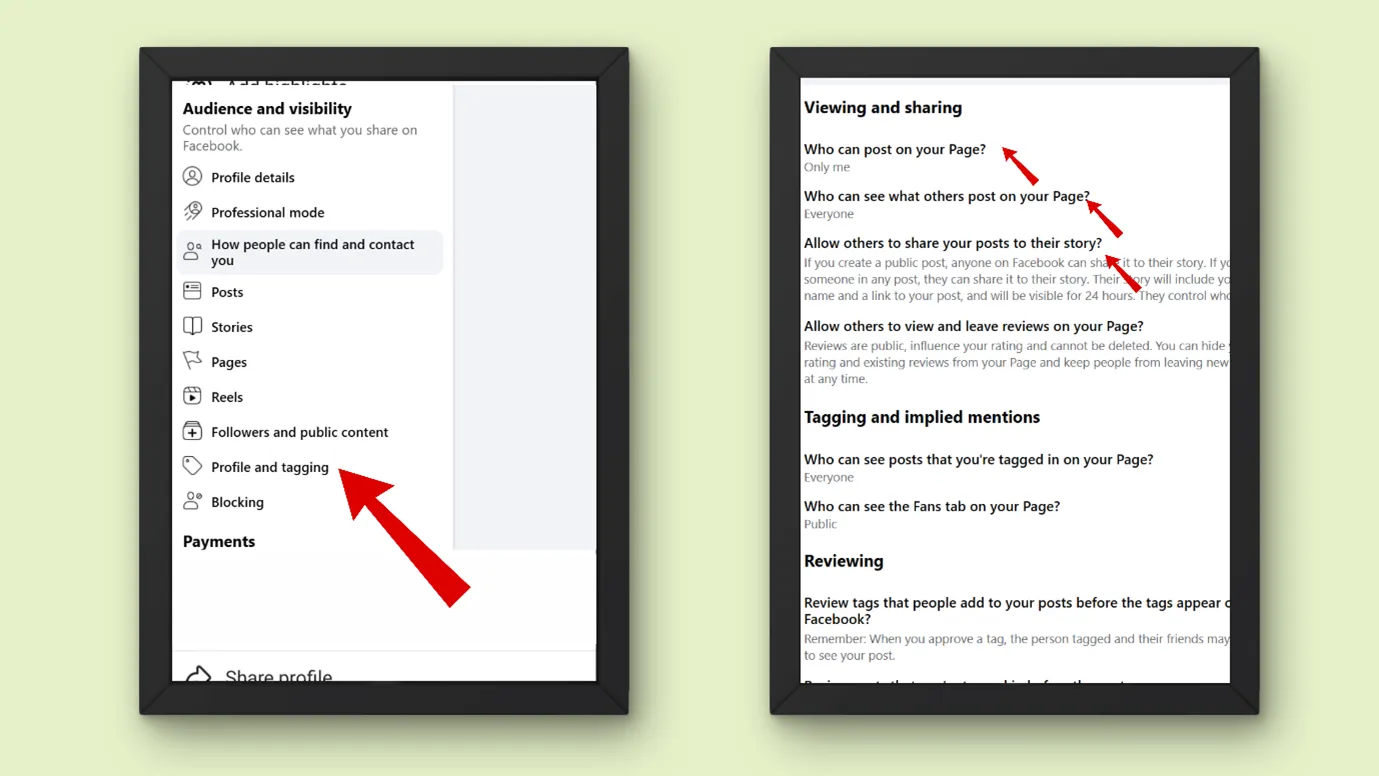
You can limit who can post on your page
You can edit many privacy settings, like
- Who can post on your page/profile
- Who can see what others post on your page/profile
- Who can share your posts as story
- Who can view or review
- Who can tag you, etc.
Let us see how to do it
Step 1: Open your Facebook
Step 2: Go to settings
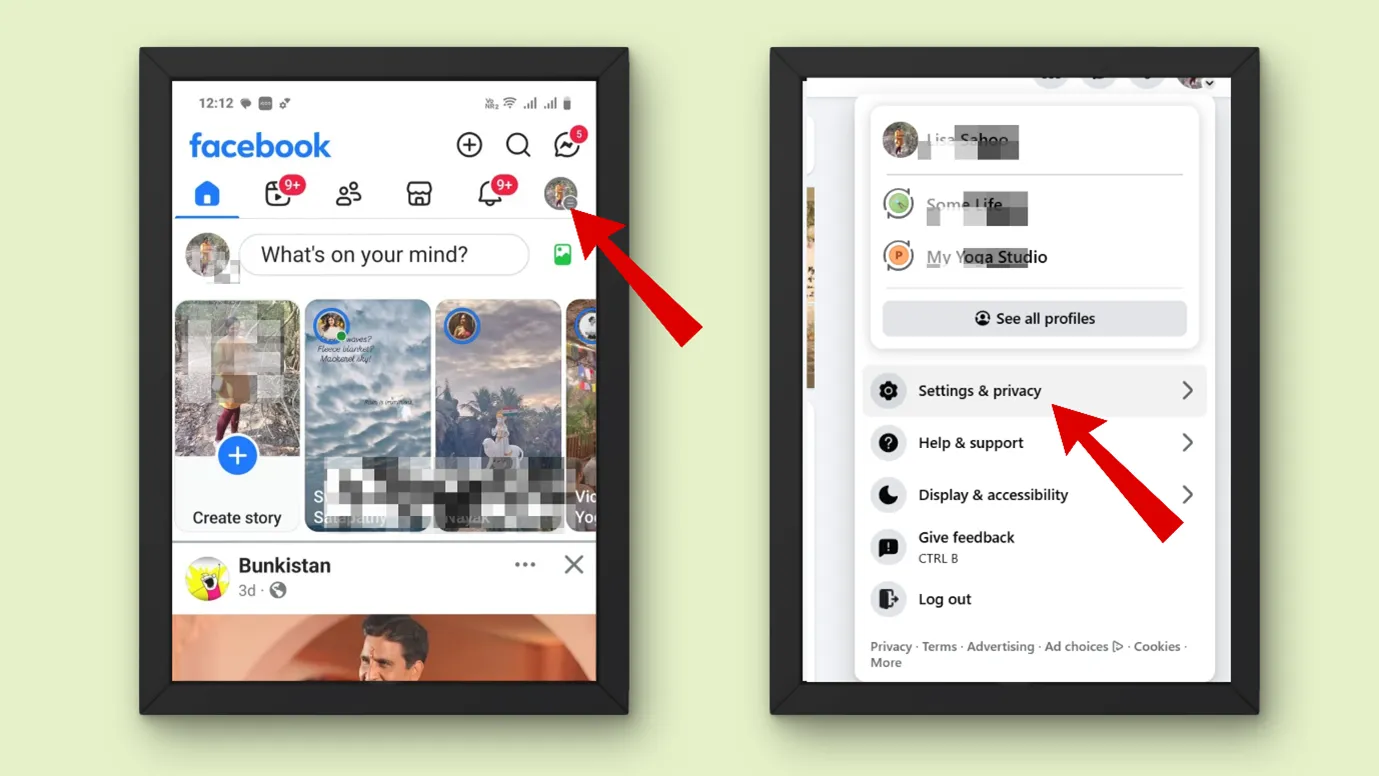
Step 3: Now, under settings, go to “Page and Tagging” or “Profile and Tagging”
You can edit the settings here.
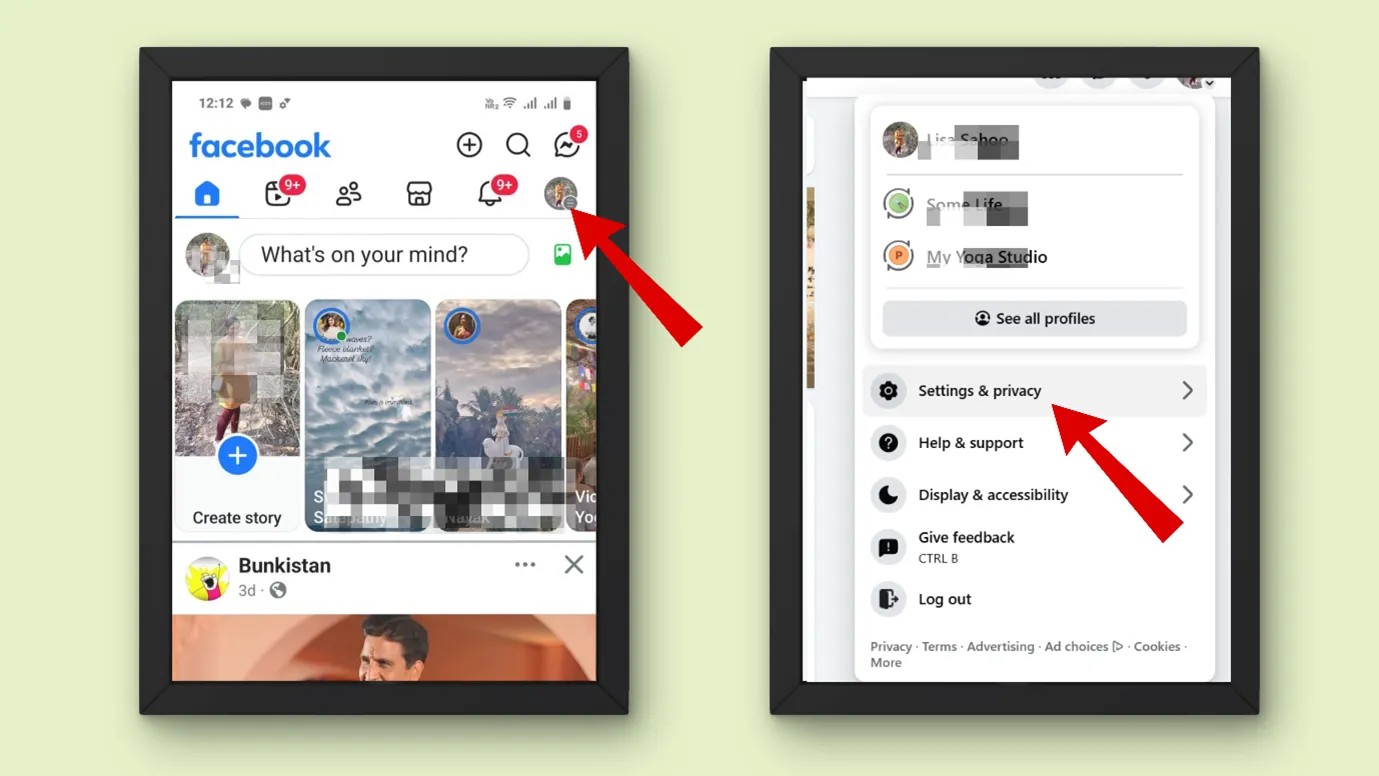
Control who can see which people or pages you follow
Step 1: Tap on Menu in the top right of Facebook.
Step 2: Scroll down and tap Settings and privacy, then go to Settings.
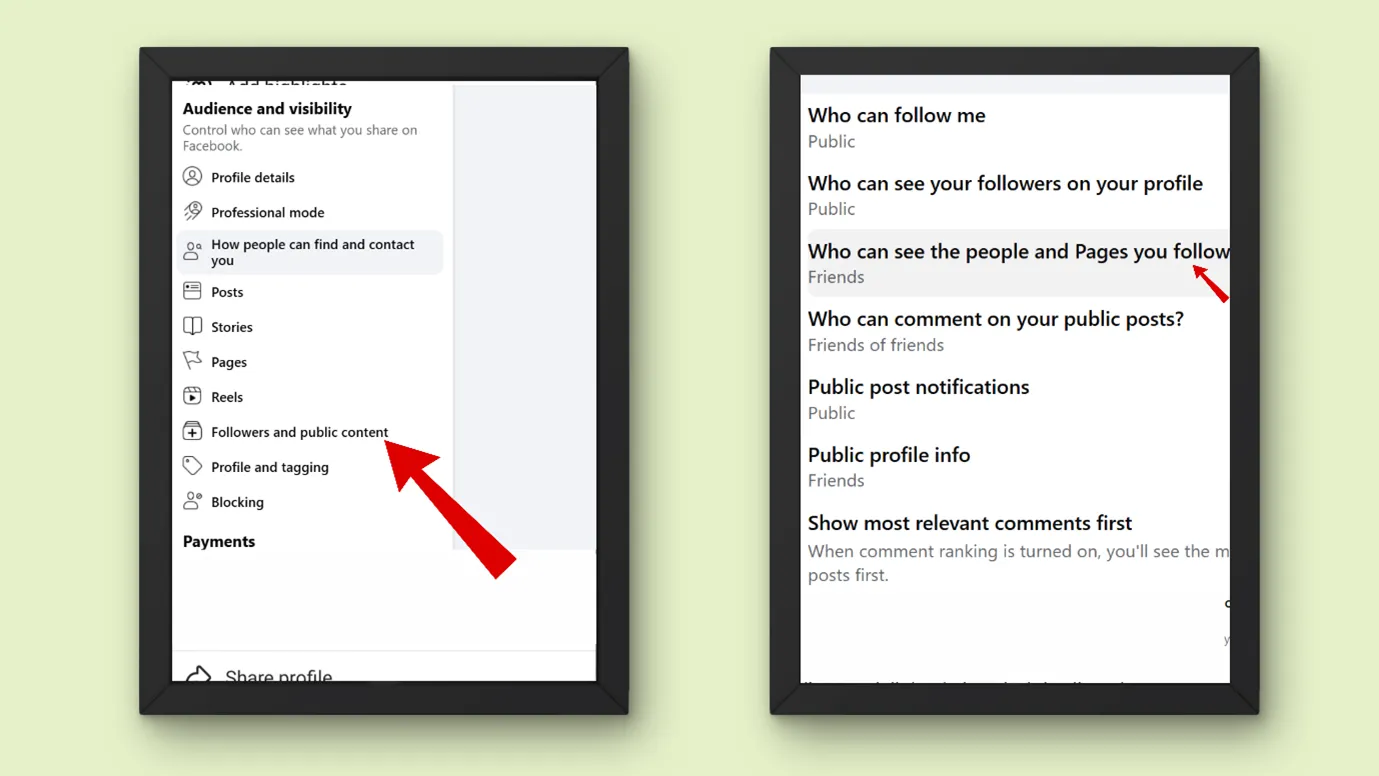
Step 3: Next Scroll down to the “Audience and visibility” section and tap “Followers and public content”.
Step 4: Next, go to “Who can see the people and Pages you follow?” and select the audience
How to make friends automatically follow you on Facebook?
Your friends are by default your followers.
Is there an automatic follow-on Facebook?
If you want to add “Follow button on your profile or page. You can easily do it.
For profile
Step 1: Open your Facebook profile
Step 2: Go to settings
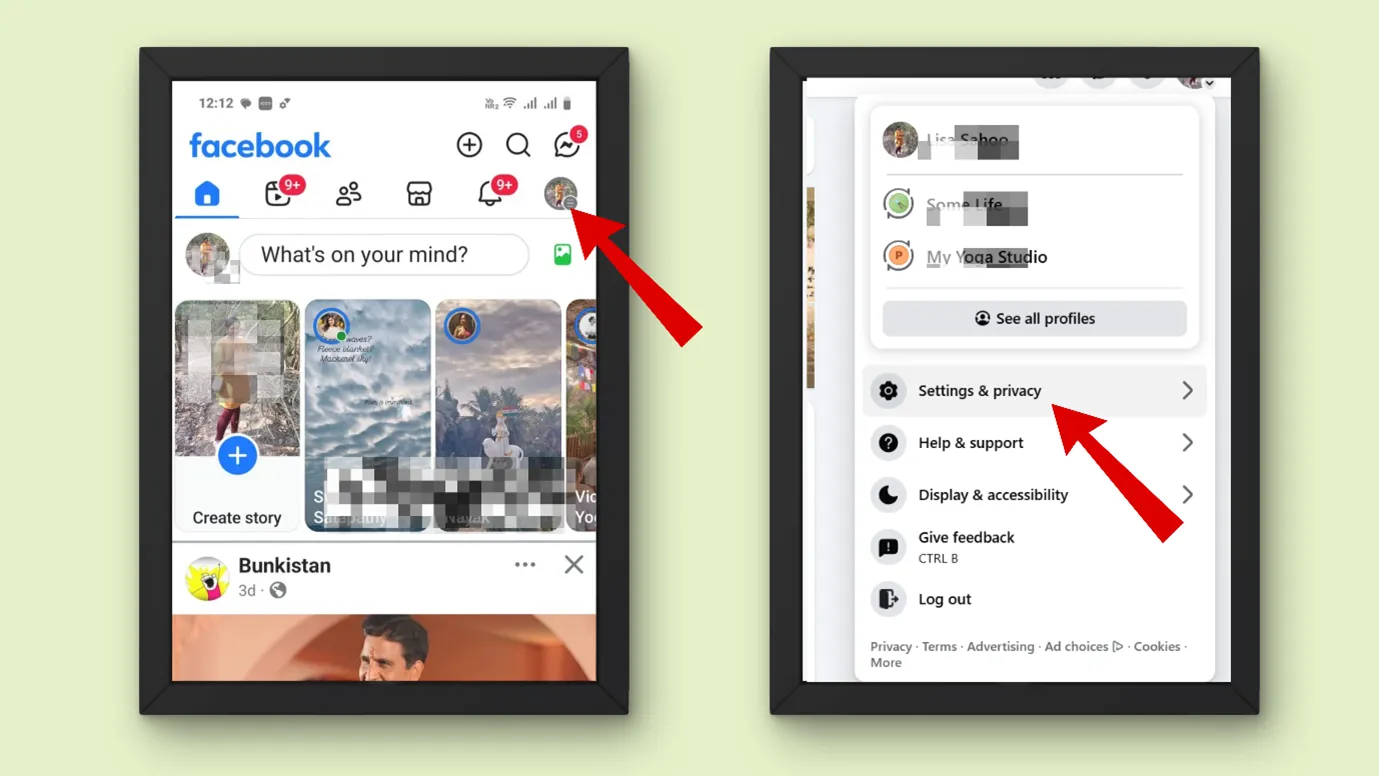
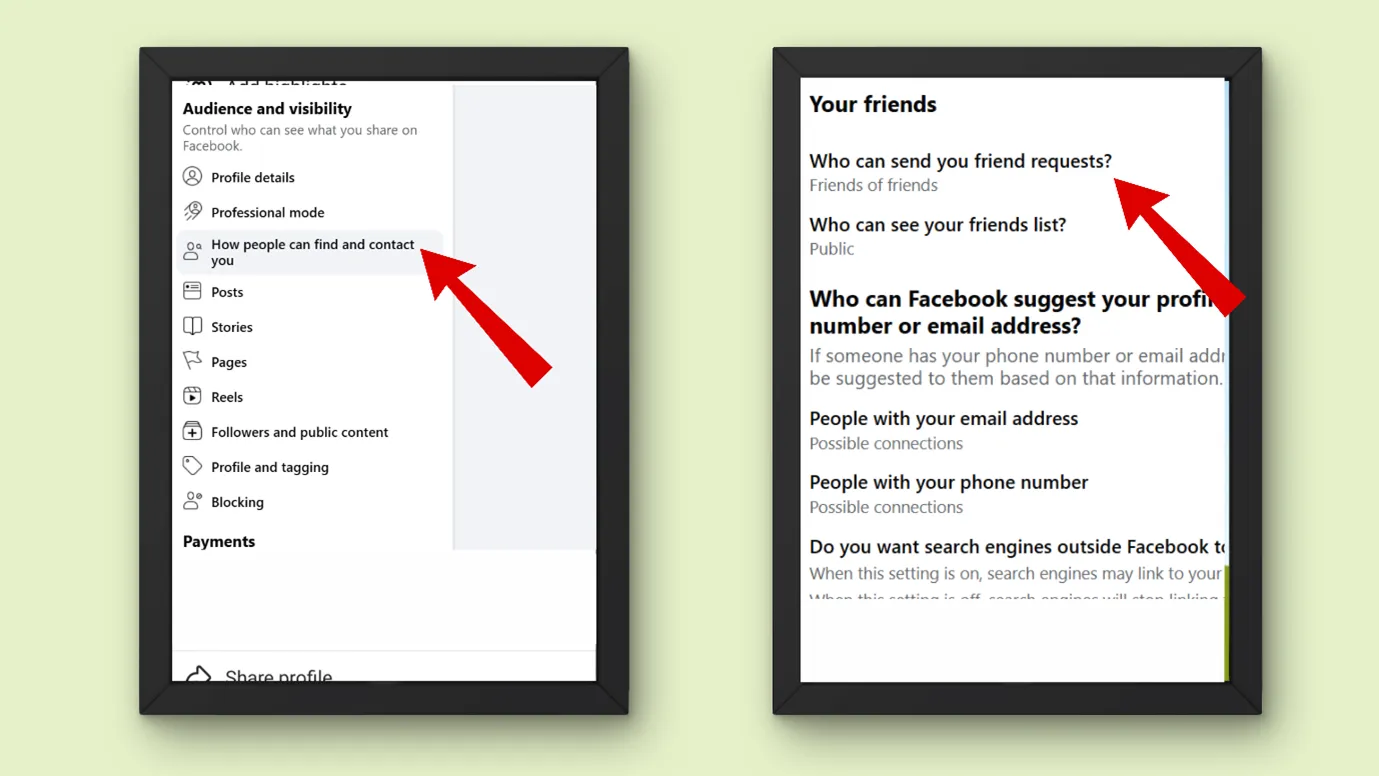
Step 3: Now, under settings, go to Audience and visibility
Step 4: Click on “How people can find you or contact you”
Step 5: There, you can edit “Who can send you friend request.”
Step 6: Choose “Friends of Friends”
For Page
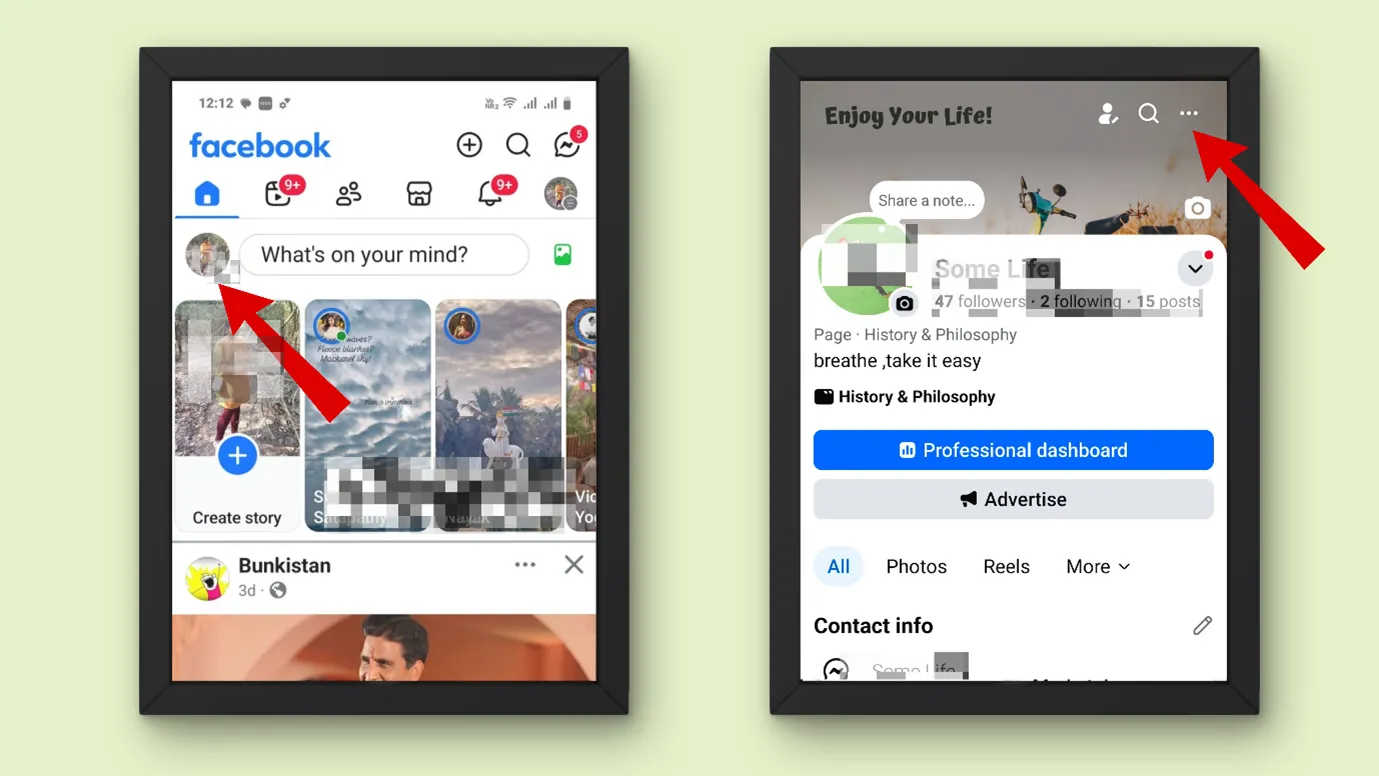
Step 1: Open your Facebook page
Step 2: Go to your homepage
Step 3: Click on the page icon on the left-hand side
Step 4: Now, click on the 3 horizontal dots
Step 5: Click on the” edit action button “
Step 6: Here you can choose your favorite action buttons like “Like” or “Follow”, etc.
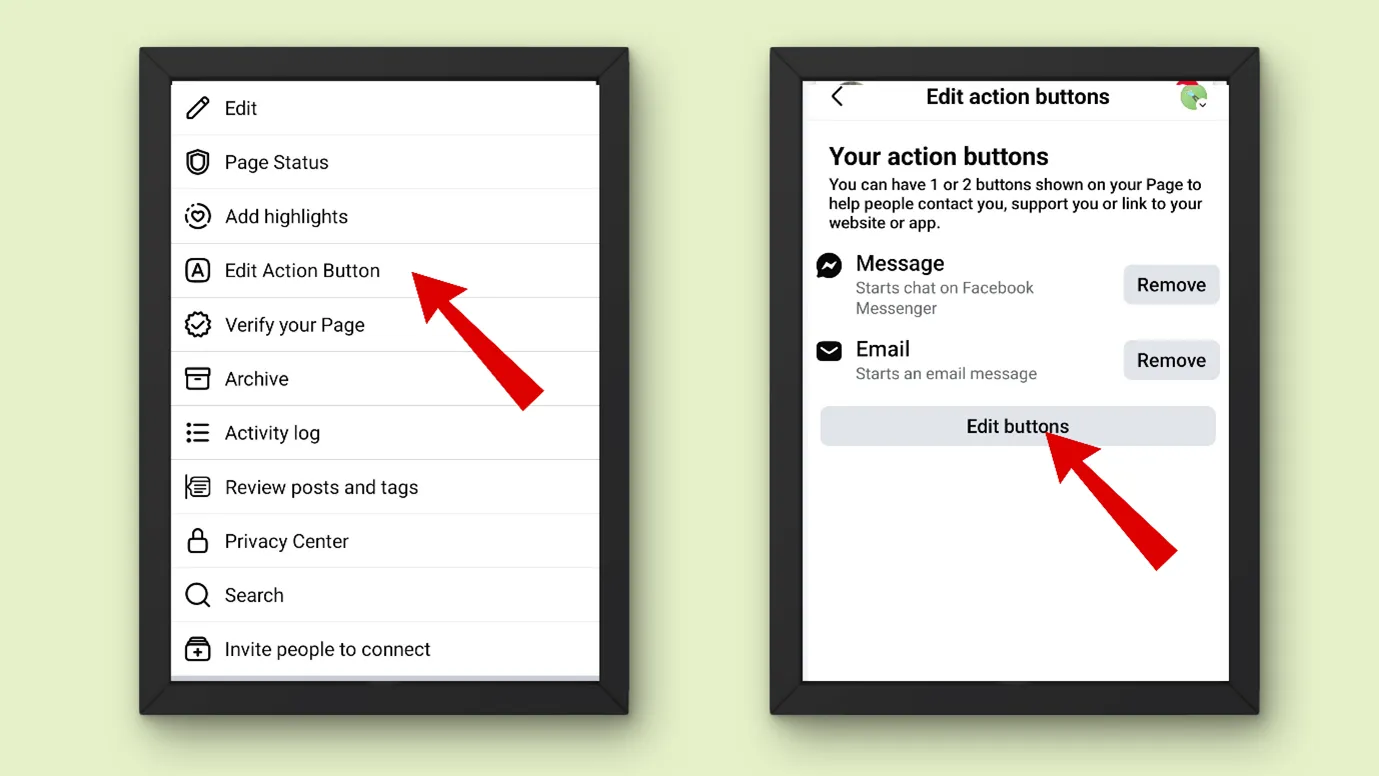
(Note- Make sure that you are in professional mode)
Also, if you do not find any follow button in the action column, then relax. All Facebook pages have a default “like“button, which is similar to the “follow” button.
Time killer · Pain
Spending 6 hours writing posts that get zero traction?
Paste your URL. ZuAI turns it into 30 brand-on captions in 10 minutes — no blank-page panic, no generic AI filler.
How do I increase my followers limit on Facebook?
Are people unable to send you a friend request? Or have you maxed out your limits?
Facebook allows 5000 followers as the limit. If you want to increase your follower limit, then do these 2 things.
- You can turn your account into a professional account. Let us see how you can do it.
Step 1: Log in to your Facebook
Step 2: On your homepage, click on the profile picture on your left
Step 3: Now you can see a 3 horizontal dots under your Facebook cover photo, click on that
Step 4: There, you can “Turn on professional mode”
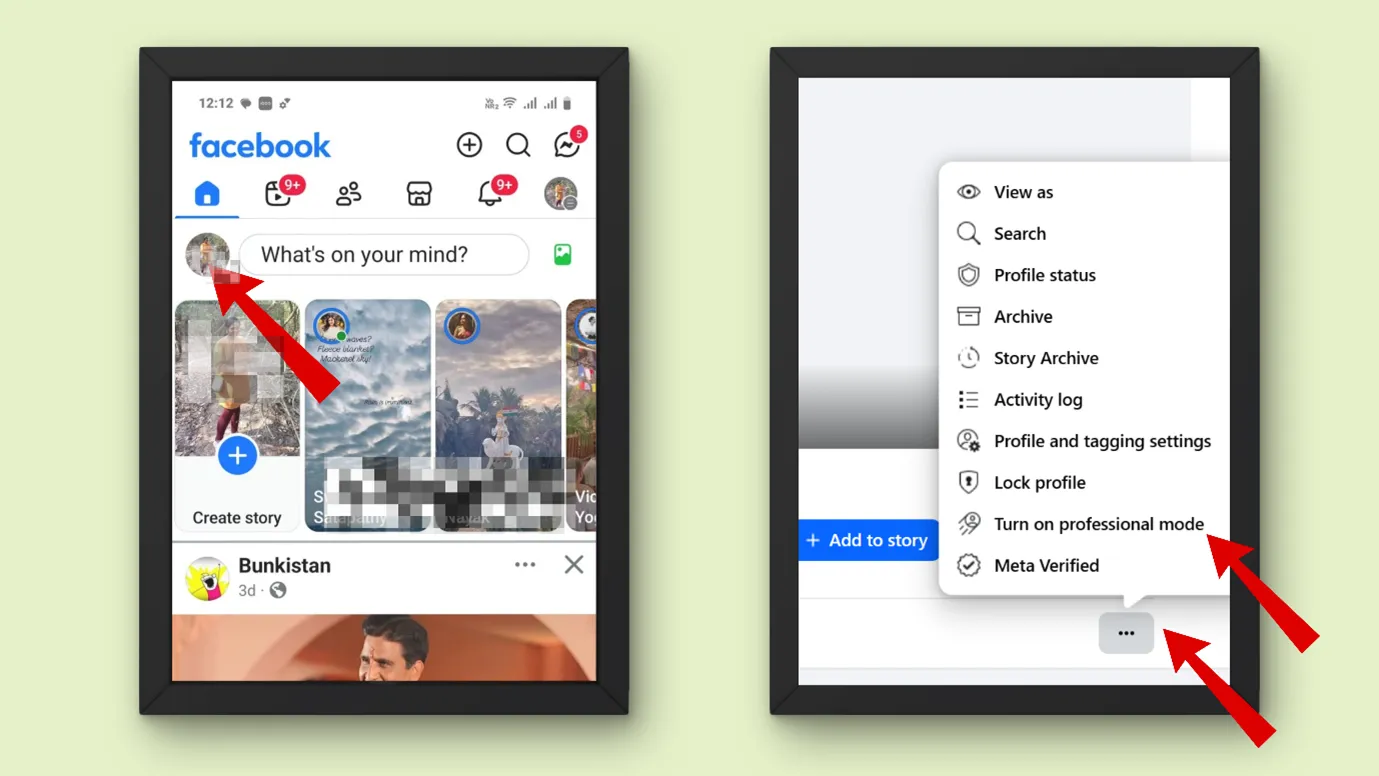
When you turn on professional mode, more than 5000 people can follow you.
- If you have any pending friend requests, then manage them. You can accept or delete your friend requests.
Outcome · RecommendedGet 30 days of social content from your website — in 10 minutes.
Key Takeaway
Now that you have learnt how to check who am I following on Facebook and many other important settings of Facebook, it is going to be easy for you to manage your followers.
But along with managing your followers, it is also important that you grow your followers. We think our set of content creation and smart AI tools will help you. Do you want to know about Facebook or how to get more out of Facebook, like setting up a business page? Keep yourself updated with our blogs.
Proof · Verified
2k+ grew faster with one tool.
FAQ
1. Can someone know if I follow or unfollow them?
- On the Facebook page, Facebook will send you a notification when anyone follows the page
- On a Facebook profile, Facebook won’t send you a notification.
For Unfollow, Facebook does not send any notification.
| Action | Facebook Page | Facebook Profile |
|---|---|---|
| Follow | ✅ Notification is sent to Page admins |
Notification sent (depends on their settings) |
| Unfollow | ❌ No notification sent | ❌ No notification sent |
2. Can I unfollow everyone on Facebook at once?
You can unfollow at once only on your Android or iPhone. Let us see how we can do it.
Step 1: Open your Facebook app
Step 2: Click on your profile picture on the left side
Step 3: next click on “settings and privacy”
Step 4: scroll down and go to “ Content Preferences”
Step 5: Next, you can click on “ Unfollow”
Step 6: Now, click on 3 vertical dashes. And choose all
Now you can unfollow all at once.
H3: Is there a limit to how many people I can follow on Facebook?
Yes, you can follow up to 5000 people on Facebook. Also, you can add up to 500 friends on Facebook, after that people will only be able to follow you.
How is following different from liking a page?
When you like a page, you can see their public posts, but you are not an official follower.
But when you hit the follow button on a Facebook page, you are a follower of that page.
How do I see my following history on Facebook?
Let us see how you can see people you followed on Facebook
Step 1: Open your Facebook app
Step 2: Click on your profile picture on the left side
Step 3: Now, click on the horizontal 3 dots on the upper right-hand corner.
Step 4: Click “Activity Log”
Step 5: Scroll horizontally and tap on “Following”
Step 6: Now you can see who you had followed along with the date and year.
How do I turn off auto-following?
Step 1: Tap on Menu in the top right of Facebook.
Step 2: Scroll down and tap Settings and privacy, then go to Settings
Step 3: Under “Your Activity,” you can see “Apps and Websites”.
You can change the settings there.
How do I see who is following me on Facebook?
To see who is following you on Facebook, the process is almost similar as seeing the following.
Step 1: Open your Facebook app
Step 2: Click on your profile picture on the left side
Step 3: Now, click on the horizontal 3 dots on the upper right-hand corner.
Step 4: Click “Activity Log”
Step 5: Click on “Connections”
Step 6: Next, click on “Followers” and then click on “People who followed you.”
Now you can see who has followed you.
How do I change who can see people and pages that I follow on Facebook?
Step 1: Tap on Menu in the top right of Facebook.
Step 2: Scroll down and tap Settings and privacy, then go to Settings.
Step 3: Next Scroll down to the “Audience and visibility” section and tap “Followers and public content”.
Step 4: Next, go to “Who can see the people and Pages you follow?” and select the audience