Are you tired of dealing with spam comments on Facebook? Learn how to turn off comments on Facebook posts. Rather than getting demotivated by those spam and negative comments, it is better to control who can interact with your posts.
Whether you are posting on your personal profile or managing a public page, Facebook offers a lot of choices to control who can comment on your posts. You can protect your privacy and at the same time reduce unwanted interactions.
You can control your comment section simple by selecting the group of audience who can comment under your post. In this way your content is visible to a wider audience, but a limited number of audiences can engage with I through comments.
Let’s get into the blog to know how to turn off comments on Facebook posts or control your comment section.
 Time killer · Pain
Spending 6 hours writing posts that get zero traction?
Paste your URL. ZuAI turns it into 30 brand-on captions in 10 minutes — no blank-page panic, no generic AI filler.
What do you mean by turn off comments?
Commenting is a part of engagement; sometimes you do not want to entertain spam or unwanted commented, this is exactly why you can turn off your comment section.
Turning off comments means you will not receive any new comments on your post. Let’s go through the step-by-step guide to know how to turn off comments on Facebook.
Outcome · RecommendedGet 30 days of social content from your website — in 10 minutes.
How to turn off comments on Facebook posts ?
If you have already posted content and you want to turn off the comments on that post
On Phone
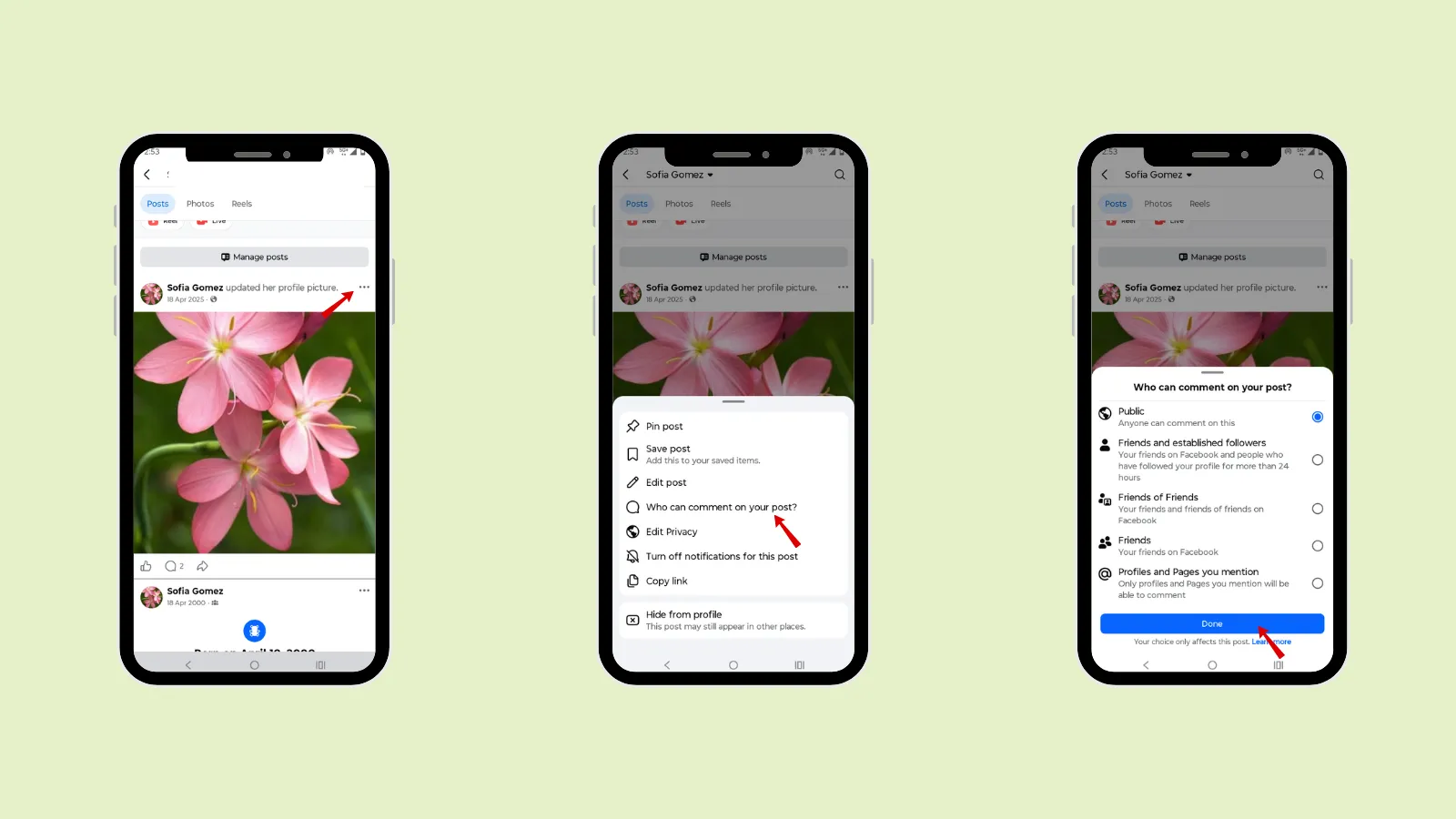
Step 1: Open your Facebook account.
Step 2: Open the Facebook post.
Step 3: Tap “Three Dots”.
Step 4: Tap Who can comment on your post?”.
Step 5: Choose from
Public
Friends and established followers
Friends of friends
Friends
Profiles and pages you mention
Step 6: Tap “ Done”.
On Desktop
Step 1: Open Facebook browser
Step 2: Open your Facebook account.
Step 3: Open the Facebook post.
Step 4: Tap “Three Dots”.
Step 5: Tap Who can comment on your post?”.
Step 6: Choose from
- Public
- Friends and established followers
- Friends of friends
- Friends
- Profiles and pages you mention
Step 7: Tap “ Done”.
Proof · Verified
2k+ grew faster with one tool.
For Facebook groups
Step 1: Open your post in the group
Step 2: Click the three dots
Step 3: Select Turn off commenting
Free · Instant · No signupSee what ZuAI generates from your website — right now.
Paste your URL. Watch ZuAI write a month of brand-on captions in seconds. Preview before you create an account.
How to hide comments on a Facebook post
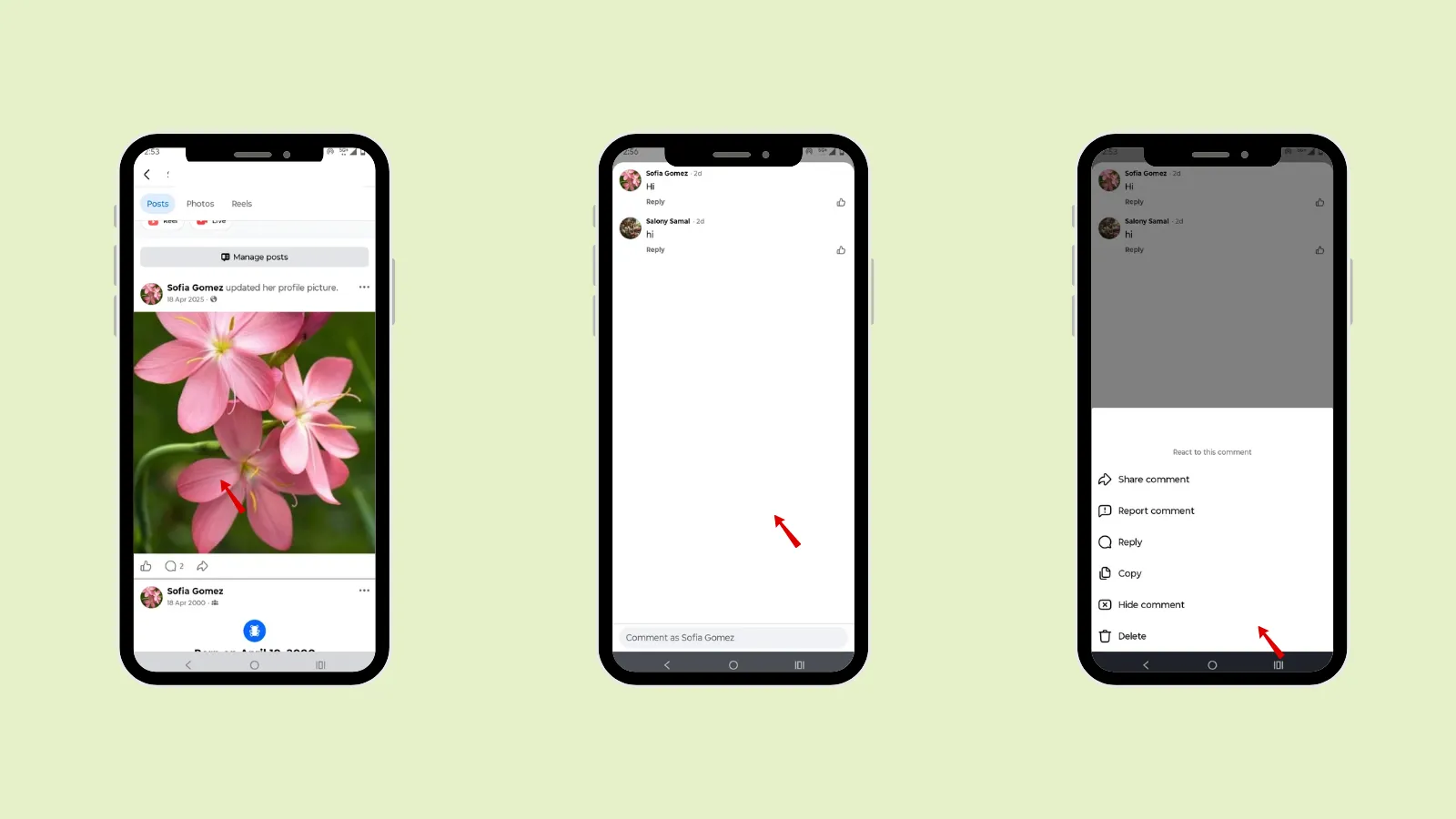
If you do not want to turn off your post’s comment section and want to hide a few comments, then follow the steps.
On Phone
Step 1: Open your Facebook account.
Step 2: Go to the exact post and find the comment that you want to hide.
Step 3: Select the comment.
Step 4: Tap on “Hide comment”.
On Desktop
Step 1: Open Facebook browser
Step 2: Open your Facebook account.
Step 3: Go to the exact post and find the comment that you want to hide.
Step 4: Select the comment.
Step 5: Tap on “Hide comment”.
Speed · 10-minute setupOne coffee from URL to a full month of scheduled posts.
Drop your URL, brew your coffee, come back to 30 brand-on captions ready to publish.
How to disable Facebook comments on a Facebook page
To manage comments on a Page
Step 1: Go to your Facebook Page.
Step 2: Open Settings.
Step 3: Select Privacy or Page Moderation settings.
Step 4: Add blocked words or profanity filters.
Step 5: Hide or remove individual comments when needed.
Blank tab. Six open browsers. No clue what to post.


 After · With Indzu
Paste one URL. Get 30 scheduled posts.
What happens when you turn off Comments?
When you turn off comments, no new comments can be posted on your post. Only the people you have selected will be able to post comments.
Time killer · Pain
Spending 6 hours writing posts that get zero traction?
Paste your URL. ZuAI turns it into 30 brand-on captions in 10 minutes — no blank-page panic, no generic AI filler.
Alternative method you can use rather than turning off comments.
If you do not want to turn off the comment section, then you can
- Post in your private account
If you have a private account, you can post in it, showing it to your friends, family, or Selected audience.
- Post in close friends
If you do not have a private account, you can post the content in your close friends group. You can select the users to whom the content will be visible. The content will be shared to your inner circle or the audience you have selected.
- Block
If you see a specific user is spamming in your content, you can block the user.
Step 1: Select the user
Step 2: Open their profile
Step 3: Click the three dots
Step 4: Tap “Block”.
Outcome · RecommendedGet 30 days of social content from your website — in 10 minutes.
Conclusion
Comments are a useful and interactive part of engagement. Your audience can express what they think about your content, and you can interact with them. But in the same place, if you are facing a lot of spam or unwanted comments, you should know how to turn off comments on Facebook posts. Go through the steps to turn off comments. If you do not want to turn off comments, you can hide a particular comment from your post. Check out the alternative ways if you do not want to turn off your comments.
While posting, if you want to make your work easily, try Indzu Social. This will help you create and schedule your work on busy days.
Proof · Verified
2k+ grew faster with one tool.
Faqs
Q1. Will turning off comments hurt my Facebook engagement?
Ans 1: Comments are a strong way of engagement. So limiting them will reduce your content engagement. Comments are a way in which your audience can interact with you regarding the content that you have posted. So, if you turn off your comments section, then your audience cannot interact with you.
Q2. Do Facebook comments affect how many people see my post?
Ans 2: Yes, comment is a form of engagement signal, which will help your content reach a wider audience. More comments will help your content to reach a wider audience.
Q3. What is the difference between hiding comments and turning comments off?
Ans 3: Hiding comments removes specific comments from public view. While turning comments off prevents new comments altogether.
Q4. Can you still get likes and reactions if comments are disabled?
Ans 4: Yes, you can still get likes and reactions if you disable comments. Only your audience will not be able to comment under your content. If you want, you can disble your comment under a single post.
Q5. Does Facebook notify users when I disable comments?
Ans 5: No, Facebook does not notify users when you disable comments on your content.