
Why does my Instagram keep crashing? What is wrong with it? Is my internet connection ditching me? So many questions pop up in our heads when we are abruptly taken back to the home screen. Instagram, being the most popular social media platform, has a low to moderate record of short-duration outages. As of February 2026, around 10,000 users worldwide were reportedly affected by a service interruption.
There can be many reasons for this problem, such as poor internet connection, login issues, or feed loading errors. Let us talk about the most frequent Instagram crashing problems and how to minimize them.
 Time killer · Pain
Spending 6 hours writing posts that get zero traction?
Paste your URL. ZuAI turns it into 30 brand-on captions in 10 minutes — no blank-page panic, no generic AI filler.
Why does my Instagram keep crashing? What does it mean
There are many possible reasons for Instagram crashes. While some are easy to tackle, most cases need some help. Here are the signals Instagram shows during a crash.
- The app opens and immediately closes.
- Your app closes instantly and is taken back to your home page.
- Many times, your app won’t open at all.
- It may freeze, and even after multiple taps, it may not open.
- Sometimes your screen becomes black.
- In many cases, Instagram doesn’t fully crash; instead, the feed refreshes repeatedly, which can be a sign of an unstable connection.
Is it a serious problem?
- No, it’s not usually a serious problem; it can crash temporarily.
- A minor software glitch could cause it.
Frequent reasons why your Instagram keeps crashing?
When you use an older system or phone with limited storage, you may have difficulty opening Instagram. There can be many reasons; let us discuss why it happens.
An outdated app can cause issues.
- Your phone’s operating system can affect how Instagram works. If your system (Android or iOS) is not updated, it may be why your Instagram keeps crashing.
- Sometimes changes to the system (Android/iOS) can affect older apps.
Instagram Server and API changes can cause issues.
- Instagram repeatedly updates its server, which can cause miscommunication with an outdated app.
- If a particular app version contains bugs, those bugs could be the reason your Instagram keeps crashing.
Sometimes corrupted cache data causes crashes.
- Instagram cache files contain temporary data such as images, videos, and stories.
- When this data is corrupted, Instagram tries to reload it, which can cause it to freeze or crash.
- Common causes of corrupted cache include a poor internet connection, the app closing while downloading, or shutting down the phone while Instagram is still running in the background.
- If a file is only partially downloaded and stored in the cache, when Instagram accesses these files later, it may cause the app to crash.
Insufficient storage on your system can cause Instagram to crash.
- Instagram needs sufficient free space to function properly.
- The app constantly creates temporary files for reels, stories, videos, and other posts.
- On your phone, if you don’t have enough space, it may cause the app to crash.
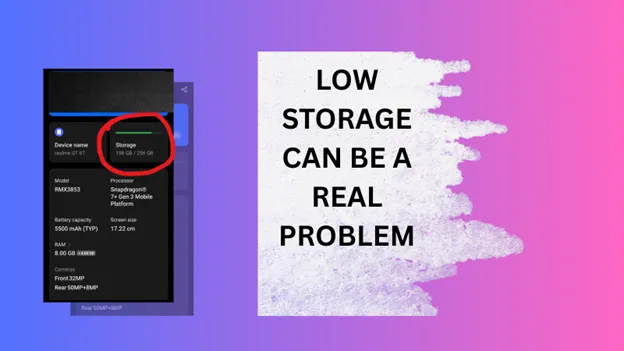
- While uploading a video, Reels, or Stories, if Instagram doesn’t have the required storage, it may freeze or crash suddenly.
- An updated version of Instagram requires additional storage during installation; if your device doesn’t have sufficient space, it may cause crashes.
Unstable Internet connection
- A poor Internet connection can cause the app to stop responding or crash.
- A weak internet connection interrupts data transfer. When Instagram cannot receive data, it may stop responding.
- While uploading a Reel, Story, or video, a stable internet connection is required; if the connection drops during upload, it may cause Instagram crashes.
- Instagram needs a stable connection to sync messages, refresh notifications, and update feeds. If the internet connection is poor, Instagram may crash.
Why does Instagram crash while using specific features?
Apart from the above-mentioned reason, there may be other specific reasons behind your Instagram crash. Features like reels, stories, DMs, or live streaming can cause crashes. These features require more space, a more stable internet connection, and more processing power. Let me break down the main points so you understand them clearly.
Issues regarding uploading
Sometimes Instagram struggles to upload large files.
- If the file is too big, your phone’s RAM can get overburdened.
- Insufficient storage can play a major role; without enough storage, Instagram may crash frequently.
- If Instagram doesn’t have permission to access your files, such as the camera, storage, and microphone, that might create an issue.
Issues regarding opening DMs
- If a DM contains corrupted data, Instagram may crash when opening the chat.
- Or it can crash while scrolling through the messages.
- Instagram chats with many photos, videos, voice notes, and GIFs require a lot of storage space.
- Sometimes Instagram crashes while loading older messages.
- In many cases, the app closes while loading a large group chat.
- Instagram may automatically close while previewing spam DMs.
Too much scrolling can cause performance issues.
- Too much scrolling can cause Instagram to crash abruptly. It may overburden RAM, especially on older phones.
- If you scroll too quickly, the cache size may increase rapidly, which can cause the app to crash.
- After long scrolling sessions, your system may overheat, which is why sometimes Instagram shuts down to protect the system.
Beta version of Instagram
If you are using the Instagram Beta version, it may include features that are available before the app launches, such as a new story layout or a new messaging feature. This beta version may contain bugs that can cause crashes. Even this version doesn’t perform smoothly.
How to fix Instagram crashing issues on your own?
Instagram crashing issues can be resolved by addressing some common glitches. Before overthinking, you can take these steps mentioned below. I am informing you of some common steps you should follow to resolve your issues.
You may restart your phone
- You can restart your phone to solve the issue.
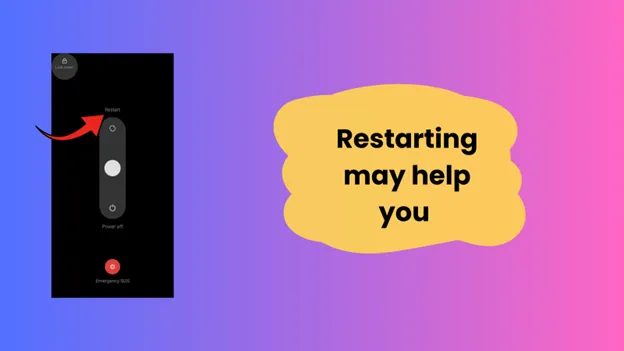
- If this is a temporary system glitch, restarting may help.
Uninstall and reinstall the Instagram app.
If Instagram crashes regularly, it may indicate that the app needs to be reinstalled. Like a fresh start, it can resolve many issues related to crashes, freezes, and unopened features. It may help restore a damaged file or corrupted data.

- For Android users
To Uninstall the Instagram app
- Go to your homescreen
- press and hold your Instagram icon
- select Uninstall
- Confirm
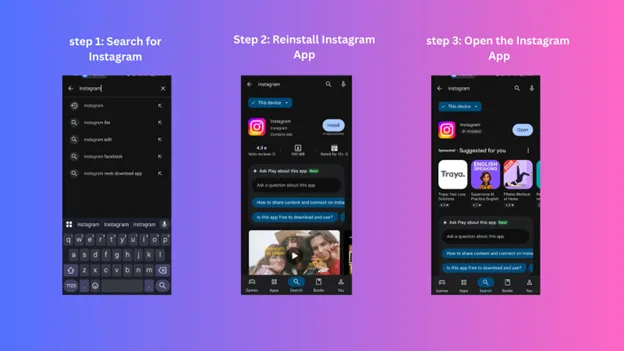
To Reinstall the Instagram App
- Open Google Play Store
- search for Instagram
- Tap Install
- Then wait for it to get installed
- Log in with your previous username
- For iPhone users
To uninstall the Instagram app
- Press and hold the Instagram app icon
- Tap remove app
- Tap delete app
- confirm
To Reinstall App
- Open the App Store
- search for Instagram
- Tap download (cloud)
- Then wait for it to get installed
- Log in with your previous username
- Leave the Beta version of Instagram
If you are using the Instagram Beta, it’s time to switch back to the original version. You need a stable connection to run the app seamlessly.
To leave a Beta version of Instagram, follow these simple steps.
For Android Users
- Go to Google Play Store
- Search for Instagram
- Open the Instagram App page
- Scroll down to the point where you see “You’re a beta tester.”
- Tap Leave
- Then Uninstall the app
- Then reinstall it from the Play Store.
For iPhone Users
- Open the TestFlight App
- Tap on Instagram
- Select stop Testing
- Delete the Instagram app from your device
- Then reinstall it from the App Store.
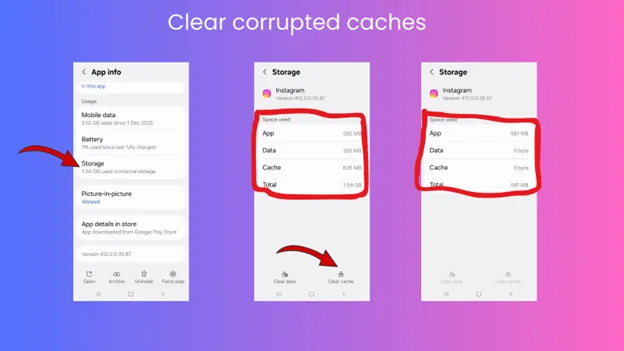
Keep a cache-free Instagram account
- Keeping your Instagram cache clear can help prevent crashes.
- You have to follow just these simple steps.
- Go to Settings
- Applications
- Storage
- Clear cache.
Sometimes your system needs an updated version
- Updating your system may help resolve crashing issues.
- If you are using the Android version, go to the Play Store> search for Instagram > click the update button.
- If you are an iPhone user, go to App Store> Updates > Instagram
- A system update may help fix bugs, security issues, and other problems.
Choose a stable Internet Connection.
- Please go for a strong internet connection.
- Avoid switching repeatedly between Wi-Fi and mobile data; use one stable connection at a time.
- If you are still having issues, then you can activate Airplane Mode for 30 seconds, then deactivate it.
- You can restart your router connection.
How can you prevent further crashes in the future?
Instagram has a strong technical team that works to prevent crashes, and only 00.01% of users experience this issue. To prevent further crashes in the future, follow our advice:
- Reinstall the Instagram app. Using an updated version of any app always benefits you. Because reinstallation can fix bugs and improve the app’s performance, and ensure you are using an updated version of Android or iOS.
- Don’t run many apps in the background at once. If you run too many apps at once, it can overload your device’s RAM, causing a crash. So make sure to avoid too many background apps.
- Use a stable internet connection.
- Avoid excessive cache buildup and unnecessary stored data.
- Keep a record of your system storage capacity. If your phone has very low storage, Instagram may crash more frequently. Double-check your device’s storage capacity to run the app smoothly.
When can you ask for Instagram support?
If the above-mentioned steps have failed, you may ask for help from the Instagram support team. The team will provide you with information on whether the issue is account-specific or device-related. It may help you to choose the right way to deal with your problem. When a crash report is submitted, the technical team will work to identify the cause and resolve the issue. To continue your report, go to Instagram settings >Help >Report a problem.
If you provide specific information about your device model, your current app version will help the support team to fix your issues.
Conclusion
Instagram crashing can often be annoying but not serious, especially if you are uploading something, sending DMs, or simply scrolling down. Generally, this problem can be solved by reinstalling Instagram, fixing your internet connection, or maintaining a healthy storage capacity.
But if your Instagram keeps crashing again and again, contact the Instagram support team to assist you. For businesses dealing with ongoing website or visibility issues, working with an SEO agency can also help address technical problems, improve online performance, and support long term digital growth.
Outcome · RecommendedGet 30 days of social content from your website — in 10 minutes.
FAQ Section
Why does my Instagram keep crashing?
Ans: Your Instagram may keep crashing due to outdated apps, insufficient storage, corrupted cache data, too many background apps, or a poor Internet connection.
What should I do when my Instagram crashes while uploading a post?
Ans: If your Instagram stops or crashes during an upload, make sure to maintain a strong internet connection, clear all background apps, or restart your phone if needed.
If my Instagram stopped while uploading a post, should I have to upload it again?
Ans: If Instagram completely freezes while uploading a certain post, you may have to upload it again. Still, you need to reopen the app. If you found your post in draft, you can rest assured that Instagram automatically saves it.
If it’s not in the draft section, you have to upload it again.
Does clearing the cache delete my data?
Ans: No, clearing the cache doesn’t delete any of your data; it only helps you eliminate temporary files that aren’t important to you.
On the other hand, it helps your app run faster.