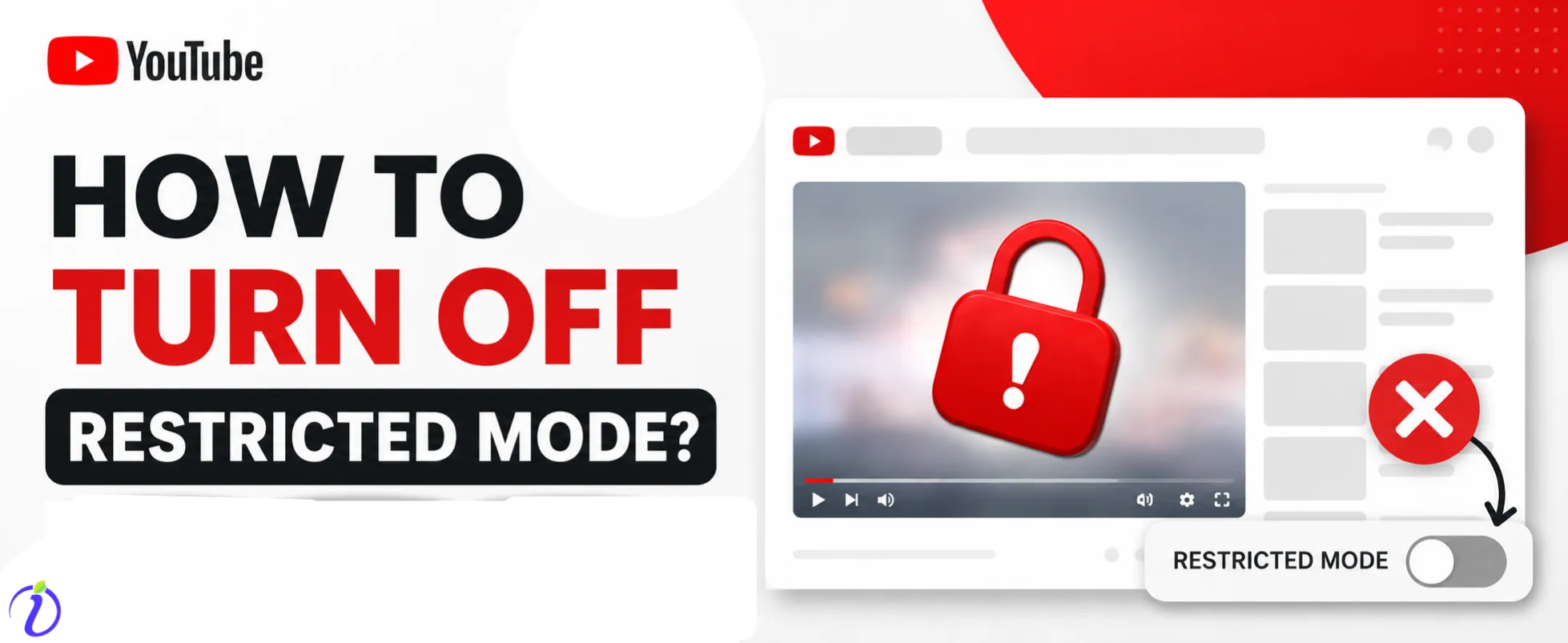
YouTube Restricted Mode is not a stumbling block for your enjoyment. This feature is intended to block adult or sensitive videos for parental control. The original plan was to keep our kids safe from disruption. But if that same disruption blocks your viewing experience, then you can remove the restricted mode.
In this blog, let us explore how we can do it in your home, office or a public space.
 Time killer · Pain
Spending 6 hours writing posts that get zero traction?
Paste your URL. ZuAI turns it into 30 brand-on captions in 10 minutes — no blank-page panic, no generic AI filler.
What is YouTube Restricted Mode?
YouTube Restricted Mode is an option in setting that automatically filters out explicit content, including mature videos, potentially offensive language, and other video content not suitable for public view. It uses the community red flag concepts, meta data analysis and other signals set by YouTube to identify and hide those videos from users.
The prime goal of this feature is to provide a safer viewing environment for its general audience.
Outcome · RecommendedGet 30 days of social content from your website — in 10 minutes.
Why You Need to Disable YouTube Restricted Mode?
While the idea behind the restricted mode is commendable, sometimes it may lead to frustration for many users. Here are a few reasons, why people wanted to turn off YouTube Restricted mode.
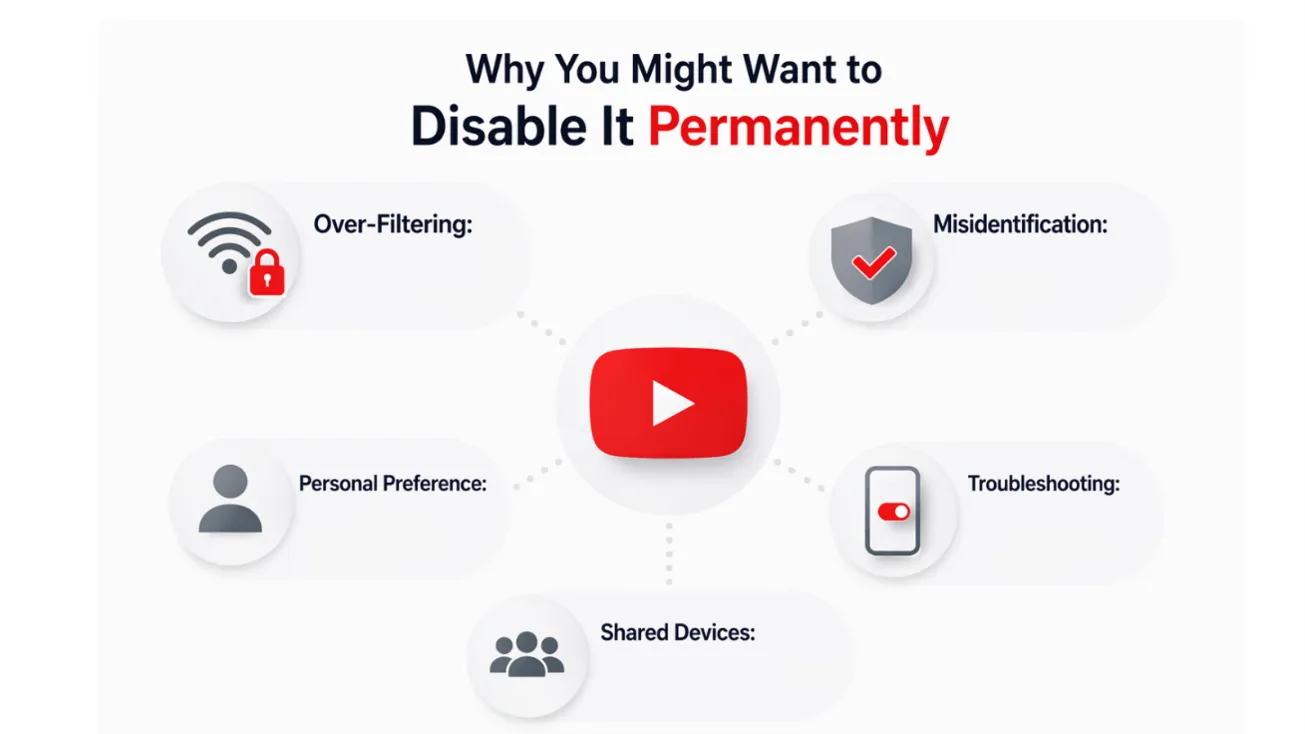
- Sometimes, YouTube does over-filtering and block educational videos, artistic videos and some videos that are well within the scope of general view. In those cases, disabling YouTube restricted mode is the perfect choice.
- Meta data and algorithms are not 100% correct. There are not always perfect. Some legit videos are flagged due to meta data.
- Some individuals prefer to have full access to all available content on YouTube without any restrictions.
- Restricted mode may become a stuck mode and it will make things difficult to turn off through standard methods. In that case, people prompt for more permanent solutions.
- If the device is used by multiple individuals, a single user’s restricted mode setting will inadvertently affect others.
Proof · Verified
2k+ grew faster with one tool.
Common Scenarios Where Restricted Mode Activates ( and Gets Stuck)
Restricted Mode is used in public places, educational institutions, workplaces and worship areas where it is required to maintain peace and harmony.
- Manual Activation: Sometimes users intentionally turn on the restricted mode through their Google Account settings. So, they are not able to view all videos.
- Parental Controls: Parents can enable restricted mode on devices used by children through Family Link app. It is a common setting used by parents.
- Network Administrator settings: workplaces, schools, and public places like restaurants share free Wi-Fi. In those situations, they enforce restricted mode to be in compliance with their policies. In those cases, the settings are locked and only administrator can change it.
- Automatic Activation: On very rare cases, YouTube’s algorithm may trigger Restricted mode on an account without direct user action. It may happen if the device is associated with any managed account.
- Stuck mode: Sometimes, the user might turn off YouTube Restricted mode and the settings might not revert. These may happen due to cached data or browser settings or interference from other Google Account Profiles. Sometimes your local settings may override the account settings.
If these are your issues, related to YouTube restricted mode, we are sharing the simple methods to fix them. Check it out.
Free · Instant · No signupSee what ZuAI generates from your website — right now.
Paste your URL. Watch ZuAI write a month of brand-on captions in seconds. Preview before you create an account.
How to turn off YouTube Restricted mode (Standard Steps)
On Desktop Browsers (Chrome, Firefox, Microsoft Edge or any Browser)
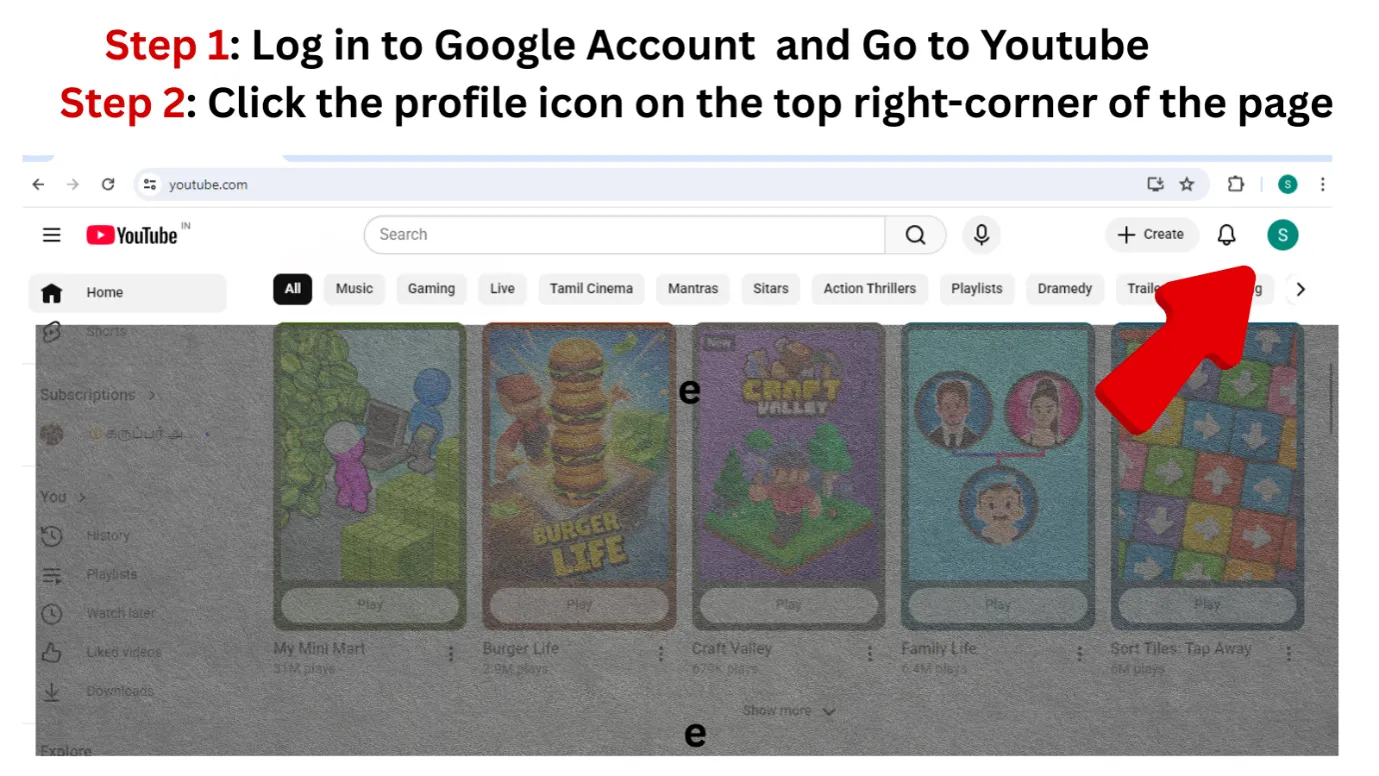
Step 1: sign-in to your Google Account. Go to your YouTube Account.
Step 2: Click on your Profile Picture present in the top-right corner of your YouTube Account Page.
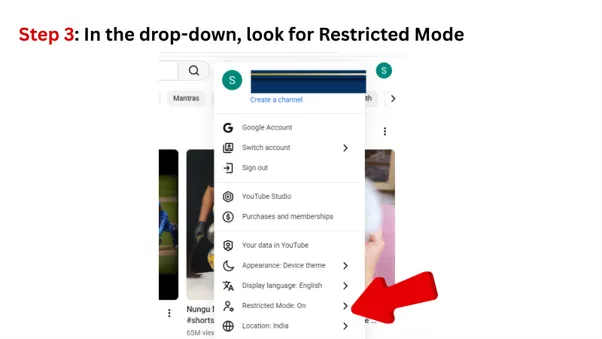
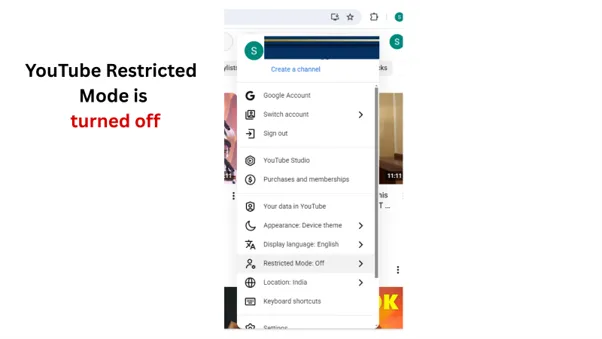
Step 3: You will see a drop-down menu with your profile picture on the top and other options below. Click Restricted mode on the menu.
Step 4: The restricted mode condition will be displayed next as “On” or “Off”. Once you click that, you are taken to that section and there is a toogle bar that allows you to turn off. Click on the blue button to turn off.
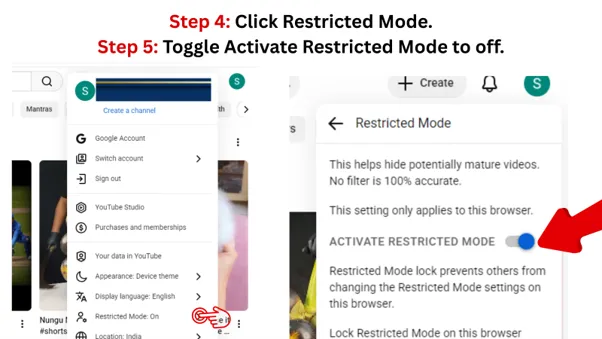
Step 5: Now, your restricted mode is turned off . Refresh the page and enjoy using YouTube without any restriction.
Speed · 10-minute setupOne coffee from URL to a full month of scheduled posts.
Drop your URL, brew your coffee, come back to 30 brand-on captions ready to publish.
On YouTube Mobile App (Android, iPhone)
Step 1: Open the YouTube App on your smart phone.
Step 2: Locate and tap your profile icon.
Step 3: Go to setting on the menu.
Step 4: On the settings, tap General.
Step 5: Find the restricted mode option and toggle the switch to turn off.
If your toggle is not saved, then there seems to be a deeper issue.
When the basic steps fail to turn off YouTube restricted mode, there may ne more than one issue.
Blank tab. Six open browsers. No clue what to post.


 After · With Indzu
Paste one URL. Get 30 scheduled posts.
What are the common roadblocks to turn off restricted mode?
Problem with your Google Account or Profile Overrides
For all the YouTube settings, your Google Account is the primary control center. If there is an issue with your Google account, then restricted mode cannot be disabled with basic fixes. Sometimes incorrect account, managed account or changes in the google account settings may lead to restricted mode issues.
Browser and App Data Interference
Cache, cookies and sometimes browser extensions can interfere with YouTube’s functionality and settings. Outdated app or browser version will sometimes prevent new settings from applied correctly.
Network and Administrator- level Restrictions
Administrator level restricted mode is one of the major reasons for the stuck mode in YouTube. The networks managed by a network administrator will have forced restricted mode on all users. There may be some regulations in Internet Service Providers ( ISPs) and it affects what you can access. Sometimes the devices managed by an organization usually will enforce some settings remotely.
Time killer · Pain
Spending 6 hours writing posts that get zero traction?
Paste your URL. ZuAI turns it into 30 brand-on captions in 10 minutes — no blank-page panic, no generic AI filler.
Proactive Measures to ensure YouTube Restricted Mode Stays Disabled
After you’ve disabled restricted mode, make sure it does not re-infiltrate your experience.
Regularly Review Your Google Account Privacy Settings
Be sure to check regularly the Your Google Account preferences, particularly in the “Data & privacy” section. Check to ensure that no inappropriate restrictions on content are in place as well as make sure that you are able to verify that your YouTube log-in and preferences are the same.
Educate Shared Device Users
If you have a shared computer or device, make sure that all users know what they can do to control the YouTube settings as well as the consequences of the use of Restricted Mode. Open communication will prevent further confusion or accidental activation.
Keep Your Software Updated
Always ensure that your browser as well as the YouTube application as well as the operating system on your device are up to date. Updates usually contain bug fixes as well as security patches to resolve unexpected behaviors, like issues with setting persistence.
Be Mindful of Content Sources
Although YouTube’s algorithm does to do its best to deliver great customer experience, its YouTube’s Community Guidelines that flags certain videos. So, be mindful of content sources.
Outcome · RecommendedGet 30 days of social content from your website — in 10 minutes.
Conclusion: Taking Permanent Control of Your YouTube Experience
Restricted Mode can be a helpful tool for regulating content, however if it becomes a permanent restriction, it can hinder your access to YouTube. Understanding how it works and identifying the most common obstacles like the Google Account issues, browser data interference and the network administrator control, as well following the troubleshooting procedures described, you will be able to effectively remove and permanently turn restricted mode off. If you’re managing your own personal viewing experience or managing the content of a member of your family using Family Link app, make sure you have the complete settings control. Make sure you regularly check your settings and ensure that the YouTube web browser as well as the YouTube application is updated to ensure uninterrupted access.
Proof · Verified
2k+ grew faster with one tool.
Frequently Asked Questions (FAQ)
What happens if I don’t find the option to disable the Restricted Mode?
It’s usually because the setting is regulated via an administrator. If you’re on the work, school or public network, your network administrator probably has shut it down. If you’re a child and the system is managed through Link Family Link, either the parent or guardian needs to turn off the network.
Does YouTube allow Restricted Mode by itself?
Although it is usually user-activated, the system may occasionally signal content to trigger restricted mode particularly if several users are on the device, or when the account is linked to an administrator profile.
Does Incognito mode disable Restricted Mode?
No. Incognito mode on the settings of your browser blocks the history of your browser and cookies from being saved locally for the session. However, in the event that Restricted Mode is activated in your Google Account or by an administrator of your network, the mode will be in effect even if you are on the Incognito webpage.
Does changing my DNS work every time?
The change in your DNS could aid in avoiding certain kinds of content filtering that is imposed by ISPs, however, it’s generally not effective against the restrictions enforced by the local administrator of your network or via parental control mechanisms such as the Family Link. Network administrators manage the DNS servers that are used within their networks, and can override the individual settings of each device.