Even though we think that AI has arrived, platforms are getting updated, things are getting easier, but still, there are many micro things for which you need guidance. After all, running a YouTube channel is not a regular task; it requires tons of settings. For example, even to see who your subscribers are, it’s not that simple. Therefore, we have brought this blog, How to see my Subscribers on YouTube
The process is very simple, but you need to follow some very basic tips. Let us dive into them.
 Time killer · Pain
Spending 6 hours writing posts that get zero traction?
Paste your URL. ZuAI turns it into 30 brand-on captions in 10 minutes — no blank-page panic, no generic AI filler.
How to see channel subscribers on YouTube on Mobile?
For anyone who has ever tried to check their YouTube channel subscribers on mobile, they must know that you can not check who your subscribers are on the YouTube Studio app easily.
That is why follow along with us, and within a few seconds. You will be able to see your subscribers.
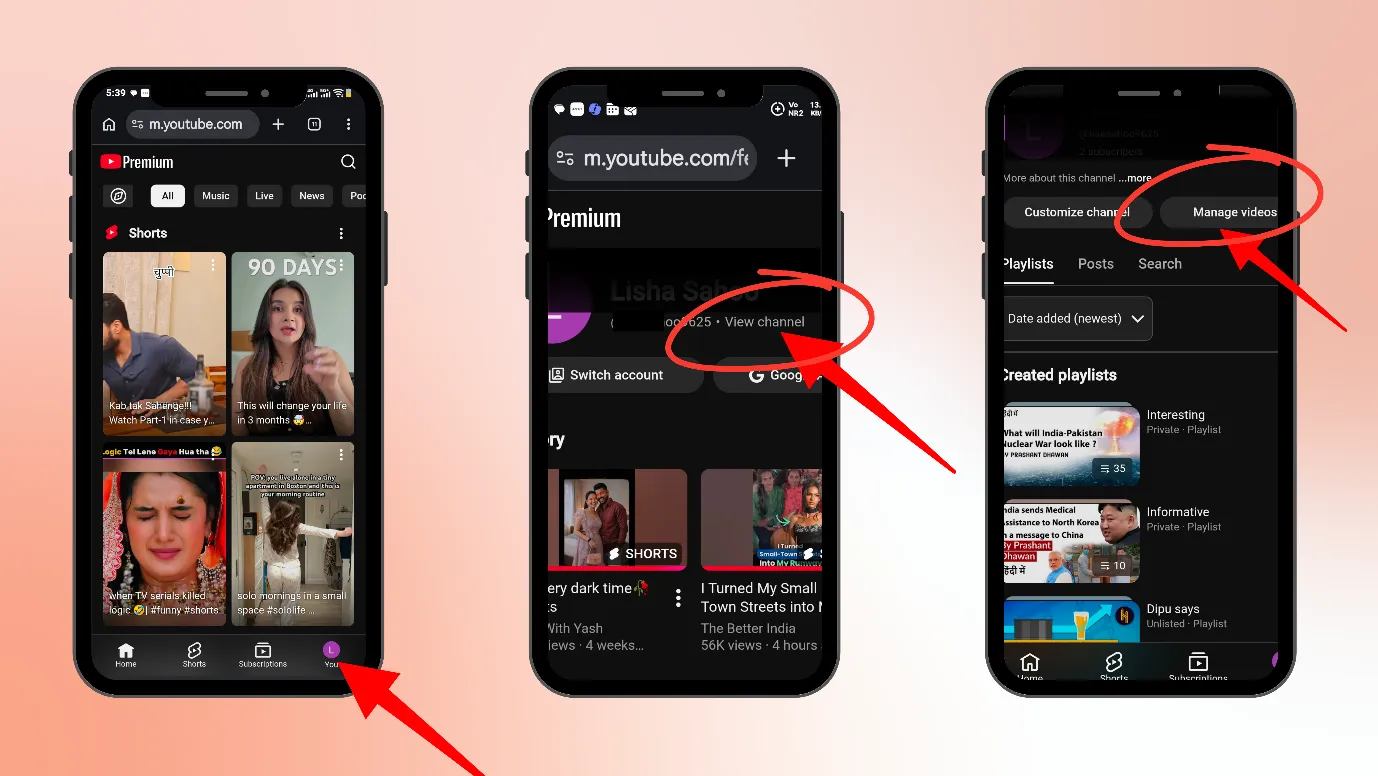
Step 1: Go to your browser. If you are using Android, go to Google Chrome
Step 2: Type “www..youtube.com” and click on “Desktop Site” or type “m.youtube.com”
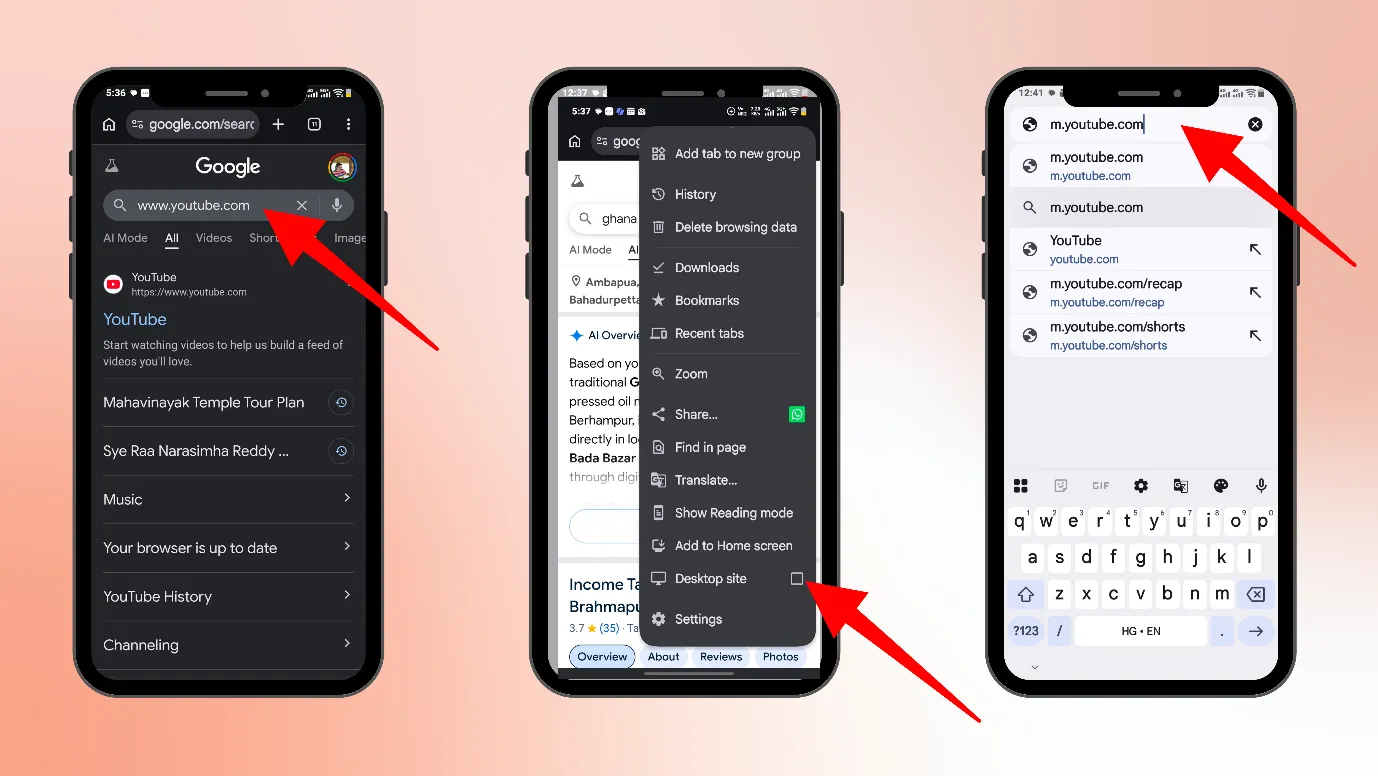
Basically, we want to open the desktop version of YouTube on Mobile
Step 3: Click on your channel icon on the lower right-hand side
Step 4: Next, click on “view channel”
Step 5: Next, click on “Manage videos”
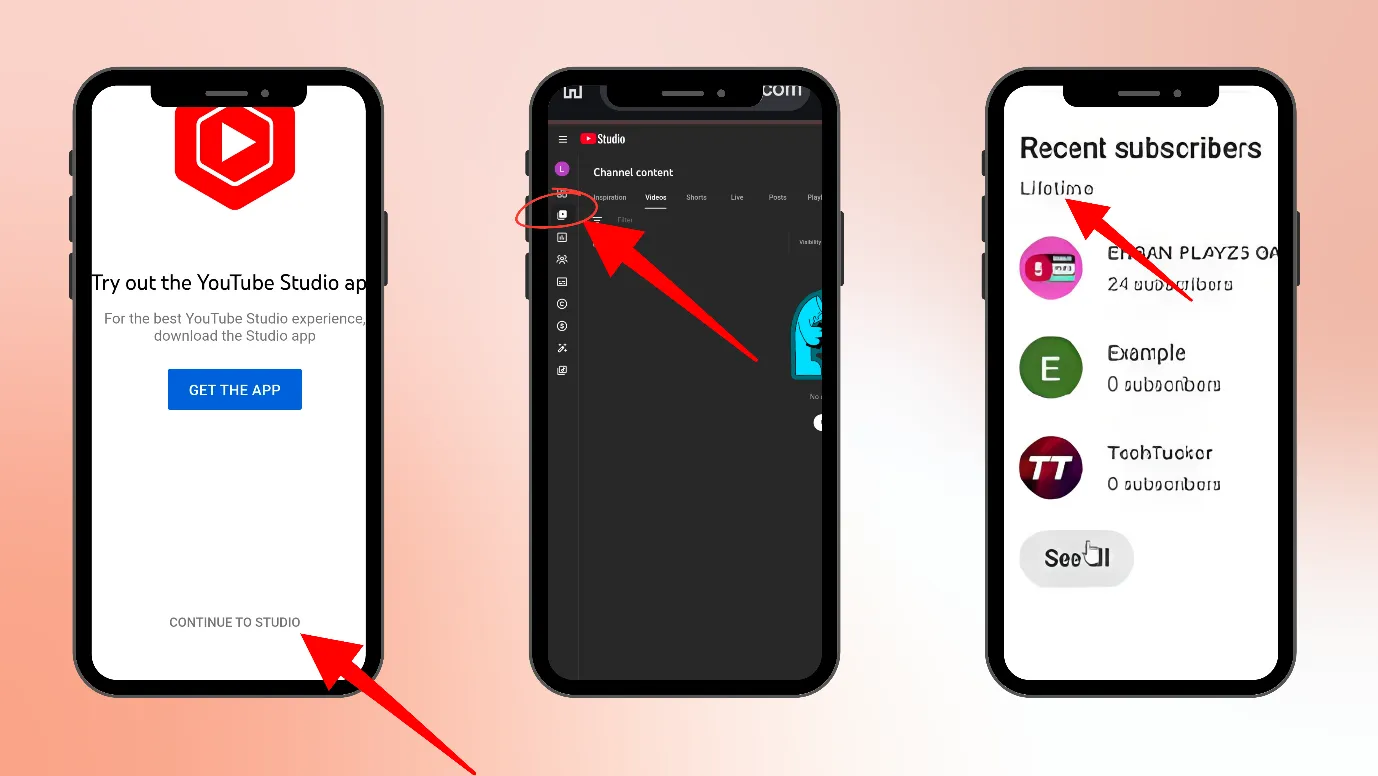
Step 6: Do not go to the YouTube Studio app, as this step may prompt you to open it or install it. Instead, click on “continue to studio.”
Step 7: You can zoom out your mobile screen here to see everything clearly. Click on Channel Dashboard.
Step 8: Next, click “Recent Subscribers”. You can also see subscribers from the last 7 days, 90 days, lifetime, etc.
But remember that you cannot see everyone, as some people have enabled the setting to be private, so you cannot view them.
Now you can see your subscribers
Outcome · RecommendedGet 30 days of social content from your website — in 10 minutes.
How to check subscribers on YouTube PC?
You can easily check your subscribers on a desktop.
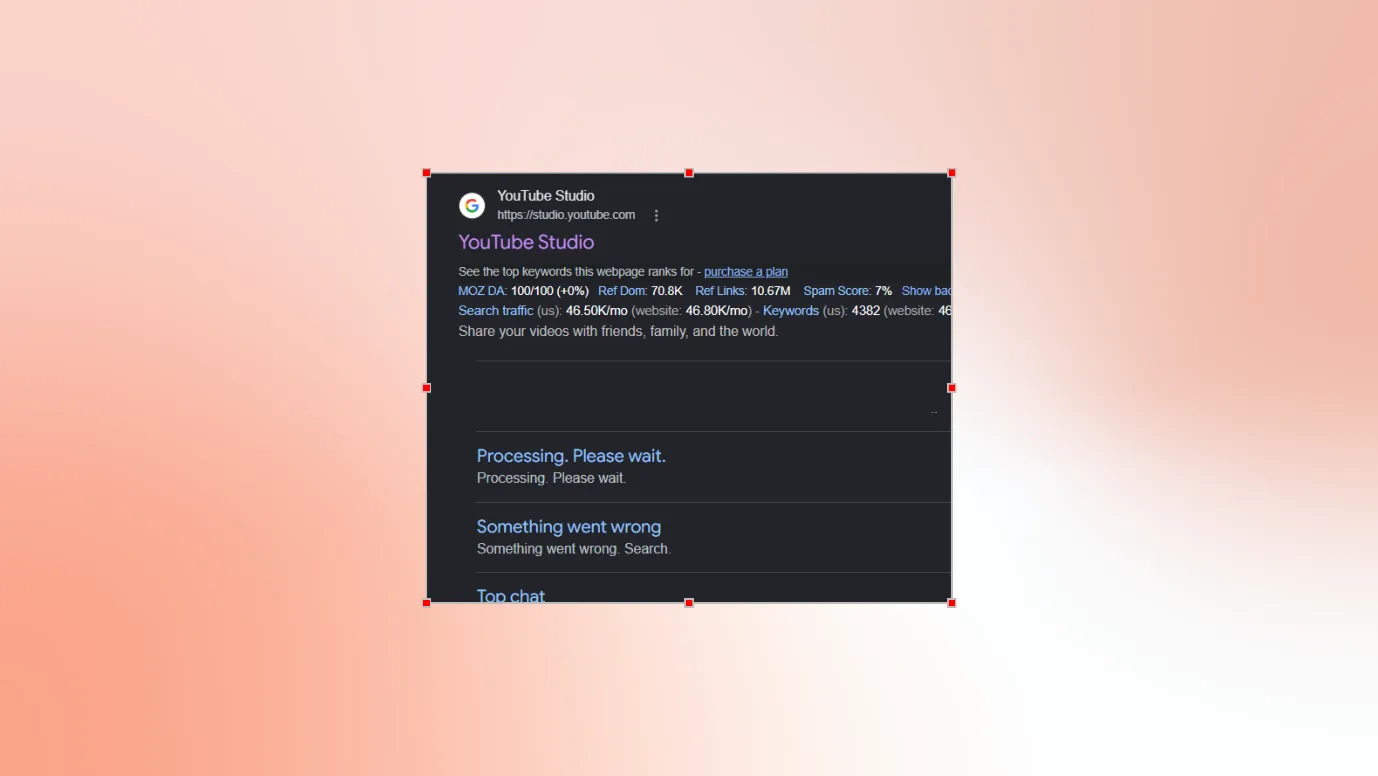
Step 1: Go to your browser and type “ studio.youtube.com” or go to YouTube, click on your profile icon, and go to YouTube Studio.
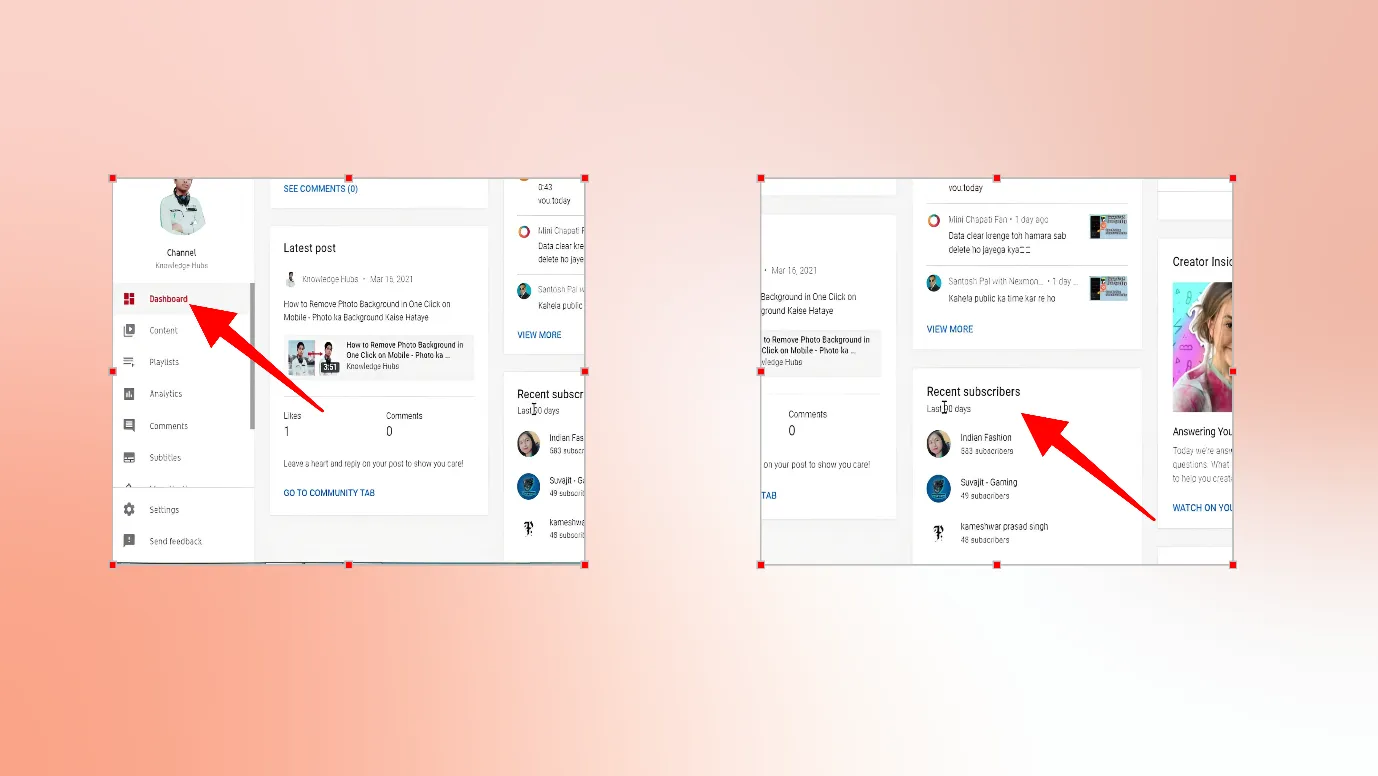
Step 2: Once the YouTube Studio interface opens, go to the dashboard.
Step 3: Scroll down and, and you can see the recent subscribers.
Proof · Verified
2k+ grew faster with one tool.
What should I do after checking my subscribers?
Once you have learnt how to see my Subscribers on YouTube, here are a few things you can do after that
- Remember that you cannot see every subscriber, but whoever you can see, check whether they are fake profiles or genuine ones.
Check if they are creators, viewers, or businesses?
- For each subscriber, check their channel and their number of subscribers.
- You can check if they are creating content from your niches or not.
- You can subscribe your subscribers back, but do it selectively.
Free · Instant · No signupSee what ZuAI generates from your website — right now.
Paste your URL. Watch ZuAI write a month of brand-on captions in seconds. Preview before you create an account.
Why can’t I see my subscribers on YouTube?
There could be primarily 2 reasons why you cannot see your subscribers.
- Your subscribers have not made their subscription public, which means they are hiding their identity from their subscriptions
- You have not selected the proper filter. While you are seeing your recent subscribers on YouTube Studio, select the filter “lifetime” to view all subscribers.
Also, sometimes, the subscriber list does not reflect all the subscribers, as there could be a delay in updating the YouTube Studio interface.
Speed · 10-minute setupOne coffee from URL to a full month of scheduled posts.
Drop your URL, brew your coffee, come back to 30 brand-on captions ready to publish.
Checked your subscribers?
We hope that from our clearly mentioned steps in the above blog, How to see my Subscribers on YouTube, you would have easily checked your subscribers.
If you are a creator, then you must have millions of doubts in your mind, starting from the best time to post on YouTube, video length, YouTube Shorts limitations, or blocking or restricting someone on YouTube.
We have already covered all these topics in detail. Give them some time, and you’ll become much clearer and more confident on YouTube than before.
Blank tab. Six open browsers. No clue what to post.


 After · With Indzu
Paste one URL. Get 30 scheduled posts.
FAQ
Q1. Why can’t I see my subscribers on YouTube?
Ans. If you are on the YouTube Studio app, you cannot see your subscribers; go to the desktop version of YouTube Studio to see your subscribers.
While seeing your subscribers list, use correct filters like “last 90 days”, “lifetime”, etc.
Also, many people keep their subscriptions private, so you cannot see them.
Q2. How can I find my subscribers?
Ans.Step 1: Go to the desktop site of the YouTube Studio app
Step 2: Click on your profile icon on YouTube
Step 3: Next, go to the channel dashboard, scroll down, and see your “recent subscribers.”
Here you can sort and see your subscribers.
Q3. Can I hide my subscribers on YouTube?
Ans. No, you cannot hide your subscribers on YouTube, but you can hide your subscription on YouTube.
That means, if you subscribe to somebody, they might not know your identity.
Q4. Even if I have less subscribers, can I still see my subscribers?
Ans. Yes, you can still see your subscribers. But if they have kept their subscriptions hidden, then you cannot see them.