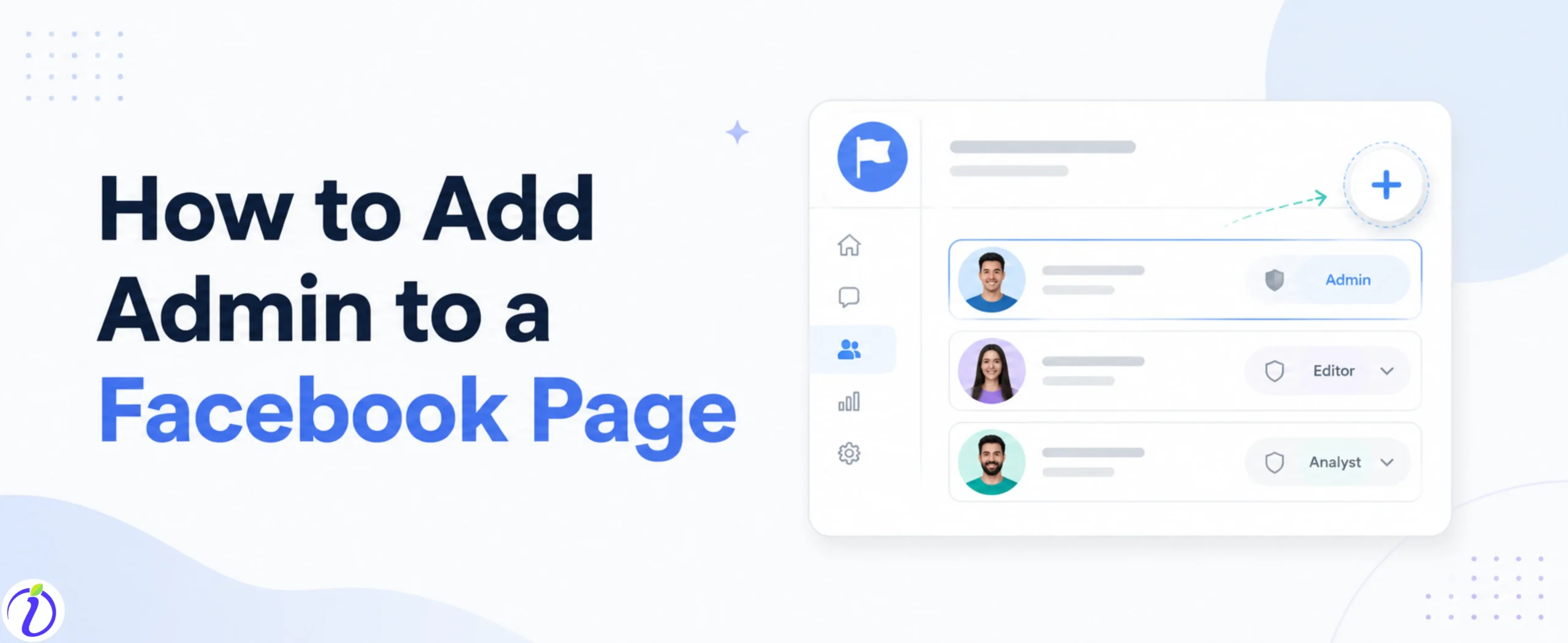
Are you tired of handling all your Facebook page tasks? We got you! Know how to add admin to a Facebook page.
Facebook lets you add team members to your page with different roles and responsibilities. Imagine having a trusted team handle all your Facebook page tasks, keeping your page active without feeling burned out.
With the right Facebook page admin settings, your page will look more professional and easier to manage.
Let’s get into the blog to learn how to add an admin to a Facebook page.
 Time killer · Pain
Spending 6 hours writing posts that get zero traction?
Paste your URL. ZuAI turns it into 30 brand-on captions in 10 minutes — no blank-page panic, no generic AI filler.
What is a Facebook Page Admin?
A Facebook Page admin is a person who handles the Facebook page. Admin is responsible for managing every aspect of the page, including posting content, responding to messages, running ads, and assigning roles to other members (those who are Facebook users).
Outcome · RecommendedGet 30 days of social content from your website — in 10 minutes.
How to add admin to a Facebook page
To add someone as an admin to your Facebook page, follow the steps.
Step 1: Open your Facebook account.
Step 2: Click on the profile picture on the right side.
Step 3: Open the Facebook page that you have created.
Step 4: Go to “Settings and Privacy”.
Step 5: Click “Settings”.
Step 6: Go to “Audience and Visibility”.
Step 7: Click on “Page setup”.
Step 8: Click on “Page access”.
Step 9: “Add new” under “People with task access”.
Step 10: Tap “Next”.
Step 11: Search for the person you want to add by username or name.
Step 12: Select the task that you want to assign.
Step 13: Click “Give access”.
Step 14: Enter your profile password.
Step 15: Select “Confirm”.
Proof · Verified
2k+ grew faster with one tool.
Facebook Page Admin settings
Facebook Page admin settings allow you to control who can access your Facebook page, and you can even assign the task.
The features that the Facebook Page Admin settings include:
- Assigning or removing roles
- Managing permissions for each role
- Viewing activity logs
- Controlling page visibility and security
The tasks that can be assigned once you add a user are:
Insights
Ads
Content
Community Activity
Message and calls
Why you might need to add an Admin
Free · Instant · No signupSee what ZuAI generates from your website — right now.
Paste your URL. Watch ZuAI write a month of brand-on captions in seconds. Preview before you create an account.
There are several reasons why you need to add an Admin to your Facebook page.
A few reasons why you need an admin for your Facebook page
- Team Collaboration
In real life, how you delegate work, adding your team member as an admin, is about delegating the Facebook page’s work. It makes it easier, as you have assigned your team members to different tasks such as managing content, responding to messages, and handling customer interaction as a team.
- Time saving
Adding different people as admins can save a lot of your time. So, everything gets done faster and more efficiently.
- Business growth
Different assigned members can focus on areas such as creating posts, publishing, marketing, customer support, and analytics. This helps in better business growth.
Speed · 10-minute setupOne coffee from URL to a full month of scheduled posts.
Drop your URL, brew your coffee, come back to 30 brand-on captions ready to publish.
Types of roles available
- Admin – Full control over the Facebook page
- Editor – Can create and edit posts, respond to messages, and run ads.
- Moderator – Can respond to comments and messages.
- Advertiser- Can create and manage ads
- Analyst – Can view your post or profile, insight, and performance data.
Blank tab. Six open browsers. No clue what to post.


 After · With Indzu
Paste one URL. Get 30 scheduled posts.
Things to know before you add an Admin
A few things you should know before adding someone as your Facebook page admin.
- First, check that the person you want to add as your Facebook page admin has a Facebook account.
- Add a person you completely trust to be responsible for your Facebook page.
- Make sure they understand all the responsibilities you have assigned to them.
- Ensure your page follows Facebook’s policies.
- Know that the person you add as the admin can also remove you and change the settings.
Time killer · Pain
Spending 6 hours writing posts that get zero traction?
Paste your URL. ZuAI turns it into 30 brand-on captions in 10 minutes — no blank-page panic, no generic AI filler.
Common Mistakes to Avoid
While adding an admin to your Facebook page, avoid making these common mistakes.
- Giving access to too many people
Avoid giving access to too many people; the more people you share with, the greater the risk of errors, misuse, or security issues. Delegate the task to a limited number of members.
- Not reviewing roles regularly.
Never forget to review the task that you have assigned to your team members. Regularly check and update roles to ensure only the right people have access.
- Remove access
Do not forget to remove access for members who have left your team.
- Security
Make sure all admins use strong passwords and enable two-factor authentication for better protection.
Outcome · RecommendedGet 30 days of social content from your website — in 10 minutes.
Best Practices for Managing Multiple Admins
- Communication
Have clear communication with all your Facebook page’s admins. Each one should know how the workflow is done. All should be aware of posting, schedules, campaigns, and responsibilities to avoid confusion or duplicate work.
- Responsibility
Assign different roles and responsibilities to each member. Assign them according to their best skill and knowledge.
- Record
Keep a record of all assigned tasks and check the daily updates on your Facebook page.
- Number of admins
Have a limited number of admins, who you truly trust or can control the task.
Proof · Verified
2k+ grew faster with one tool.
Conclusion
To make your Facebook page tasks run more smoothly, learn how to add an admin to a Facebook page. Follow the steps mentioned above. A Facebook page admin is a person who has access to manage all the Facebook page tasks.
Make sure you add the trusted people as your Facebook admin. Review the daily or weekly uploads. To make your posting content smoother, use Indzu. social. To create and schedule posts even on busy days.
Free · Instant · No signupSee what ZuAI generates from your website — right now.
Paste your URL. Watch ZuAI write a month of brand-on captions in seconds. Preview before you create an account.
Faqs
Q1. Why can’t I add an admin to my Facebook page?
Ans 1: There are several reasons you might not be able to add an admin.
- You are not an admin yourself
- You have entered the wrong username for the person.
- The person does not use Facebook.
Q2. How many admins can a Facebook page have?
Ans 2. A Facebook page can have an unlimited number of admins. There is no strict limit. But it is important to keep the number of admins limited for security reasons.
Q3. How long does it take to add an admin to a Facebook Page?
Ans 3: Adding an admin takes a few minutes. Once they accept the admin invitation, they are the admin of the group.
Q4. Do I need to be friends with someone to make them an admin?
Ans 4: No, you do not need to be Facebook friends to add someone as an admin to a Facebook page. Just search their username or email ID to assign the task and give access.
Q5. Can I remove an admin from my Facebook page?
Ans 5: Yes, you can remove an admin anytime from the admin of your Facebook page.
Step 1: Facebook page admin settings.
Step 2: Select the person.
Step 3: Click “Remove access”.