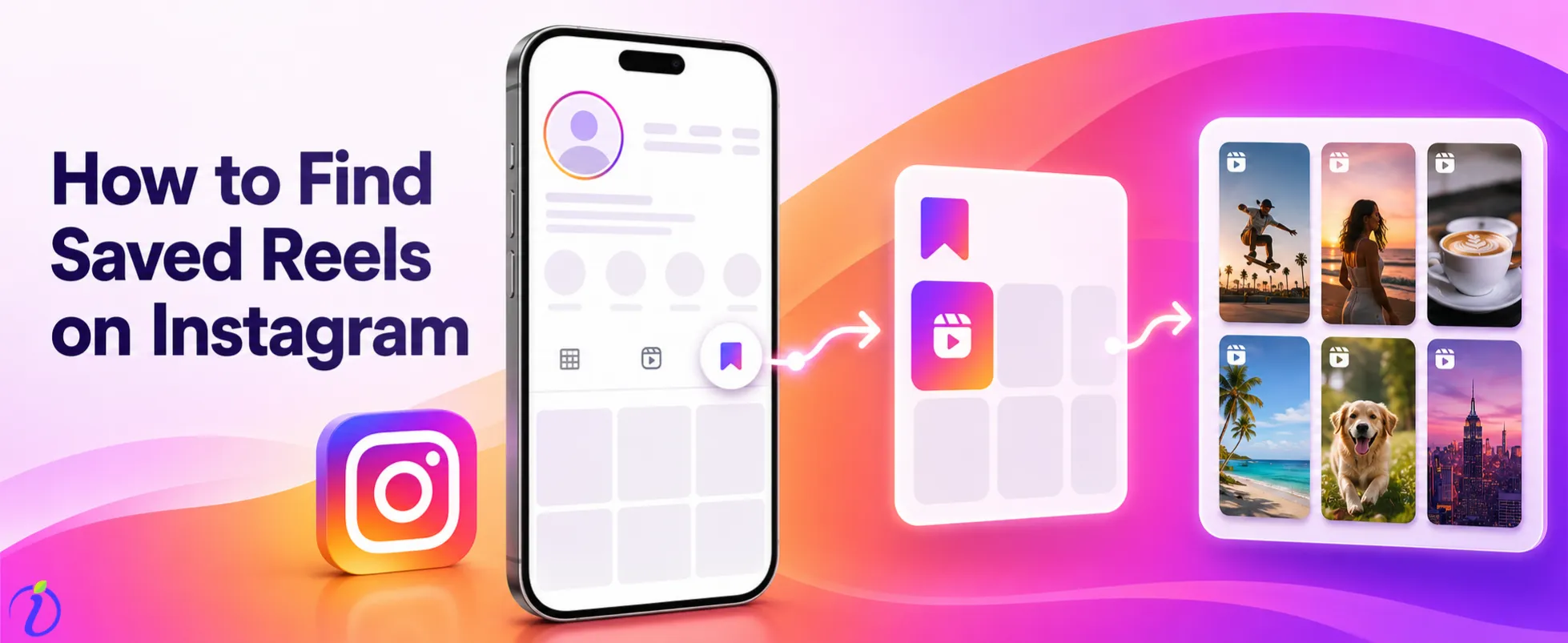
This is how the story of “How to find saved reels on Instagram?” began.
While browsing your Instagram feed, you’ll come across ingenious ideas for your own content like an inventive transition, a popular audio, or a distinct editing style. You hit that old “Save” bookmark, intending to come back to it later. But when it comes to creation, those gems often disappear into a digital black hole, buried under hundreds of other saved posts. For a lot of people, the Instagram “Saved” folder is a digital junk drawer, This guide is not just a how-to for getting around, but a full-fledged strategy for managing your inspiration and streamlining your creative workflow.
 Time killer · Pain
Spending 6 hours writing posts that get zero traction?
Paste your URL. ZuAI turns it into 30 brand-on captions in 10 minutes — no blank-page panic, no generic AI filler.
What is Instagram “Save” Feature? Difference Between Saved, Liked, and Drafts
A quick breakdown of how Saved, Liked and Draft Reels serve entirely different purposes in your content creation workflow.
What are Saved Reels?
Saved Reels are bookmarks with curation. When you hit the bookmark icon on any Reel, Instagram saves that content in a private folder that only you can access. This is your personal “swipe file,” your own repository of trends, aesthetic inspiration, and technical ideas to use for your own short videos down the line.
Saved Reels vs. Liked Reels What’s the Difference?
One common mistake is confusing likes and saves. A “Like” is a form of public or semi-public participation—it tells the algorithm what you like. By contrast, a “Save” is a strong-intent signal. This signals to the platform that you value this content long-term. You can find both on your profile, but the Saved folder is where the organization happens, and the “Likes” section is a historical record of your past interactions.
Draft Reels vs Saved Reels: Where your work-in-progress lives
Draft Reels is a whole different concept. Saved Reels are inspiration from the outside world, by other people. Draft reels are your own unfinished projects. They live right there in the camera interface in your Instagram app. These two are often confused by creators, and they end up frustrated when they can’t find a video they were in the middle of editing because they are looking in the wrong folder.
How to Find Saved Reels on Instagram App (iOS & Android)
Step 1: Go to your Instagram profile page
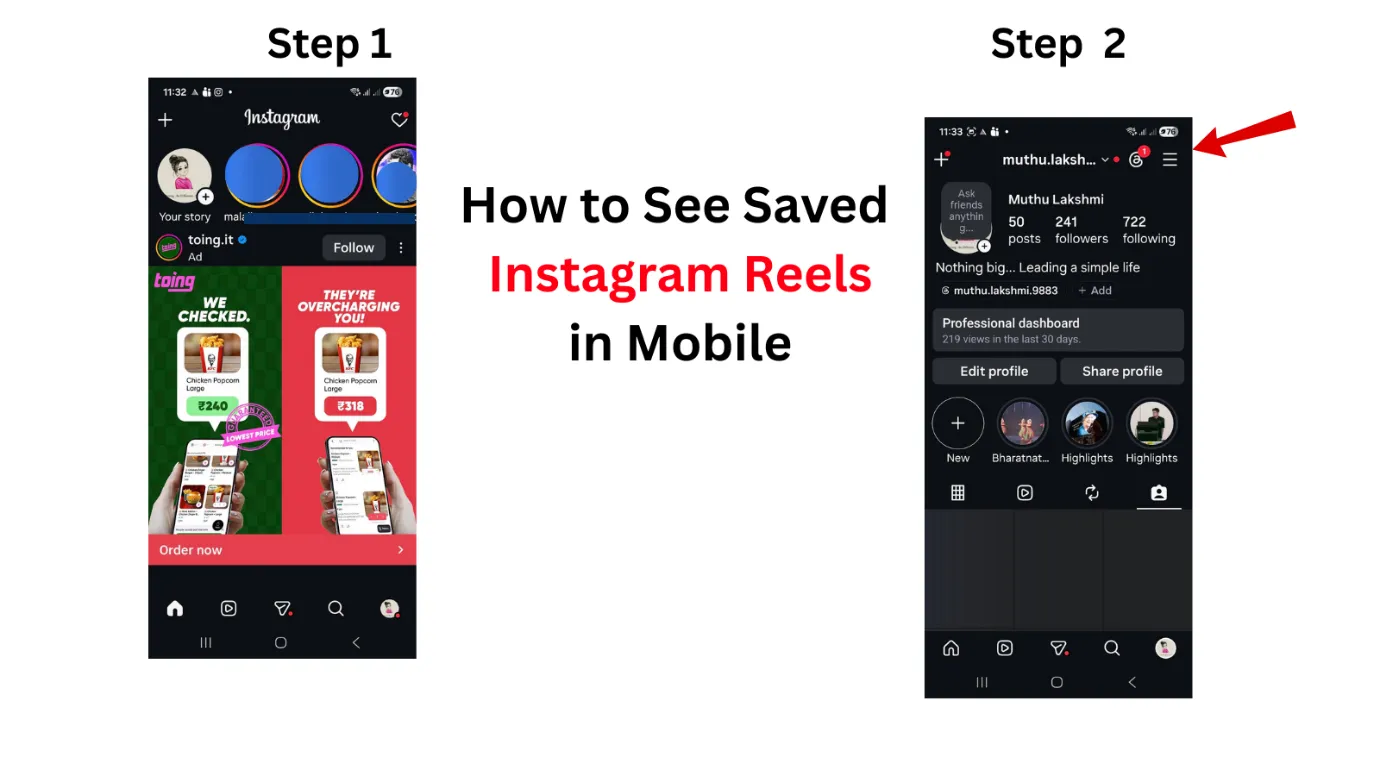
First, launch the Instagram app on your mobile device. To go to your Instagram Profile, tap on your profile picture in the bottom right corner of the navigation bar. This is where you can see all your account activity and personal storage.
Step 2: Using the Menu Button and Settings
When you are on your profile page, look at the top right corner. You will see a menu button, which is three lines horizontally (the “hamburger” menu). Tap this icon to open the hidden side menu that contains your account settings, insights and your library of saved content.
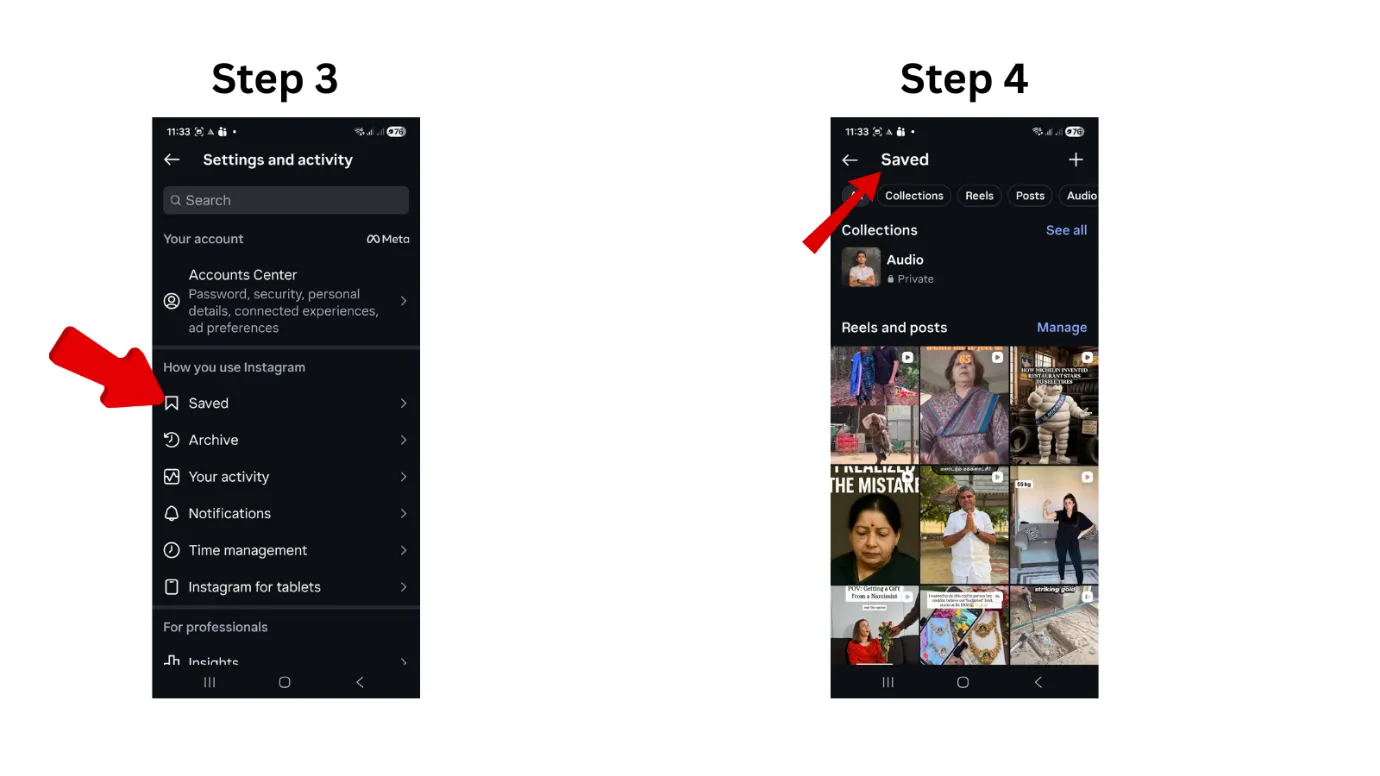
Step 3: Find the “Saved” Folder
From the menu that appears, tap the “Saved” tab. This folder is the catch-all for everything you’ve bookmarked, from static photos to carousels and, of course, your Saved Reels.
 Step 4: Filtering for the Reels Icon & Media Types
In the “Saved” area, you’ll probably see a folder called “All Posts.” Pressing this shows everything in chronological order. To zoom in on Reels, look for the icon of a clapperboard called the Reels icon. With this filter, you can filter out only your Saved Reels. This makes it so much easier to find that particular transition effect or audio trend you wanted to learn.
 How to Find Saved Reels on Desktop (Instagram.com)
How to Access Saved Content from the ‘More’ Menu
Navigation on the desktop browser is a little different but just as easy.
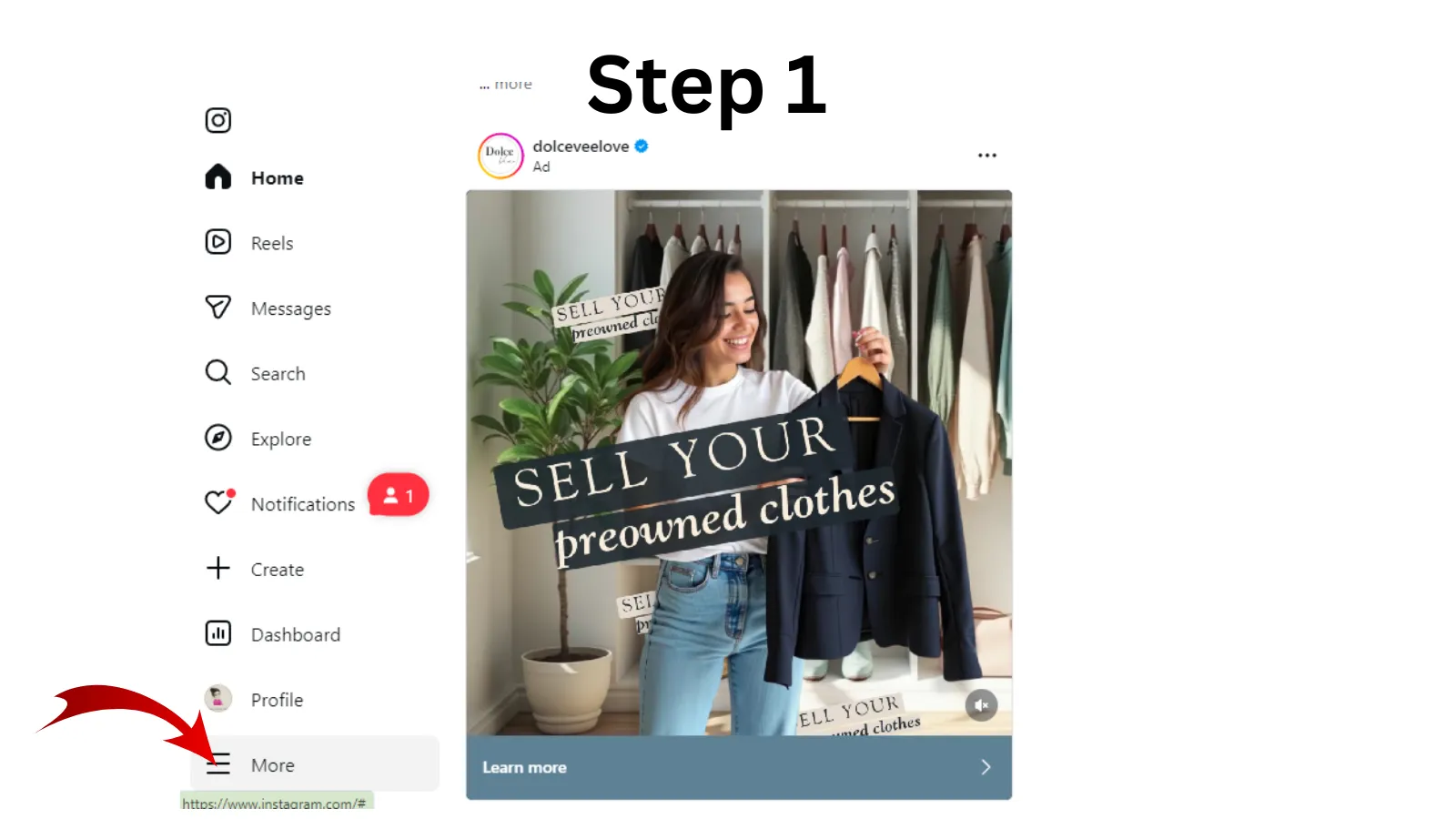
Step 1:
Open your Instagram feed and you’ll see a side menu on the left-hand side.
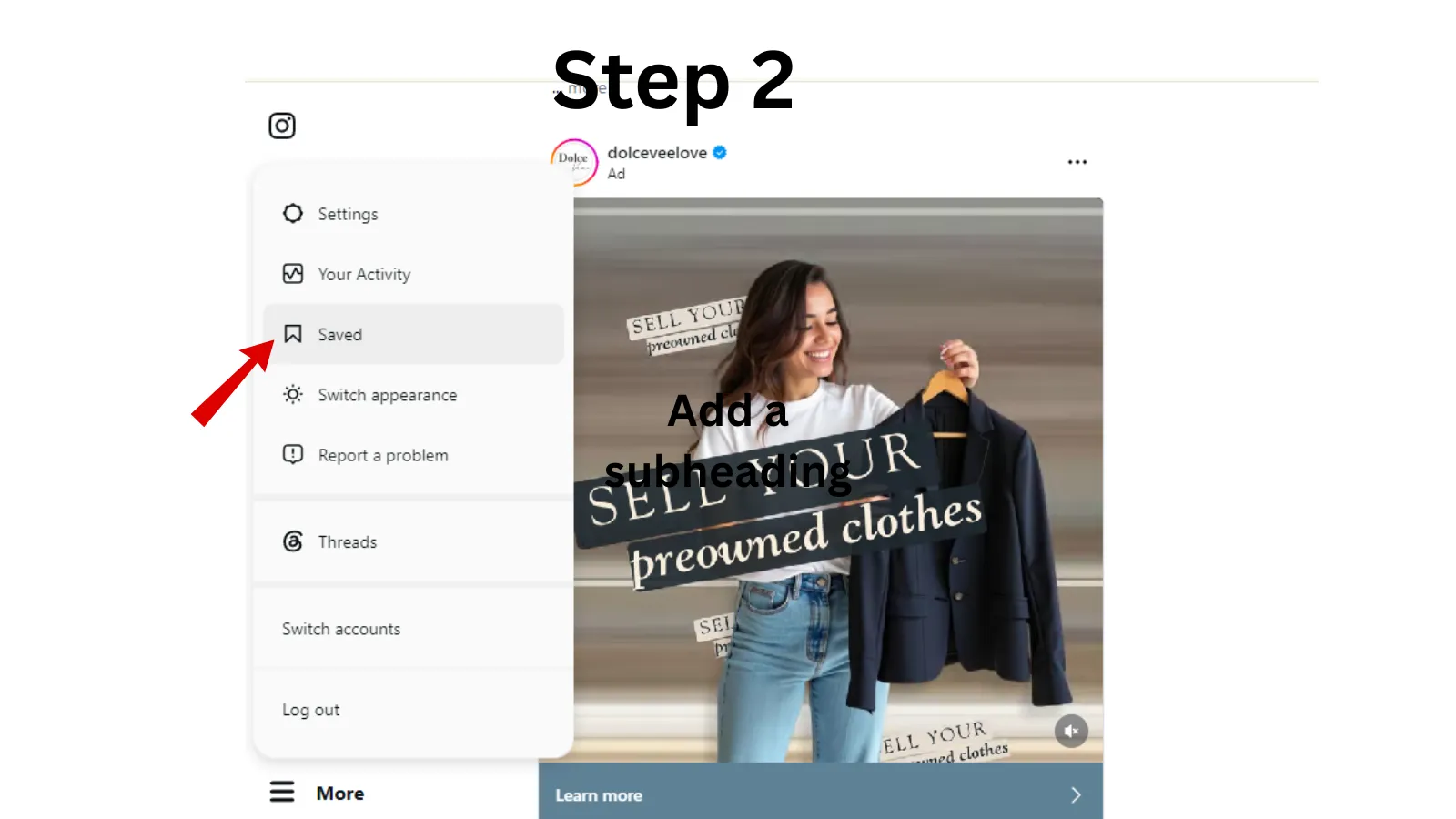
Step 2:
At the bottom of the list, click on the “More” button.
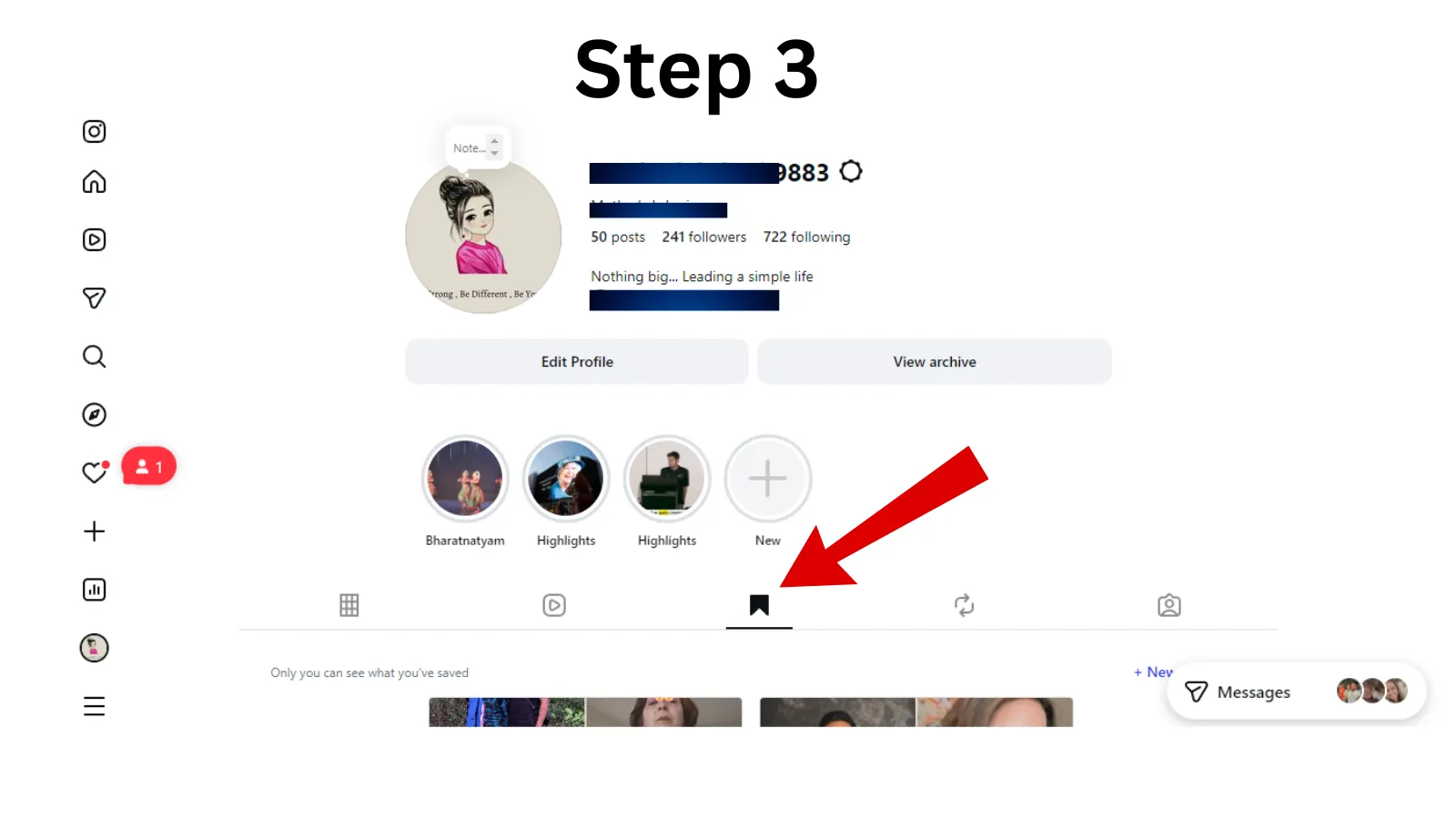
Step 3:
From here, select “Saved” to go right to your saved archive.
Browsers: Manage Your Collections of “All Posts” and Reels
The desktop interface offers a bigger canvas, which can be useful if you are looking at complex edits. Your library of “All Posts” will be displayed to you in a grid form. The mobile app has better filtering options but the desktop view is great for quickly scanning long-form content, making it a perfect place for video planning on the desktop.
Organize Your Inspiration: Create and Use Instagram Collections
Why curation is crucial for your content experience
If you save every interesting Reel you see, your library will be unmanageable within a few weeks. Content pros use ‘Collections,’ custom folders in the ‘Saved’ section, to keep their inspiration organized. And without that layer of organization, you waste precious creative time searching for content, rather than creating it.
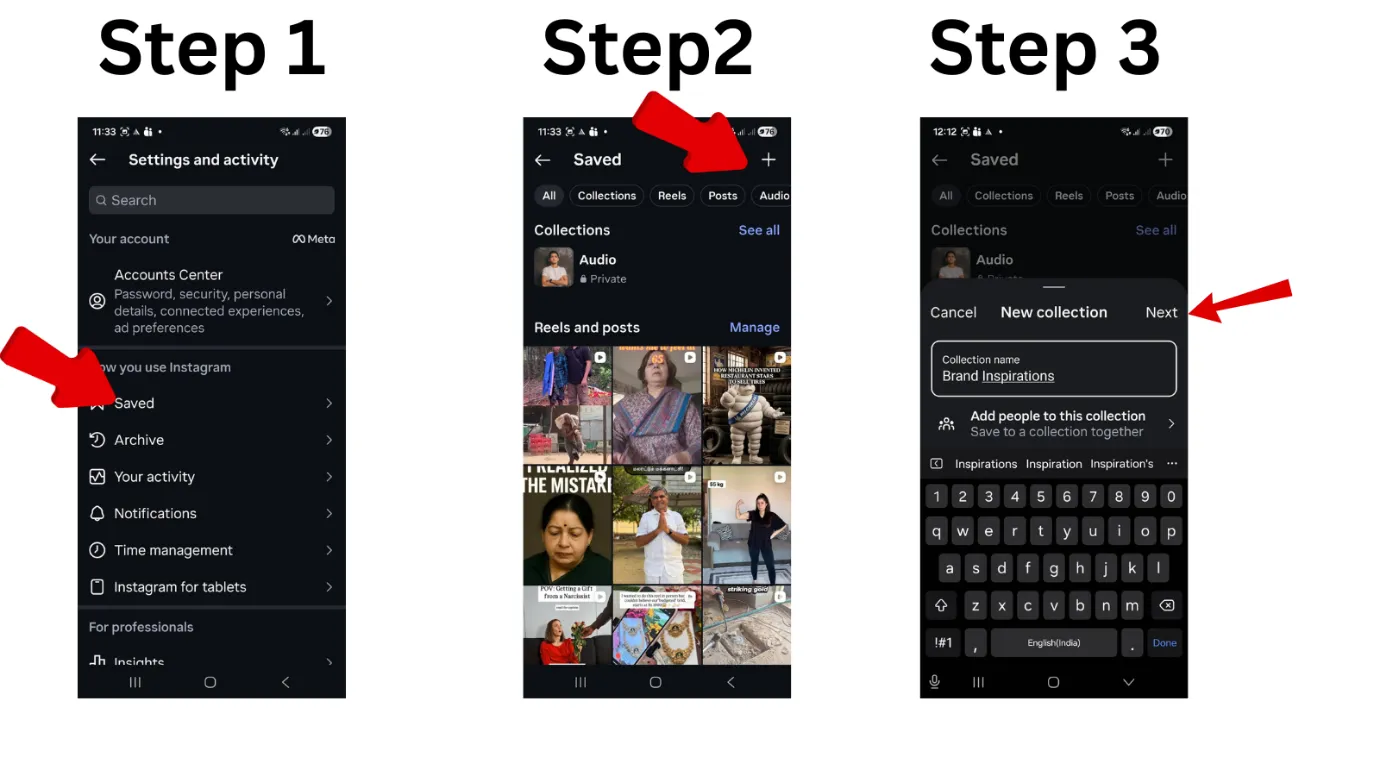
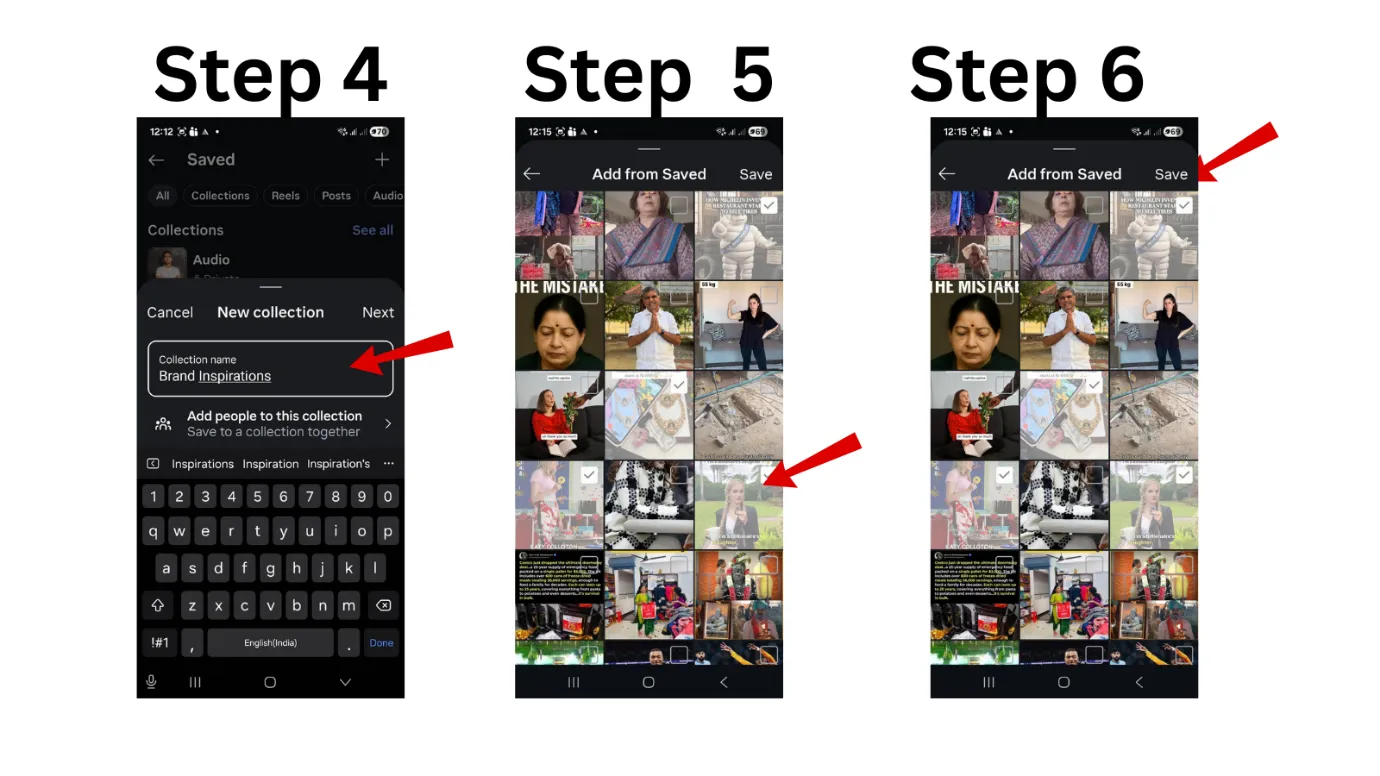
How to Make a New Collection for Some Reel Trends
To add a collection,
Step 1: Navigate to your Saved folder and
Step 2: tap the “+” icon in the upper right-hand corner.
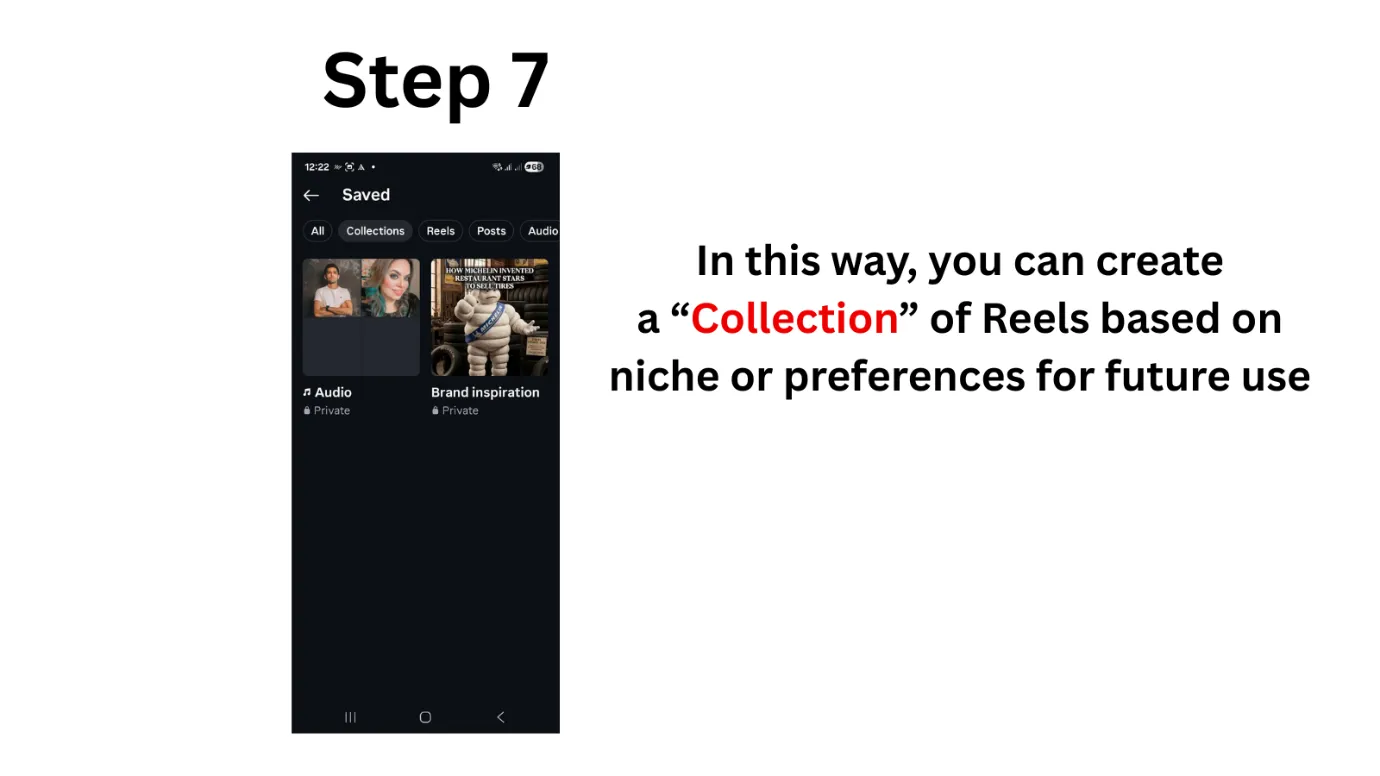
Step 3: Name your collection according to categories like Trending Audio, Editing Transitions, Brand Inspiration, etc.
Step 4: Now that you’ve named them, you can add existing Saved Reels to those specific buckets.
Moving Saved Reels from “All Posts” to Custom Folders
You don’t have to keep your saved items in “All Posts.”
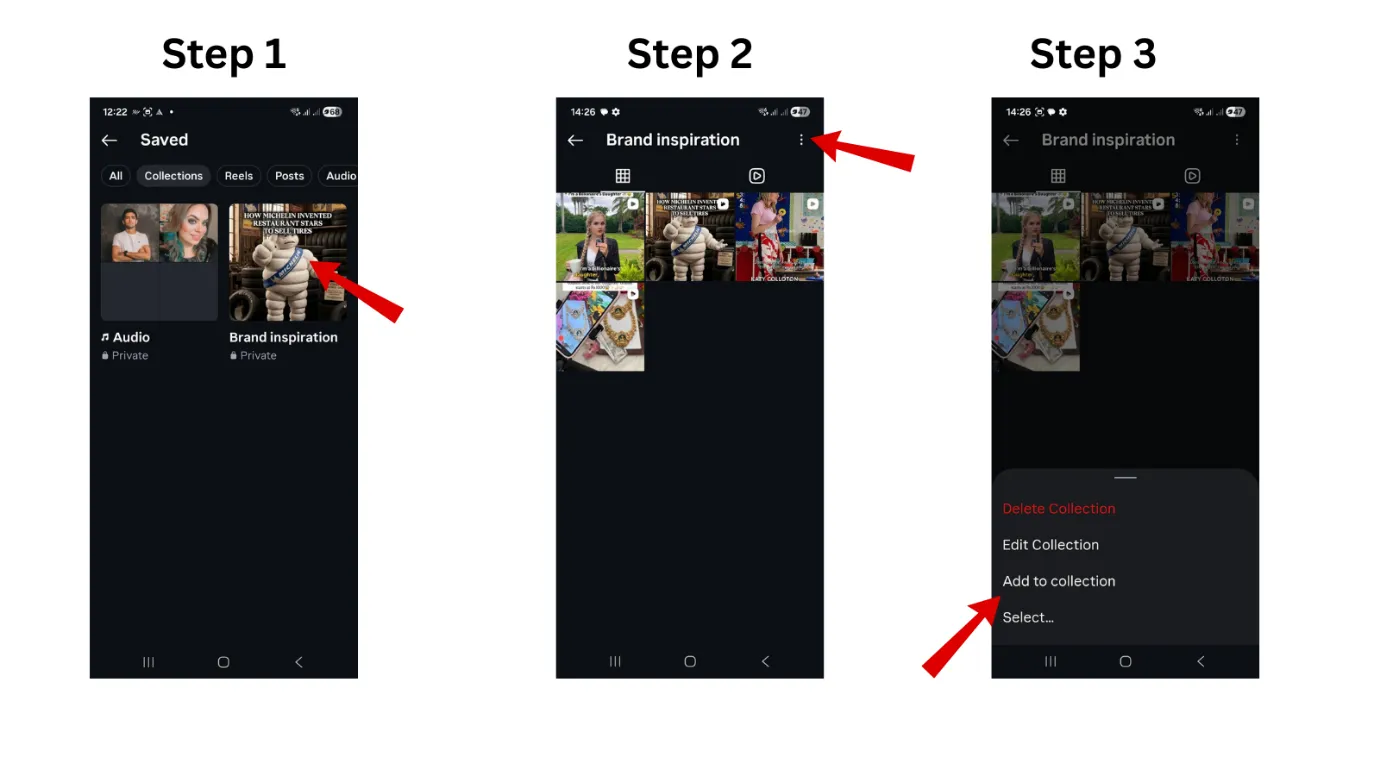
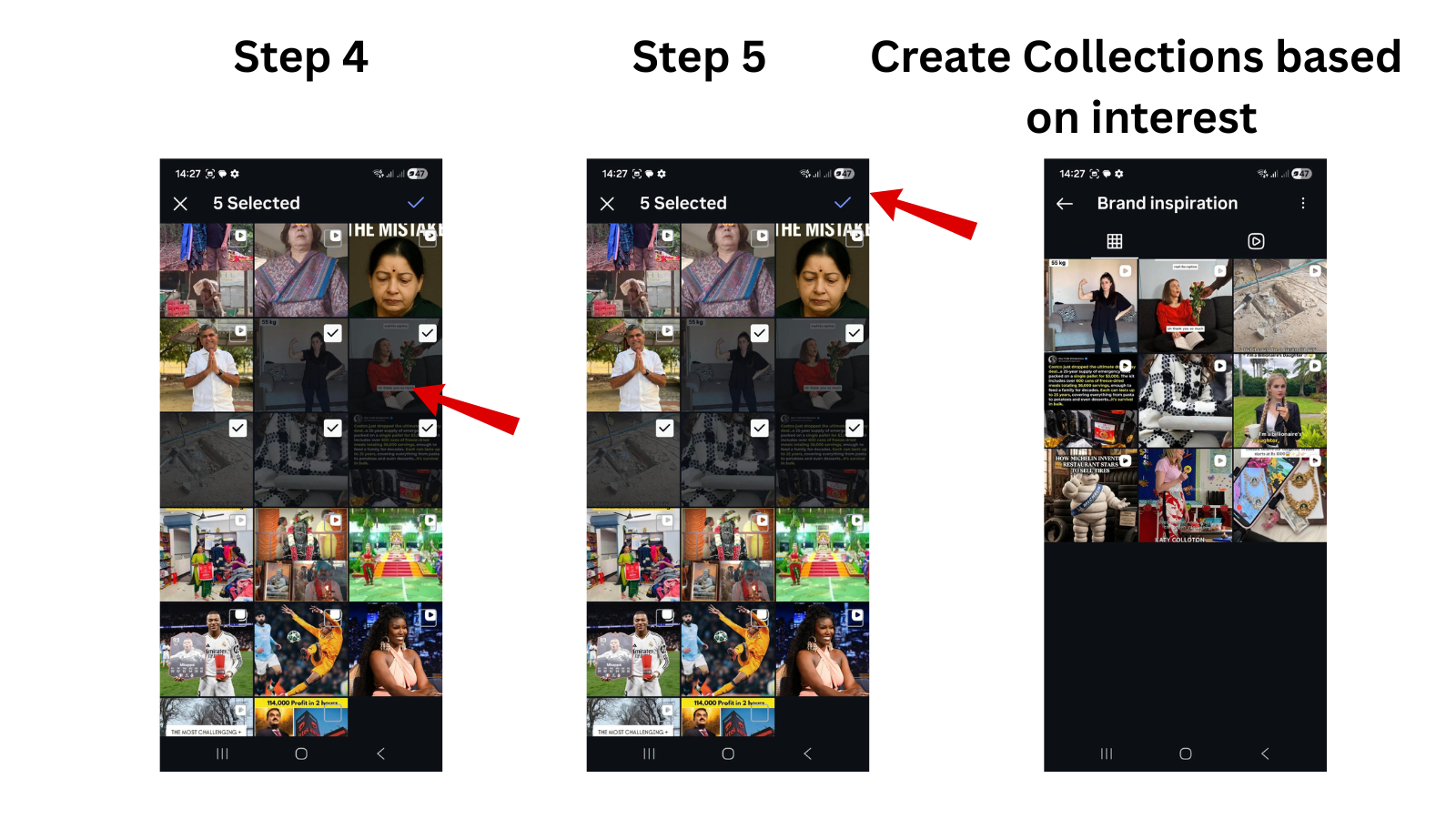
You can customize folders under collections and place your saved reels. To do so,
Step 1: Go to saved Reels section.
Step 2: under Collections, choose the folder you want to add reels.
Step 3: Click on the folder and choose the three dots present at the top right corner.
Step 4: Now you will be presented with four choices. Delete Collection, Edit Collection, Add to Collection and Select.
Step 5: Press “Add to Collection” and you will be directed to the entire saved Reels section.
Step 6: Select the Reels for the custom folder and once done, Select the “Blue Tick” at the top right corner.
Step 7: Voila! You have added few more Reels to your designated Collection.
This kind of housekeeping in advance ensures that your resources are in place when you open the camera to shoot.
Collaborative Collections: Saving Reels with Friends/Teammates
Now you can add collaborators to your collections on Instagram. Game changer for social media teams. Invite a teammate to a saved collection to create a shared library of brand-aligned content. This leads to a shared creative vision and makes brainstorming easier.
How to locate your “Liked” Reels (If you forgot to save)
Sometimes you forget to hit the bookmark button. Luckily, you have your interaction history to fall back on.
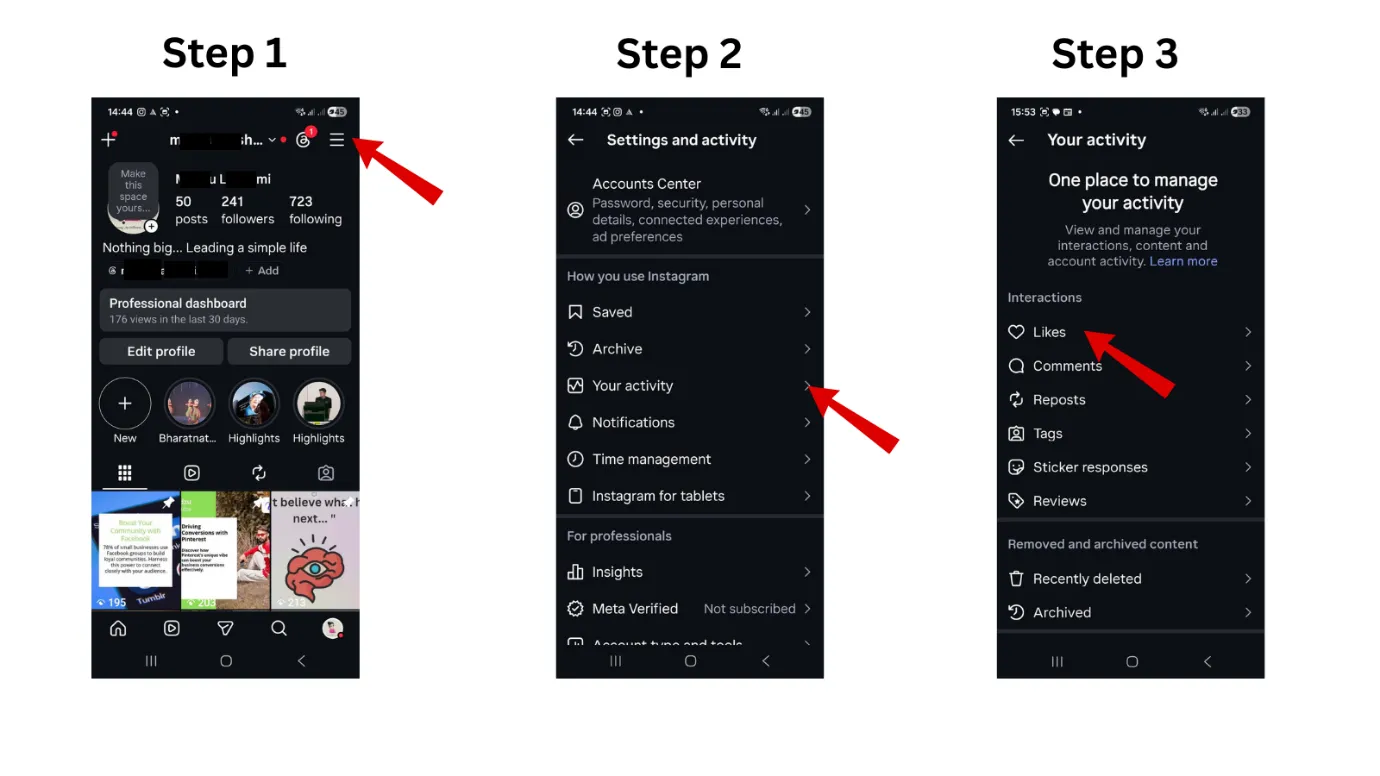
Here is the step by step instructions to locate your liked Reels and then save it to your feed.
Step 1: Go to your Instagram Profile and tap on the menu button, then
Step 2: Select “Your activity.”
Step 3: Under “Your Activity,” there’s a tab called “Interactions.”
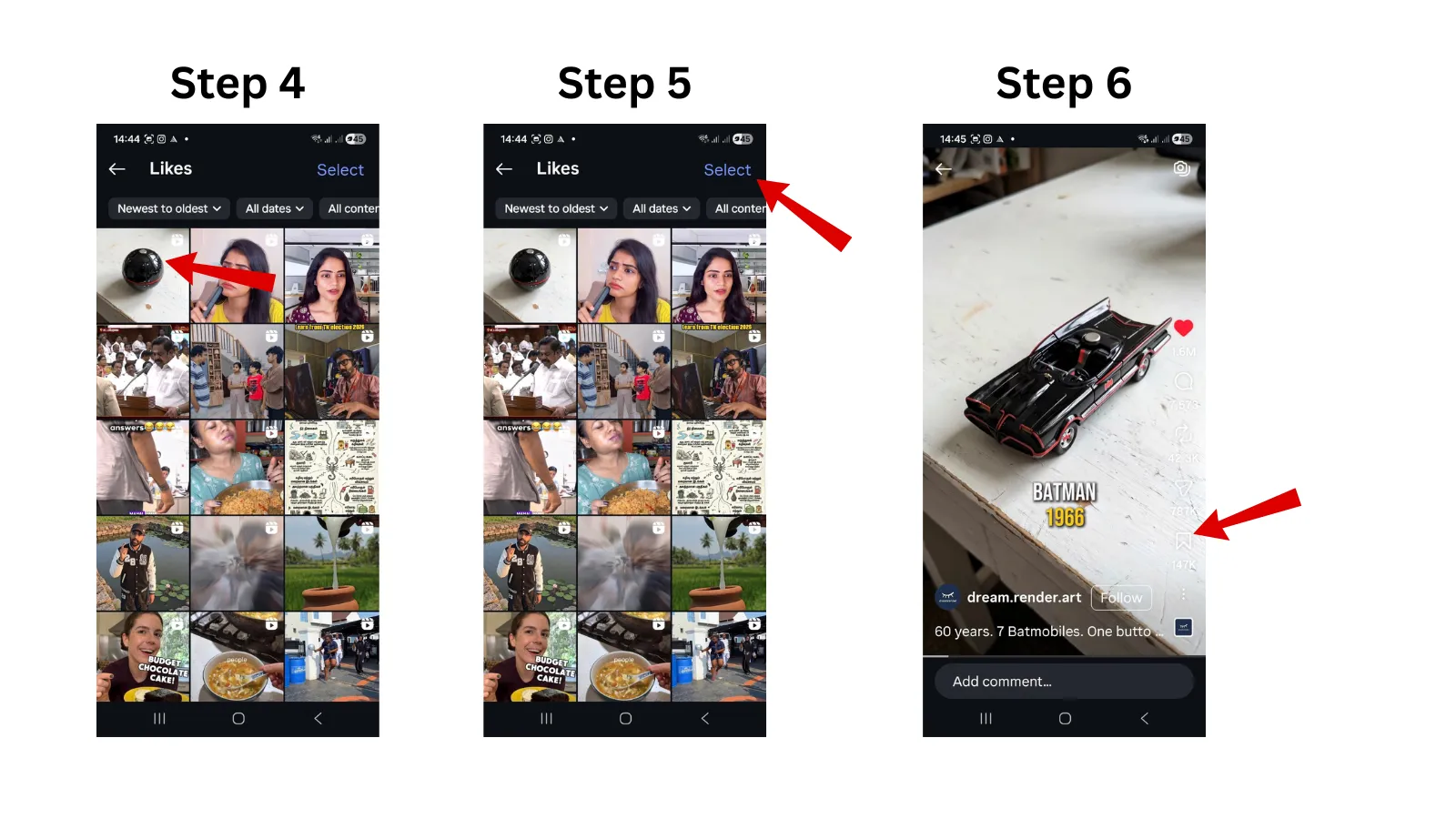
Step 4: Below Interactions, you will see a drop down menu with likes, comments, reposts, tags, Sticker responses and Reviews. Tap “Likes”.
Step 5: You can see all the posts you’ve ever engaged with, including Reels, here. If you remember liking a video but didn’t save it, this is where you’ll find it.
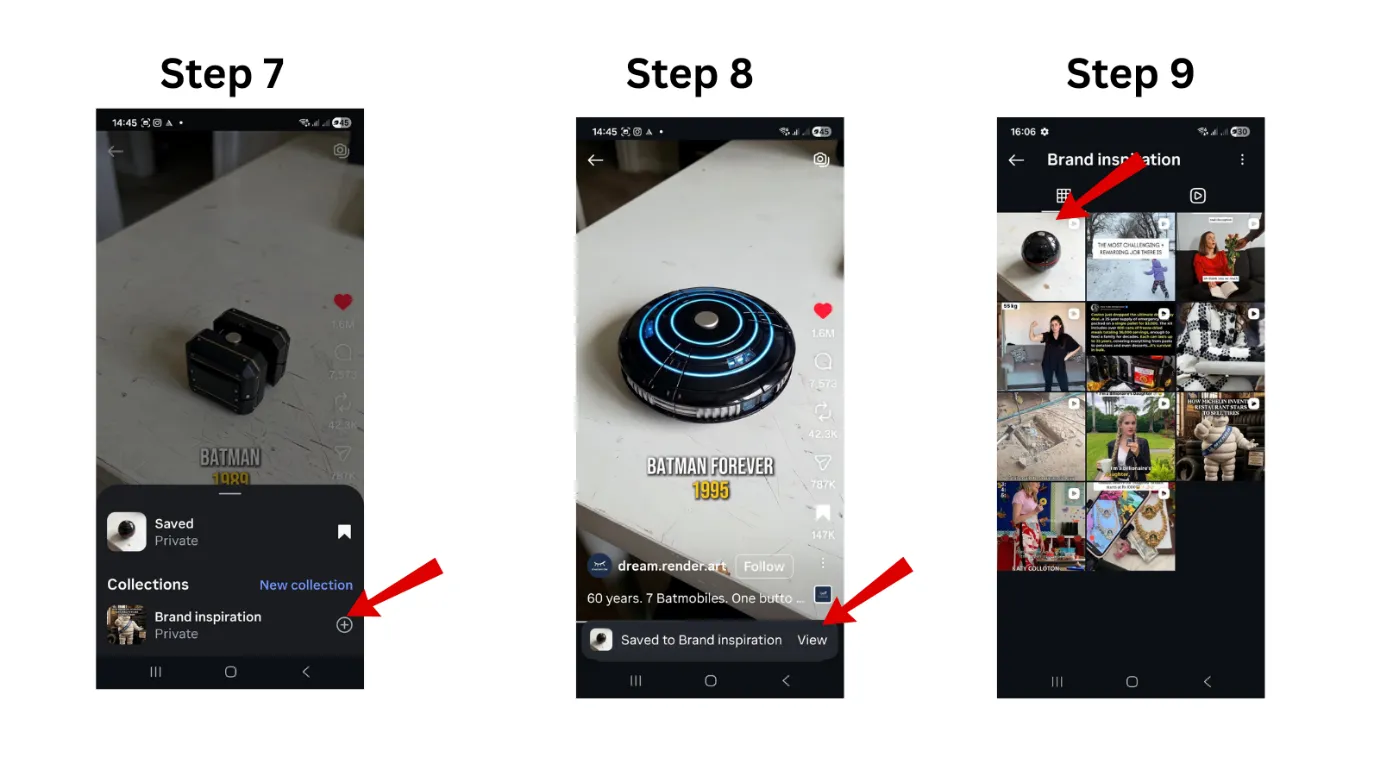
Step 6: Choose the Reels and press Save button on the side screen.
Step 7: If you have multiple Collections folder, you can save the Reel directly on to your Collections.
Yes, it is the best and simplest method to arrange all your Saved Reel.
Outcome · RecommendedGet 30 days of social content from your website — in 10 minutes.
 From Inspiration to Creation
 From Inspiration to Creation
Bridging the Gap Between Save and Post Using Saved Reels as Templates for Your Own Content
Some Reels now have a “Use Template” button. If this option is available, you can match your won photos and clips to the exact timing and rhythm of the original, turning inspiration into a structural guide.
Meet the Instagram Reels Editor and Professional Filters
Once you have your reference content, get into the Reels editor. Use the saved audio or visual style as a base. The editor lets you overlay clips, change timing, and use professional filters. Don’t think of the saved things as things to copy. Think of them as blueprints for your own creative voice
Saved Audio and AI Voice Improvement Trends
If you saved a Reel just for the audio, tap the audio track title at the bottom of the screen. Then you can “Save Audio” to your personal library Combining saved audio with new AI voice tools is a smart way to stay ahead of the curve. You’re always reconciling your intake with your output, transforming your Instagram experience from mere scrolling to a high-octane production pipeline.
Proof · Verified
2k+ grew faster with one tool.
Final Thoughts on How to Find Save Reels Instagram Reels
The first step in a more intentional and productive creative process is finding your saved Reels. You understand the difference between “Saved” bookmarks, “Liked” interactions and local “Drafts.” You stop wasting hours of work on cluttered digital chaos. Use collections to categorize inspiration, clear your “Liked” history to find missed opportunities and leverage the “Use Template” function to streamline your production.
The Instagram app is not just a social platform; it is a powerful creative tool. If you start to think of your profile page and saved archives as a professional library and not a passive feed, you’re setting yourself up for higher quality, more consistent content creation.
Start organizing your collections today and you will see that the gap between inspiration and execution narrows significantly, so that you can focus on what matters most: making engaging short videos that resonate with your audience. The next time you see something that’s trending and you want to copy it, save it with intent, organize it right away, and keep your creative momentum going.