
It’s frustrating when we see the “YouTube video is unavailable: try again later” message. After all, watching YouTube videos smoothly is one of the most enjoyable things. It is really irritating to see messages like “YouTube video unavailable,” “content not available,” etc.
That is why we have brought 5 Ways to Fix the “YouTube Video Is Unavailable: Try Again Later” Error. These fixes are easy, do not take much time, and can be performed by anyone.
So, let us clear any blockage interrupting you and your YouTube video.
 Time killer · Pain
Spending 6 hours writing posts that get zero traction?
Paste your URL. ZuAI turns it into 30 brand-on captions in 10 minutes — no blank-page panic, no generic AI filler.
5 fixes for videos on YouTube not playing
Keep refreshing again and again
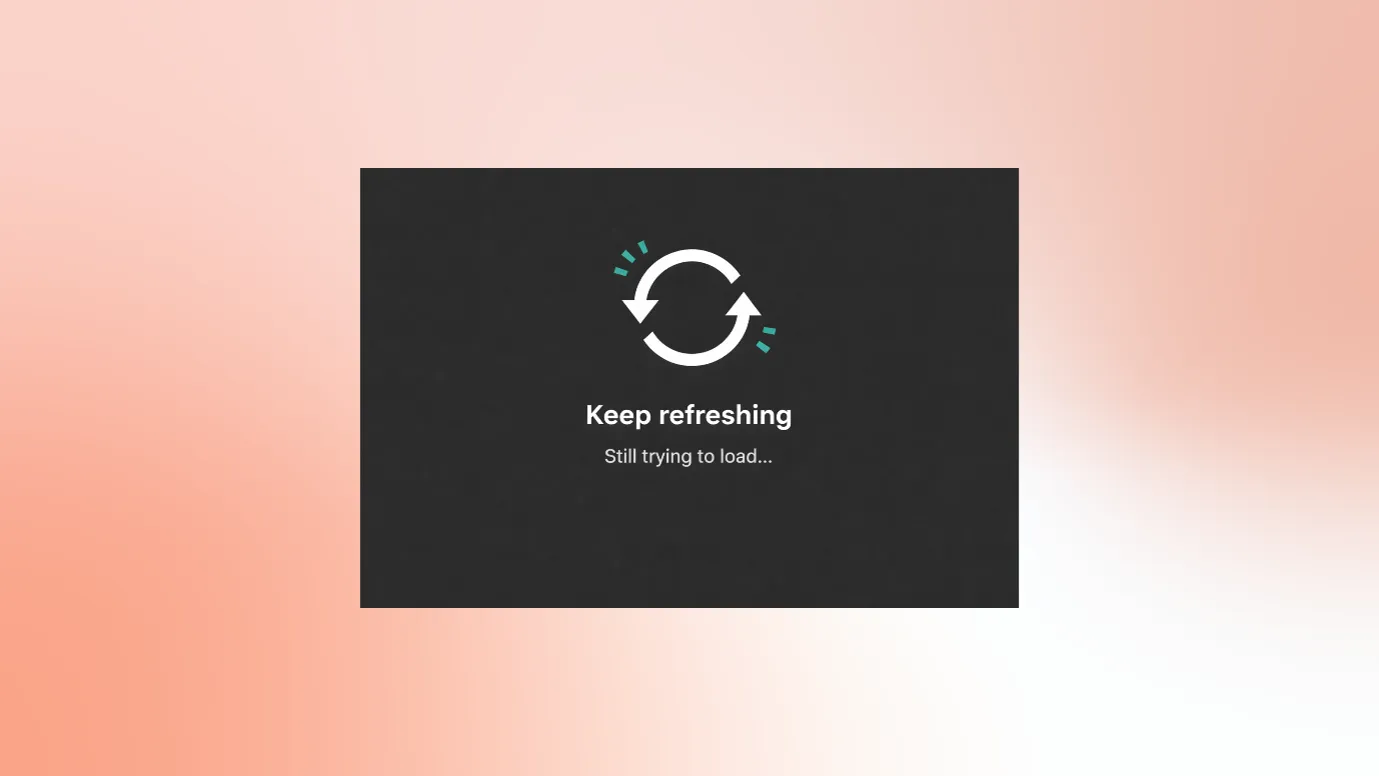
There are many things that run behind the scenes. Servers load data from the internet. Sometimes, YouTube’s servers don’t respond properly for a moment (this could be due to overload, maintenance, or a temporary glitch).
A lot of data is required while loading a video (video data, scripts, thumbnails).
When you refresh again and again, partial errors like loading problems, unstable internet connections, etc., get fixed.
That is why, when issues are minor, simply refreshing multiple times is sufficient to load the video.
Outcome · RecommendedGet 30 days of social content from your website — in 10 minutes.
Uninstall any ad blocker
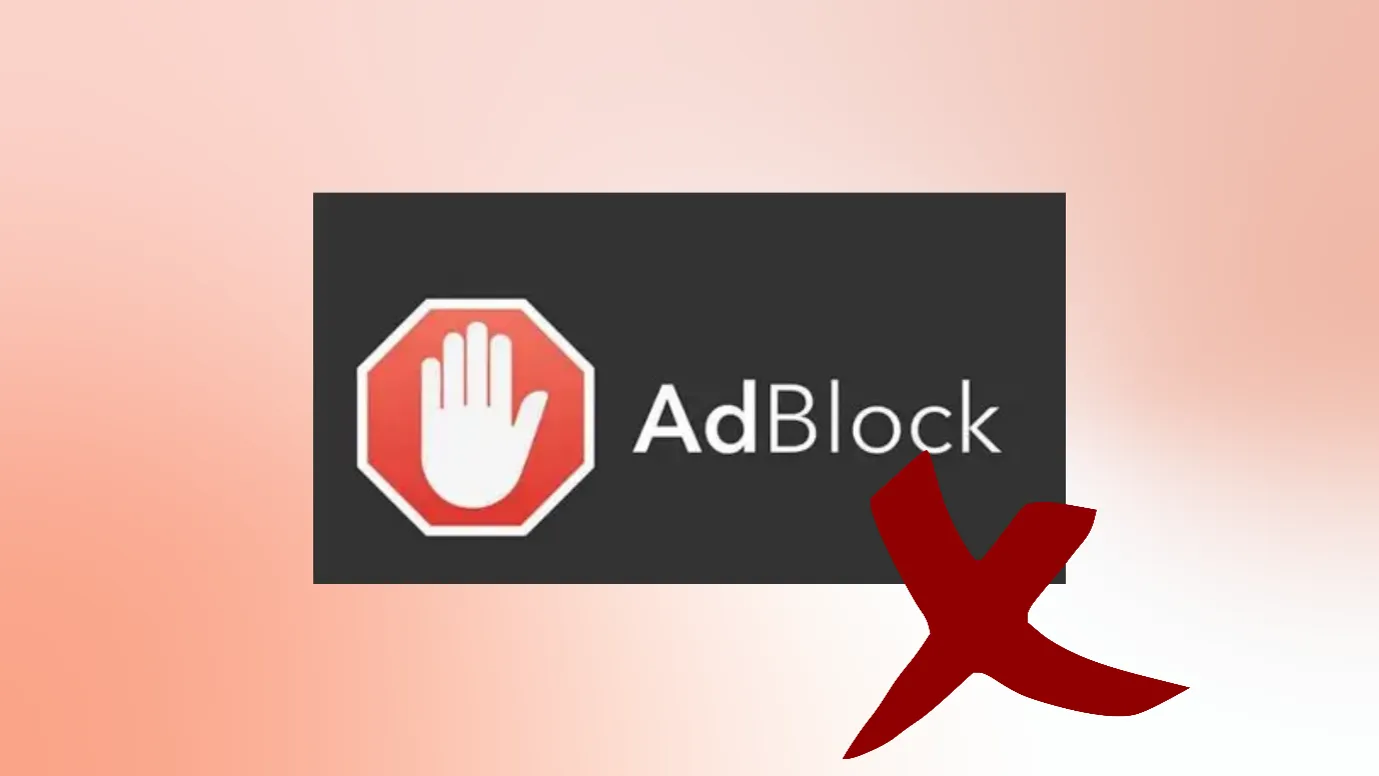
Ad blockers interfere with how YouTube loads videos from the server. They stop YouTube from completing request chains like tracking, analytics, or ad delivery APIs.
Also, remember that YouTube does not support ad blockers, as they block its primary source of revenue.
That is also the reason why YouTube may not load content properly when an ad blocker is installed.
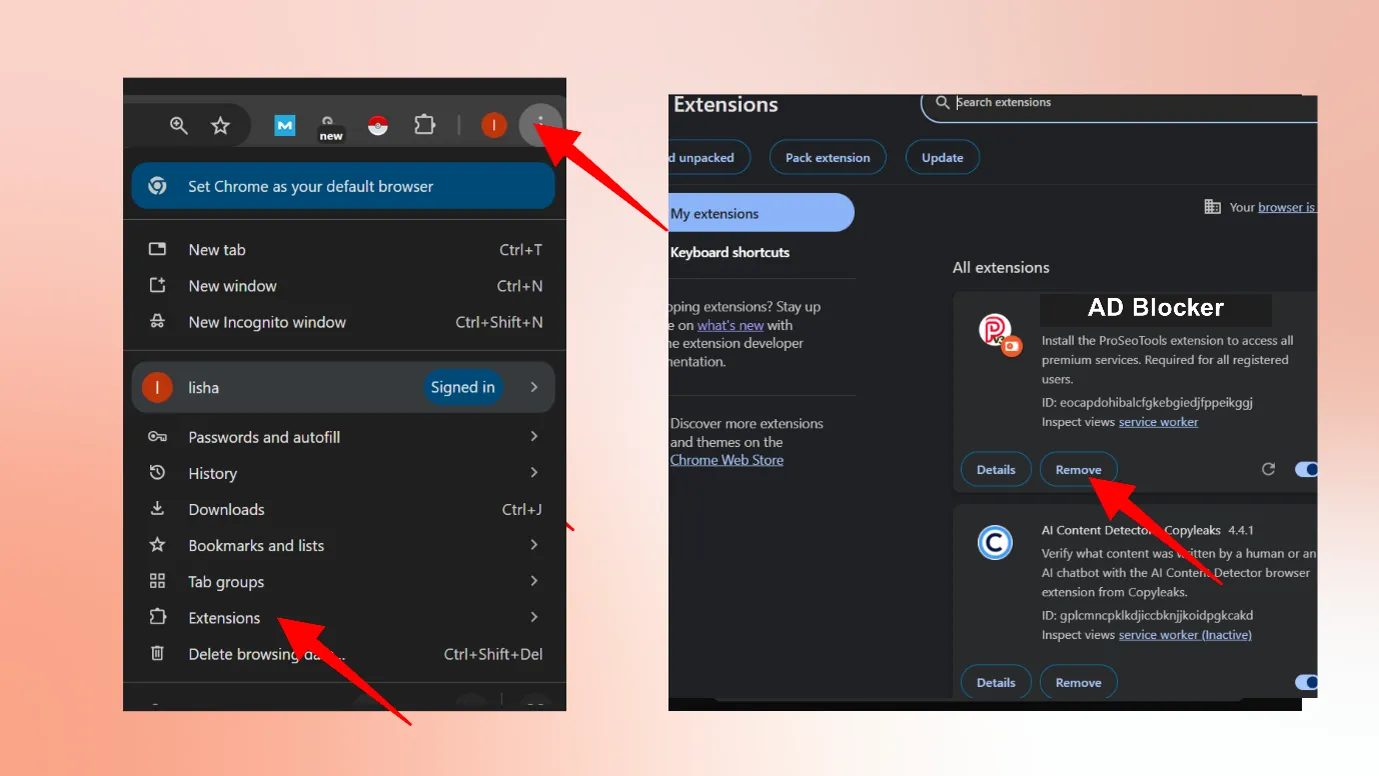
You can easily uninstall ad blockers:
- For a computer, go to your browser, click on “Extensions,” and then click on “Manage extensions.” There, you can turn off or uninstall extensions.
- If you have any ad blocker apps installed on your phone, you can uninstall them.
Proof · Verified
2k+ grew faster with one tool.
Upgrade your browser to the latest version
YouTube is a large platform used by more than 2.70 billion people. That is why constant updates are necessary.
YouTube continuously updates its platform using modern web technologies (like advanced JavaScript, video codecs, and security layers).
For this, YouTube requires updated browsers.
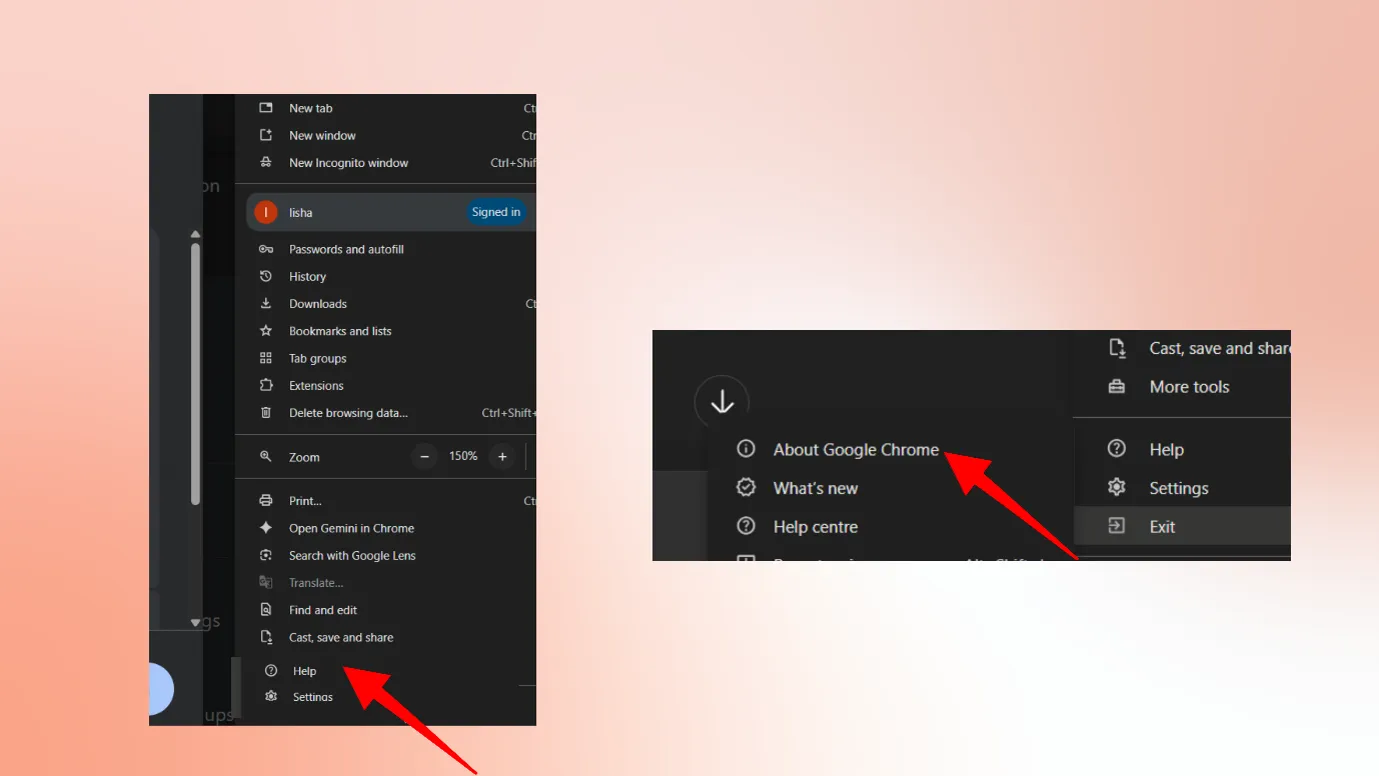
You can update your browser to the latest version (for updating your Google Chrome browser):
- Click on the 3 vertical dots in the top-right corner.
- Go to “Help” and then “About Chrome.”
- The browser will automatically start updating.
If you are using Microsoft Edge, follow similar steps.
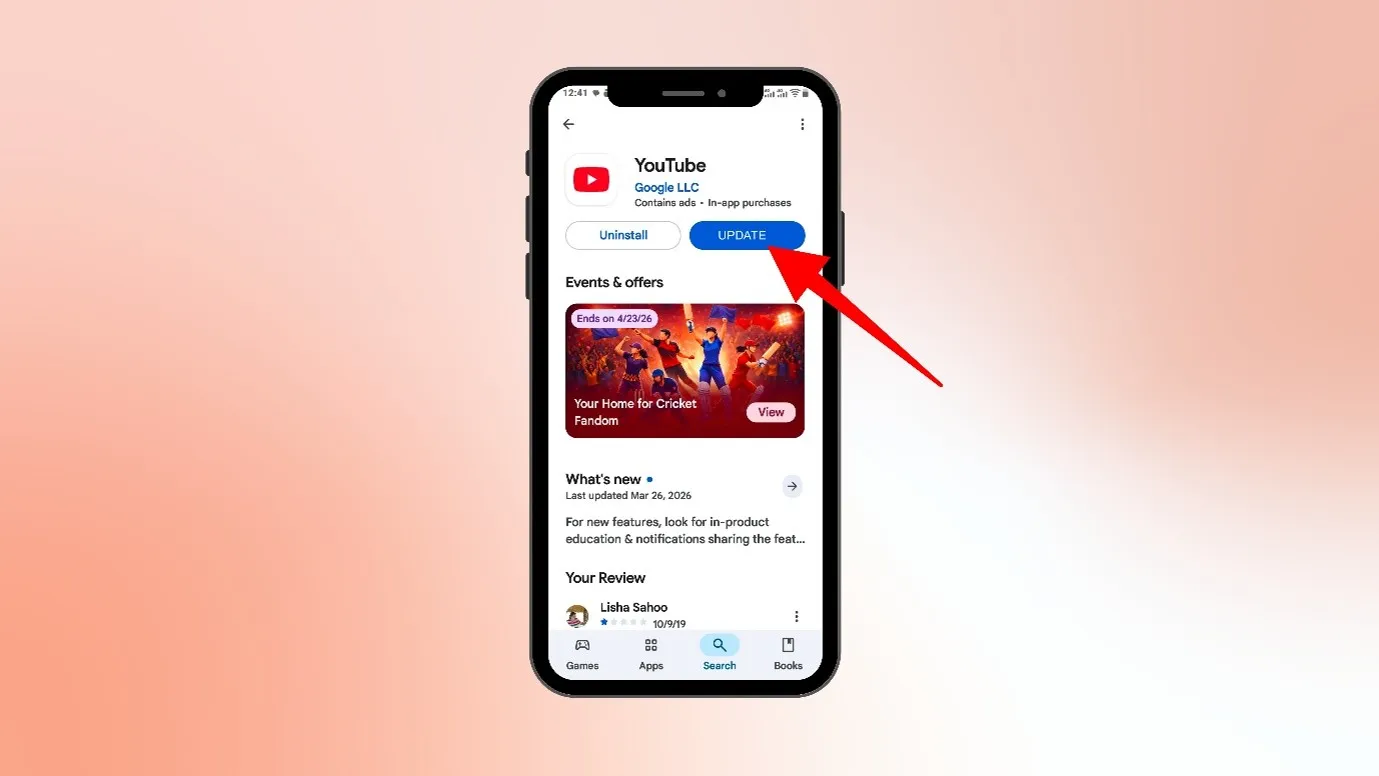
If you are watching YouTube on your phone, update the mobile app.
Free · Instant · No signupSee what ZuAI generates from your website — right now.
Paste your URL. Watch ZuAI write a month of brand-on captions in seconds. Preview before you create an account.
Update all the extensions on your browser
Extensions often interfere with how the browser loads content.
They can malfunction, change how pages load, affect scripts, or block certain elements. If they’re outdated, they can cause problems like “The YouTube video is unavailable, try again later.”
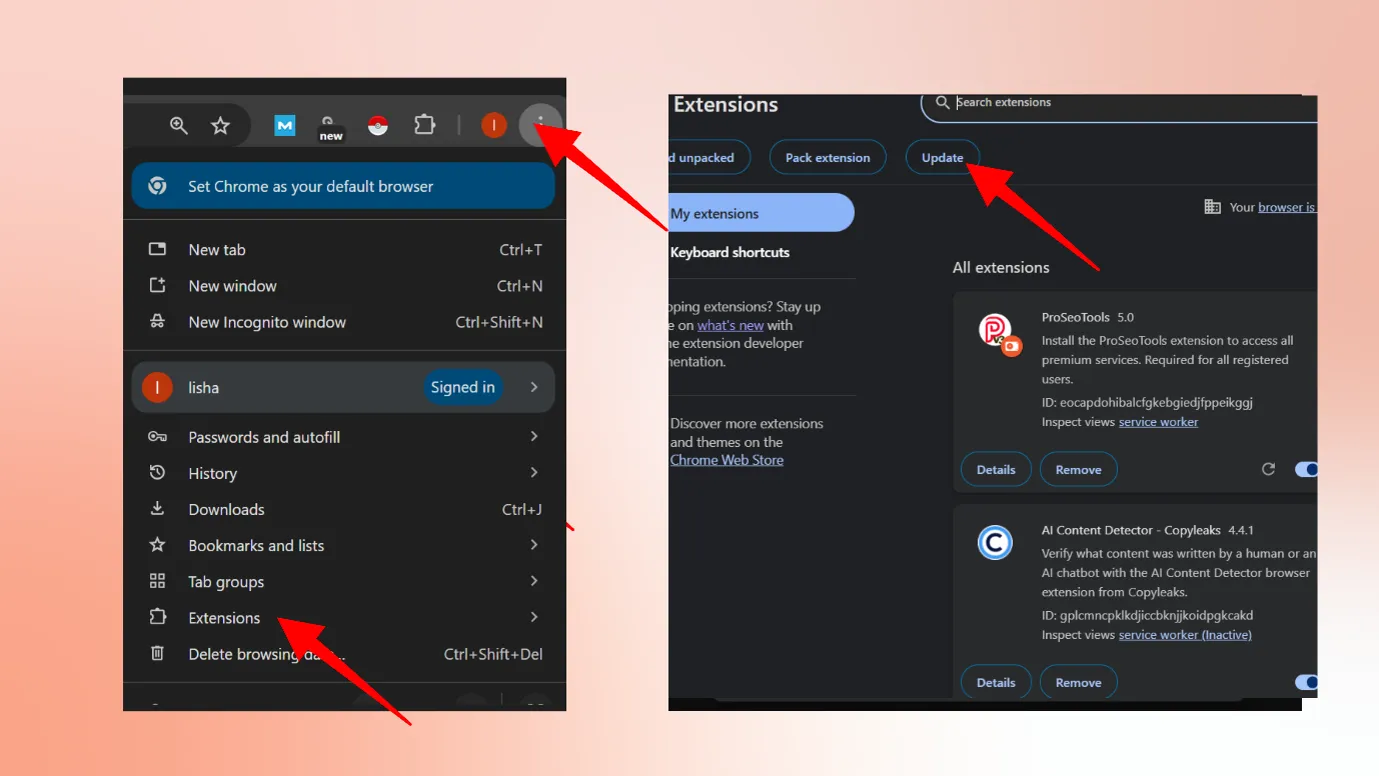
That is why you should keep your extensions updated:
- For a computer, go to your browser, click on “Extensions,” and then click on “Manage extensions.”
- Update your extensions.
Speed · 10-minute setupOne coffee from URL to a full month of scheduled posts.
Drop your URL, brew your coffee, come back to 30 brand-on captions ready to publish.
Delete the browser cache
Browsers and apps store temporary data to help load websites faster.
However, over time, this data becomes large and may start causing errors.
It can become a roadblock when loading large amounts of data from a website. That is why you should clear your browser or app cache from time to time.
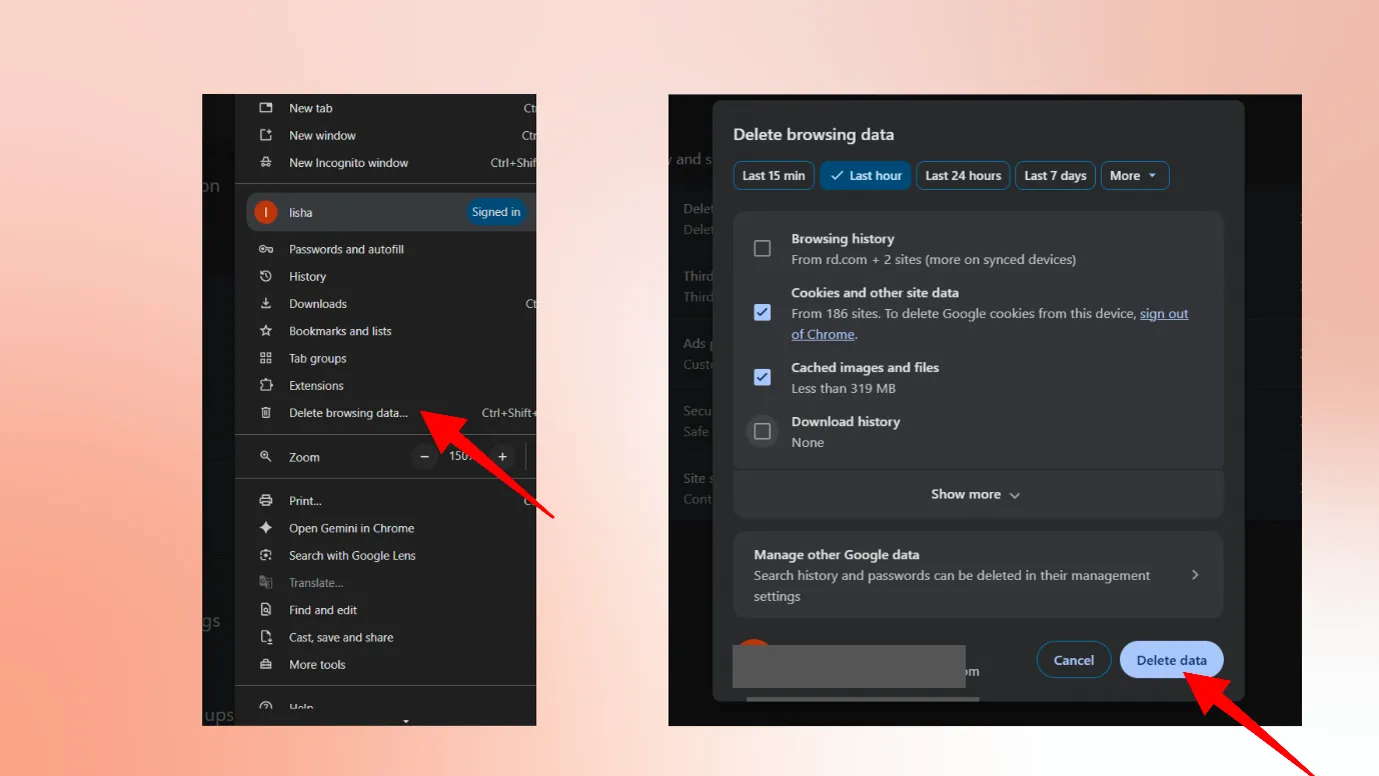
To clear browser cache:
- Go to your browser and click on the 3 vertical dots in the top-right corner.
- Click on “Delete browsing data.”
- 3. Select “Last 7 days” and delete the data.
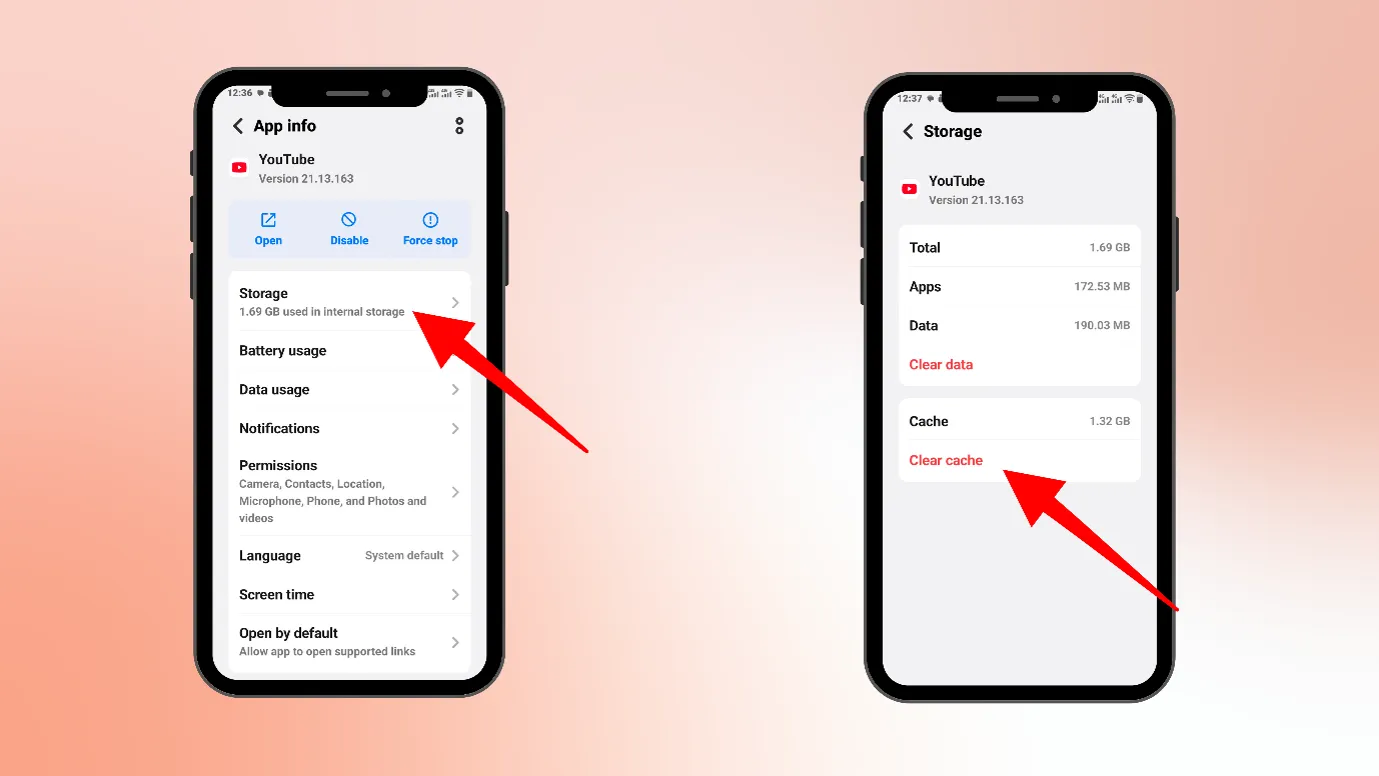
For clearing cache on Android:
- Open Settings
- Go to Apps or App Manager
- Select YouTube
- 4. Tap on Storage and Cache, then “Clear Data.”
Blank tab. Six open browsers. No clue what to post.


 After · With Indzu
Paste one URL. Get 30 scheduled posts.
You can also try and fix the youtube video
We hope the above steps helped you fix “videos on YouTube not playing” or “try again later” issues.
Along with these steps, you can also try:
- Restarting your device
- Updating your operating system
- Checking your internet connection
- Logging out and logging back into YouTube
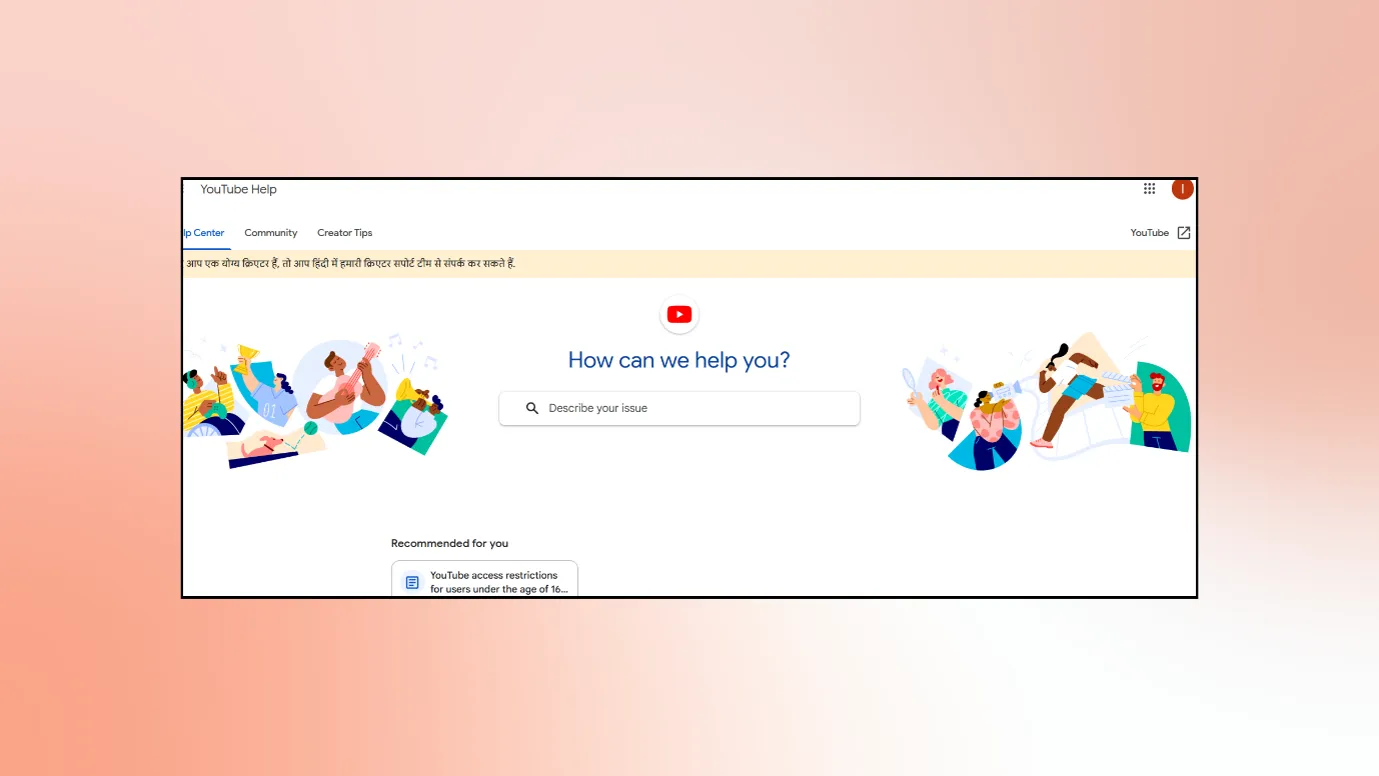
You can also contact YouTube support and share your problem.
Note- If you still cannot solve the “YouTube is unavailable. Try again later” problem, remember that sometimes the issue is on the creator’s side.
You can check this by:
- Opening the video in incognito mode or on another device
- Trying a different internet connection
- Checking if others can open the same link
Time killer · Pain
Spending 6 hours writing posts that get zero traction?
Paste your URL. ZuAI turns it into 30 brand-on captions in 10 minutes — no blank-page panic, no generic AI filler.
If we wrap up
“YouTube is unavailable, try again later” is mostly caused by minor glitches. However, in some cases, the problem could be from the creator’s side.
If you face any problem related to social media, you can always check our blog section. Here, we share easy and practical tips for all kinds of issues.
Outcome · RecommendedGet 30 days of social content from your website — in 10 minutes.
FAQ
Is YouTube app not working today?
It is always good to check for server issues before troubleshooting your device.
You can do this by:
- Typing “Is YouTube down today” on Google. You will find websites like Downdetector/ that show outage reports.
- Checking X (Twitter) to see if others are reporting the issue
- Trying YouTube on another device
Can the YouTube video-unavailable problem be fixed?
Yes, it can usually be fixed easily:
- Remove or disable any ad blocker on your device
- Update your browser or YouTube app
- Refresh the page multiple times
- Update all browser extensions
If this does not work:
- Try clearing cookies or cache from your device
- Update your operating system
- Check your internet connection
- Log out and log back into YouTube
After these steps, your YouTube content should start working.
Why is my YouTube not working even though I have internet?
There could be several reasons why YouTube is not working even with an internet connection:
- Your internet is “working” but unstable
- Your app or browser might be outdated
- You may have a lot of old cache or cookies causing issues
- Your VPN or ad blocker might be preventing videos from loading properly
- Your device OS may need an update