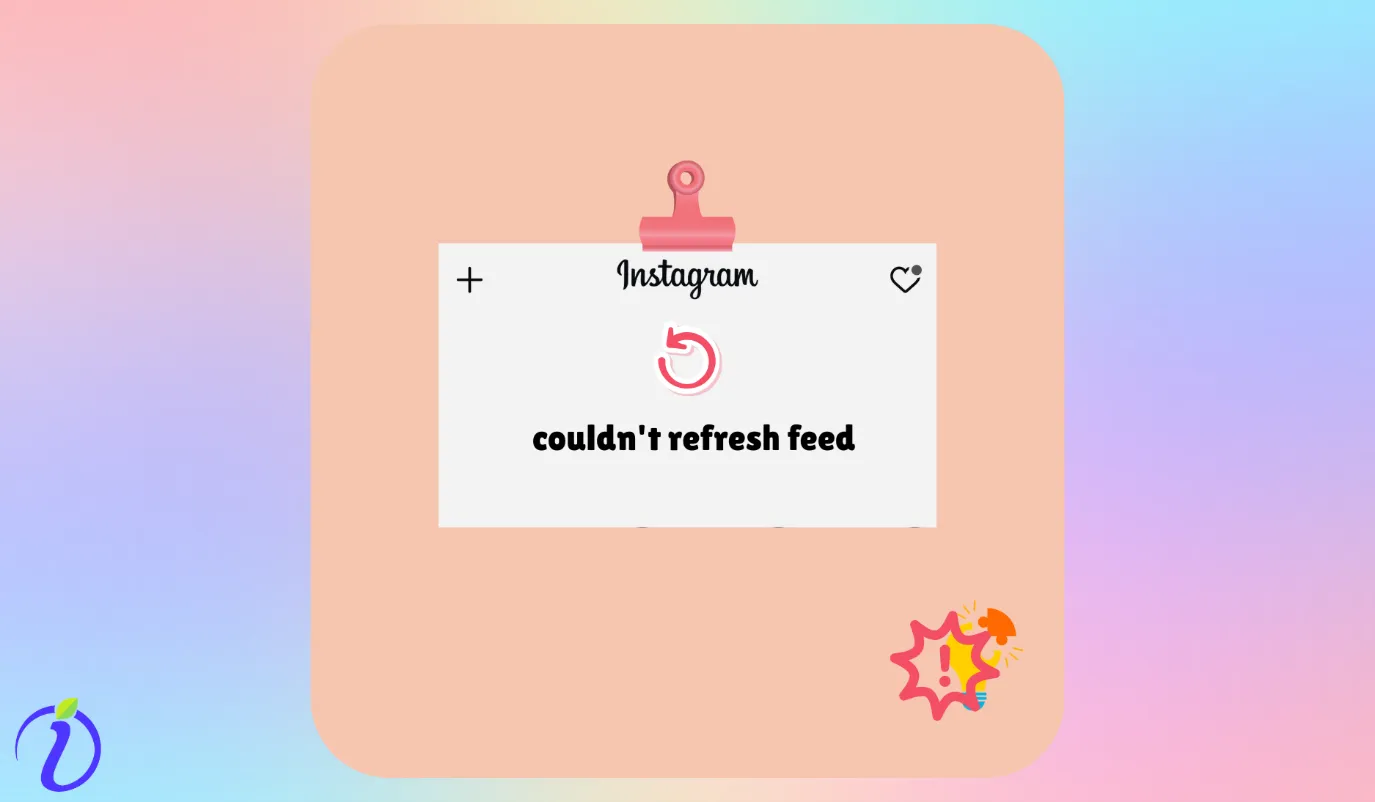
What do you do when your Instagram doesn’t refresh?
You pull the screen down again… and again… but nothing happens.
It feels strangely unsatisfying to see that same frozen feed.
Suddenly, there’s tension between your eyebrows, and you start wondering, “Why is my Instagram not refreshing?”
The good news is that in most cases, it is a very small error, and could be fixed by a minor hack.
We will discuss all the hacks, from minor to major, to fix this issue. Also, we will see what could be done to prevent this issue in the future.
 Time killer · Pain
Spending 6 hours writing posts that get zero traction?
Paste your URL. ZuAI turns it into 30 brand-on captions in 10 minutes — no blank-page panic, no generic AI filler.
7 Minor and easy fixes for the Instagram feed not refreshing problem
There is no need to open the engine if the repairs are minor and can be done from the outside. That is why, in this blog, we will cover the steps, so you do not need to do all of them.
Your problem could be solved in the first few steps only.
Manage Unnecessary apps
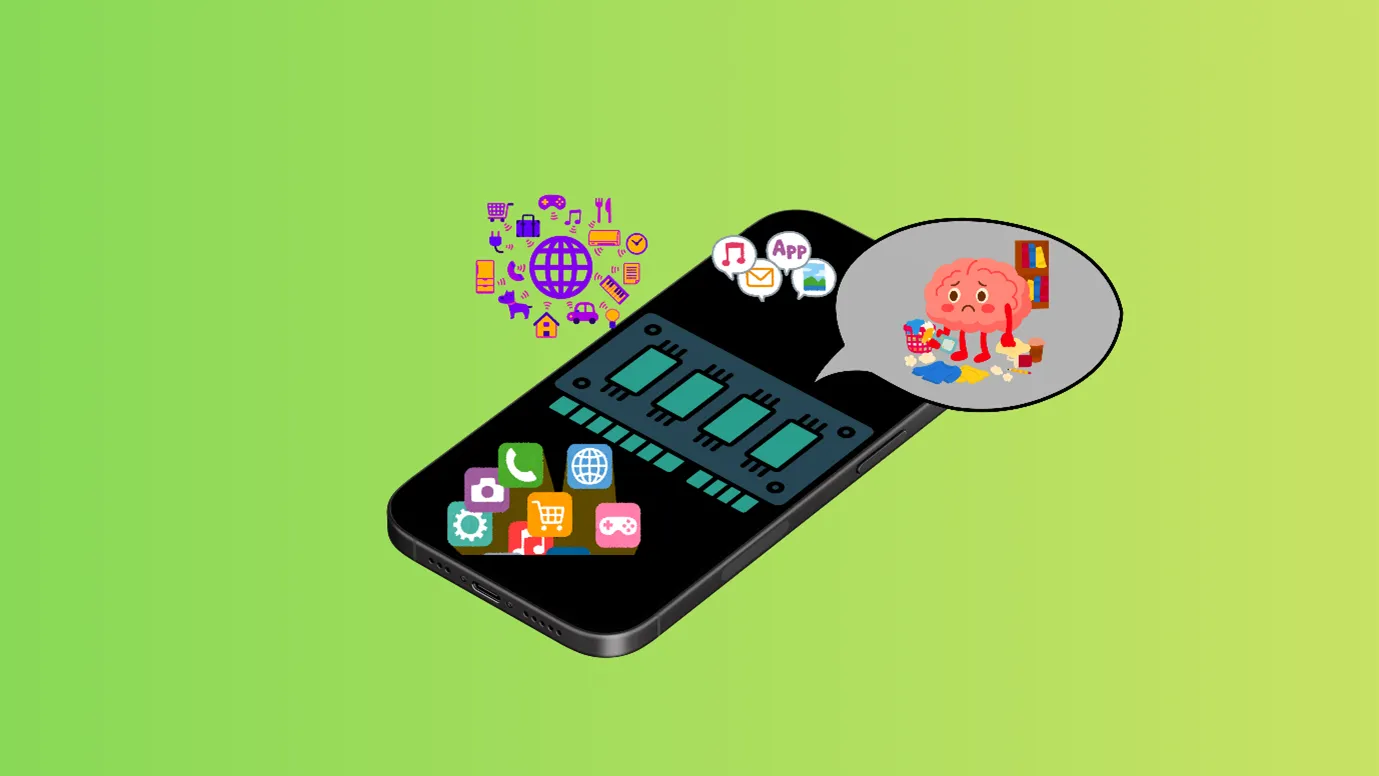
First, check whether too many apps are running in the background, and close any unnecessary ones that could be using RAM.
Secondly, check if you have installed any 3rd-party app that is interfering with Instagram’s smooth functioning (e.g., VPN, Proxy, Data Saver, or cleaner apps).
You can uninstall or force stop such apps.
Check your internet connection speed
There are many websites that can check your internet connection speed. You can go to Google Fiber, TestMy.net, etc. Here you can check your connection speed.
- The minimum speed should be 30 -50 Mbps, if you are using Instagram normally.
- And if you are uploading content on Instagram, the minimum speed should be 150- 250 Mbps.
If you are using a WIFI service, use cellular data or vice versa.
Outcome · RecommendedGet 30 days of social content from your website — in 10 minutes.
Check if Instagram is down
What if there is no problem anywhere else, but with Instagram itself? You can go to any browser and search if Instagram is down. Go to your browser and type “If Instagram is down.”
- Various sites like “downdetector” X, Reddit, etc. would pop up.
- If there is any issue with Instagram, you will be able to see it.
Make sure you have the latest version of Instagram
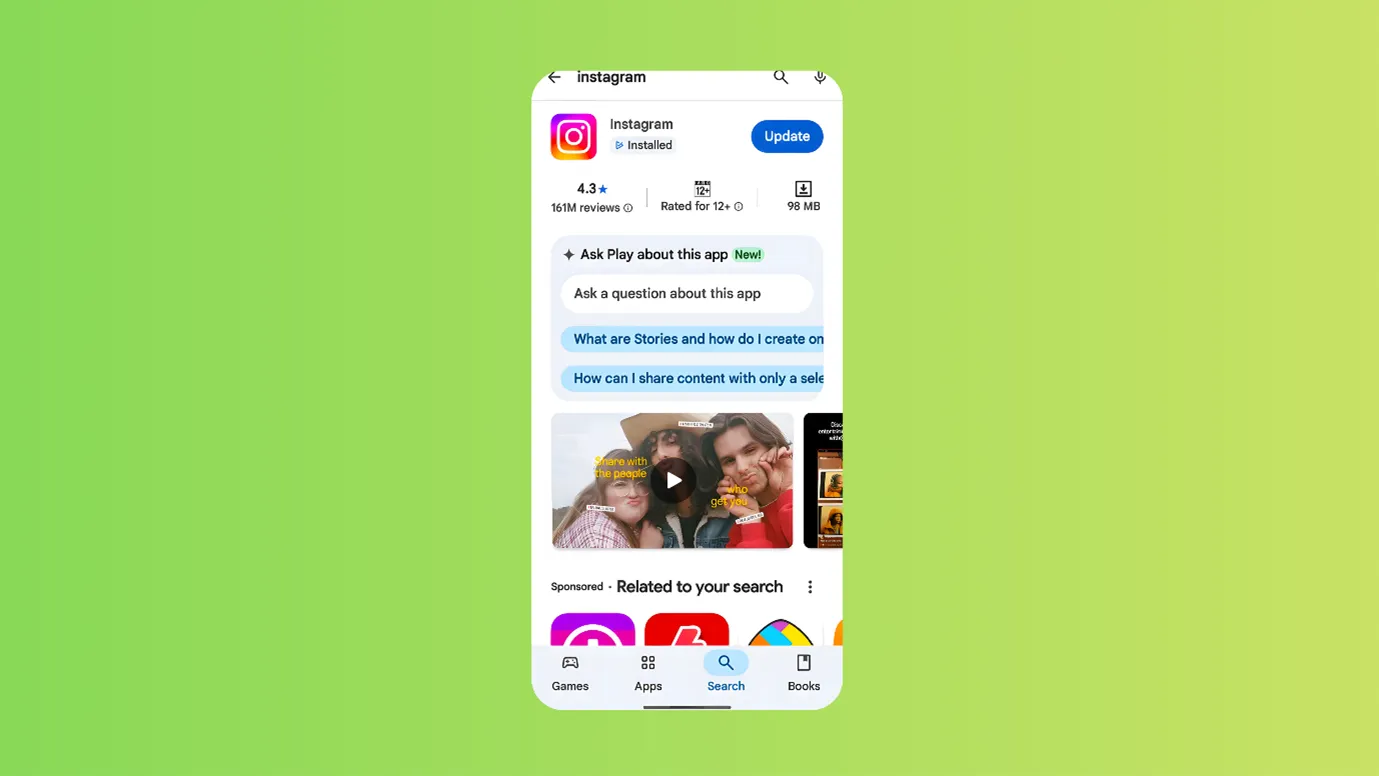
Most devices auto-update their apps, but sometimes the app may not update.
So, you can manually visit the app store to check whether the app is updated.
If the app is not updated, it will ask you to update the app there.
- Go to Google Play Store / Apple Store and update the app
- But make sure that you also have decent storage in your phone.
For smooth performance, try to keep:
- At least 1–2 GB free on Android.
- At least 3–5 GB free on iPhone.
Clear the temporarily stored data
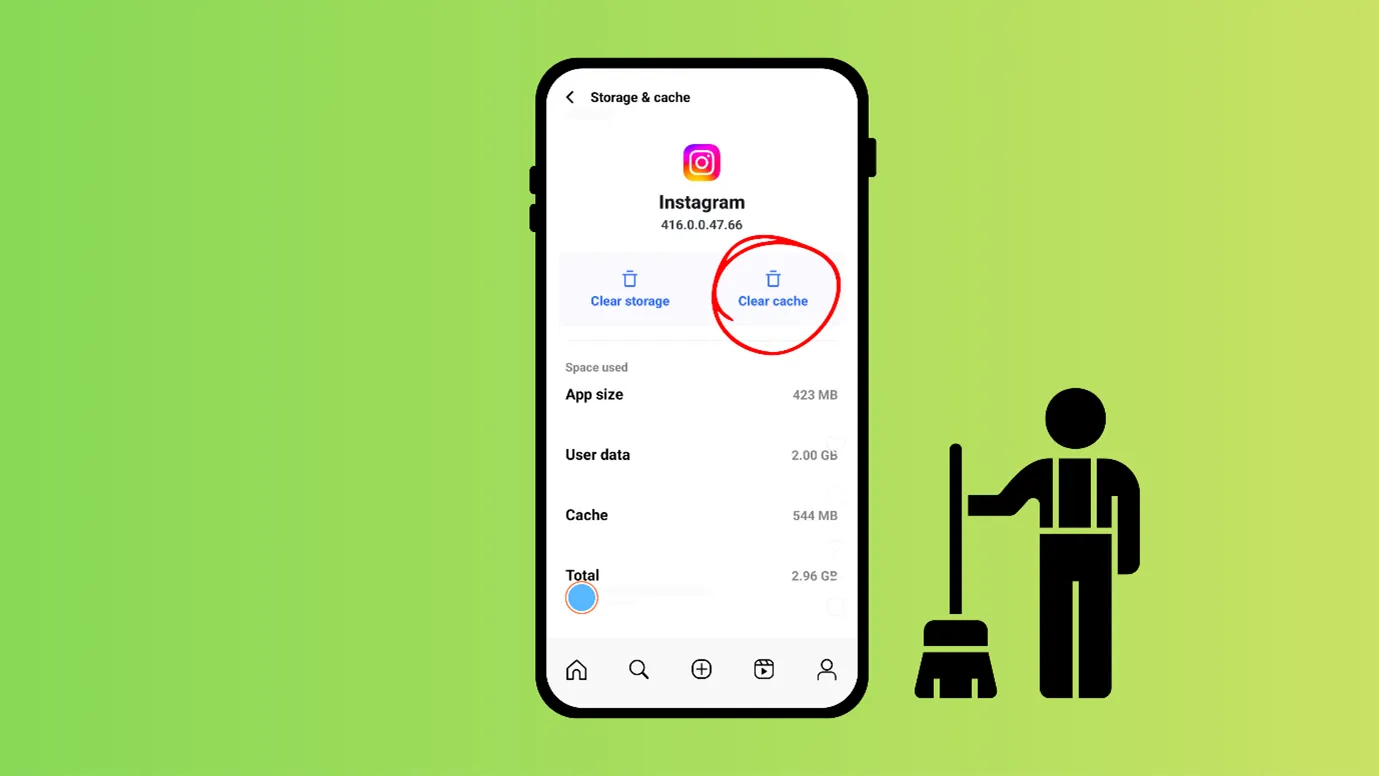
Instagram stores some data on your phone so it doesn’t have to reload the data repeatedly, and it loads more quickly.
This temporary data is called cache. You can go to your phone settings and clear the cache.
Clearing the cache removes those broken files so the app downloads fresh data from Instagram’s servers.
Note- If you do not have any problem in giving details and logging in, you can “clear storage.”
Restart your device
When we feel tired or mentally fatigued, we take a short nap to return to our most productive state.
Similarly, restarting our devices helps reset the system. It clears and reorganizes the RAM—the space where apps run—and stops any background apps or updates that may be causing freezing or slow performance.
Refresh Your Login Session
Logging out and logging in again can fix many bugs.
If you have too many accounts on Instagram, or if there is a temporary account-level bug, logging out and back in can refresh account data from the server.
This step is a complicated one, which is why we have kept it as the last resort, but if nothing works, this step can be effective.
Proof · Verified
2k+ grew faster with one tool.
What to do if nothing works?
You can try installing Instagram Lite
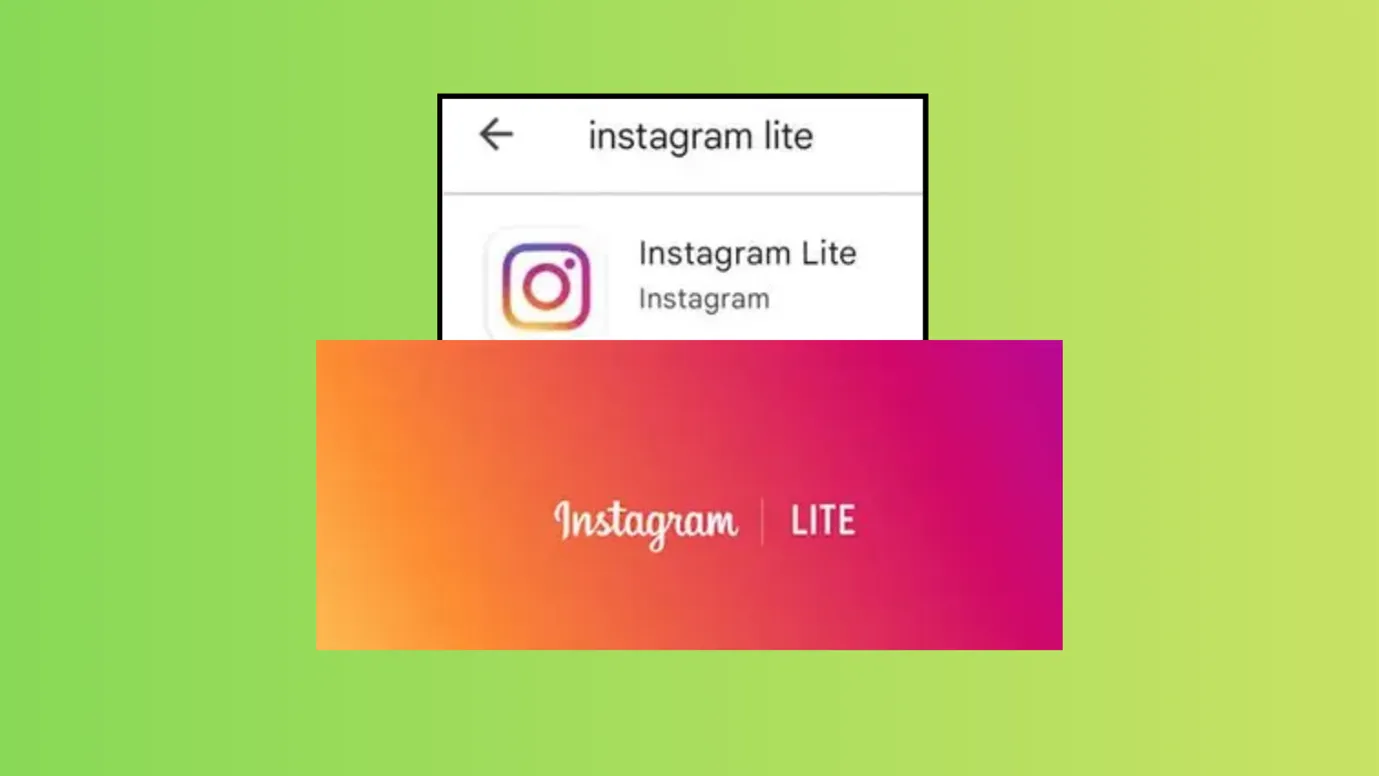
Instagram Lite uses less data and storage. It will give you the same feed but could limit features such as uploads, AR filters, camera features, background animations, and video quality.
This will help you if you were not able to view Instagram properly due to data or storage problems.
Check if you were temporarily suspended
In some cases, a refresh problem can be linked to a restriction or temporary ban.
It is not the most common reason, but it does happen.
Instagram can limit your activity, and your account is under review.
First, you need to find out whether you are temporarily banned or not
- Check whether you received any notifications from Instagram officially (on the app) or your email.( Beware that some spammers also send such messages in DMs; do not trust them. Check only for notifications/mails)
- Check your account status
- Open your Instagram, then click on your profile picture at the bottom right.
- Now, click on the three vertical bars in the rightmost upper corner (hamburger icon)
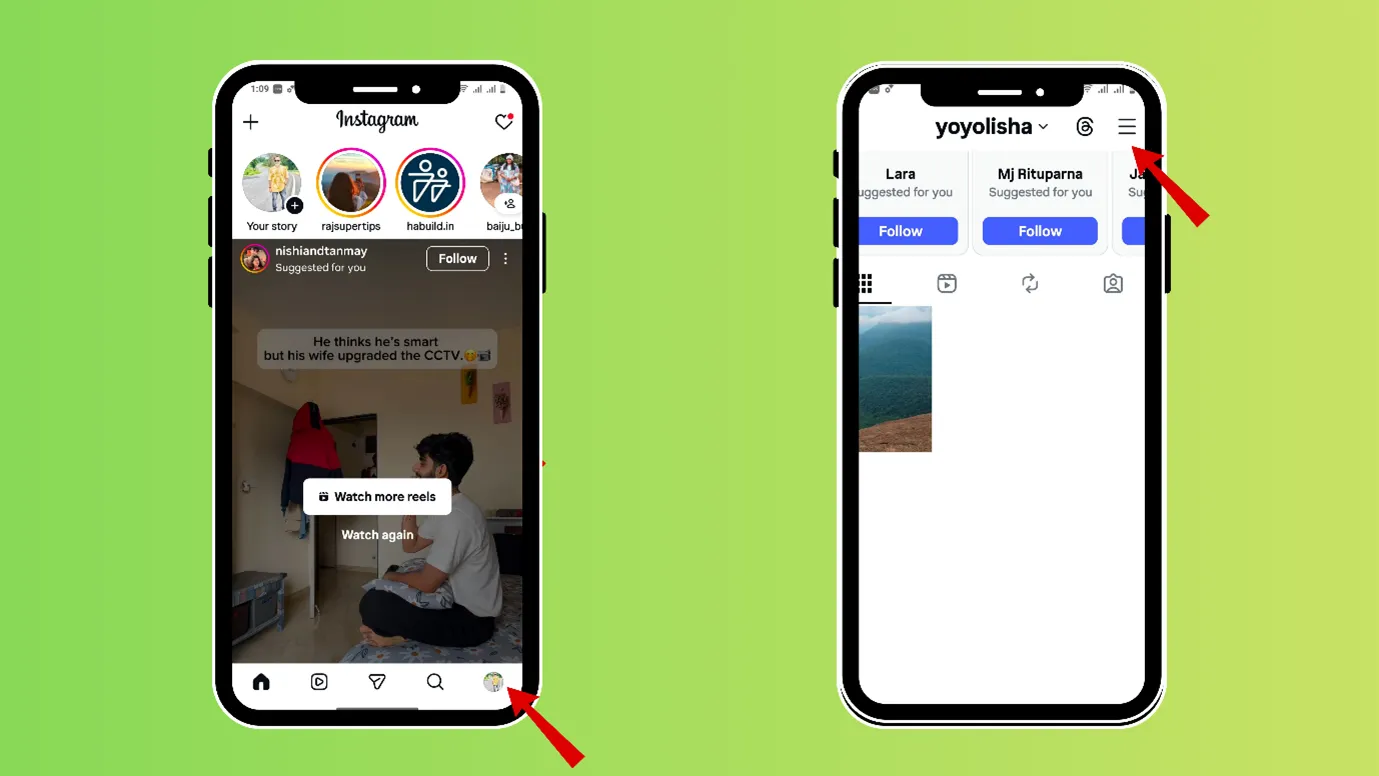
- Then click on “settings and activity.”
- Next, click on “Account status” and see if everything has a green check mark or not.
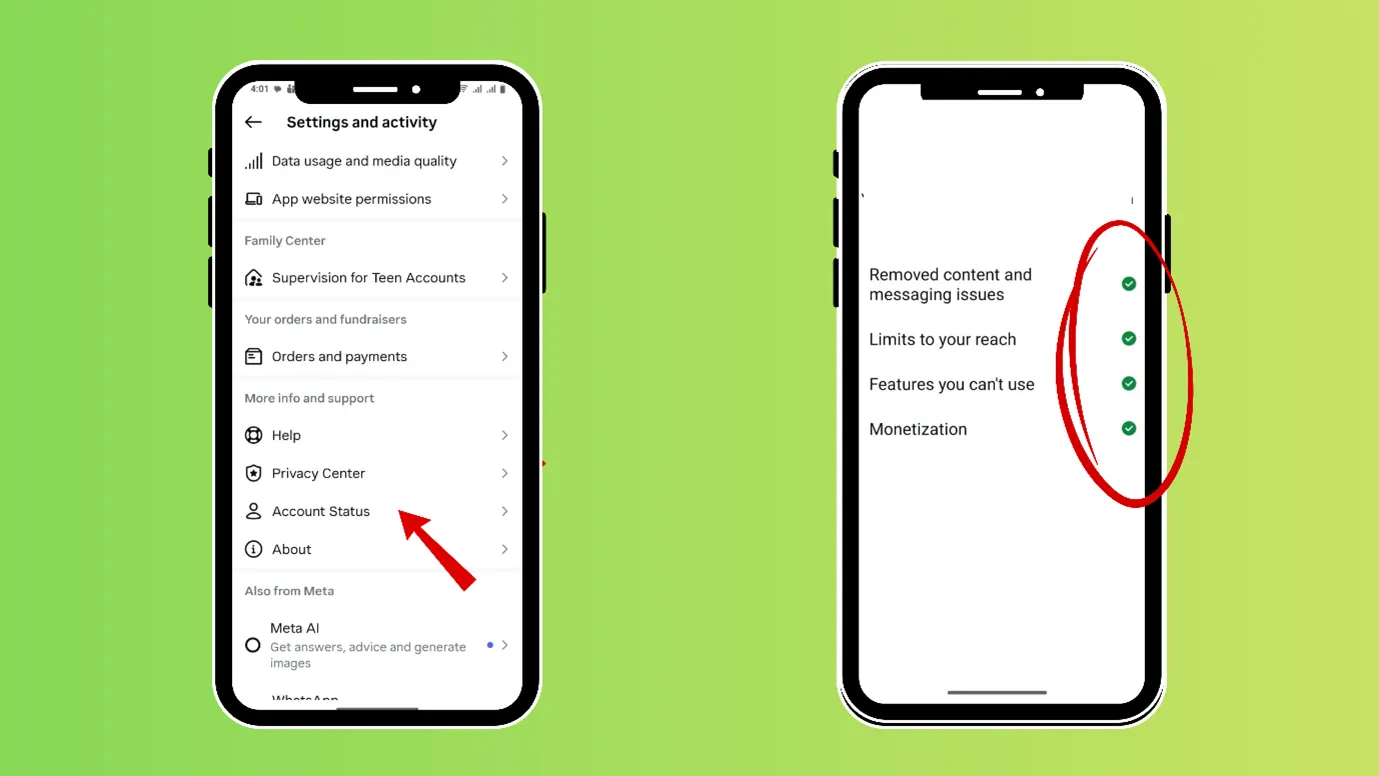
If your account has been shadow-banned or temporarily suspended, then you can
- Report the problem in the Instagram help section.
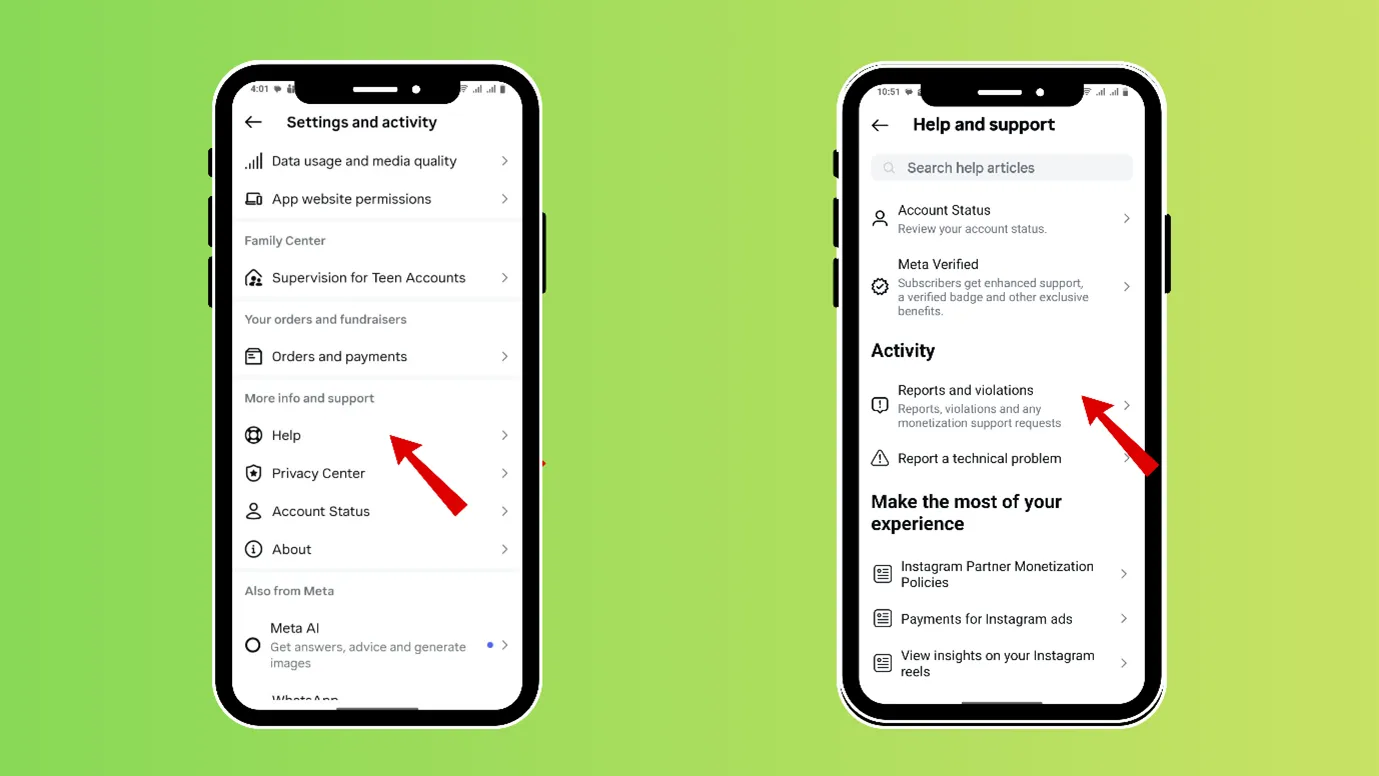
Use Instagram from one or two devices( maximum). Log out of random devices
- Enable 2-factor authentication.
- Stop the activities which could have led to your ban, like installing any 3rd party apps, sending too many DMs, commenting too much etc.
If none of the above steps worked for you, then you can finally contact Instagram Help.
- Open your Instagram, then click on your profile picture at the bottom right.
- Now, click on the three vertical bars in the rightmost upper corner (hamburger icon)
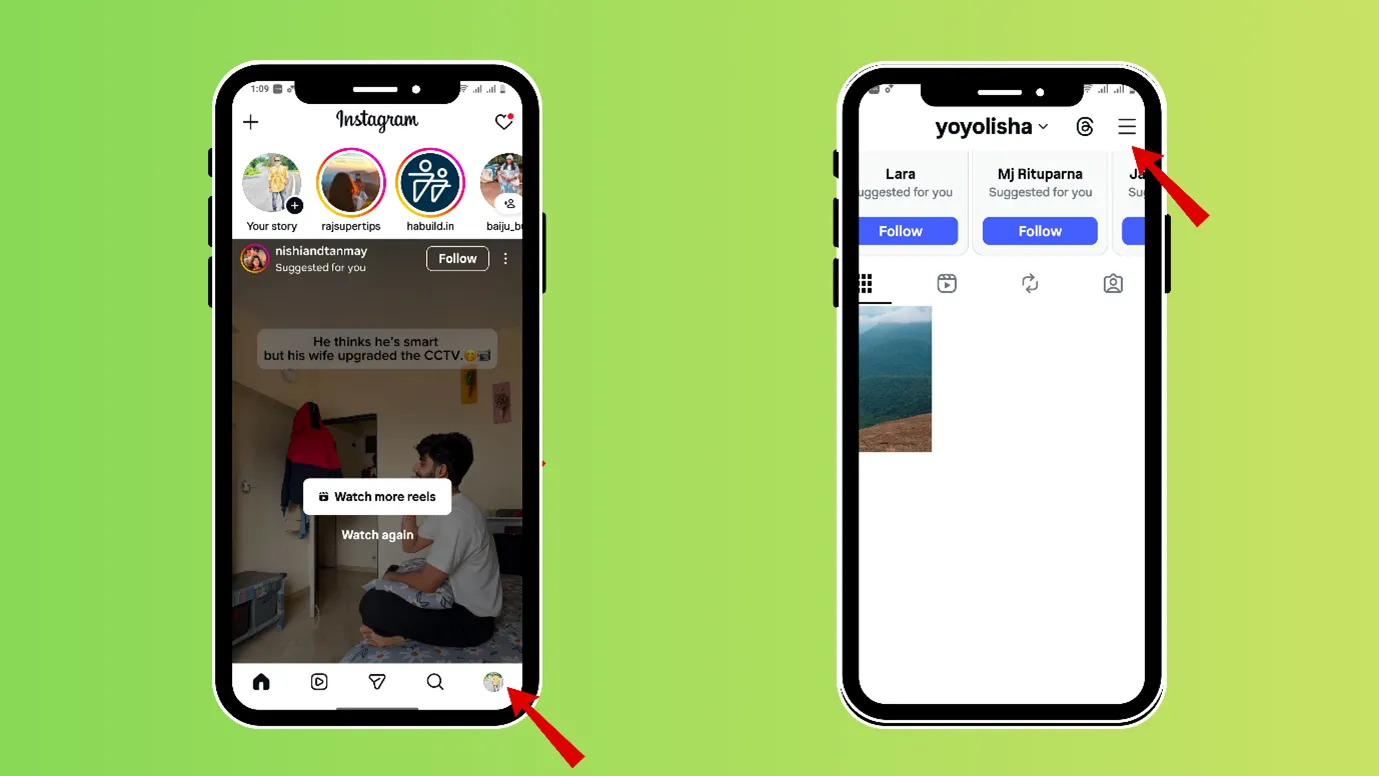
- Then click on “settings”
- Scroll down and reach “Help.”
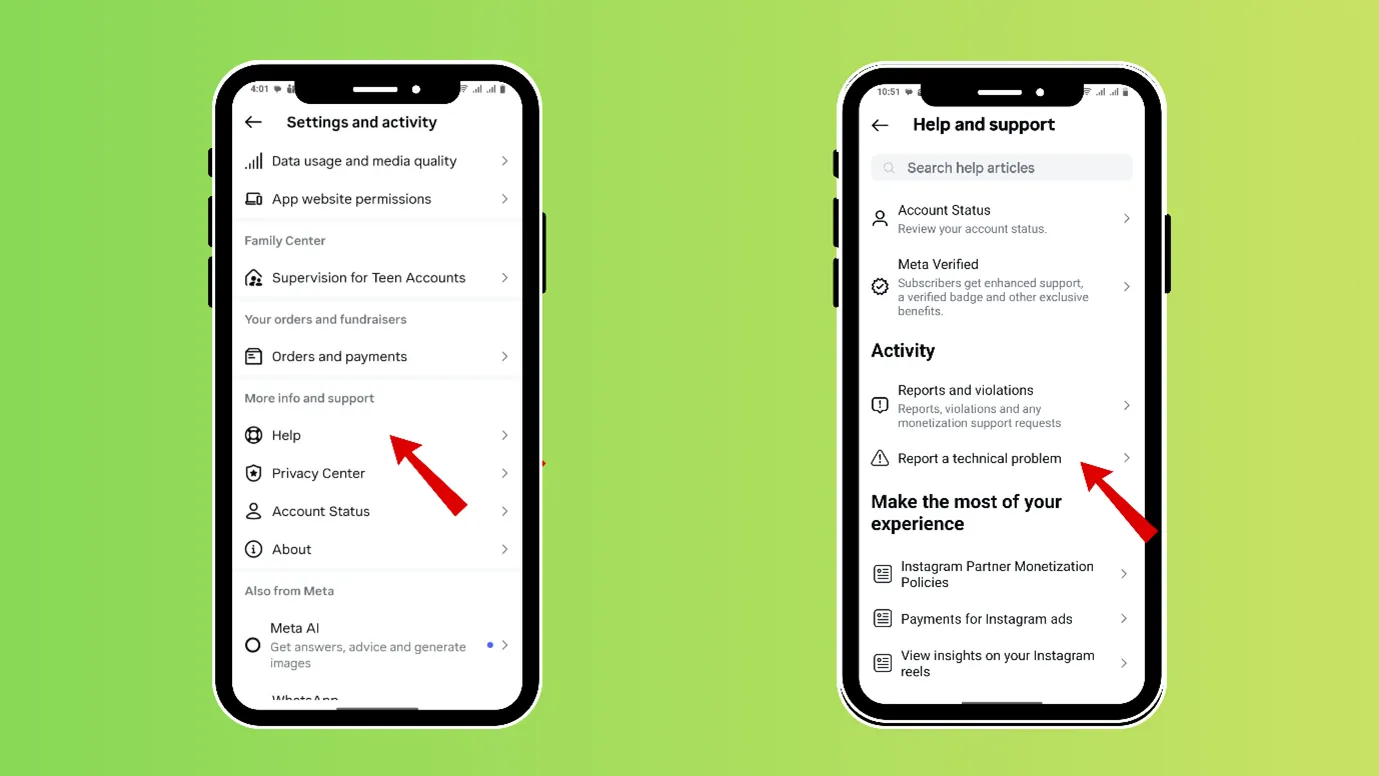
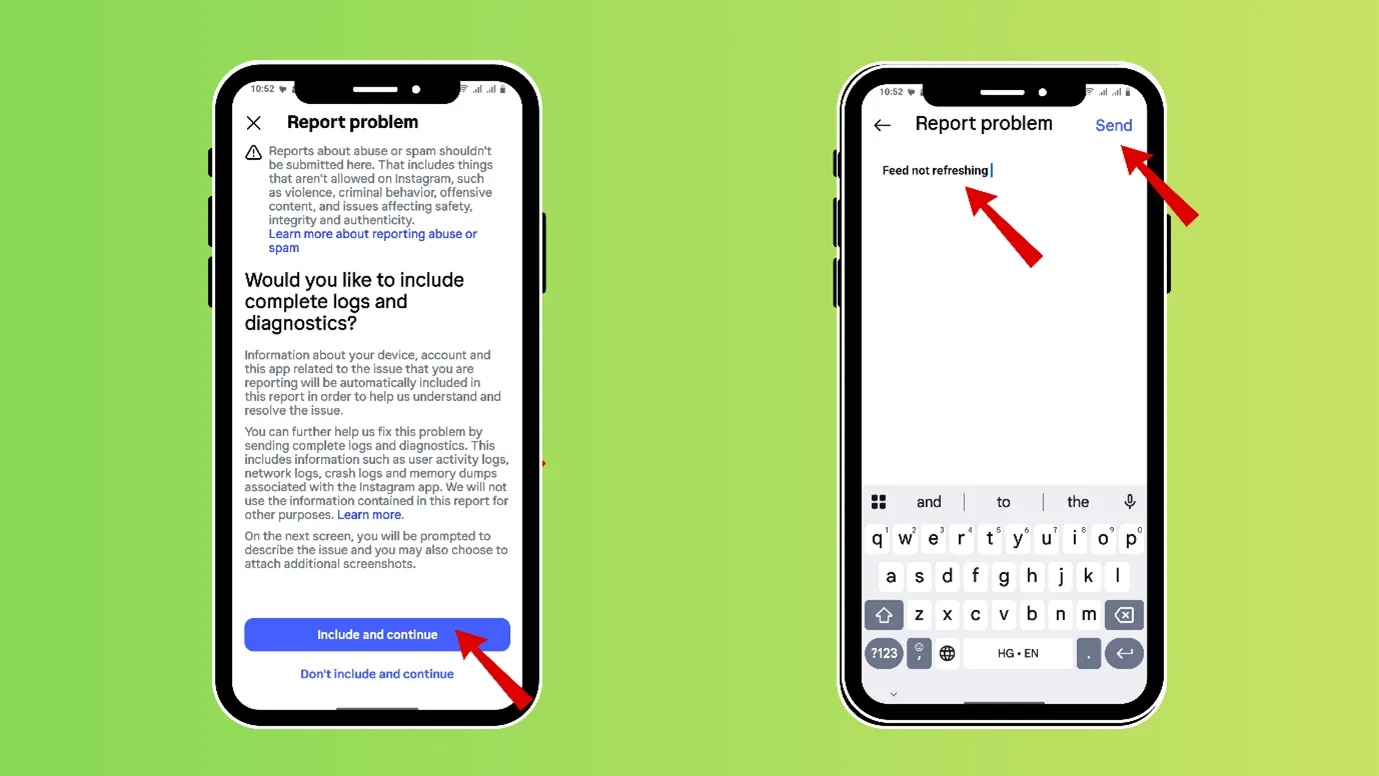
- Go to “Report a Problem”
- Go to “Report a technical problem”
Free · Instant · No signupSee what ZuAI generates from your website — right now.
Paste your URL. Watch ZuAI write a month of brand-on captions in seconds. Preview before you create an account.
Don’t Make These Errors While Fixing This Issue
When Instagram does not work properly or refresh properly, it feels very overwhelming and anxious. Again and again, questions strike in our head: why is my Instagram not refreshing, what is the error, Am I blocked, shadow-banned, etc.?
That is why we suggest you to be patient at this point, doing too many actions at once will cause more harm than good.
Here are 5 steps you must avoid if you are in this problem
Do not install any 3rd party app or VPN to solve the problem
As installing any other app will again jam the RAM, it will increase complications. Also, its functioning can interfere with Instagram, trigger temporary restrictions, or slow down Instagram even further.
Note- If you suspect that any VPN you have currently installed is causing the problem, then you can try force stop that VPN.
Do not force stop Instagram or clear storage
If the problem is in the foot, why apply medicine to the hands?
1. Do not force stop Instagram
- If the Instagram server is down
- If you have a weak internet connection
- If there is any temporary restriction from Instagram’s side
2. Do not clear storage (in app setting)
- Without remembering the login id and password, or without having the mail ID or phone number, which can be used for verification
- If you have low phone storage in the first place
- If any other 3rd party or VPN is interfering and not letting Instagram run properly
Do not report the same problem again and again on Instagram Help
If you have already submitted your problem to the Instagram Help section, then the next thing you can do is wait, a minimum of 2 days and a maximum of 1 week.
If you submit the reports again and again, the reports will be grouped together, and that will not result in any quicker fixes.
Do not skip any processes that ensure the smooth functioning of your device
- Do not ignore any system update
- Do not ignore any low storage warning for your phone
There are many such things, such as battery, phone security, and other issues, that need to be taken care of; do not ignore them.
Speed · 10-minute setupOne coffee from URL to a full month of scheduled posts.
Drop your URL, brew your coffee, come back to 30 brand-on captions ready to publish.
Why Is My Instagram Not Refreshing? How to Prevent This Error?
- Always keep your Instagram updated.
You can do that manually or enable auto-update in the Instagram app.
- Restart your device at least once a week. This will improve the functioning of your Phone
- Before installing any 3rd party app, check its reviews and ratings, and install only from Official App Stores.
- Do not install any 3rd party app to get more likes, auto followers, or bot apps. Do not spam people. Do not put generic comments everywhere. Opening too many accounts from one mail ID in a short time.
In short, do not engage in any activity that could make Instagram suspicious of you.
- Keep deleting the media and content that are unnecessary; do not fill your phone storage.
- Keep your device OS updated
Blank tab. Six open browsers. No clue what to post.


 After · With Indzu
Paste one URL. Get 30 scheduled posts.
Got your Instagram refreshed?
Instagram’s user base is huge, approximately 200 million people use it, and sometimes such technical problems occur. We want to assure that we have covered every nook and corner of Instagram problems via our blogs.
So if you face any problem while using Instagram, rather than worrying Why is my Instagram not refreshing, why is it crashing etc., you should straightaway come to our blogs.
And also, if you want to create content and post on Instagram and avoid such technical problems, you can do it via Indzu’s content creation and scheduler tool.
Time killer · Pain
Spending 6 hours writing posts that get zero traction?
Paste your URL. ZuAI turns it into 30 brand-on captions in 10 minutes — no blank-page panic, no generic AI filler.
FAQ
Why is my Instagram feed not refreshing?
There are a few reasons why your Instagram feed might not be refreshing.
- Low data speed
- Instagram servers may be down
- Your device’s storage could be low
- You are doing too many activities at one time on your phone; your RAM could freeze
- You may be using an outdated version of Instagram
- You have logged in to Instagram from too many devices
- You might have corrupted cache files
- You could be using any 3rd party app or VPN, which could be interfering in Instagram’s functioning.
- Instagram could have shadow-banned or restricted you (it happens in some cases)
Couldn’t refresh the feed on Instagram, am I blocked?
Please keep in mind that the refresh problem happens due to many reasons. First, check if you have
- Weak or unstable internet
- VPN interference
- Low phone storage
- Too many apps running
- Instagram server outage
- App glitch or corrupted cache
Also, check if you are restricted,
- You see “Action Blocked” messages
- You cannot like, comment, or follow
- Check your account status.
A block is a very extreme action, refresh feed problem happens due to the above mentioned reasons.
Why is Instagram not refreshing my feed on one account? Can outdated phones or OS versions cause this error?
Yes, outdated phones or OS versions can cause this error. Make sure to have the updated version of the OS available on your phones.
You can also try Instagram Lite. It runs on low data and storage. It is a good option for checking the Instagram feed when you have limited options.