You do not have time, but cannot also skip the YouTube video you are watching. Solution: increase the speed of the video, but wait, your YouTube video playback speed is not changing, and you keep thinking, “why cannot I change playback speed on YouTube?
Is this your scenario, too? Very strange, but this problem is more common than you think. Even though YouTube is a fine social media platform, even small issues like this can still take the charm away.
That is why we are here, so that no issues can take away your social media charm. We will discuss 5 easy ways to fix the YouTube video playback speed problem. From the best time to post on any platform to stats, we have covered it all.
 Time killer · Pain
Spending 6 hours writing posts that get zero traction?
Paste your URL. ZuAI turns it into 30 brand-on captions in 10 minutes — no blank-page panic, no generic AI filler.
Easy hacks to easily change your playback speed on YouTube.
Before going to any of the hacks, let us be clear on two important points
- You are not having any network issues. Due to a bad network, YouTube videos are unable to load properly, and the playback speed could be affected.
- Remember that playback speed cannot be changed in a YouTube Shorts video. (in case you were trying to change the speed of a YouTube Shorts and thinking why cannot I change playback speed on YouTube )
After checking these two points, we can move to our easy hacks.
Clear the cache of the YouTube app
In most of the cases, cleaning helps and increases efficiency. If your gas stove is not working and you clean the pipes, efficiency increases.
Similarly, when you clean the temporary files and outdated sessions (these are called cache). Then it increases the efficiency of YouTube’s functioning.
Cached data could contain
- Some Images of a frequently visited video
- Small parts of videos you already watched
- Video thumbnails of YouTube, etc.
Deleting these won’t hamper YouTube loading. But do not do this cleaning process frequently. Do it in once every six months.
How to clear cache on Android?
- Open settings
- Go to the required App, App manager
- Go to YouTube
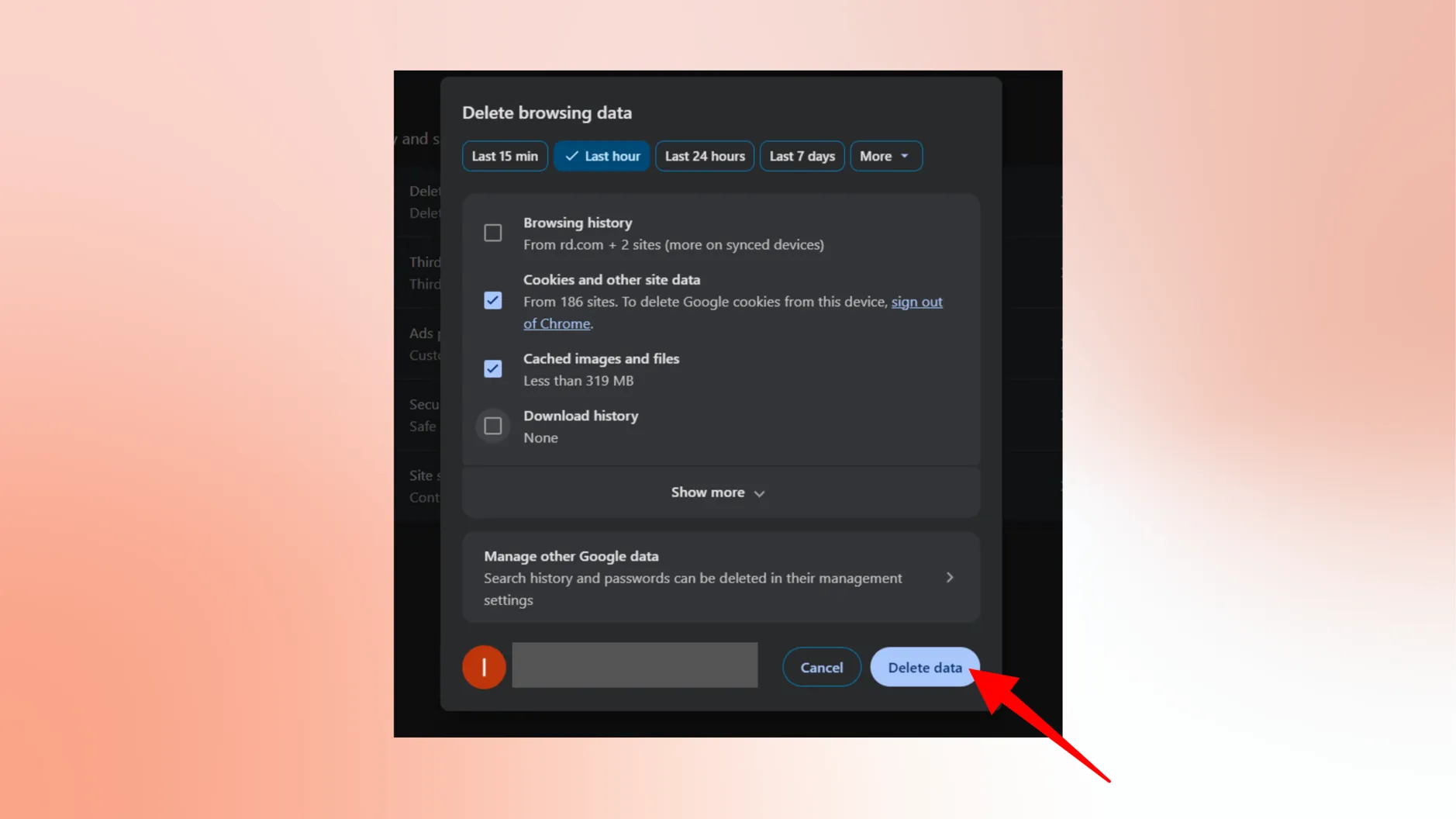
- Next, tap on storage and cache and “ Clear Data.”
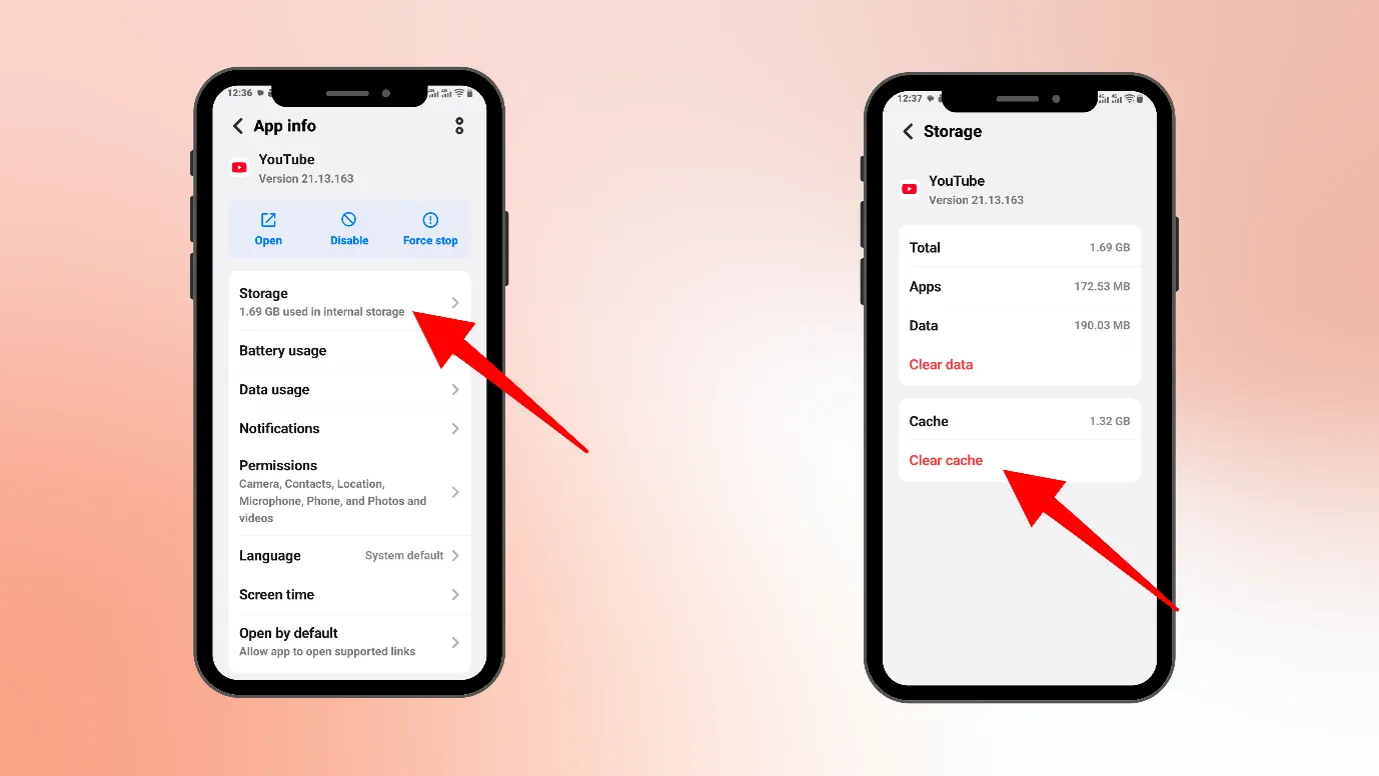
Note: Your downloaded YouTube videos (inside the YouTube app) will be deleted when you clear cache.
If you are facing a problem while playing YouTube on PC, then you can consider clearing cookies from your browser.
Go to your browser, click on settings, press Ctrl + Shift + Delete, delete cookies.
Outcome · RecommendedGet 30 days of social content from your website — in 10 minutes.
Update your YouTube app
Your YouTube app is just not an app; it is a whole system of code, UI, and feature logic. There are so many things that could go wrong. That is why developers keep on providing updated version if the app.
If you have an old version, there are chances that any of the minor bugs or any compatibility issues could be creating problems in the normal functioning of the YouTube app.
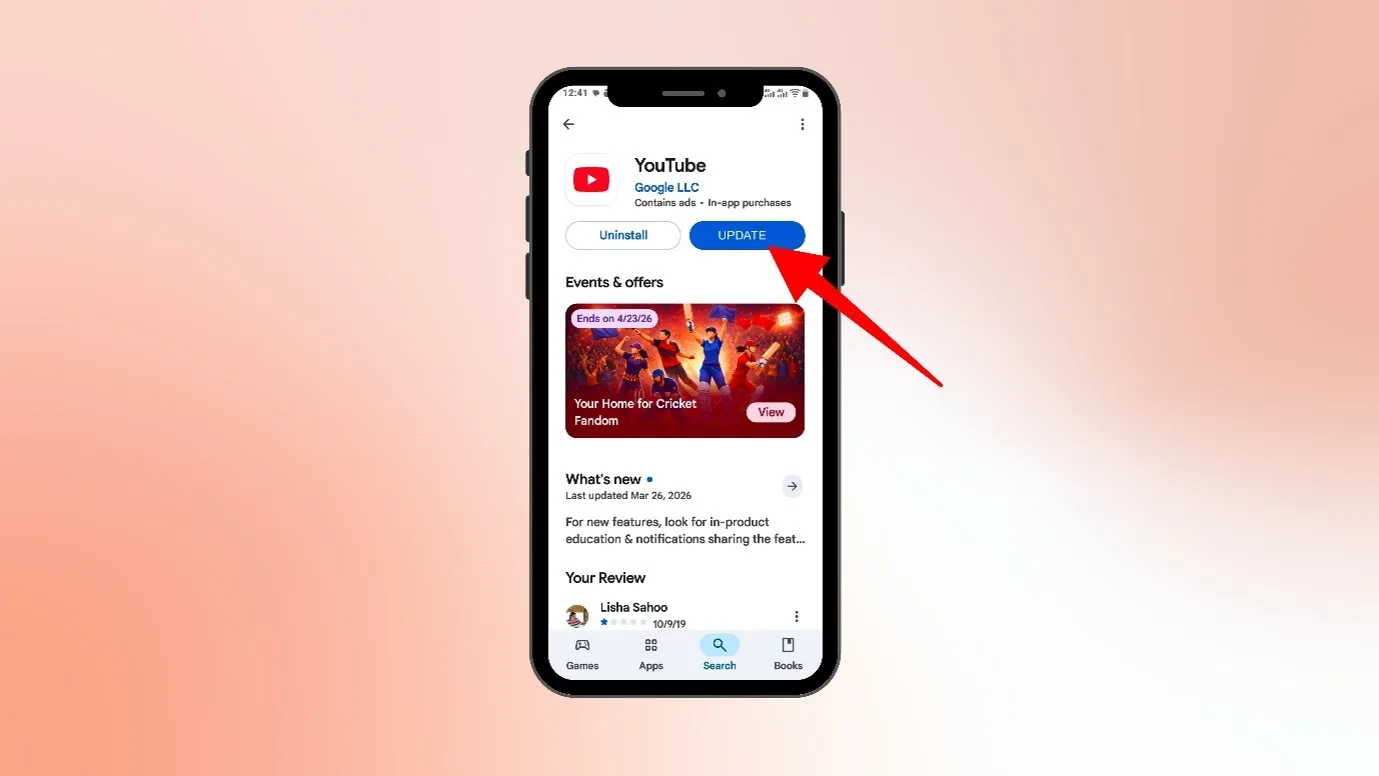
- Just go to your Play Store and type “ YouTube” and update the app.
- After updating the app, restart your device
Open the mobile version of the YouTube website in a browser.
The mobile version of the YouTube website is lightweight and easy going. Also, it is a much simpler version than a mobile app.
There could any issue with your device or app which can be causing the video playback speed issue. But the mobile version of the YouTube website will not show any such issue.
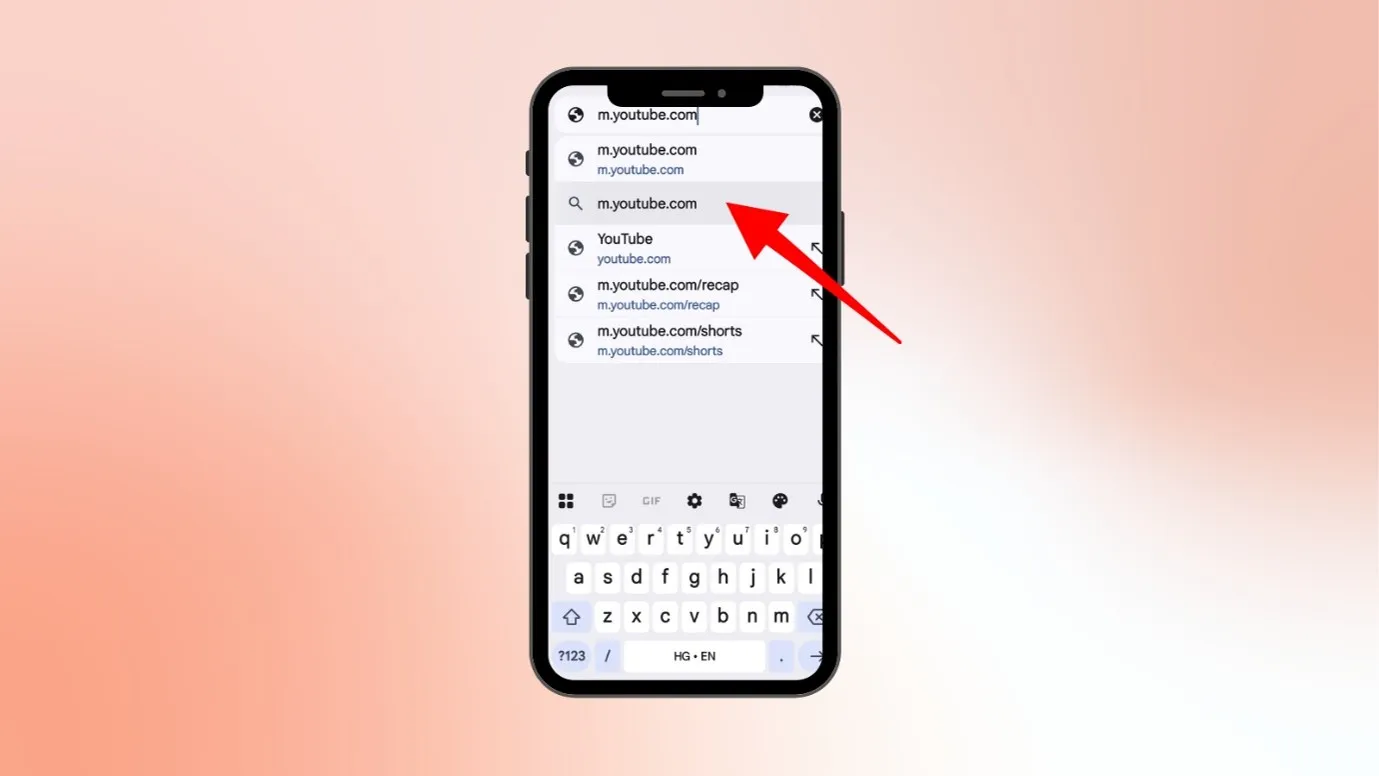
How to open the mobile version of the YouTube website in a browser?
- Open your mobile browser
- Type m.youtube.com
Remove any ad blocker from the system.
Ad blockers might interrupt the normal functioning of the YouTube app or website.
An Ad blocker can interfere with YouTube configurations and break the settings option.
This could be the reason why you cannot see the setting switch or change playback speed on YouTube.
If you are using a desktop or PC, then try removing any ad blocker extension and check whether you can adjust the playback speed or not. If you are using Android, then uninstall the ad blocker apps and do the same.
Note- If you have any VPN installed, you can also check with that app, switch off the app, and see how YouTube is functioning.`
Press refresh again and again
Sometimes, the glitch is minor, and refreshing the page again and again can fix these glitches.
How to refresh YouTube on PC?
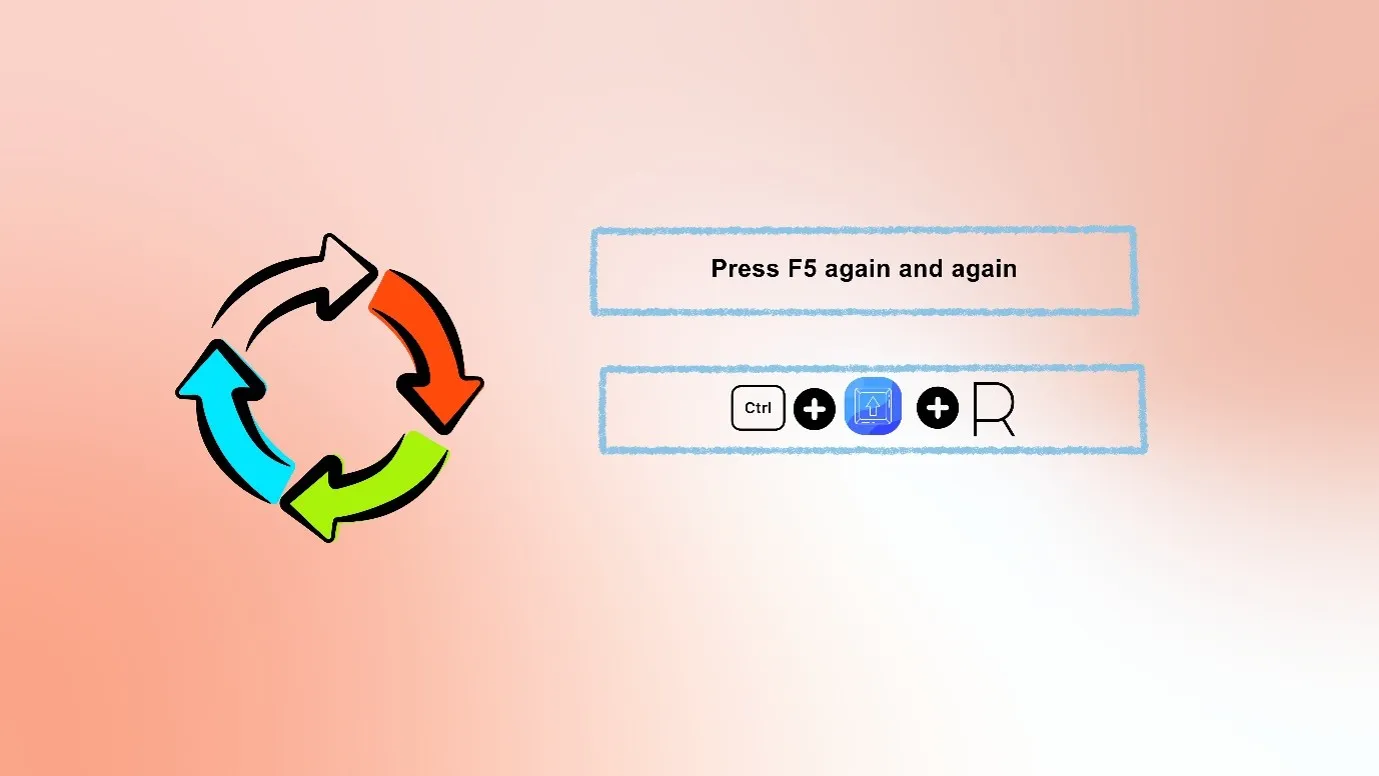
- A Basic refresh can be done at any time by just pressing the key “F5”.
- If you want to do a hard-core refresh, press Control + Shift +R (Windows) and Command + Shift + R (Mac).
- Close YouTube and open it again.
How to refresh YouTube on Mobile?
- The easiest way to refresh YouTube is by pulling the screen again and again. (In the home feed of YouTube, swipe from the top)
- Close the YouTube app and open it.
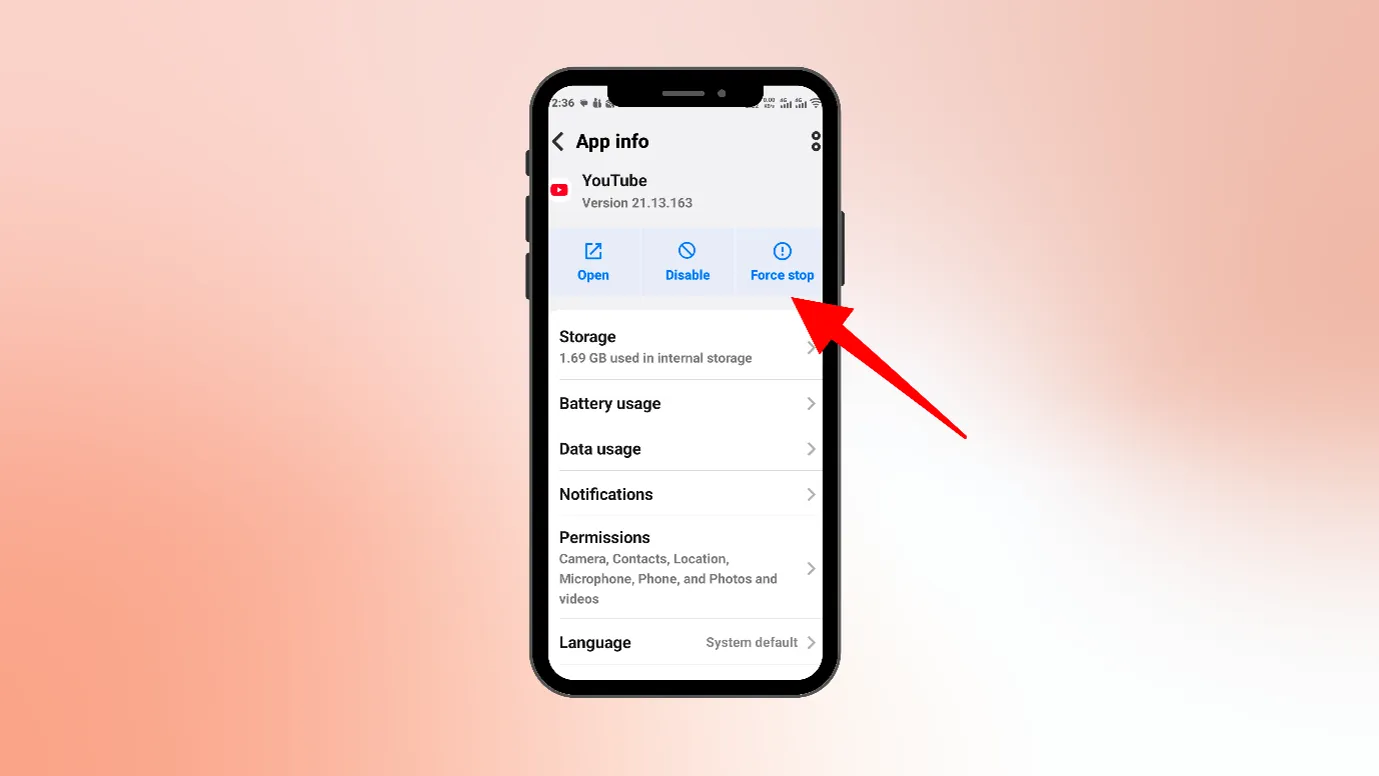
- If you want a hard refresh, then try to force stop YouTube. But this can reset many settings of YouTube. Here are the steps to force-stop YouTube.
- Go to settings
- Open apps
- Next, reach YouTube, open its settings, and press Force stop.
Manually changing the Video playback speed of YouTube.
Rather than relying on settings and thinking of why cannot I change playback speed on YouTube, you can manually control it.
This cannot be done on a mobile. But you can manually control speed on a PC or a desktop.
How to manually control the YouTube Video playback speed?
For windows
Shift + > | increase speed |
Shift + < | decrease speed |
For Mac
Shift + > | increase speed |
Shift + < | decrease speed |
Proof · Verified
2k+ grew faster with one tool.
When cannot I change playback speed on YouTube?
There are certain cases when you cannot change the playback speed on YouTube.
- If you are watching YouTube Shorts, you cannot change the playback speed.
- If any kind of restrictions are imposed on YouTube, such as parental control, etc.
- You cannot change the speed of the ads running on YouTube
- If you are playing the YouTube video on any other platform ( Frontend alternatives )
- Some videos themselves do not allow speed changes; some live streaming videos, Old videos of YouTube, etc., do not allow the playback speed to change.
Free · Instant · No signupSee what ZuAI generates from your website — right now.
Paste your URL. Watch ZuAI write a month of brand-on captions in seconds. Preview before you create an account.
Able to change the playback speed on YouTube?
In recent years, many platforms like Reddit, X, and many other Q& A platforms saw a surge in questions like” why cannot I change playback speed on YouTube?”.
So if you too are facing this issue, remember that you are not alone. We have tried to list the easiest and most effective ways to control YouTube playback speed and fix the issue.
We hope that you could get your solution from our blog. Also, we have numerous blogs listing solutions for problems like “ Why Instagram is slowing” or “ Twitter is not loading”, etc.
We are covering every nook and corner of social media and its problems. You can explore them
Speed · 10-minute setupOne coffee from URL to a full month of scheduled posts.
Drop your URL, brew your coffee, come back to 30 brand-on captions ready to publish.
FAQ
How to change playback speed on YouTube?
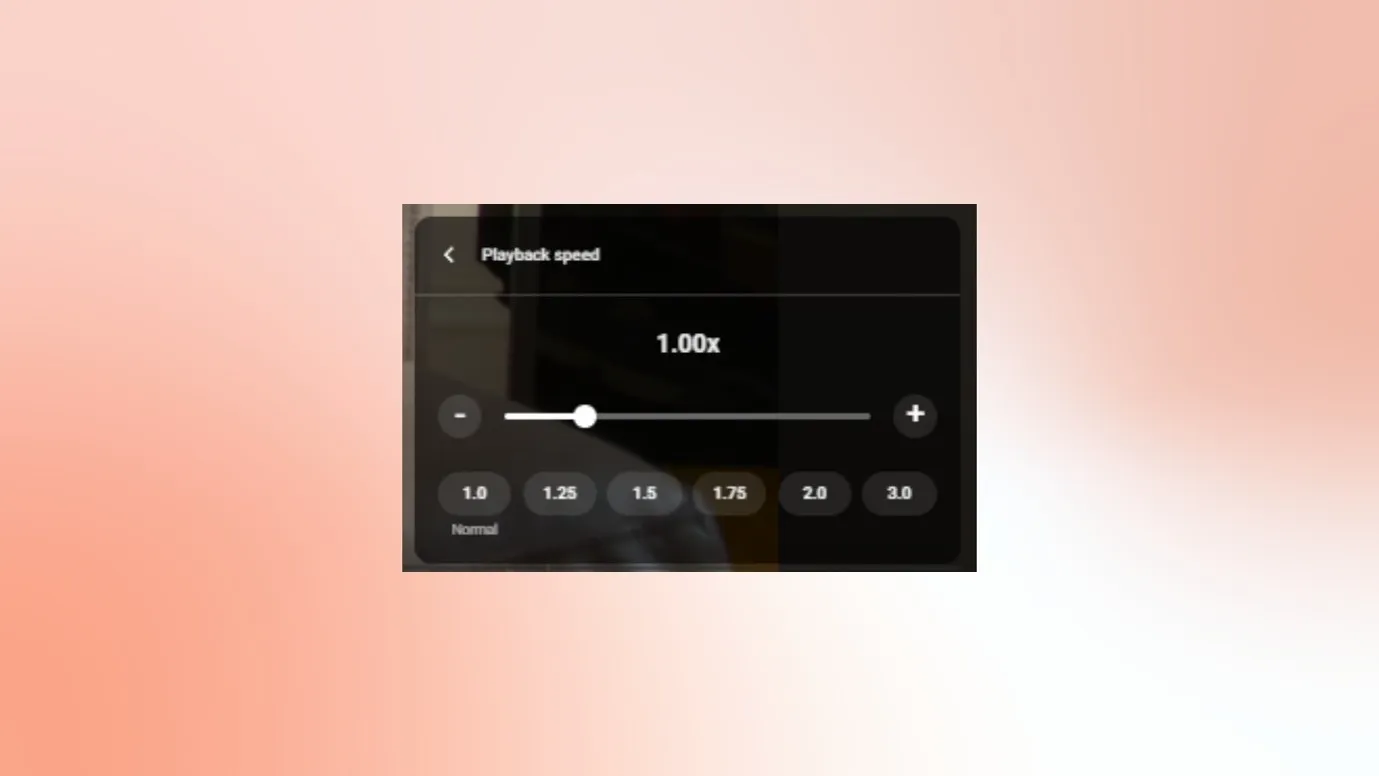
Changing playback speed on YouTube is very easy, just click on settings (on the right side upper corner of the video), go to playback speed, and increase or decrease the speed of the video.
Why cannot I change playback speed on YouTube? As I do not have YouTube Premium, is that the reason?
No, it is not like that; you do not need YouTube Premium for doing basic tasks like changing the playback speed.
There could be various reasons why you are unable to change the playback speed.
- You could be trying to change the speed of YouTube Shorts. YouTube Shorts speed cannot be changed.
- You may be using an outdated YouTube app, or there may be an incompatibility in your device and app
- Your account may have any kind of restrictions.
- The creator does not allow the change of the video playback speed from the beginning.
- You could be watching a YouTube video on any other platform.
- There could be a network issue, so the video cannot load properly, and you are unable to change the playback speed.
YouTube Playback Speed not working, what to do?
Here are some tips you can apply if your YouTube speed is not working.
- Try deleting the cookies or caches of your browser or app.
- Uninstall any AdBlock or VPN app or extension. You can uninstall and check whether YouTube playback speed is working fine or not.
Adblocks or VPNs could be interrupting YouTube’s functioning.
- Update your YouTube app and restart your device
- Try to open YouTube on the mobile browser of your phone to control the playback speed.
- You can also manually control the speed of YouTube videos. (for PC/Desktop)
Shift + > | increase speed |
Shift + < | decrease speed |