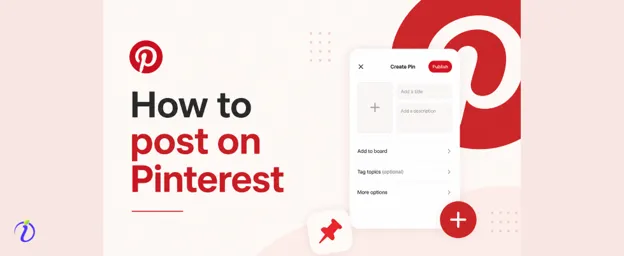
As a beginner, it is quite a relatable question to ask about how to post on Pinterest more effectively. Pinterest is one of the most popular online platforms with over 620 million monthly active users.
Creating and Publishing Pins is a simple process, but using the right content in the right way can significantly improve your reach and engagement. 214 million pins are generated everyday with the Gen Z population accounting to 70% of users. USA stands first among Pinterest users.
If you are a content creator, want to promote your brand or want to share blog posts through some creative ideas, then Pinterest could be the best source of ideas, so knowing how to post on Pinterest is essential to generate overall creative ideas.
In this blog, you will get a step-by-step guide on how to Post on Pinterest from your mobile and desktop computers.
 Time killer · Pain
Spending 6 hours writing posts that get zero traction?
Paste your URL. ZuAI turns it into 30 brand-on captions in 10 minutes — no blank-page panic, no generic AI filler.
Understanding How Pinterest Works
Pinterest for beginners is slightly different from other social media platforms. It is a visual discovery platform where users normally find visual content for ideas and inspiration. Here are more facts about Pinterest:
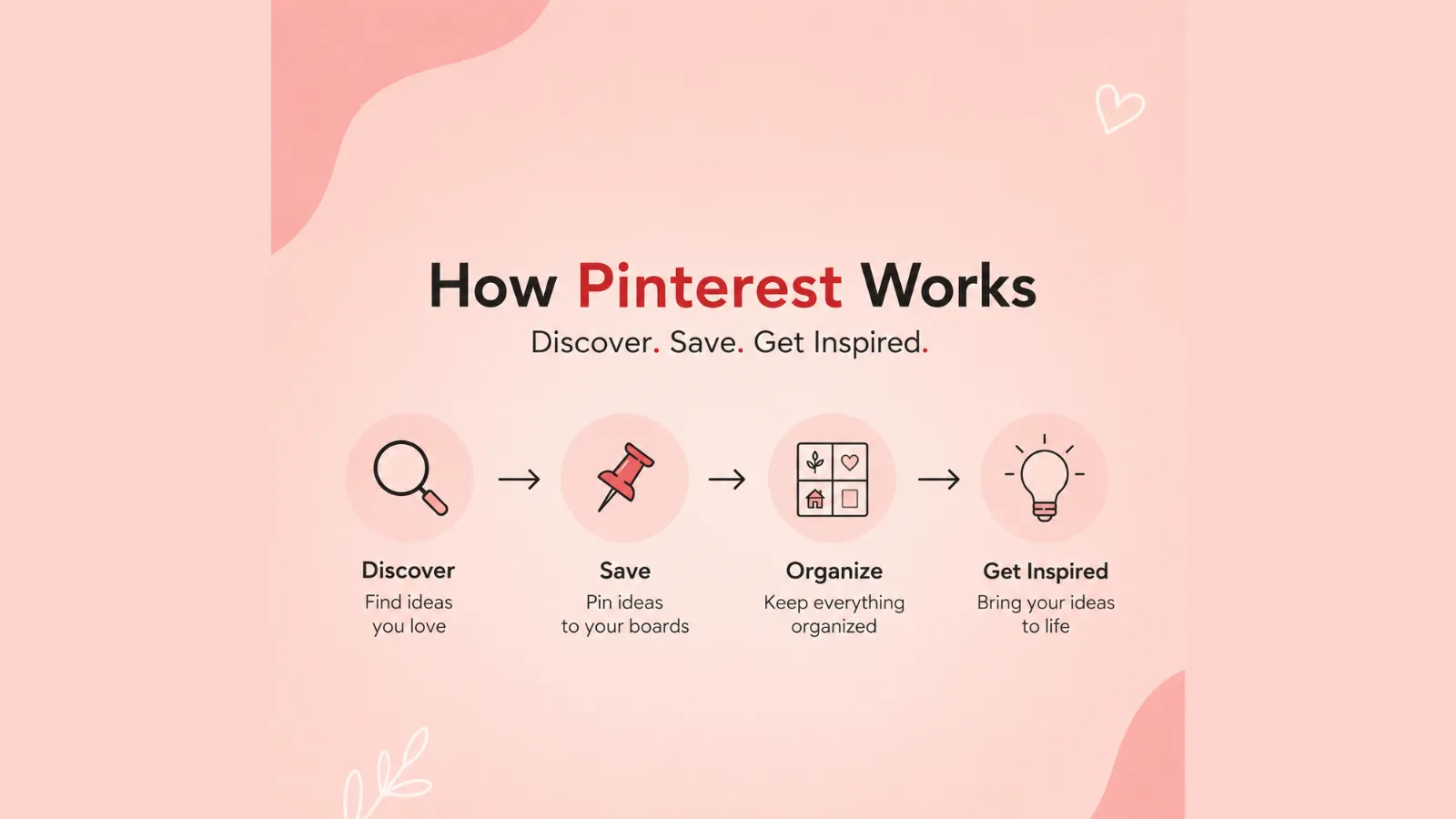
- In Pinterest, content is usually shared through Pins, and it can be images, videos or links.
- Users save Pins to Boards where they arrange ideas as their priority content.
- Pinterest is a platform where users search for content with specific keywords. Overall, this platform works as a search engine.
- Keywords are important to get content, because Pinterest uses these keywords to rank content in search results.
- Creating high-quality content can increase the chance of getting more reach and engagement.
- Pinterest can directly generate more traffic to websites because Pins can link directly to blog posts and products.
- A business account provides extra features; for example, it has the facilities of Pinterest analytics, advertising options and website claiming.
Outcome · RecommendedGet 30 days of social content from your website — in 10 minutes.
What you need to know before posting on Pinterest
Before posting on Pinterest, it is essential to know your audience. It will help you in the long run to gain better results:
You should know your Audience:
It is an impactful strategy to know about your audience. It will help you to increase reach and resonate to hold viewers’ interest as they are pleased.
Use High-Quality Content
Since Pinterest is a visual platform, clear and eye-catching content performs best here.
Create Engaging Pin Titles and Descriptions:
With exclusive content, it is essential to use relevant keywords and descriptions. It will help your content stand out.
Choose the right board
You should use the Pinterest board wisely. Save Pins to boards according to the topic of your content.
Understand Pinterest SEO
Use keywords in titles, descriptions, board names, and image text. It will help you create a better SEO section.
Use the Right aspect ratio for the post:
To create a Pinterest post, the recommended aspect ratio should be 2:3. And for the pin size, it should be 1000 x 1500.
Follow Pinterest guidelines:
It is mandatory to follow Pinterest guidelines, so avoid spammy practices and follow Pinterest’s basic rules and regulations.
Add a Destination Link:
Often, we use Pinterest to promote blogs, websites, or products. So, make sure to attach those particular URLs to the destination link field.
Be consistent:
Posting consistently will help you to grow and increase your reach and engagement.
Proof · Verified
2k+ grew faster with one tool.
How to Post on Pinterest Using the Mobile App( Step-by-Step)
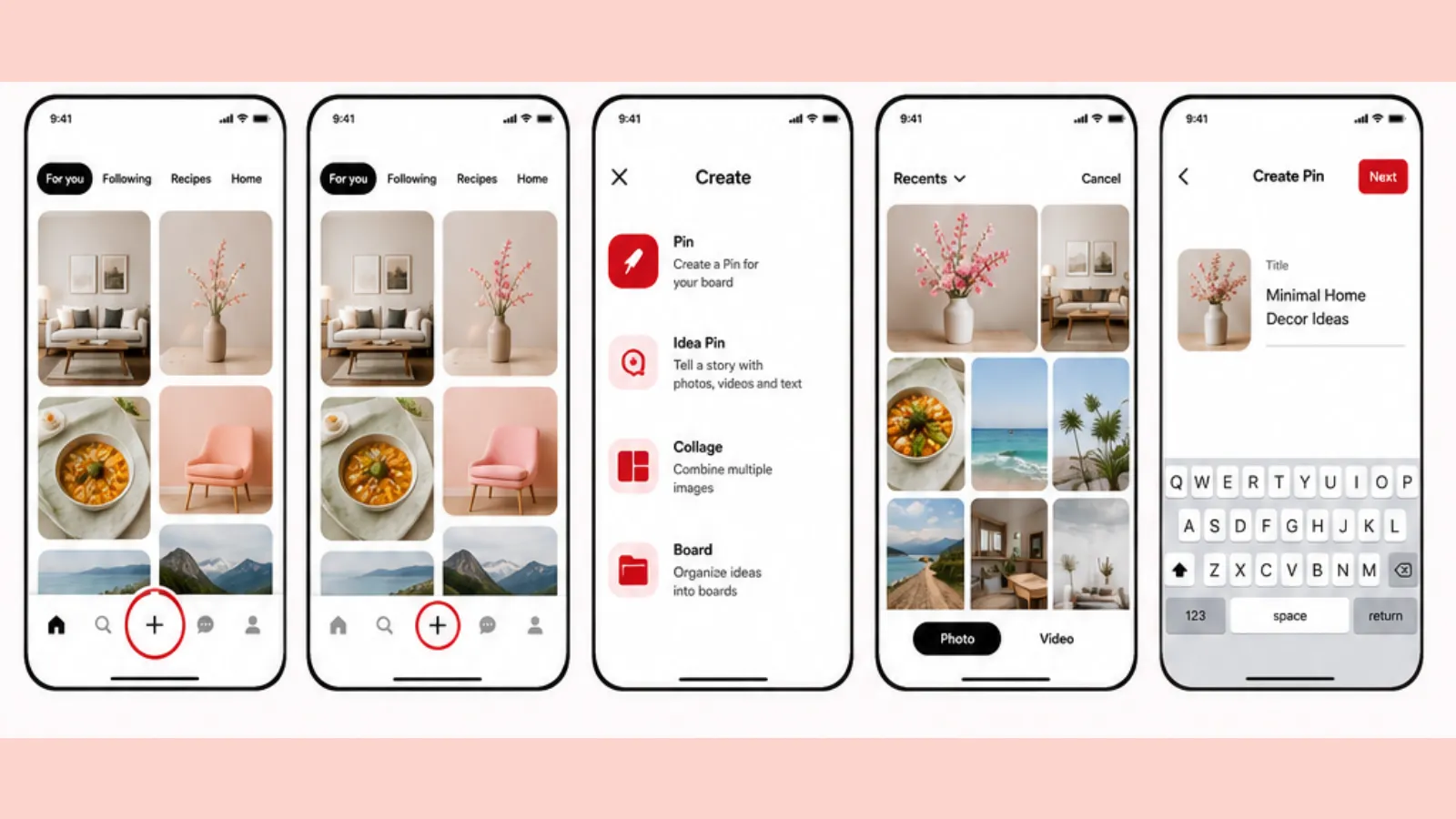
To create a post on Pinterest through your Android or iPhone, you must follow these simple steps.
Step 1:
Open the Pinterest app on your device.
Step 2:
Tap on the “+” icon or create button. It will be located at the bottom of the screen.
Step 3:
From the given options, select Pin to create a new post.
Step 4:
Then select an image or video that you want to Pin from your phone gallery.
Step 5:
Add a clear and engaging title that represents your content.
Step 6:
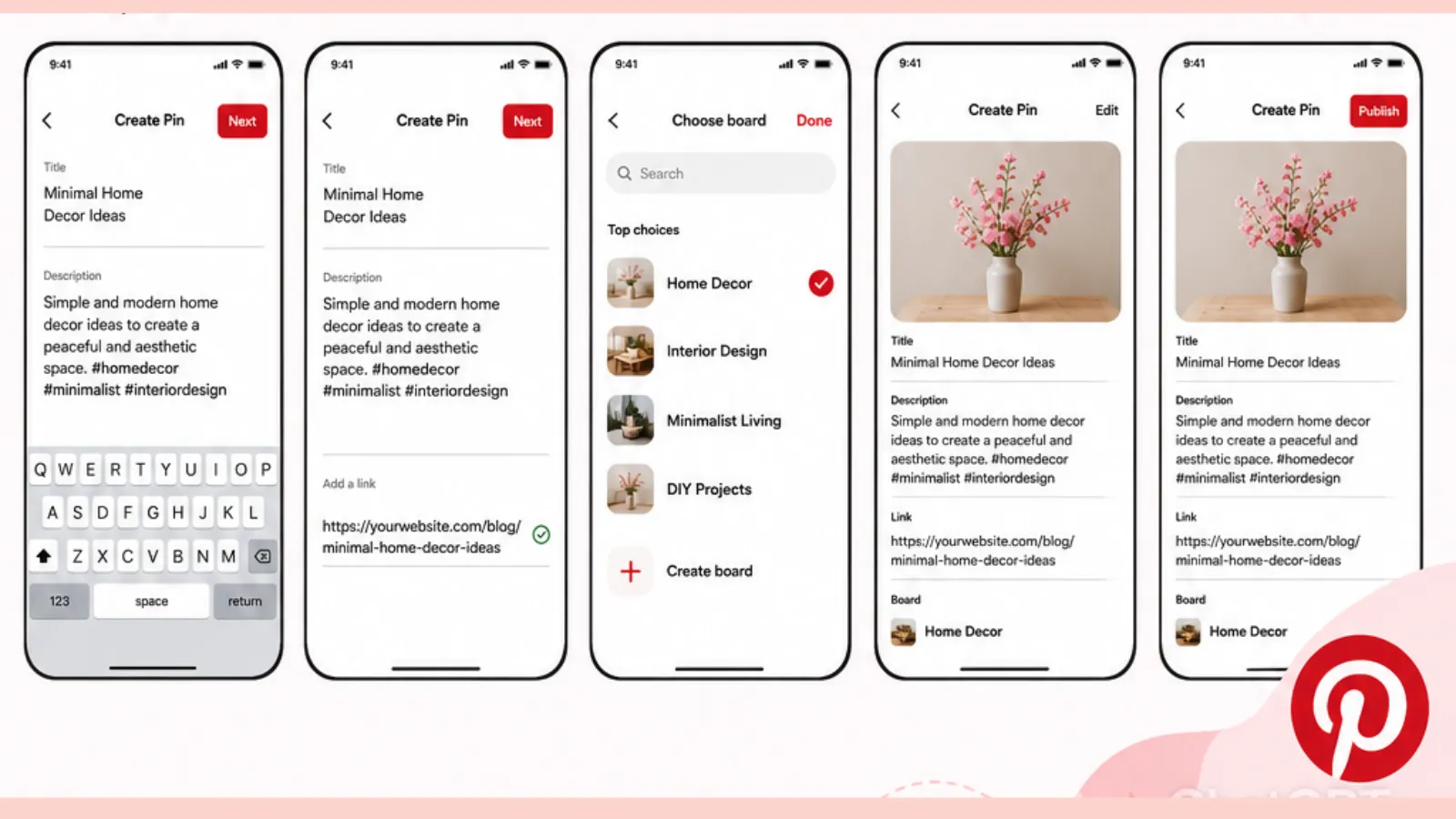
Add a description with relevant keywords that will help users find your post in their Pinterest search.
Step 7:
(optional) If you are promoting some topic, including blogs, websites, products or a YouTube video, then paste the URL link in the destination link field.
Step 8:
You can choose an existing board or create a new board where you can save the Pin.
Step 9:
Recheck your created Pin for accuracy.
Step 10:
And the final step is to publish the Pin on Pinterest.
Free · Instant · No signupSee what ZuAI generates from your website — right now.
Paste your URL. Watch ZuAI write a month of brand-on captions in seconds. Preview before you create an account.
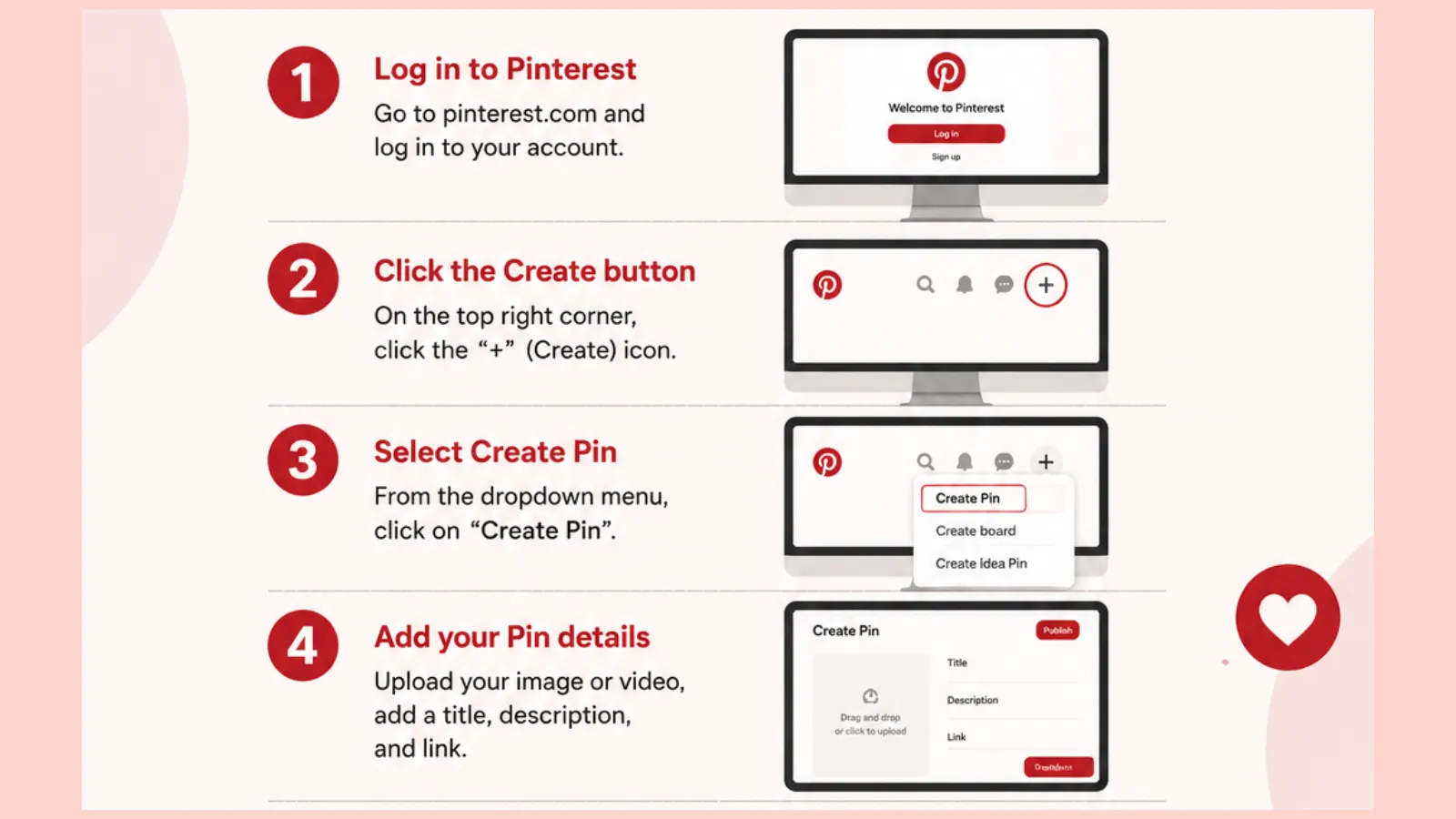
How to post on Pinterest Using a Desktop computer (Step-by-step guide)
To post on Pinterest, please follow the steps mentioned below
Step 1:
First, open the web browser and sign into your account.
Step 2:
Then, click on the Create button, which is located in the top-left area of the desktop screen.
Step 3:
Select Create Pin from there.
Step 4:
Now, drag and drop your content into the upload section. Or, you can click to select a file from your computer.
Step 5:
Add a Pin title that showcases the user about your content. Your title should be clear and short.
Step 6:
Add a detailed description with relevant keywords. It will help the content appear in the user’s search results.
Step 7:
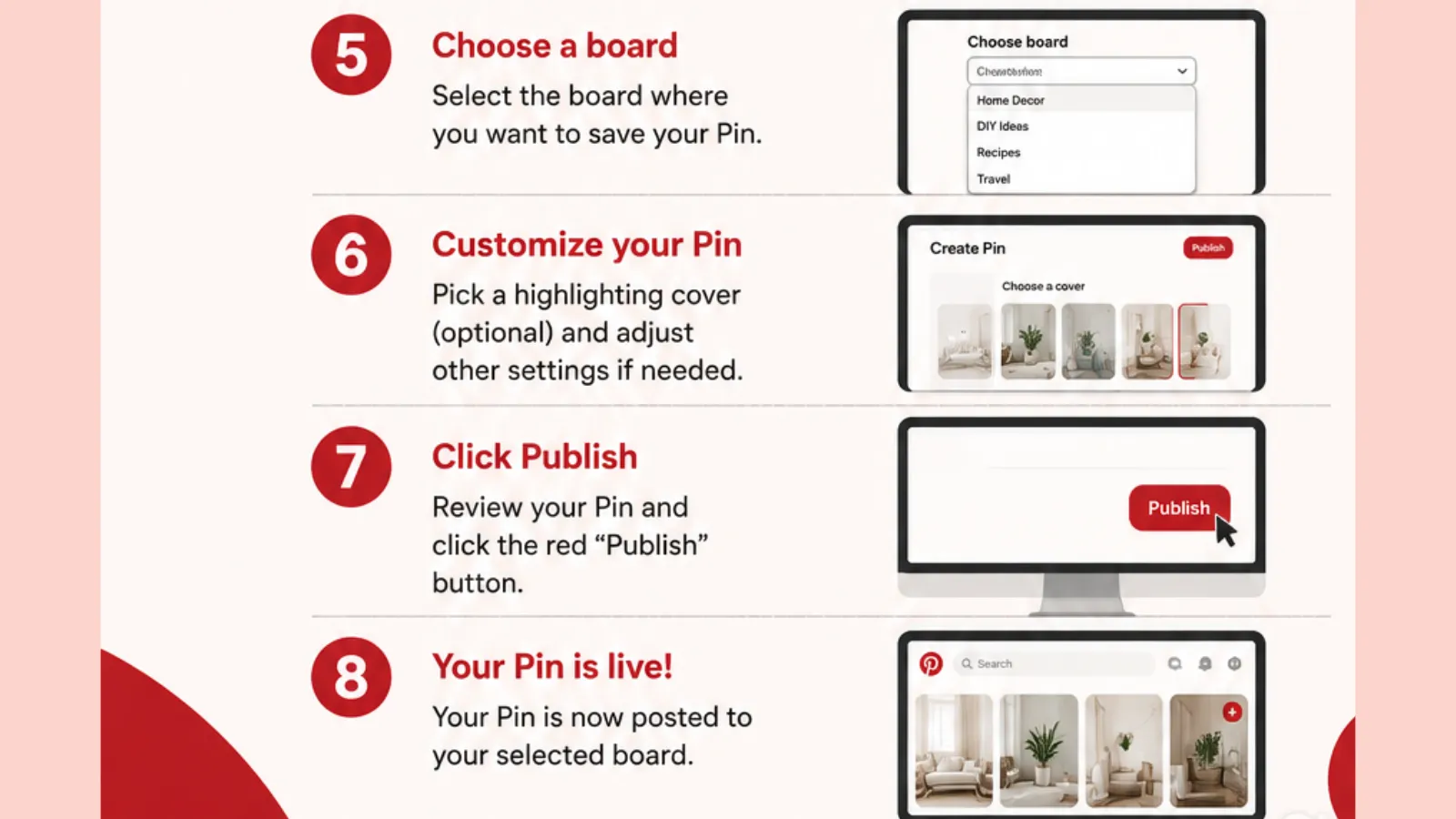
You may choose an existing board or create a new board where you can save the Pin.
Step 8:
You can choose URLs of your blog post, websites, product page, or videos and put the links in the destination link section.
Step 9:
Review the image, title, and description, and link to ensure that everything looks correct.
Step 10:
Then publish your Pin to the selected board.
Speed · 10-minute setupOne coffee from URL to a full month of scheduled posts.
Drop your URL, brew your coffee, come back to 30 brand-on captions ready to publish.
How to Create an Effective Pinterest Pin
There is a difference between creating a Pin in an effective way and just creating it randomly. Here are a few tips to create a Pinterest Pin that will help you to grow overall performance.
Use a vertical Image
Generally, Pinterest prefers vertical images. The recommended size for Pinterest’s post is 1000 x 1500. And the aspect ratio should be 2:3.
Choose High-Quality Visuals
It is highly recommended to use clear, bright, and eye-catching images. Avoid blurry and unclear images.
Add a clear Title on the Image
Your image should contain short and readable headlines. Try to put a headline using a large font. That’s why your content will be easy to recognize.
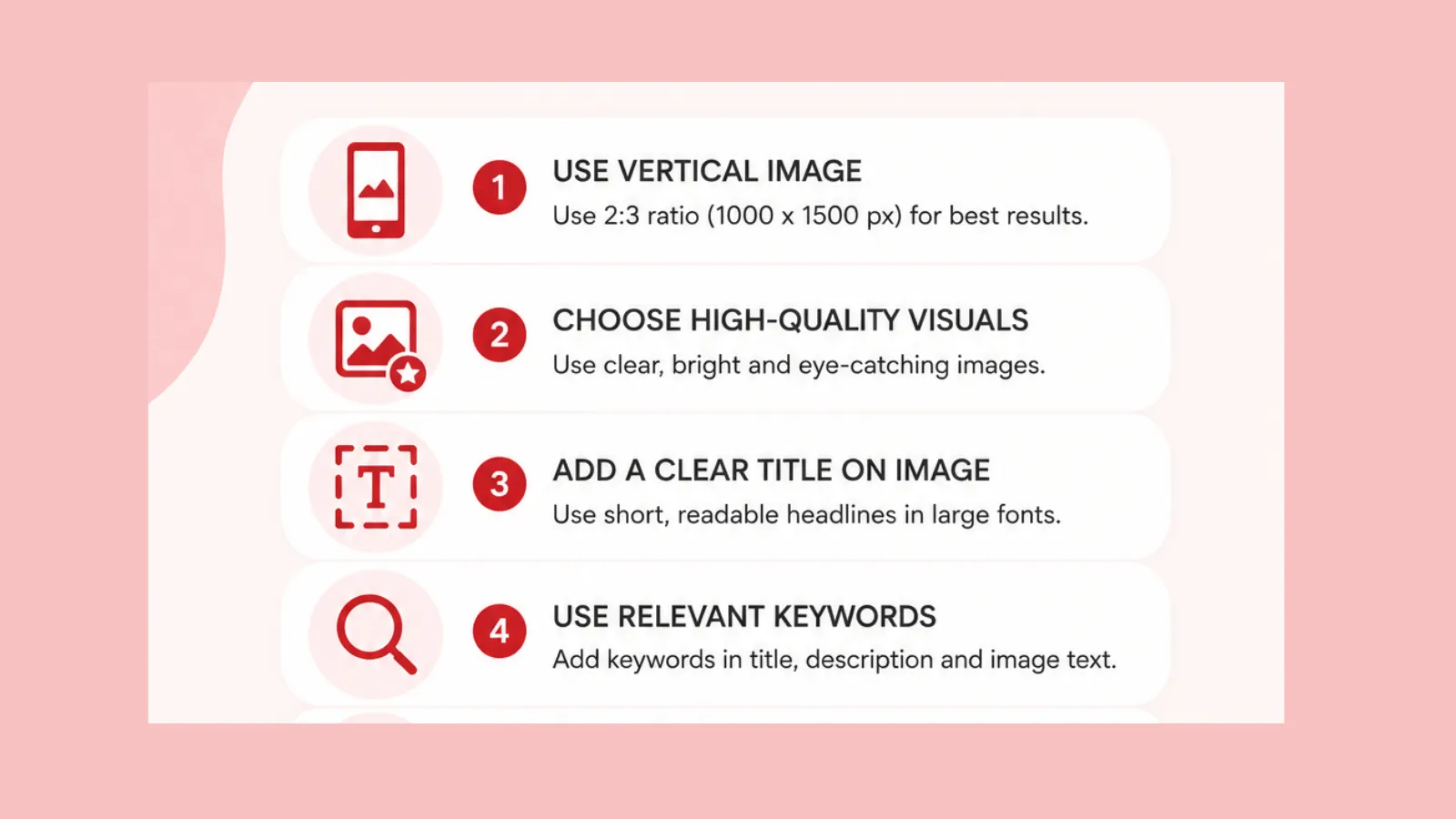
Use relevant Keywords
Use relevant keywords wisely. Try to put keywords in the pin title, description, and image text.
It will increase the chance to appear in Pinterest search.
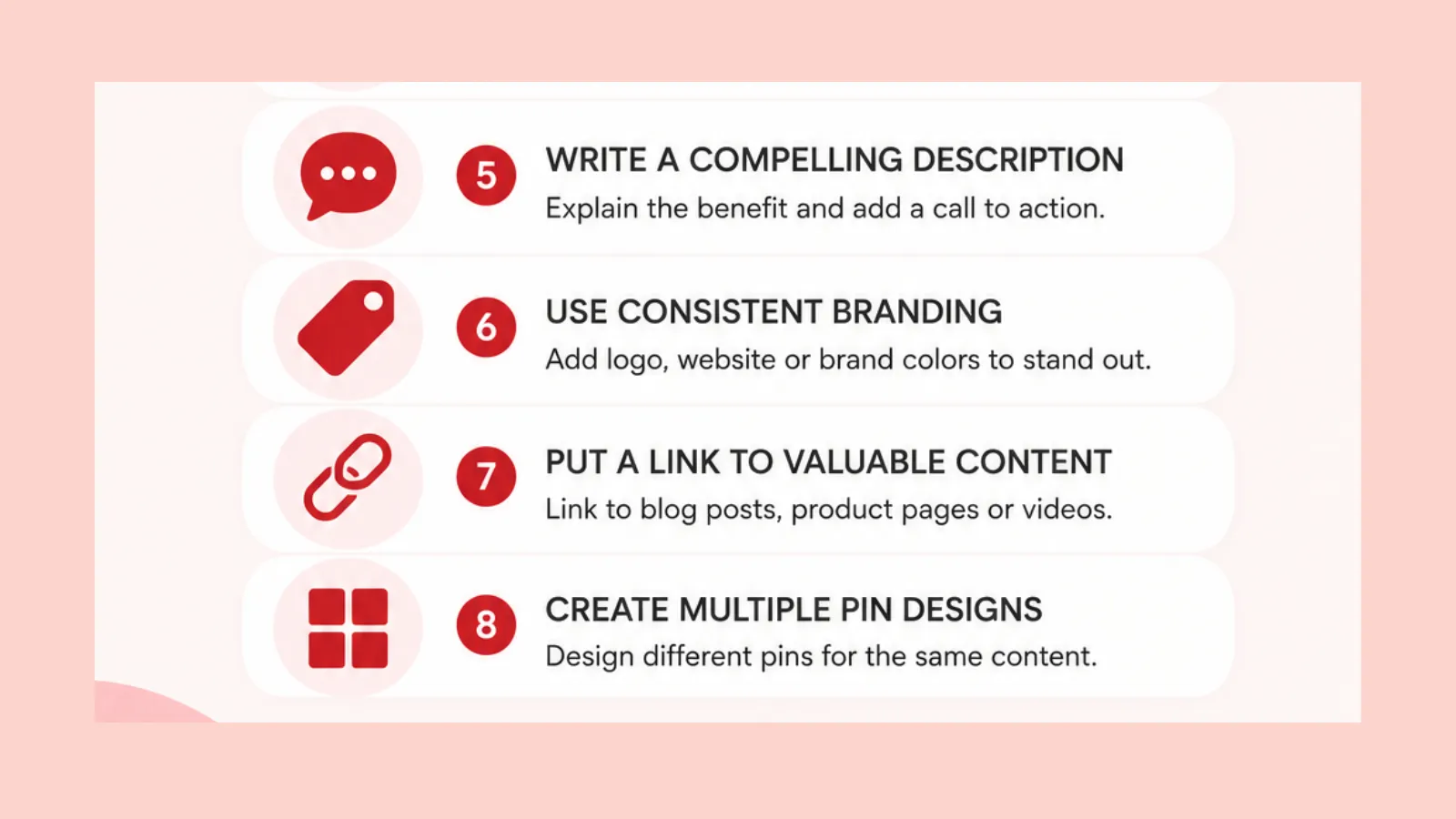
Write a Compelling Description
In your Post description, explain clearly what users will learn or gain from your Pins. You can even add call-to-action sections such as “Read More” and “Check it out”.
Use consistent Branding
Try to appear like a brand. Add your logo, website name, or brand colors. It will help you to stand out as a brand, and viewers can easily recognize your content.
Put a link to valuable content
It is a very impactful approach to add a link to valuable content in your pin, such as a blog post, product page, or video.
Create Multiple Pin Designs
Design different pins for the same content. It will help you reach more users.
Blank tab. Six open browsers. No clue what to post.

 After · With Indzu
Paste one URL. Get 30 scheduled posts.
What is the best time to post on Pinterest
There is no single perfect time, but after observing thousands of users, we may say that,
Best time to post on Pinterest
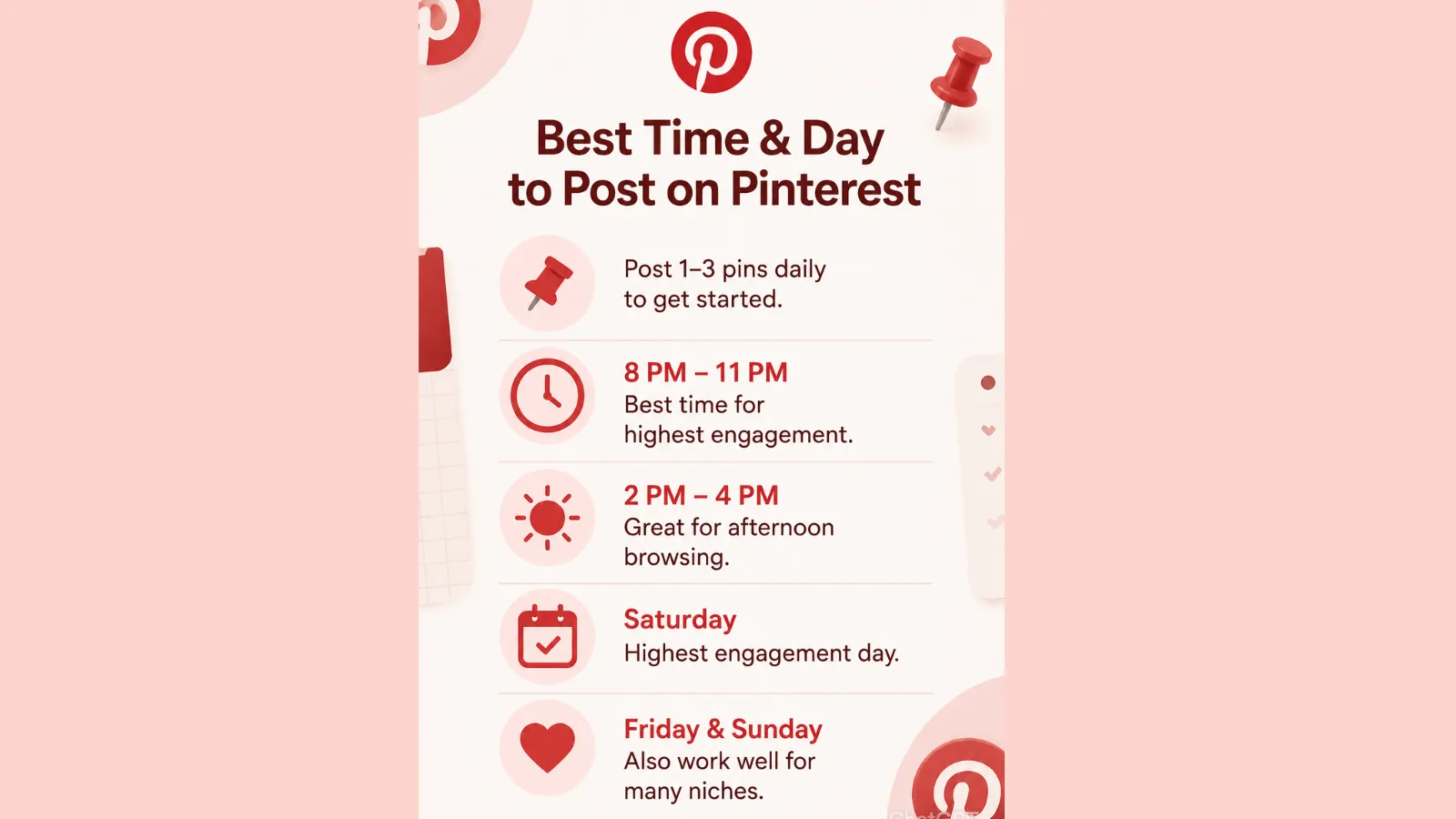
- if you are a beginner, you can start your Pinterest journey by posting 1-3 pins daily.
- And the time between 8 pm- 11 pm is the besttime to gain the highest rate of engagement.
- And you can benefit from afternoon browsing by posting between 2 pm-4 pm.
Best day to post on Pinterest
Saturday: It often shows that Saturday offers the highest engagement rate.
Friday and Sunday: Even Friday and Sunday work well for different kinds of niches.
For better results-
- Don’t just depend on weekends; post with consistency rather than focusing on specific times and days.
- Use Pinterest analytic to observe when your users are most active.
Time killer · Pain
Spending 6 hours writing posts that get zero traction?
Paste your URL. ZuAI turns it into 30 brand-on captions in 10 minutes — no blank-page panic, no generic AI filler.
How to see liked posts on Pinterest
Earlier, Pinterest had a separate “likes” tab. But now Pinterest doesn’t have the feature. If you save a pin on Pinterest for later viewing, you can find it on your profile boards. You have to follow these simple steps.
- Open the Pinterest app on your device.
- Then, click on your profile picture.
- View your saved pins and boards.
Outcome · RecommendedGet 30 days of social content from your website — in 10 minutes.
How to use Pinterest for new ideas
If you are using Pinterest for new ideas for your brand or any personal use, then you should follow these methods. It will help you to understand Pinterest, understand your preference, and your sense of choice; in this way, Pinterest can recommend better ideas to you.
Search for topics
You may try to search with relevant keywords in the Pinterest search bar. For example, “home decor ideas” or “healthy breakfast recipes”.
Explore Your Home feed
Once you search for ideas, Pinterest will recommend you with related posts in the Pinterest feed.
Use Pinterest Trends
You may check for trending ideas based on your interests and activities.
Save inspiring Pins
Pinterest offers board features; create a board and save Pins that you find ideal for future reference.
Follow Creators and Boards
You may follow accounts that share content according to your preference. It will definitely help you get some exclusive organic ideas.
Explore Related Pins
Open a pin and scroll down to explore the same type of ideas.
Proof · Verified
2k+ grew faster with one tool.
How to schedule Pinterest Posts
If you are a business account holder, then Pinterest allows you to schedule pins in advance.
Here’s how:
On Mobile:
- Open the Pinterest app,
- Create a new Pin,
- Add your content with title, description and external link,
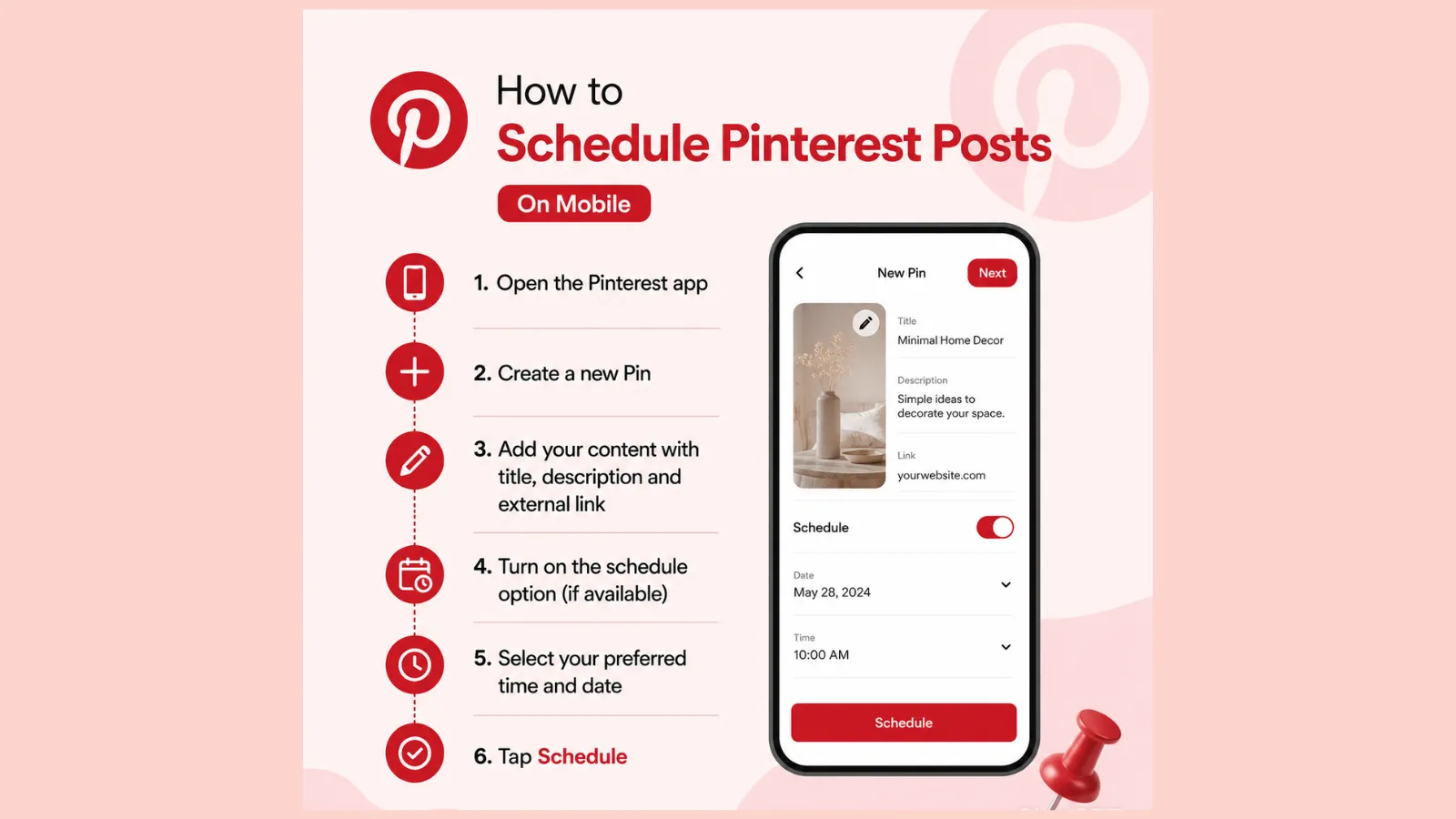
- Turn on the schedule option (if available),
- Select your preferred time and date,
- Tap schedule,
On Desktop
- First, log in to Pinterest,
- Click create> then, create Pin,
- Upload your image and video,
- Add a relevant title, description and other links,
- Select a board,
- Click Publish later,
- Choose the date and time,
- Click Schedule.1
Free · Instant · No signupSee what ZuAI generates from your website — right now.
Paste your URL. Watch ZuAI write a month of brand-on captions in seconds. Preview before you create an account.
Common Pinterest Posting Mistakes to Avoid
Common mistakes that you should avoid as a beginner,
- Using low-quality images
- Ignoring relevant Keywords
- Posting without consistency
- Using the wrong image size
- Not using right descriptions
- Not adding a destination link
- Overloading pins with text.
Speed · 10-minute setupOne coffee from URL to a full month of scheduled posts.
Drop your URL, brew your coffee, come back to 30 brand-on captions ready to publish.
Conclusion:
In conclusion, we may say that posting on Pinterest is a simple and effective way to share your ideas, promote ideas, and reach a wider audience. And posting with consistency can increase visibility and attract more viewers. So, start your Pinterest journey today with some amazingly creative ideas and help others to get inspiration from them.
Blank tab. Six open browsers. No clue what to post.
After · With IndzuPaste one URL. Get 30 scheduled posts.
FAQ Section
Q1. What type of content can I post on Pinterest?
Answer: You can post a wide variety of types of content on Pinterest such as
- Images,
- Videos,
- Infographics,
- Blog posts,
- Home decor ideas,
- Fashion tips,
- Travel guides,
- Educational content,
- Recipe ideas, and
- Product promotion.
Whichever your niche is, please keep in mind that content should be visually pleasing, informative, and relevant to your target audience.
Q2. How often should I post on Pinterest?
Answer: There is no exact rule to follow, but posting with consistency really matters. After talking to 1000 creators, we can advise you that creating 5-10 posts daily is a great way to start Pinterest for beginners. But it’s not the quantity; you should focus more on quality.
Q3. Can I edit a Pin after posting?
Answer: Yes, you can definitely edit a Pin after posting it. You can usually update the
- Title
- Description
- Board
- Destination URL link
- Alt text
To edit a pin,
- Open Pinterest and go to your profile
- Choose the pin that you want to edit
- Tap on the three-dot menu.
- Select Edit pin
- Make the changes
- Then, save it.