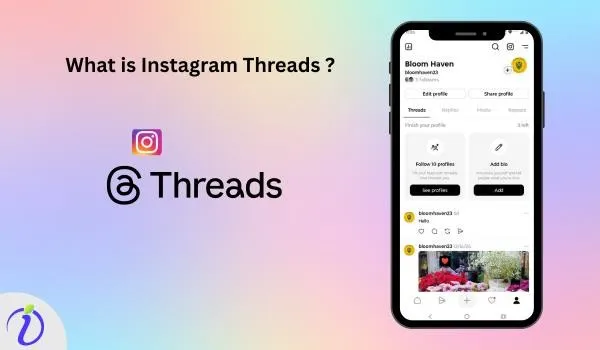
Imagine a social media platform where conversation matters more than images. That’s where Instagram Threads comes in. A space designed for real- time thoughts and meaningful discussion. Still wondering what is Instagram Threads?
It is connected to your Instagram account, but it plays a different role than Instagram. Users can share updates, opinions, and ideas, and participate in public discussions, all through a simple, clean interface for engagement.
Threads offers a great opportunity for brands, content creators, influencers, and even individual users. Let’s get into the blog to learn more about Instagram threads and its uses.
 Time killer · Pain
Spending 6 hours writing posts that get zero traction?
Paste your URL. ZuAI turns it into 30 brand-on captions in 10 minutes — no blank-page panic, no generic AI filler.
What is Instagram Threads?
Instagram Threads is a text-based social media platform created by Instagram. It is designed for real-time updates and public dialogue. While Instagram is a photo-based app, Threads focuses on text-based content. Threads is designed for public conversation, real-time updates, and community engagement.
Threads is directly connected to your Instagram account. You can sign in using your Instagram account and can instantly follow the same people you follow on your Instagram account.
Key feature of Instagram Thread?
The Instagram Threads app has key features that you need to understand to know how it works.
- Text-based focused
An Instagram Thread mainly focuses on text-based content. It is ideal for thoughts, updates, opinions, and storytelling.
- Multimedia support
Even though Thread focuses on text-based content, it still supports multimedia. Along with text, you can also upload photos or videos.
- Instagram Integration
Your thread account is linked to your Instagram account. Your username will automatically match your Threads account name. You will still have the same followers, but before adding them all, Threads will ask for your permission. If you agree, all your Instagram followers will be added to your Threads followers.
- Feed Discoverability
The home page shows posts from people whom you follow. It also recommends related or trending accounts to discover new content and users.
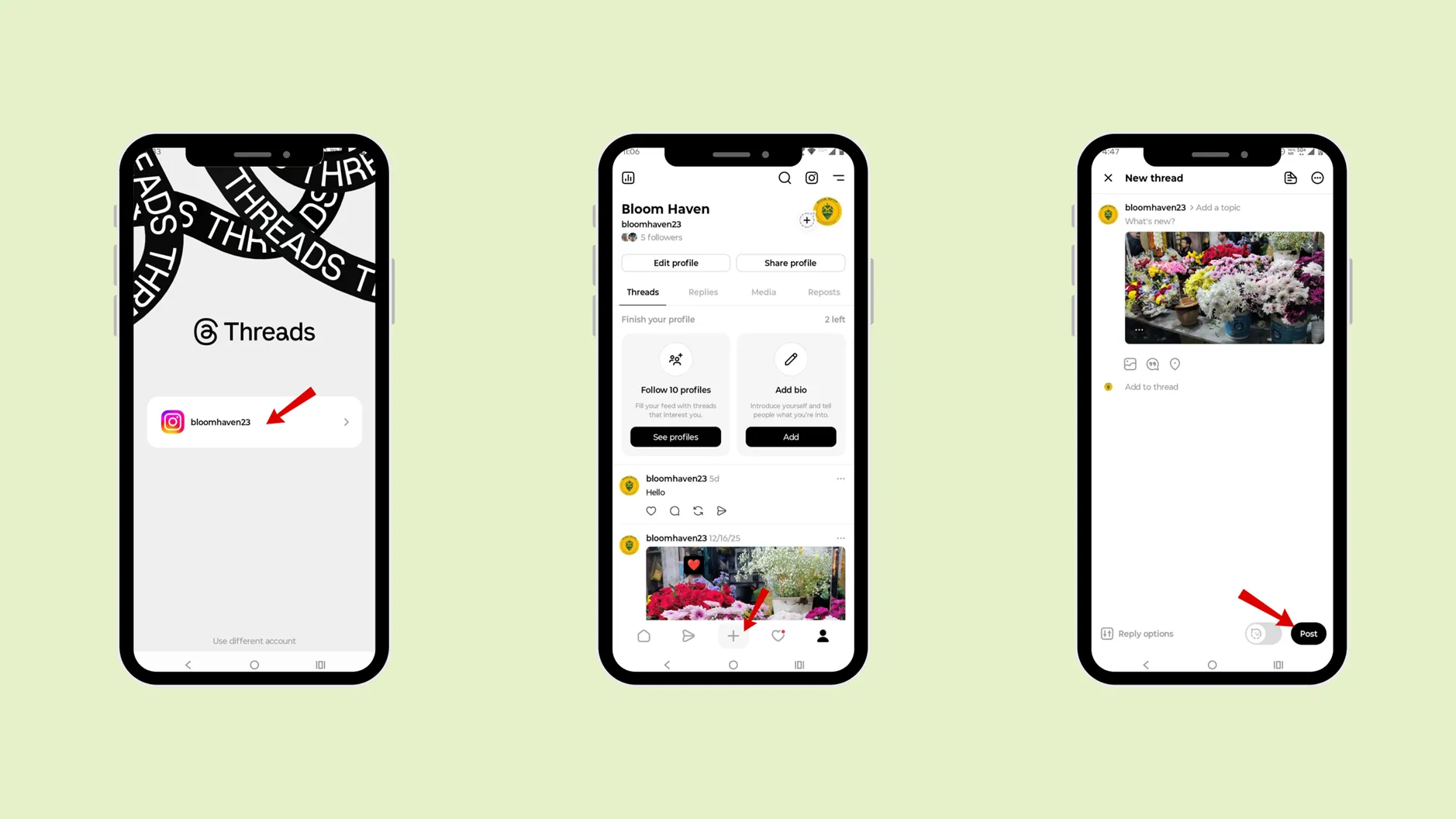
How to create a Threads account?
Here is a step-by-step process to create a Threads account.
Step 1: Download the Threads app.
Step 2: Log in to the Instagram app.
You cannot create your Threads account without having an Instagram account.
Step 3: Log in to the account you want to create the Threads account for.
Step 4: Go back to your Threads app.
Step 5: Tap the account name; you will be logged in to that account.
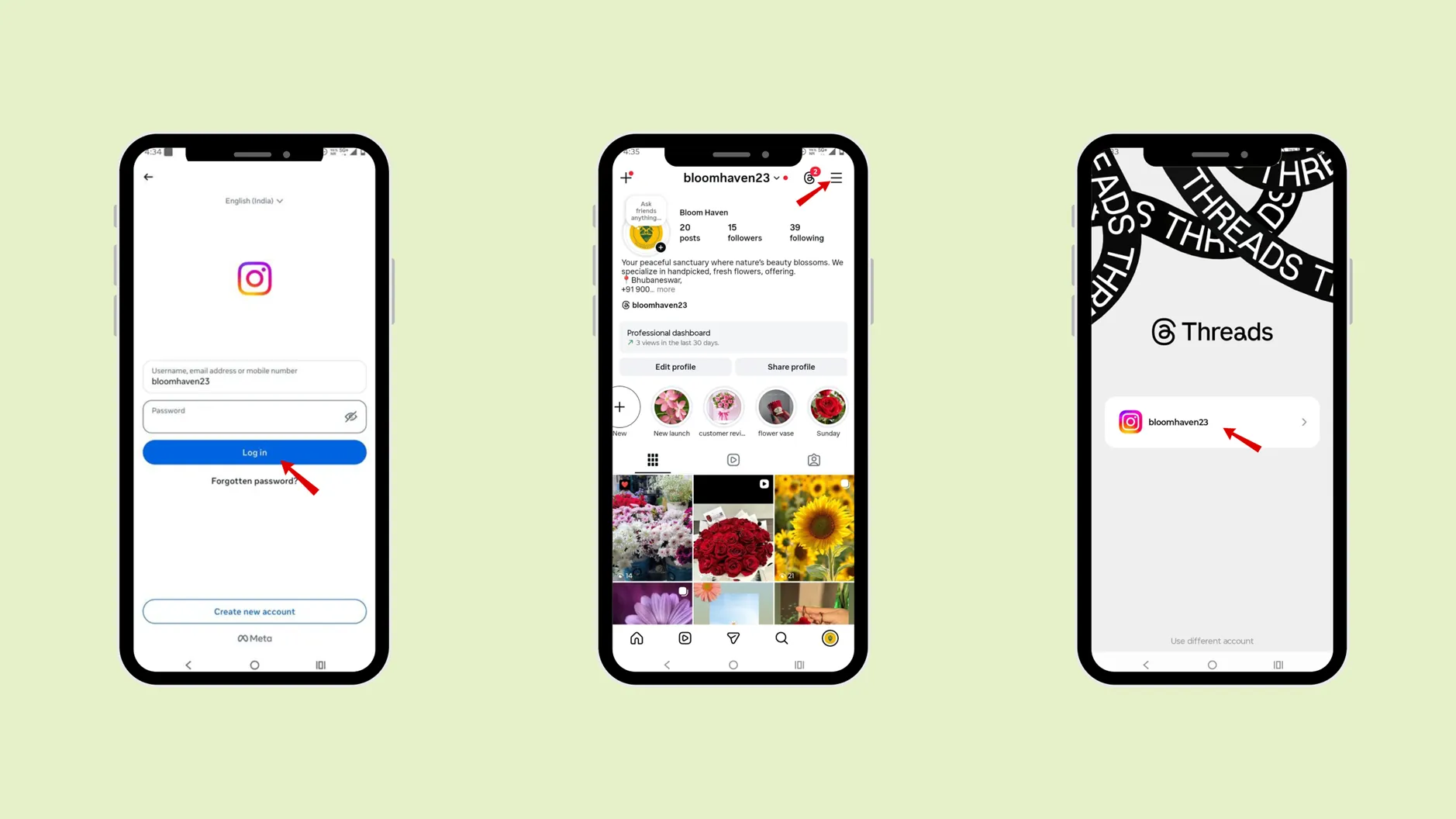
Note: You cannot log in to your Threads account until you have logged in to that account on Instagram.
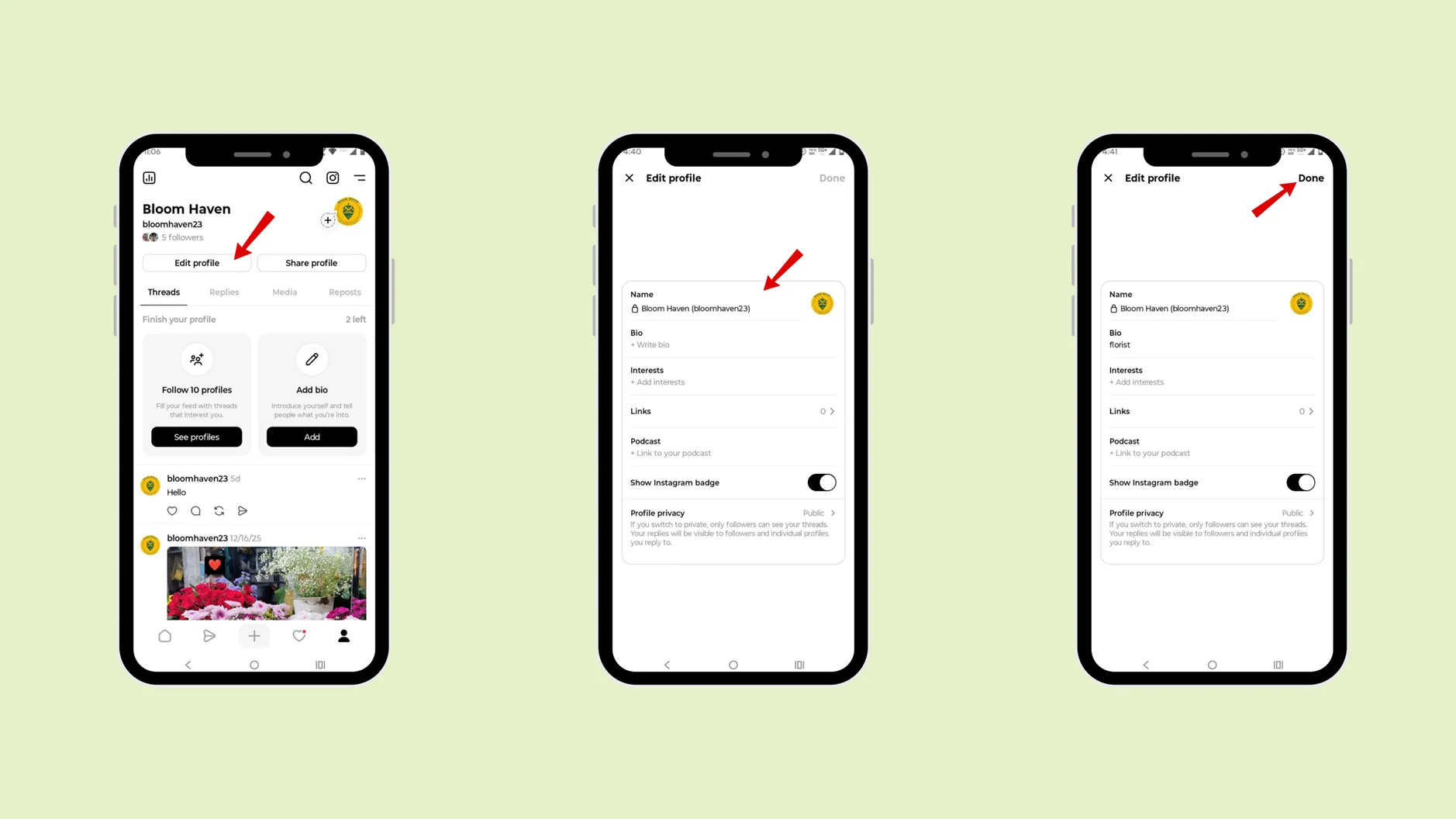
How to edit your Thread account profile?
Once you have downloaded the Threads app and opened your account, let’s look at the steps to edit your profile.
Step 1: Open the Threads app.
Step 2: Go to your profile.
Step 3: Tap “Edit profile”.
Step 4: Add the bio. You can import your Instagram account bio or write a new bio for the Threads account.
Step 5: Add your Interests and search for communities or topics to add.
Step 6: Add links.
Step 7: Add a podcast.
Step 8: Once you have updated every section, click “Done”.
How to use Threads?
Threads is a text-focused app; rather than uploading images, focus on using Threads effectively to get the most out of it.
- Understanding the purpose of the Threads
Threads is a text–focused social media platform designed for conversation, opinions, and real-time discussion or engagement. It focuses on written content rather than images and videos.
To meet the purpose of Threads, focus on sharing thoughts, insights, updates, and information that encourage interaction among different users, rather than just replying to visuals.
- Engaging with others
Before posting, engage and interact with others to boost your account visibility. As it is a text-based app, engagement becomes the prime factor on Threads. Once you have started keeping your views on other content, your account will gain more visibility. This will increase your followers. When you post your content, it will get more visibility and engagement.
- Posting on Threads
Step 1: Log in to the Threads account.
Step 2: Tap the “+” icon.
Step 3: Add what’s new. It can be images, text attachment, polls, and location.
Reposting and quoting
After engagement, reposting is another way to boost your content visibility and grow your followers. Reposting is sharing someone else’s content, while quoting lets you add your own perspective. And both features are equally essential.
How to select “who can reply” to your Instagram Threads?
Step 1: Open the Instagram Threads app
Step 2: Go to the compose or “+” icon
Step 3: In the compose section below, there is a “reply option”.
Step 4: Select from the options
Step 5: Tap “Done”.
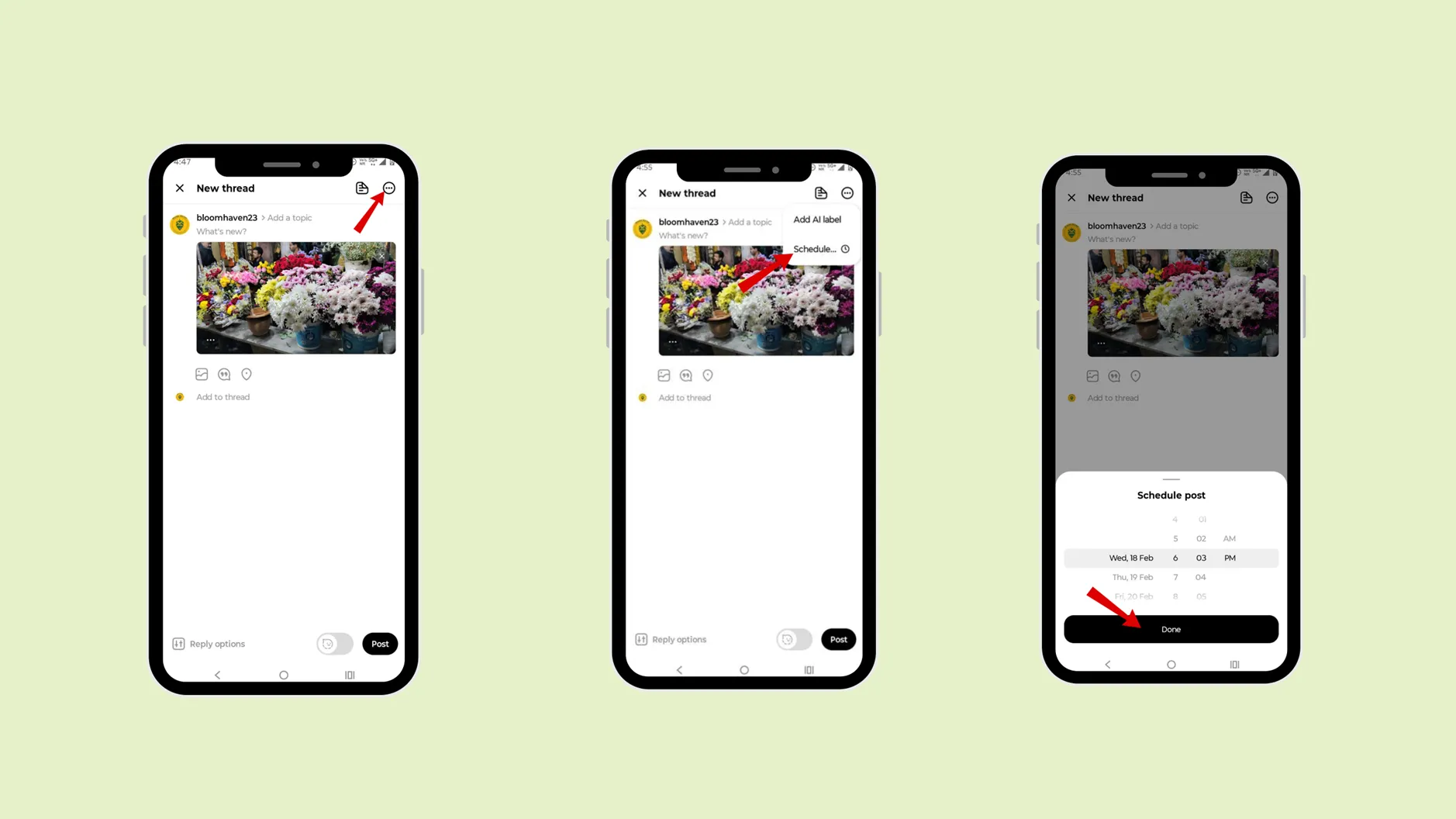
How do you schedule a post in the Instagram Threads app?
You can schedule your post within the Threads app itself.
Step 1: Once you have composed your content,
Step 2: In the top-right-hand corner, you will find three dots inside a circle. Tap on them.
Step 3: Tap on “Schedule”.
Step 4: Select the time and date.
Step 5: Tap “Done”.
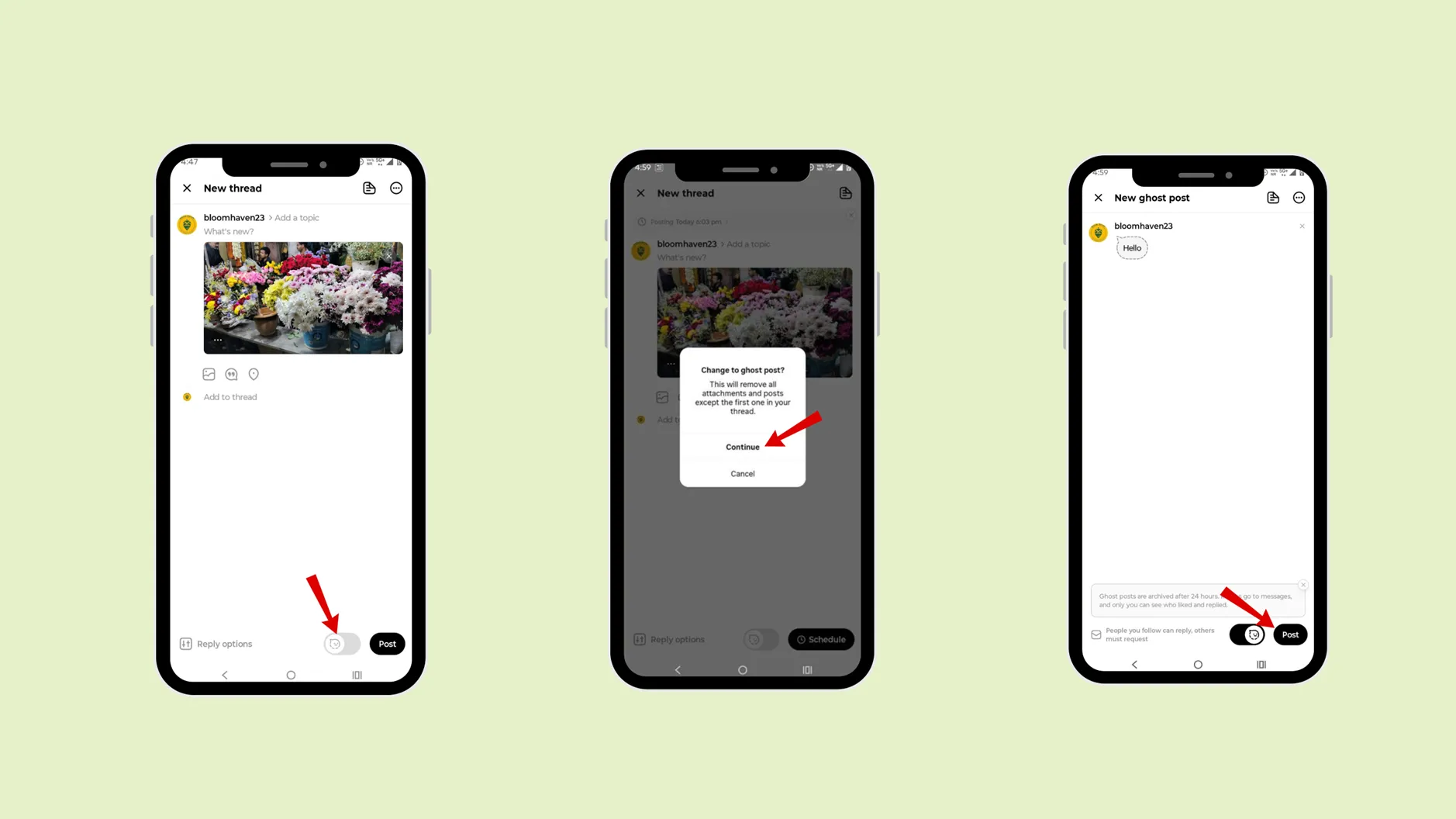
How to turn on the ghost mode in Instagram Threads ?
If you want your content to disappear within 24 hours, turn on ghost mode, then compose your content.
Step 1: Tap the “+” in the bottom middle bar.
Step 2: Before composing, tap Ghost Mode at the bottom of the screen.
Step 3: Once you have turned on, write your content.
Step 4: Tap “ Post”.
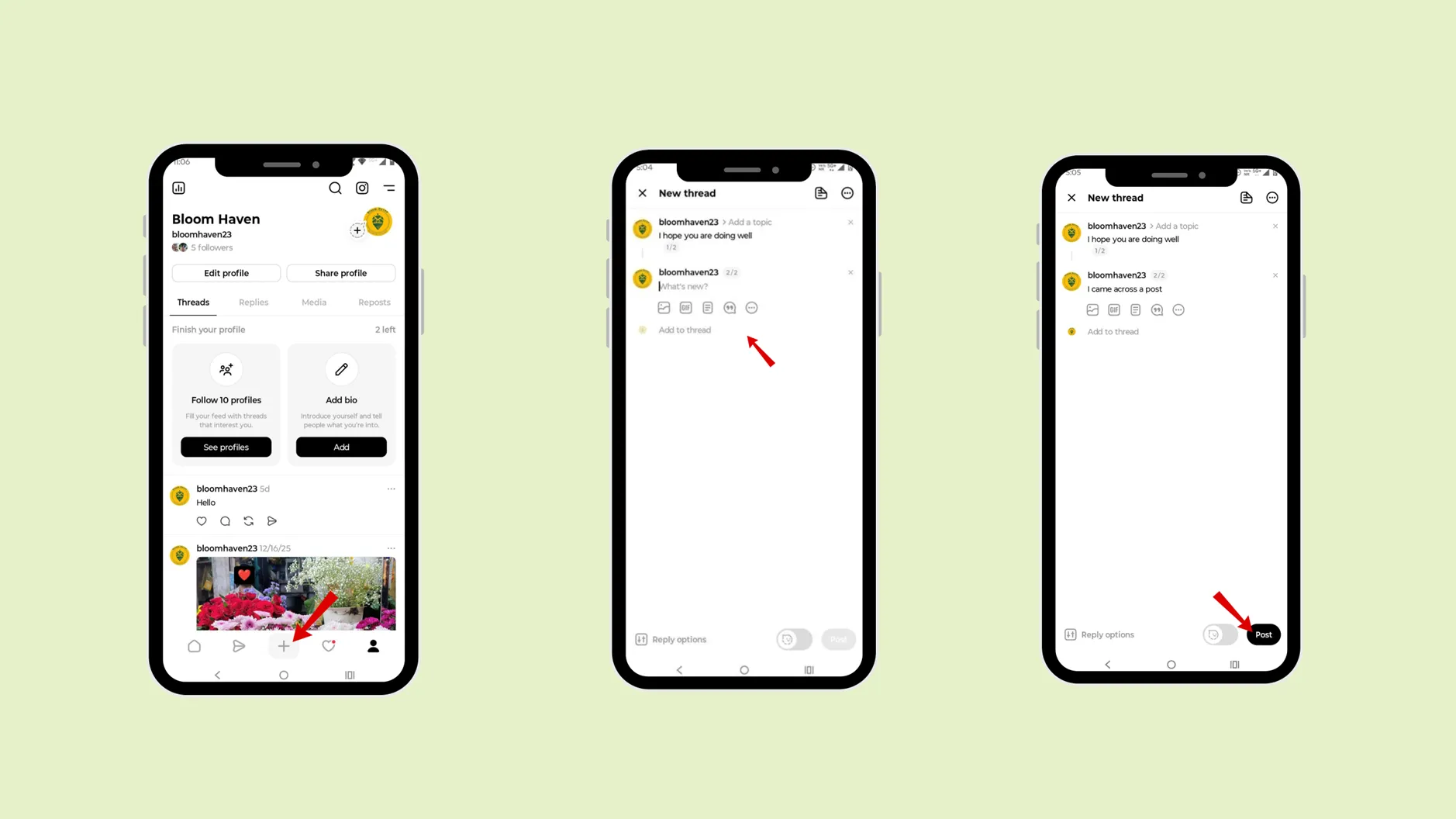
How to add a thread in your Instagram Threads post?
The thread has a limited number of characters and words, but if you want to write a long story or content for your audience, you can use the ” expand ” feature. You can keep adding to the thread.
Step 1: Tap the “+” in the bottom middle bar.
Step 2: Write the content.
Step 3: Tap “Add to Threads”.
Step 4: Tap “Post”.
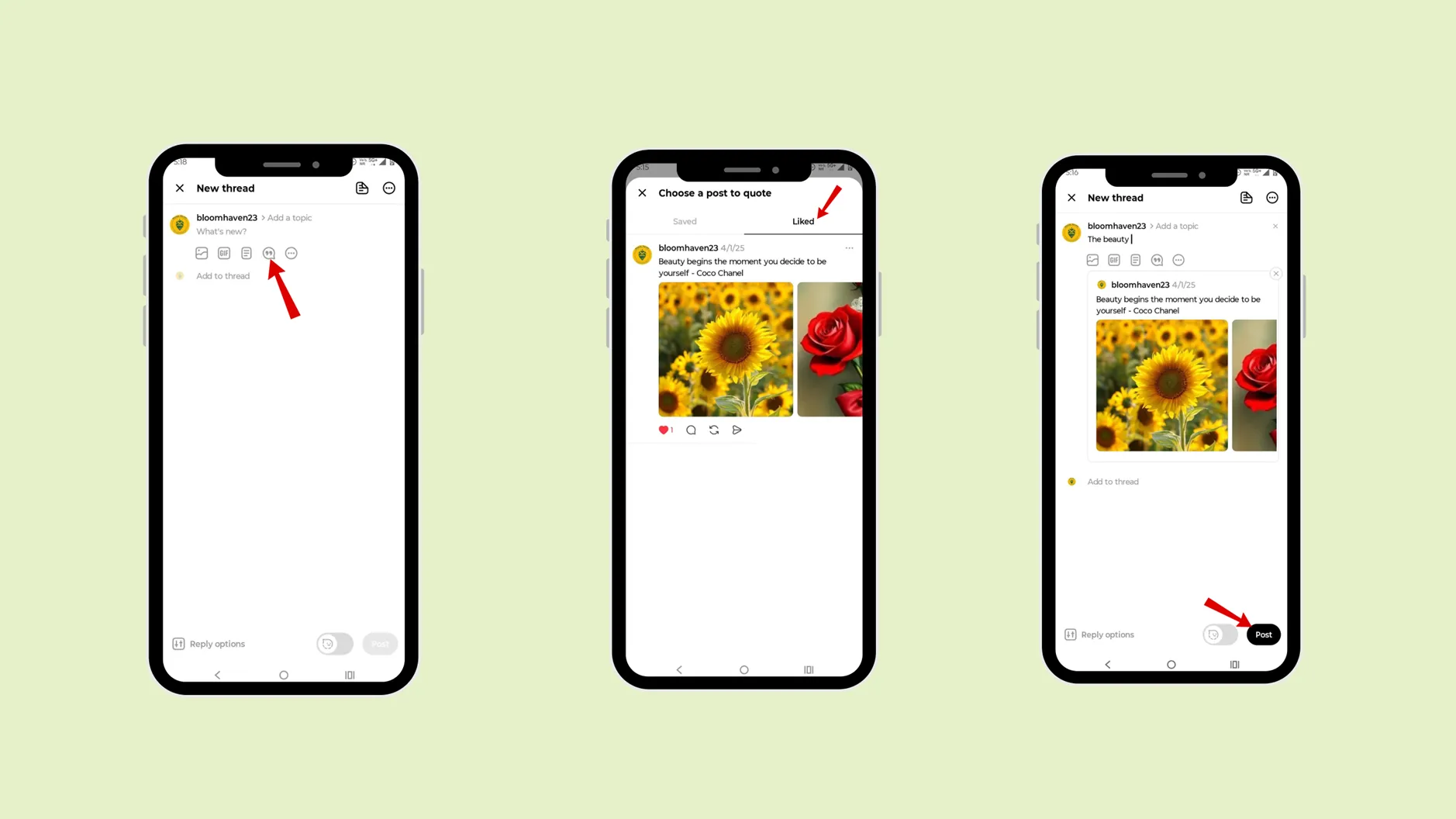
How to quote on the Instagram Thread?
Step 1: Tap the “+” in the bottom middle bar.
Step 2: Tap the quote icon.
Step 3: Select the post from the saved or liked content that you want to quote.
Step 4: Add your thoughts.
Step 5: Tap “Post”.
Best practices for posting o Instagram Threads
- Post at the best time
Before posting, check the best time when your audience is active. Posting at the right time helps you reach your audience when they’re most active. It will increase your content engagement.
Figure out the best time to post based on your audience and the time zone you want to target.
Wednesday is the best day to post, followed by Thursday and Friday. So, plan to post on Wednesday, Thursday, and Friday so your audience can take a break from their work and engage with your content to refresh their mood.
- Consistency
You should be consistent in your posting to help you build recognition. Whether you are professional, motivational, humorous, or educational, maintain a steady voice and a consistent posting schedule on Threads. Consistency builds trust and recognition and will increase engagement.
If you have a hectic routine and still want to stay consistent with your content, we can schedule it in the Threads app itself or explore indzu. social, it helps you create, schedule, and even analyse your content insights.
- Keep it simple
Tailor your content to the target audience; keep it simple. Which will help your viewers engage and relate. If you want to post a long story, you can break it into a thread.
In a single thread, you can add over 1500 words and 10,000 characters.
- Avoid over-promotion
Try to connect with your audience, as Thread is a text-based app. So, over-promotional content can make your audience lose interest. Focus on values and insight.
If you want to post a promotional ad, make sure your audience relates to your product or services, and create content they feel is relatable.
Threads app features 2026
There are certain new features introduced in 2026, let’s have a look
- Personalise and feed customization
You can customise your feed to show only the content you want to see. This feature lets you tell the thread algorithm what kind of post you want to see. You can type “ Dear algo” followed by a preference in a post to instruct the algorithm to adjust your feed.
- Ghost mode
With ghost mode, you can temporarily share posts that automatically archive after 24 hours. You can turn on the ghost mode while composing the content.
The content that you have created in the ghost mode, all the replies to that content, go to your direct message.
Difference between Instagram Threads and X
Threads | X |
|---|---|
Owned by Meta Platform. | Owned by xAI. |
Text-based conversation connected to Instagram. | Real-time news, public conversation and short post. |
Require an Instagram account to sign up. | You do not need to have an Instagram account to log in to your X account. |
Threads is used by Instagram users, brands, and creators. | X is mainly used by politicians, journalists, influencers, brands, and the general public. |
Limited hashtags can be used. | Hashtags play an important role. |
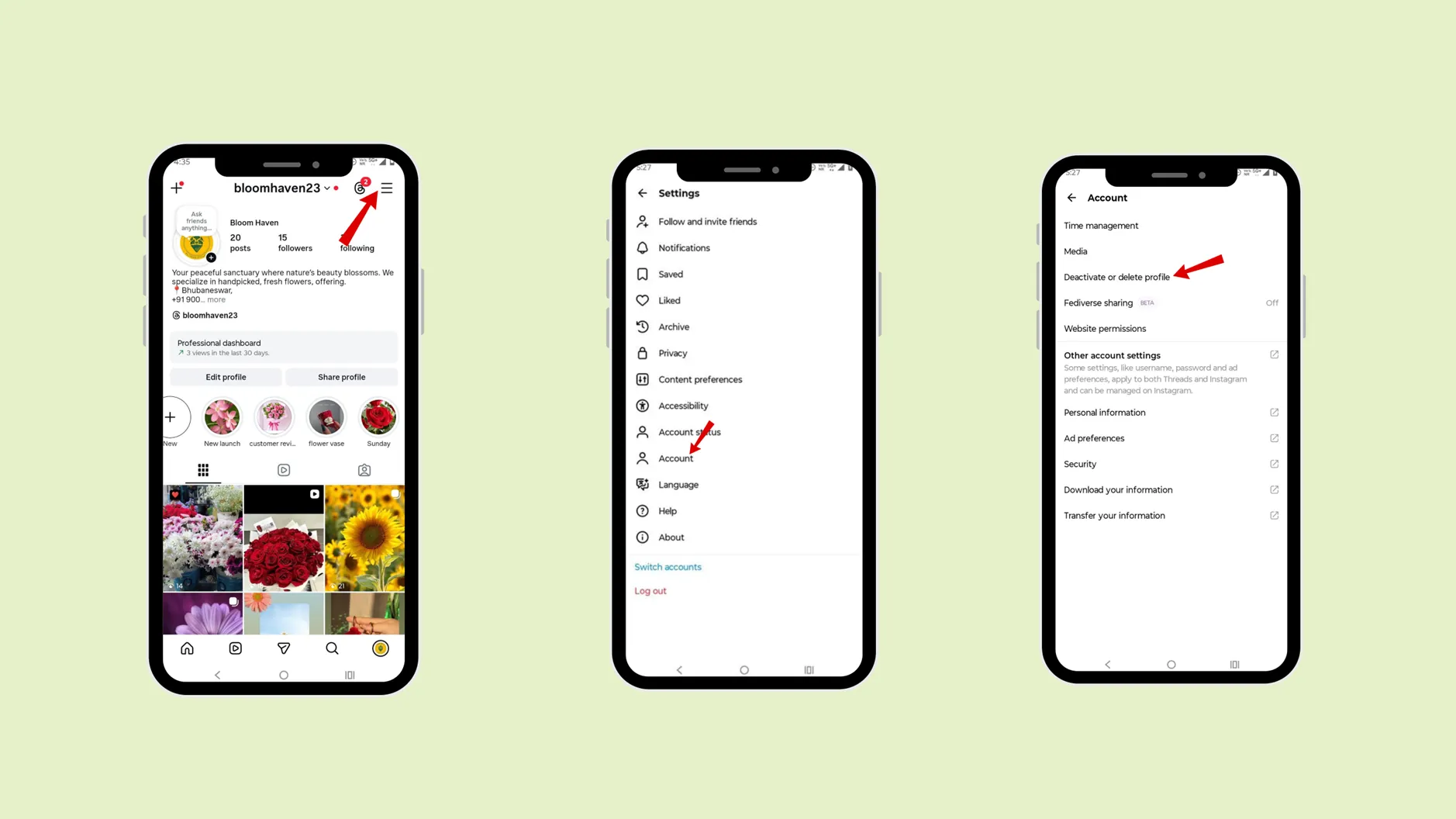
How to delete or deactivate a Thread account?
If you want to delete your thread account
Step 1: Go to the profile page
Step 2: Tap” Settings”.
Step 3: Tap “Accounts”.
Step 4: Tap “Deactivate or delete profile.
Outcome · RecommendedGet 30 days of social content from your website — in 10 minutes.
Conclusion
Instagram Threads offers a fresh, focused approach to social media. It focuses on conversation (text-based content) over visuals. It creates a space for you to post your thoughts, stories, build a community, and engage in real time.
Go through the steps to create an account on Thread and compose your first post. To maintain consistency, you can use the thread’s scheduling feature, but if you want to create a post in a minute and schedule it, explore indzu social. Not only threads, but indzu also helps you manage all your other social media in one place.
Proof · Verified
2k+ grew faster with one tool.
FAQs
Q1. Is the Instagram thread free?
Ans 1: Yes, the Instagram thread is completely free to use. You can download the app from your phone’s Play Store.
Q2. Can I use the thread without Instagram?
Ans 2: No, you cannot use a thread without using Instagram. You must have an Instagram account.
Q3. Can I delete Threads without deleting Instagram?
Ans 3: Yes, you can delete your thread account without deleting the Instagram account.
Q4. Can you use a thread on a desktop?
Ans 4: Yes, you can use the thread on a desktop. The thread can be accessed on a desktop via a web browser.
Q5. Does Threads have hashtags?
Ans 5: Yes, you can use hashtags in your thread. Hashtags should focus on conversion, keyword, and engagement to help the content get discovered.
Q6. Can you see who views your Instagram Threads?
Ans 6: No, people cannot see if you viewed their Instagram thread. You can see the total number of views your thread has received, but you cannot see the specific account.