

Why can’t I scroll on Pinterest? Is this question coming back and forth in your mind while discovering ideas and trying to explore some interesting content? As per data, 50% of Pinterest users are highly active, but in actuality it’s frustrating when you can’t access the pin that you want to visit. Well, this is not your problem. Many users face the same problem.
However, the reasons may vary from person to person, but the effect is quite the same; we leave the platform feeling frustrated. The most common reasons for not scrolling on Pinterest include app glitches, outdated software, and poor internet connectivity.
In this blog, we will discuss in detail the reasons that could affect your Pinterest screen time and answer your query about “why can’t I scroll on Pinterest” and how to fix this issue.
 Time killer · Pain
Spending 6 hours writing posts that get zero traction?
Paste your URL. ZuAI turns it into 30 brand-on captions in 10 minutes — no blank-page panic, no generic AI filler.
How to identify a Pinterest scrolling problem?
Generally, when you can’t move through the Pinterest feed, search results, boards, or Pins, these are the common signs that indicate that there is an issue with Pinterest scrolling. Here we are discussing in detail the common signs regarding the Pinterest scrolling problem:
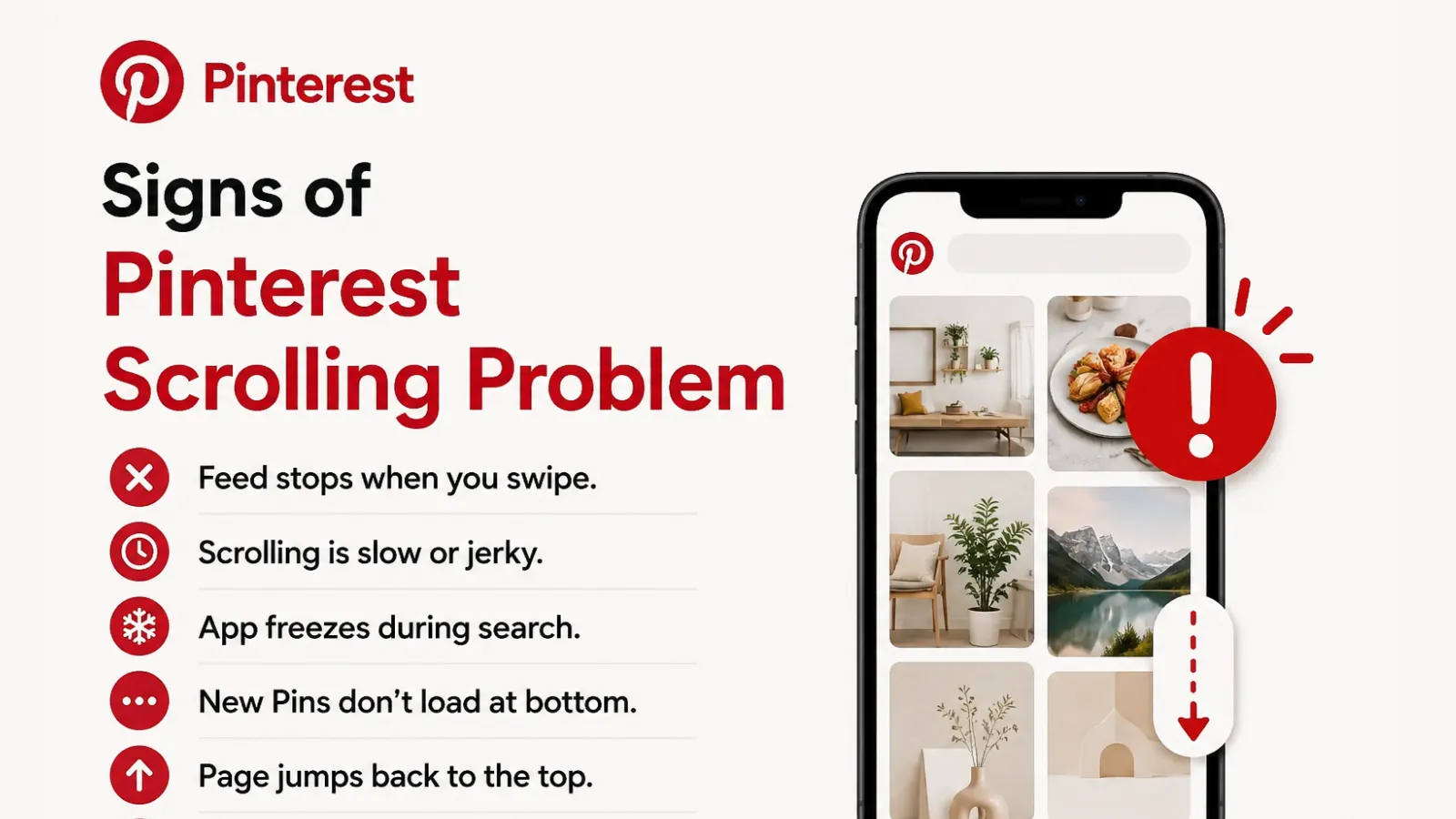
- The Pinterest feed stops functioning when you swipe up or down.
- Scrolling becomes very slow, or jerky, and it often leaves you upset.
- When you are searching for some Pins, the app freezes.
- New Pins are unable to load when you are at the bottom of the page.
- When you are scrolling downwards, Pinterest suddenly jumps back to the top while scrolling.
- The app shuts down on its own when you try to scroll through content.
Outcome · RecommendedGet 30 days of social content from your website — in 10 minutes.
Why can’t I scroll on Pinterest ?
It left us all annoyed and disappointed when we wanted to search through some content, but it sent us back to where we started our journey. When you are trying to scroll down on Pinterest, it may send you back to the top of your phone screen. The common reasons for this problem are:
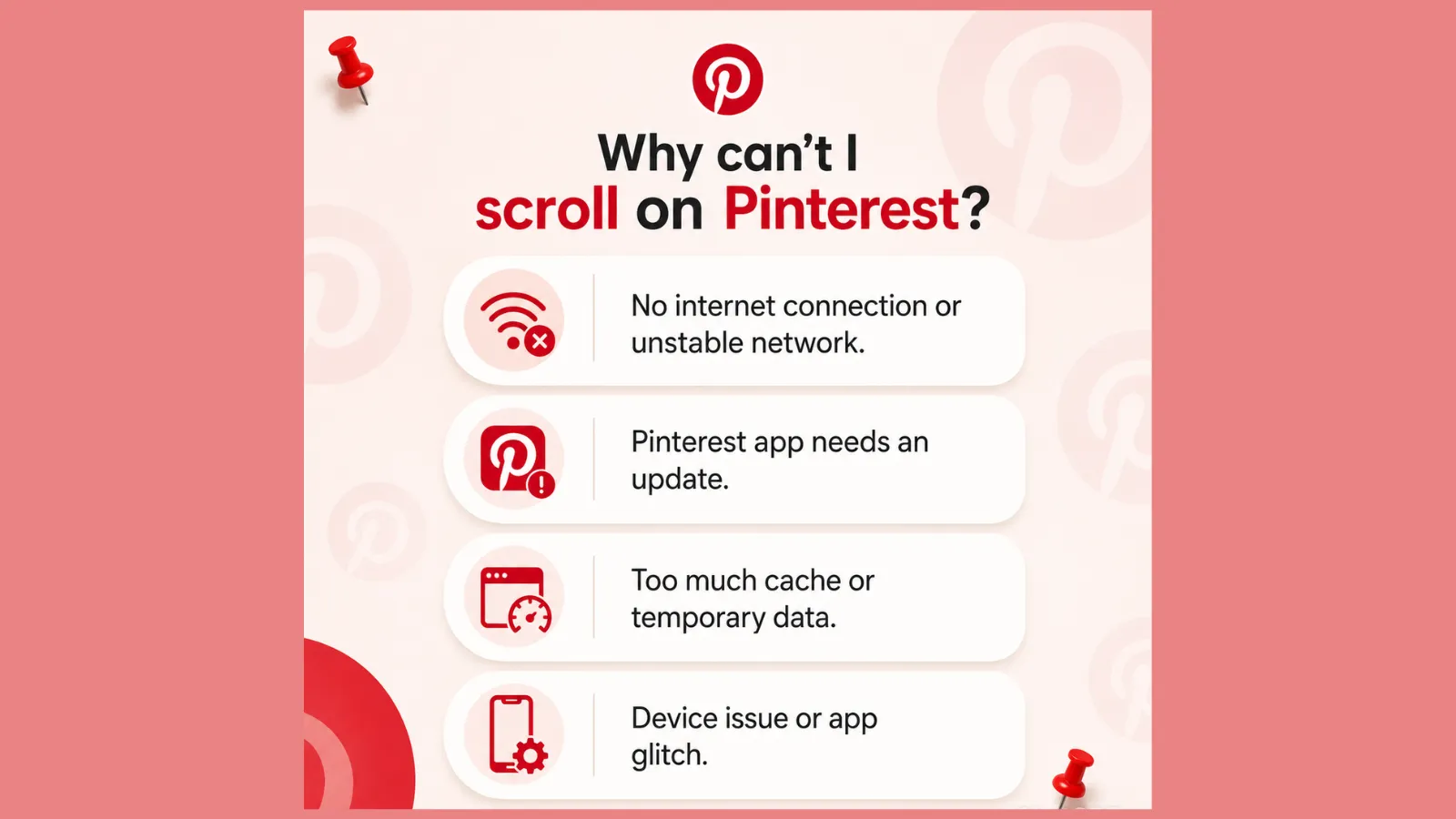
Poor Internet Connection
If you are facing problems while scrolling on the Pinterest feed, the main reason could be a poor Internet connection. Pinterest is always busy loading new Pins as you scroll. If your internet connection is unstable, then the app may stop loading content, and it can stay frozen.
Temporary Pinterest App Glitches
The reason could be that, like any other app, Pinterest may face a occasional glitches. This can affect the normal function of the app, such as scrolling through your feed, boards, or search results.
Outdated Pinterest App
Using an older version of the Pinterest app may affect your scrolling experience. It’s not always the poor internet connection that causes the issue; sometimes an outdated app can lead to scrolling issues.
Corrupted App Cache
Like other apps, Pinterest stores temporary files to improve loading speed. But if later these cached files get corrupted, then that can definitely lead to freezing and scrolling problems.
Device Performance Issues
If your device doesn’t have enough storage, or too many apps are open in the background, then Pinterest may stop working. If it doesn’t stop completely, Pinterest may struggle to function properly, and result in scrolling issues.
Pinterest server Outage
Sometimes the above-mentioned reasons are not the cause of your scrolling issue. On the other hand, if Pinterest’s servers are experiencing any technical difficulties or any outage due to server-down issues, then users may experience loading and scrolling issues.
Operating System Compatibility Problems
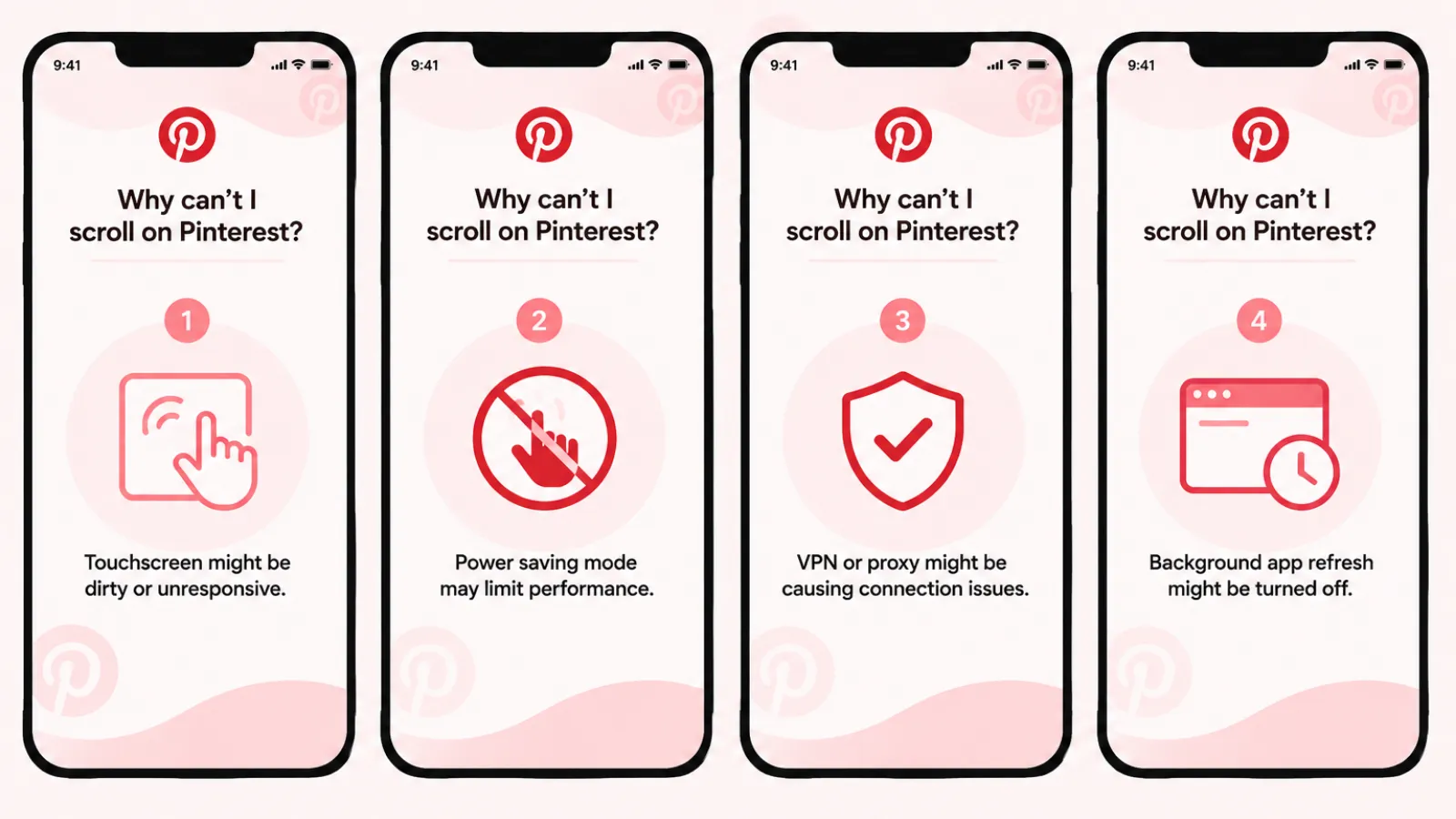
If your device is too old, it can definitely create a problem. An outdated operating system may cause interruptions if it is not compatible.
Battery saver Restrictions
If data saver mode or battery saver mode is enabled on your device, then this feature can interrupt or prevent Pinterest from loading content properly. It leads to scrolling issues.
Proof · Verified
2k+ grew faster with one tool.
How to fix Pinterest when it won’t scroll
If you have mild to severe issues regarding why you can’t scroll in your Pinterest feed while trying to view some Pin, then here are some fixes that may improve your Pinterest experience.

You need to check your Internet connection
You should switch between your mobile data and Wi-Fi connection. If you have enabled both services, you should disable one and then try it; it may solve the issue.
Close and reopen Pinterest
When Pinterest keeps crashing, close the app and then reopen it.
Restart your device
Sometimes restarting your device can help you resolve system-related issues and technical glitches.
Update the Pinterest App
Go to the Google Play Store and update the Pinterest app to its latest version.
Clear Pinterest Cache
Clearing the cache can help fix issues related to scrolling or slow loading. But the process is slightly different for iPhone and Android:
How to clear Pinterest Cache on Android
To clear Pinterest Cache on Android, you need to follow these simple steps:
- Open the Settings on your device.
- Then, tap on the Apps or Apps & Notification
- You will get to see all the apps that your device has on the list; select Pinterest from there.
- Tap Storage or Cache

- Then, in the final step, select Clear cache.
After following these steps, reopen Pinterest and check whether the issue is resolved or not.
How to clear Pinterest Cache on iPhone
If you are an iPhone User, then you can’t directly clear the cache for individual apps such as Pinterest from your app storage; however, by reinstalling the app, you can clear the cache on your iPhone.
- Open Settings on your iPhone
- Tap General> iPhone storage
- Scroll down and select Pinterest
- Tap Offload app
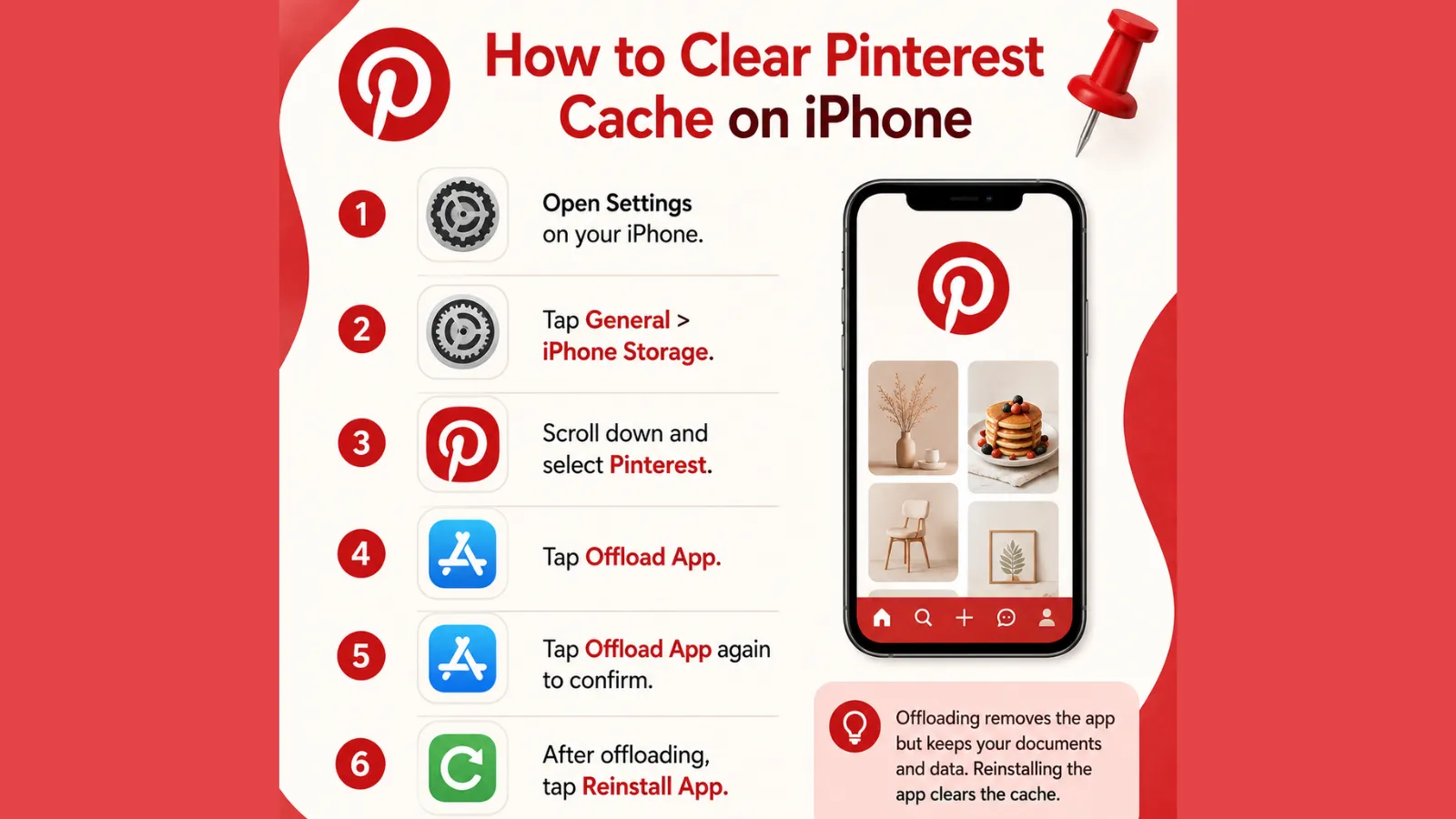
- Then, tap Offload again to confirm
- After offloading, Tap Reinstall app.
In this way, the temporary files or cache files will be removed.
Free up Device storage
Sometimes, if you have the least storage on the device, then it’s common to have problems with opening various apps. So, maintain clean storage; remove unnecessary storage to get a smooth social media experience.
Reinstall Pinterest
If the above methods don’t work, uninstall Pinterest and reinstall it.
Free · Instant · No signupSee what ZuAI generates from your website — right now.
Paste your URL. Watch ZuAI write a month of brand-on captions in seconds. Preview before you create an account.
How to prevent Pinterest Scrolling problems on a web browser
If Pinterest stops scrolling or gets interrupted while loading a new pin, use these preventive measures.
Keep your web browser updated
Like any other app, Pinterest works best on updated browsers versions of Google Chrome, Firefox, and Microsoft Edge.
Clear cache and cookies regularly
Corrupted cache data may make your Pinterest journey buggy.
So, maintaining a cache-free interface is essential. Follow these steps to clear cache files.
Chrome: Settings> Privacy and security> Clear browsing data.
Once donr, restart the browser.
Disable unnecessary browser extensions
If you have installed any extensions such as ad blockers or pop-up blockers, it may affect Pinterest. To avoid unnecessary interruptions, first open the browser extension page and disable extensions one by one. Check if you are facing the same issue.
Avoid opening too many tabs
If you are using too many tabs in the background, it may affect your Pinterest experience. It can lead to loading and scrolling issues. So, close the unnecessary tabs that are open in the background to get a better Pinterest experience.
Enable JavaScript
Enabling JavaScript can definitely help prevent scrolling issues on Pinterest. It is very much dependent on JavaScript to load new pins and content as you scroll. If JavaScript is disabled, then it can interrupt in page loading, and affect infinite scrolling. Here are the steps to enable JavaScript.
- Go to Chrome browser
- Click on the three-dot on the top right corner of the screen.
- Select the settings.
- Go to Privacy and Security> Site Settings.
- Scroll down and tap on JavaScript.
- Select “Sites can use JavaScript”.
Speed · 10-minute setupOne coffee from URL to a full month of scheduled posts.
Drop your URL, brew your coffee, come back to 30 brand-on captions ready to publish.
Conclusion
In conclusion, the social media journey is not always so smooth as it looks; sometimes it’s buggy and frustrating too. Indzu is always here to provide you with the best guide on Pinterest. Minor issues are fixed easily, and only a few issues need a deeper analysis.
Blank tab. Six open browsers. No clue what to post.


 After · With Indzu
Paste one URL. Get 30 scheduled posts.
FAQ Section
Q1. Why can’t I scroll on Pinterest?
Answer: If you have issues with loading feeds or Pins on Pinterest, it can be due to a poor internet connection, app glitches, or an outdated app version. And sometimes cached data, disabled JavaScript, or browser extensions can also interrupt smooth Pinterest scrolling.
Q2. How do I fix Pinterest when it won’t scroll?
Answer: Check if the following steps work for you: First check your internet connection, refresh the page, clear the browser or app cache data, and update the Pinterest app. If the issue is still not solved, you can also try to disable browser extensions, enable JavaScript, or try another browser or device. By following these steps, you can surely resolve scrolling-related issues on Pinterest.
Q3. Does clearing the Pinterest cache solve the scrolling issue?
Answer: Yes, clearing the Pinterest cache solves the scrolling issue in most cases. Because a corrupted cache may sometimes prevent Pinterest from loading new Pins properly. After removing the corrupted cache, Pinterest may run smoothly, but if you are still getting issues, then you may need to reinstall the app or stabilize your Internet connection.